> ## Documentation Index
> Fetch the complete documentation index at: https://hercules.app/docs/llms.txt
> Use this file to discover all available pages before exploring further.
# Chat with Hercules and your Agents
> Chat is a general AI assistant in your Dashboard. Ask it questions, work across your connected tools, or talk to one of your Hercules Agents directly.
Chat is in private beta, so things may change. If you hit a problem, tell us via [Support &
feedback](/docs/company/contact).
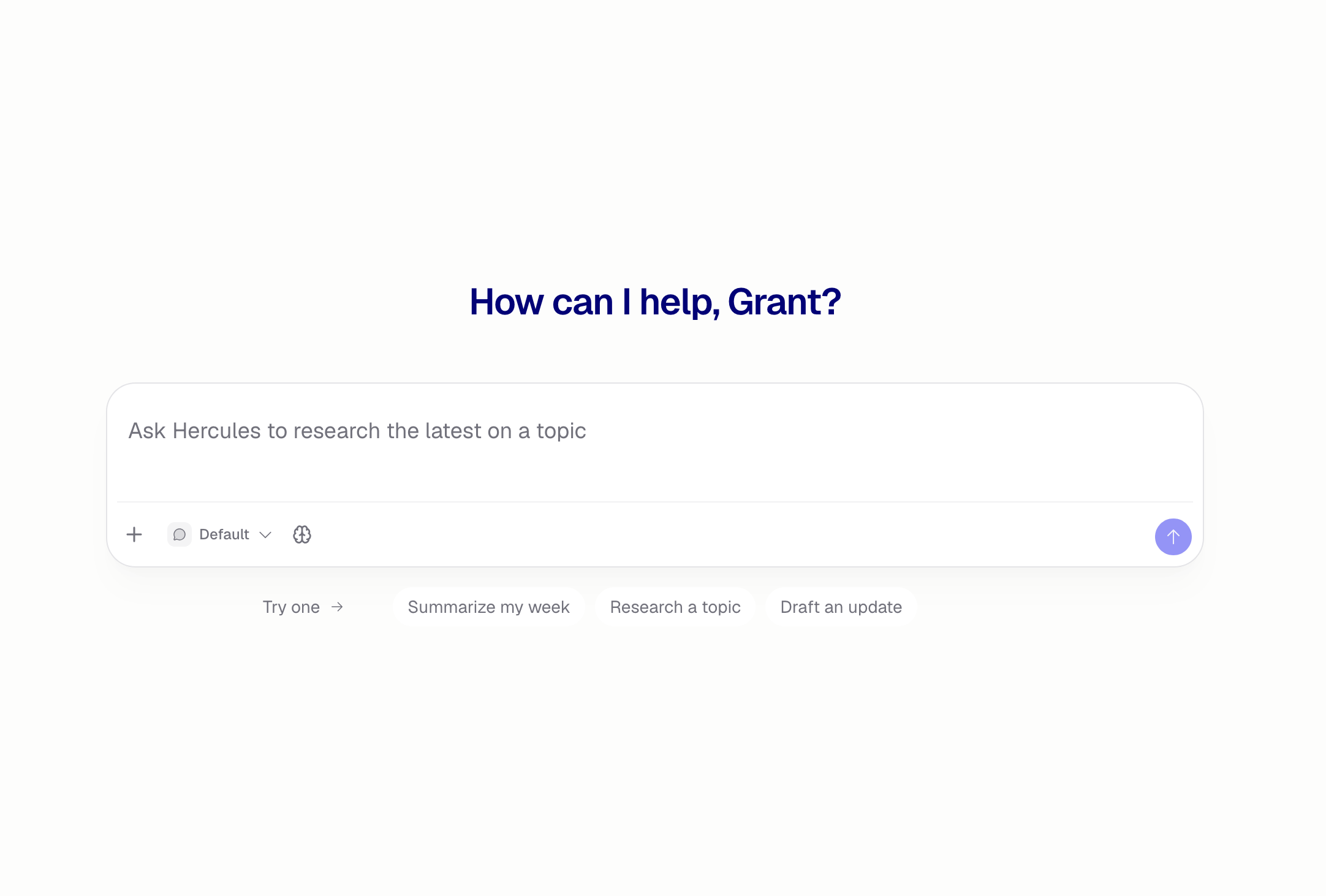
Chat is a general AI assistant that lives in your Dashboard. Ask it a question, have it research a topic, draft something for you, or get work done in the apps you have connected. It's also where you talk to one of your [Hercules Agents](/docs/agents/what-are-agents) directly, without waiting for a trigger to start it.
Chat does not build apps. To build or edit an app, use the [Hercules App Builder](/docs/apps/quickstart).
### How do I start a chat?
Click **Chat** at the top of the Dashboard sidebar, or go to
[hercules.app/dashboard/chat](https://hercules.app/dashboard/chat).
Send your message, or tap one of the suggestions under the box to start.
Every reply stays in the conversation, so you can follow up without repeating yourself.
Start another conversation with **Create new chat** in the sidebar, or press Cmd + Shift + O / Ctrl + Shift + O.
### What can Chat do?
* **Answer questions**, including about things that changed recently. Chat searches the web when accuracy matters, and links its sources
* **Read a link** you paste, or a page it found while searching
* **Find images** when you ask for visual references
* **Use your connected tools**, like Slack, Notion, Linear, or GitHub
* **Read what you attach**. Drag a file onto the message box, paste it, or click **+** → **Attach files**. Chat reads images, PDFs, and text files
Chat uses your [Chat Connectors](/docs/ai/chat-connectors), the same ones the App Builder Agent uses, so they're personal to you and teammates cannot use yours. To point Chat at a specific tool, type **@** and pick the connector. Open **Integrations** at the bottom of the Chat sidebar to connect more.
Chat asks before it creates, changes, or deletes anything in a connected tool, unless you set that
tool to **Always allow**. See [connector permissions](/docs/ai/chat-connectors).
### How do I chat with one of my Agents?
Click the picker at the bottom left of the message box. It says **Default** until you change it. Choose one of your Agents, and the suggestions under the box change to that Agent's example questions.
What's different from the default assistant:
* The Agent brings its own [integrations](/docs/agents/integrations), not your personal connectors
* The Agent runs on the model it is set to, so the model selector is hidden
* The conversation is a real run of the published Agent. It shows up in the Agent's [History](/docs/agents/run-history) and counts toward its [costs](/docs/agents/costs-and-limits) like any other run
* Anyone in your Organization can carry on the conversation, the same as any other run of that Agent
* There is no share link. The run is already visible to your team through the Agent it belongs to
Who a conversation is with is fixed once it starts. Start a new chat to talk to a different Agent.
### How do I find an old conversation?
Every conversation is kept, listed in the Chat sidebar and grouped by when it was last active. Type in the search box at the top to match conversation titles.
To narrow the list further, click the filter button beside the search box:
* **Agent**: everything, only the default assistant, or one of your Agents
* **Person**: only your conversations (the default), everyone's, or one teammate's
### How do I share a chat?
Open the conversation and click **Share**, or use **...** → **Share** in the sidebar. Pick who can see it:
| Option | Who can see it |
| ------------- | ------------------------------------------------ |
| **Private** | Only you. This is how every conversation starts |
| **Your team** | Anyone in your Organization with the link |
| **Public** | Anyone with the link, no Hercules account needed |
Copy the link from the same dialog. Whoever opens it reads the conversation, they cannot add to it. To stop sharing, set the conversation back to **Private** and the link stops working.
A public link works for anyone who has it. Check what's in the conversation before you share it,
including anything it pulled in from your connected tools.
### Additional FAQ
Chat uses AI credits, the same credits as the rest of Hercules. See [AI
Credits](/docs/platform/billing/ai-credits).
Hover a conversation in the sidebar and click **...**. Titles are written for you from the first
message, so rename it to whatever you want. Deleting cannot be undone, and deleting a conversation
with an Agent also removes it from that Agent's [History](/docs/agents/run-history).
Yes, for the default assistant. Click the 🧠 selector in the message box and pick a model. See
[models](/docs/ai/how-it-works) for what each one trades off. A conversation with one of your Agents
runs on the model that Agent is set to.
Not unless you share one. Conversations with the default assistant are private to you until you
change that. Conversations with an Agent belong to the Organization, so anyone in it can read them
and reply.
Only if it is a run of one of your Organization's Agents. A teammate's conversation with the
default assistant is read-only, even when they share it with you.
Only enabled Agents can hold a conversation. Turn it back on from the Agents list, then it
appears. See [Manage Agents](/docs/agents/manage-agents).
No. Chat has no codebase and no development environment. Use **Create new app** in the Dashboard,
then build it in the [App Builder](/docs/apps/quickstart).
Chat is switched on one Organization at a time. If **Chat** is missing, contact
[hello@hercules.app](mailto:hello@hercules.app).