> ## Documentation Index
> Fetch the complete documentation index at: https://hercules.app/docs/llms.txt
> Use this file to discover all available pages before exploring further.
# Agent issues
> Issues are the problems Auto-improve found in your Hercules Agent. Sort them by how serious they are, discuss them with your team, and apply the suggested fix.
Agents is in private beta, so things may change. If you hit a problem, tell us via [Support &
feedback](/docs/company/contact).
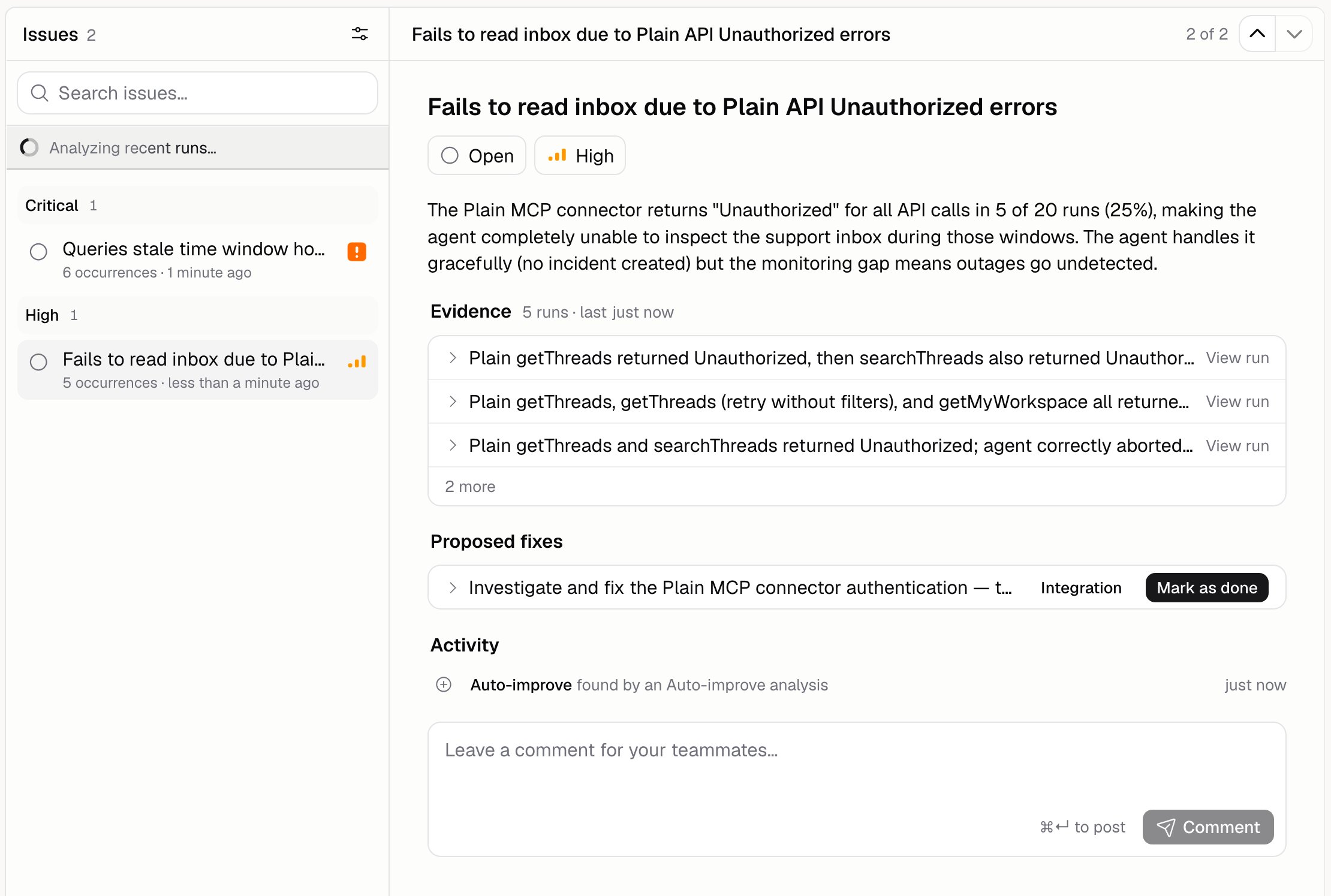
Issues is your to-do list of problems [Auto-improve](/docs/agents/auto-improve) found in your Agent's runs. Each one says what's going wrong and suggests a fix.
Go to **Agents** → open an Agent → **Improve** → **Issues**.
### What's on an issue?
| Field | What it means |
| ------------------ | ----------------------------------------------------------- |
| **Severity** | How serious it is: Critical, High, Medium, or Low |
| **Status** | Open, Acknowledged, Applied, or Dismissed |
| **Last seen** | The most recent run where this happened |
| **Evidence** | The runs Auto-improve read to reach this conclusion |
| **Proposed fixes** | What to change, see below |
| **Activity** | Comments from your team, plus a record of every change made |
### How do I work through the list?
Group by **Severity** or **Status**, or turn grouping off. Sort by how often it happens, how serious it is, when it was last updated or last seen, or by title. Filter by status, severity, or a search, and click **Clear all** to start over.
The list opens on issues that still need work. Click **Show applied and dismissed** to see the rest.
Start with Critical and High, grouped by severity.
### How do I apply a fix?
Open the issue and apply the fix. An issue can suggest more than one, and they come in a few shapes:
* **An instructions change**, shown side by side with your current instructions
* **A test case** to add, so the same problem gets caught by an [evaluation](/docs/agents/evaluation-runs) next time
* **A scorer** to add, for the same reason
* **Something for you to do yourself**, outside the Agent, which you then **Mark as done**. Each one says what it's about: knowledge base, tool, integration, or other
Applying a fix is immediate. A change to instructions or tools publishes a new version and goes
live on the next run. There's no draft to check first, and only your own to-dos can be un-ticked.
To undo a fix, open the previous version in [version history](/docs/agents/versions) and publish it.
Read the change before you apply it. If you've edited the Agent since the fix was written, Hercules warns you that applying it will overwrite your newer instructions.
### Can I change how serious an issue is?
Yes. Set your own severity on the issue. Yours wins everywhere the issue appears, and the change is recorded in the activity log.
### Can the Agent see its own issues?
Only if you let it. Go to **Build** → **More** → **Issue access**:
| Setting | What the Agent can do |
| ------------------ | ---------------------------------------------------------------------------------------------------------------- |
| **None** | Nothing. It can't see its issues |
| **Read** | Read its issues, and report a problem it notices while working. Reports are reviewed before they reach your list |
| **Read and write** | Everything in Read, plus changing an issue's status and severity, including closing one it thinks is fixed |
Issue access is part of the Agent, so changing it creates a draft you'll need to publish.
### Additional FAQ
The list loads a page at a time, so the count is what's loaded so far. A trailing `+` means
there's more.
It takes the issue off your list without changing anything. Use it for things that aren't really
problems, then add the reason to the extra context box on [Auto-improve](/docs/agents/auto-improve) so
it stops reporting them.
From [Auto-improve](/docs/agents/auto-improve) analyses, and from the Agent itself when Issue access
allows it.
Yes. Agents belong to your Organization, and everyone in it sees the same issues and comments.
No. Applied and dismissed issues are closed for good. If the same problem happens again, it turns
up as a fresh issue.