> ## Documentation Index
> Fetch the complete documentation index at: https://hercules.app/docs/llms.txt
> Use this file to discover all available pages before exploring further.
# Agent triggers
> Start a Hercules Agent automatically: run it on a repeating schedule, from a private web address, or whenever something happens in an app you use.
Agents is in private beta, so things may change. If you hit a problem, tell us via [Support &
feedback](/docs/company/contact).
A trigger is what starts your Agent when you're not there. An Agent can have as many as you need.
Go to **Agents** → open an Agent → **Build** → **Triggers** → **Add trigger**.
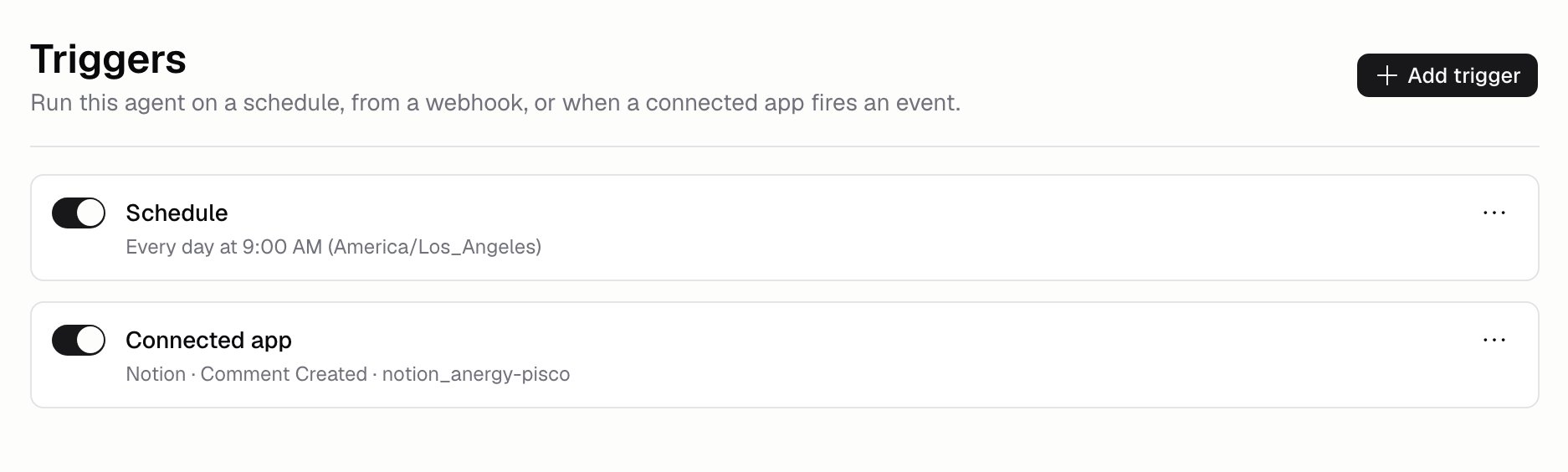
### What kinds of trigger are there?
| Trigger | What it does |
| ----------------- | ------------------------------------------------------------------------------- |
| **Scheduled** | Runs the Agent on a repeating schedule, in the timezone you pick |
| **Webhook** | Runs the Agent whenever another system sends something to a private web address |
| **Connected app** | Runs the Agent when something happens in an app you've connected |
### How do I schedule an Agent?
Add a **Scheduled** trigger, set when it should run, and pick a timezone. Hercules repeats the schedule back to you in plain English, so you can check it before saving.
Give it a name if you like, for example `Weekday morning digest`.
### How do I use a webhook trigger?
Add a **Webhook** trigger and copy its web address. Have the other system POST its event to that address, and each POST starts a run the Agent can read the event from. Other kinds of request don't start anything.
Anyone with the address can start your Agent, so keep it secret. Treat it like a password.
### How do I start an Agent from another app?
Search the trigger catalog for the app, for example Stripe or Linear. Filter by **Connected** to see only the apps your Organization has already set up. Pick the app, then choose which events should start a run.
For GitHub you pick the repository from a list rather than typing it, and you can type one in if it isn't there. If the connection fails, the trigger tells you why.
If the app you need is missing, click **Suggest a trigger**.
### Additional FAQ
Open [Run history](/docs/agents/run-history). Every run names the trigger behind it, and webhook runs
also show what was sent to them.
Switch the trigger off. Each one has its own toggle, so you can pause a schedule and leave the
rest running, then switch it back on later without setting it up again. Deleting it works too.
[Channels](/docs/agents/channels) have the same toggle.
Not if you set a limit. **Build** → **More** → **Run limits** caps how long a single run can take
and how much it can spend. See [Costs and limits](/docs/agents/costs-and-limits).
Test the Agent itself in the test chat first, so you know the instructions work. Then add the
trigger and check the first real run in History.
A trigger starts a run from a clock or an event. A [channel](/docs/agents/channels) starts a run
because a person @-mentioned the Agent in Slack, GitHub, Linear, or another chat tool, and the
Agent replies to them there.