> ## Documentation Index
> Fetch the complete documentation index at: https://hercules.app/docs/llms.txt
> Use this file to discover all available pages before exploring further.

# Dev Machines

> Temporary servers for building and testing. Stop, then start if issues. Published apps run separately.

Use Hercules Dev Machines to build and test your app before your publish it.
<div className="screenshot sunset">
  <img src="https://mintcdn.com/zeus-0f6dadbf/vyfZOWPi9KdyCPiO/images/apps/dev-machine-setup.png?fit=max&auto=format&n=vyfZOWPi9KdyCPiO&q=85&s=997ea8b4d55ecadbf62f820444d3079e" alt="Dev machine setup panel with start and stop controls" style={{ maxWidth: "400px" }} width="656" height="626" data-path="images/apps/dev-machine-setup.png" />
</div>

### How do dev machines work?

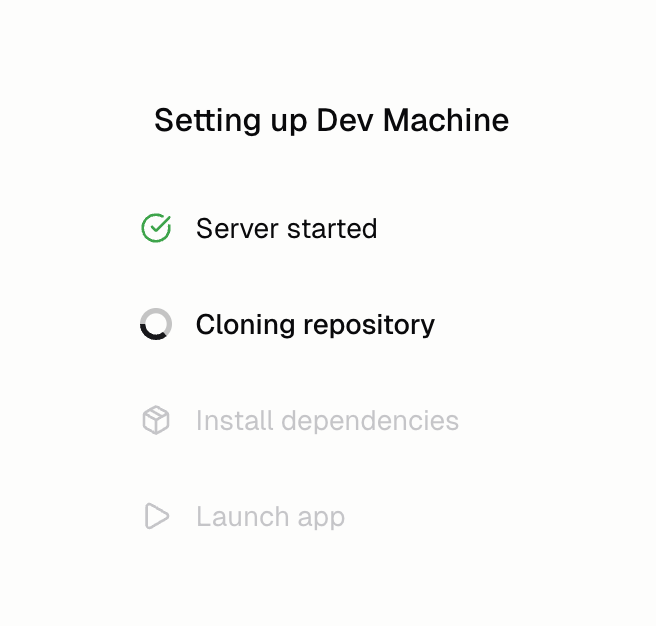
We create a temporary server, download your code to it, then set up a local development environment. We then show you a preview inside the Hercules App Builder.

### Who can see my dev machine preview?

Only teammates who can open the app in Hercules. Anyone else who opens a dev machine link sees **This dev preview isn't available** (after signing in to Hercules, if they aren't already). Your published app is not affected.

### Why do I have to sign in when I open my preview in a new tab?

Dev machines are protected by your Hercules account. When you open the preview outside the App Builder (for example with **Open in new tab**) and you're not signed in to Hercules, you're asked to sign in first. You then go straight back to the preview.

This is separate from your app's own login. The Hercules sign-in gets you into the dev machine. If your app has its own login for your users (for example [Hercules Auth](/docs/apps/users-auth/get-started)), you still sign in to your app after that, the same way your users do.

### My dev machine is having issues. How do I fix it?

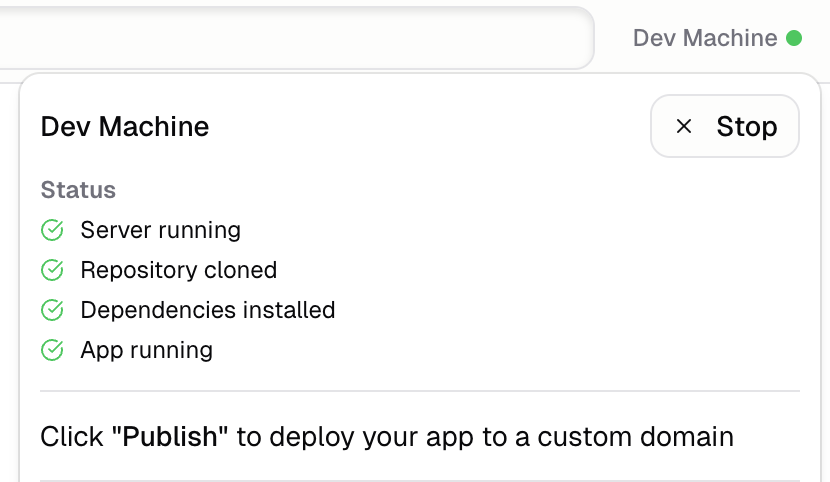
Click **Dev Machine** in the top right of the App Builder → **Stop** → **Start**.

1. Click the Dev Machine icon in the top right of the preview
2. Click "Stop"
3. Click "start"

If it's still not working, please "Support & feedback".
<div className="screenshot fire">
  <img src="https://mintcdn.com/zeus-0f6dadbf/vyfZOWPi9KdyCPiO/images/apps/dev-machine-status.png?fit=max&auto=format&n=vyfZOWPi9KdyCPiO&q=85&s=ab95011e4c9d392dbdef5d2dbee29832" alt="Dev machine setup panel with start and stop controls" width="830" height="482" data-path="images/apps/dev-machine-status.png" />
</div>

### Additional FAQ

<AccordionGroup>
  <Accordion title="If there is a dev machine outage what happens to my published app?">
    Your published app is safe. Published apps are hosted separately on more scalable, robust, and reliable machines. They rarely have issues and are completely separate from Dev machines.
  </Accordion>

  <Accordion title="Why does my dev preview say it isn't available?">
    The account you're signed in with can't open this app, or the dev machine doesn't exist. Click
    **Try another account** and sign in with an account that can open the app in Hercules. Apps shared
    with only some teammates can only be previewed by those teammates.
  </Accordion>

  <Accordion title="Can I get a faster dev machine?">
    Users on paid plans get dev machines with more RAM and CPU and have longer timeout limits. Larger
    machines are faster for large codebases and make it faster for multiple agents to run at the same
    time.
  </Accordion>

  <Accordion title="What are common dev machine issues?">
    Dev machine issues often happen after dev machines timeout from inactivity. They most commonly happen:

    1. While starting up:
       1. Loading forever on a specific step (eg on cloning repository)
       2. Showing a gray browser error screen saying a `hercules-dev.com` URL does not exist
    2. After loading
       1. Crashing in the middle of an agent run (404/500)

    **"Container is not running"** – Click **Dev Machine** in the top right of the App Builder → **Stop** → **Start**.

    **White screen** – Can happen on first load. Give it 30 seconds. If not, refresh the preview or refresh your whole page.

    If any of these happen, click **Dev Machine** in the top right of the App Builder → **Stop** → **Start**. If they continue, use "Support & feedback".
  </Accordion>
</AccordionGroup>


This documentation is built and hosted on [Mintlify](https://mintlify.com), a developer documentation platform.