> ## Documentation Index
> Fetch the complete documentation index at: https://hercules.app/docs/llms.txt
> Use this file to discover all available pages before exploring further.

# Hercules Email

> Send emails from your app. Verify email or domain. Welcome emails, invoices, order confirmations, and more.

Send emails to your users directly from inside your Hercules app. Send emails from a free Hercules email or from your own branded email address.
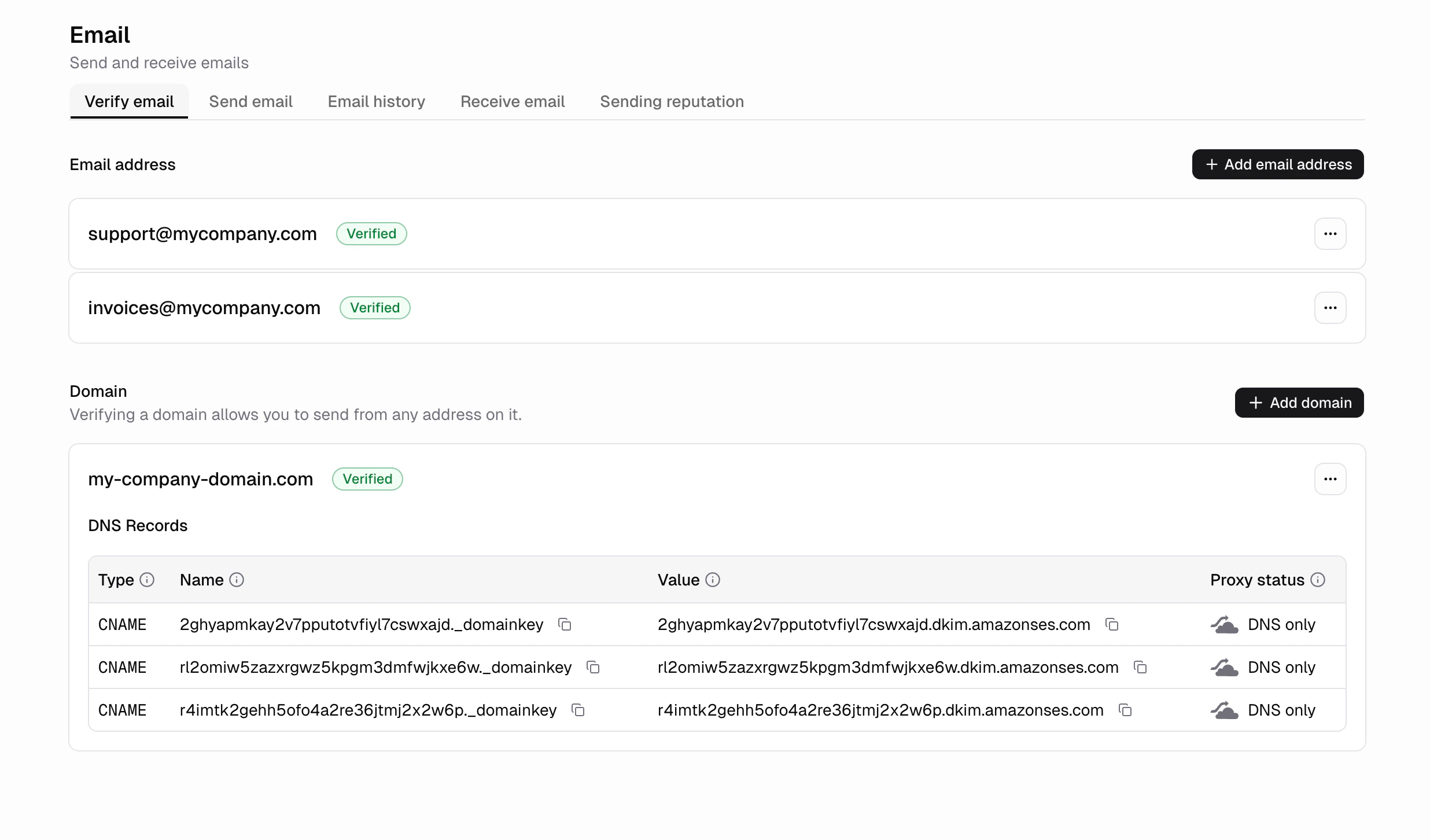
<div className="screenshot ocean">
  <img src="https://mintcdn.com/zeus-0f6dadbf/_h8yJmXegD6Hz1Ps/images/apps/email-verify.png?fit=max&auto=format&n=_h8yJmXegD6Hz1Ps&q=85&s=3a2459c4a2af95e8eb89067eff393e6f" alt="Hercules Emails overview showing sent emails and delivery stats" width="2472" height="1452" data-path="images/apps/email-verify.png" />
</div>

### How do I get started?

1. Go to the **Email** tab in the **Build** section of the left sidebar
2. Verify a single **email** or an entire **domain**
3. That's it!

Now just tell Hercules when you want to send an email

```text Email sending examples wrap theme={}
Send a welcome email to every user when they sign up
```

### What are common use cases for sending emails from within my app?

* Welcome emails when a new user signs up
* Form submissions
* Invoices for a purchase
* Order confirmations after a purchase
* Account alerts like login from a new device

### How do I send emails to all my users?

Go to the horizontal Send email tab
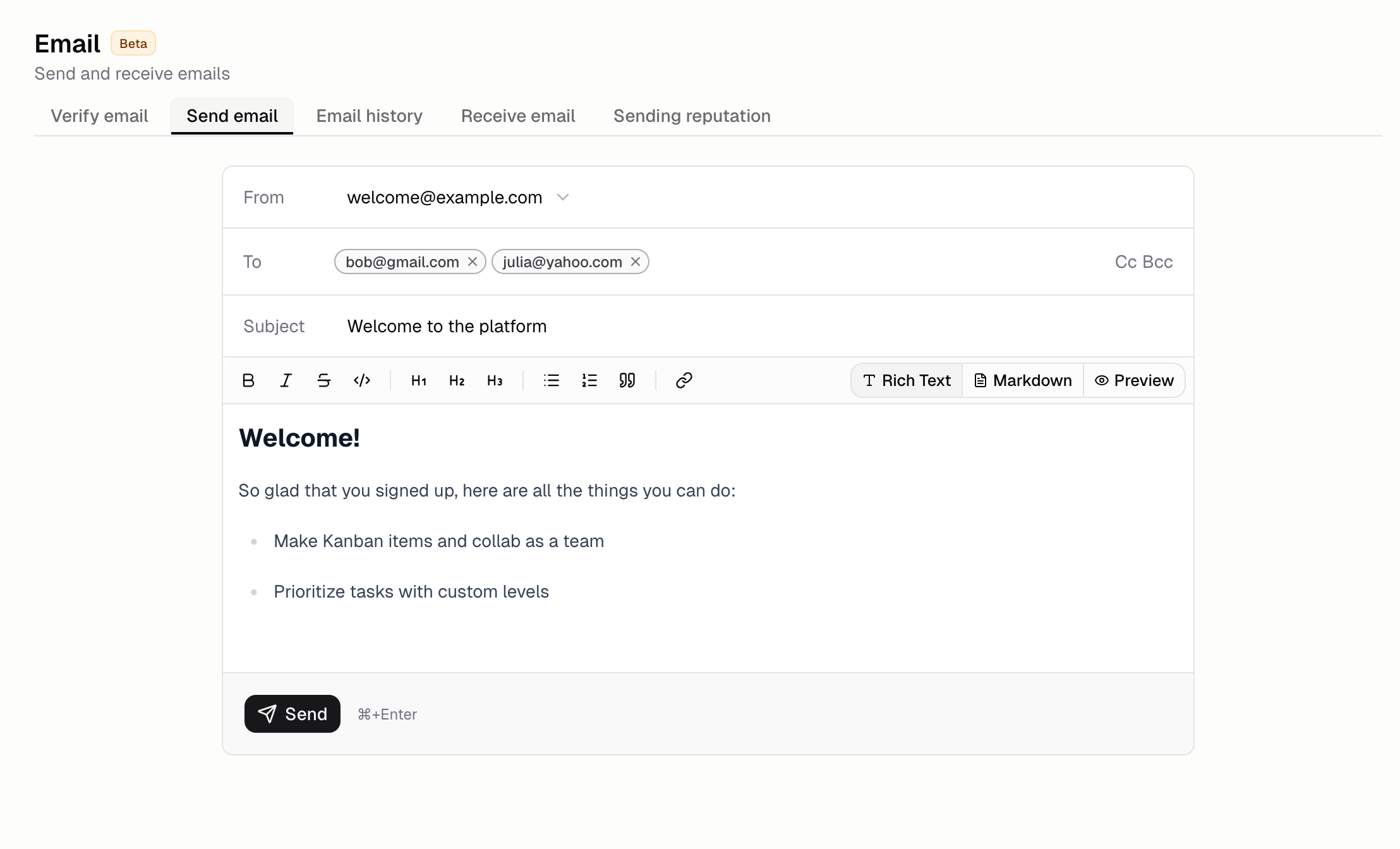
<div className="screenshot ocean">
  <img src="https://mintcdn.com/zeus-0f6dadbf/njQwrBJO_N9LDXl3/images/apps/email-send.png?fit=max&auto=format&n=njQwrBJO_N9LDXl3&q=85&s=3421bc5b168d431e6cf43dfb02a806e7" alt="Send email tab with recipient selection and compose options" width="2216" height="1344" data-path="images/apps/email-send.png" />
</div>

## Suppression list

Some addresses should never be emailed again: a mailbox that no longer exists, or a recipient who
reported your email as spam. Hercules keeps a **suppression list** of those addresses and refuses to
send to them, which is what protects your ability to reach everyone else.

An address gets on the list three ways:

* **Bounced** — the recipient's mail server permanently rejected the message.
* **Marked as spam** — the recipient reported your email as spam.
* **Added by you** — you put it there from the dashboard or the API.

The first two happen automatically. The list belongs to your organization and covers every app and
sender address you own, so an address suppressed in one app is suppressed in all of them. It is
yours alone — no other Hercules customer's bounces affect it.

To manage it, go to the **Email** tab and open **Suppressions**. From there you can add an address,
import a CSV (or a plain list, one address per line), export the whole list, and allow an address
again.

<Warning>
  Removing an address does not guarantee delivery. If it bounces or is reported as spam again, it
  goes straight back on the list.
</Warning>

## Sending suspension

Every Hercules app sends through shared email infrastructure, so one sender with a bad list can hurt
delivery for everyone. Hercules suspends email sending for an organization automatically in two
steps:

| Step | Bounces (last 24 hours) | Spam reports (last 30 days) | What stops |
| - | - | - | - |
| Warning | 5% | 0.01% | Nothing yet |
| App email suspension | 10% | 0.04% | Emails your apps send, except login codes and account emails |
| Full suspension | 20% | 0.08% | All email, including login codes |

Bounce rates count the recipients of the emails your apps send, once you have sent to at least 50 recipients
in that time. A high bounce rate almost always means a purchased, scraped, or outdated list. Spam
reports suspend sending only once there are at least 2 of them in that time (1 on the free plan), so
on a paid plan a single report on a small list sends a warning, not a suspension. A full suspension
for spam reports needs at least 3 of them on every plan.

During an app email suspension, login codes, email verification, and password reset emails keep sending,
so your users can still sign in. Your organization's owners get an email at each step, and a notice
appears on the **Email** screen.

A suspension does not lift on its own. To restore sending, remove the addresses that caused it,
then use **Contact support** on the **Email** screen. The email it opens already includes your app
and the reason for the suspension.

## FAQ

<AccordionGroup>
  <Accordion title="How do I verify my email address?">
    1. Go to the **Email** tab
    2. Input the email address you want to send from.
    3. Click the verification link we send to that email

    Once verified, Hercules will be able to send emails from that email address
  </Accordion>

  <Accordion title="How do I verify my domain?">
    1. Go to the **Email** tab
    2. Input the domain you want to send from.
    3. Follow the instructions to add the DNS records to your domain's nameservers

    Once your email sending domain is verified, Hercules will be able to send emails from any email address with that domain.
  </Accordion>

  <Accordion title="How do I verify a domain I purchased from Hercules?">
    1. Go to the **Email** tab
    2. Input the Hercules domain you purchased.
    3. Follow the instructions to add the DNS records to your domain purchased on Hercules.
    4. Go to **Domains** → **Purchased Domains** → your domain → **DNS Records** → **+ Add record** and add your DNS records.

    Once verified, Hercules will be able to send emails from any email address with that domain.
  </Accordion>

  <Accordion title="Can I customize how my emails look?">
    Yes. Ask Hercules to update the design of your emails. You can change colors, layout, logo, and
    content by describing what you want.
  </Accordion>

  <Accordion title="What happens if an email fails to deliver?">
    Failed emails show up as bounced in the **Email** tab with a reason. Hercules stops sending to
    addresses that permanently bounce to protect your sender reputation, by adding them to your
    [suppression list](#suppression-list). You can remove an address from that list yourself.
  </Accordion>

  <Accordion title="Can I see cc, bcc, or an email's ID in the history?">
    Yes. Open the **Email** tab, click the sliders icon above the history table, and switch on **Cc**,
    **Bcc**, **Reply-to**, or **Email ID**: the id is the handle the email API reads a single message
    by, and the one thing the detail panel does not show. Your choice is remembered in this browser,
    and **Reset to default** in the same menu puts it back.
  </Accordion>

  <Accordion title="Why did my send fail with 'email_recipient_suppressed'?">
    The recipient is on your [suppression list](#suppression-list), so the send was rejected before it
    left Hercules. That is deliberate — it costs you nothing and cannot hurt your sender reputation.

    Go to the **Email** tab, open **Suppressions**, find the address, and choose **Allow email again**
    if you are confident the mailbox is now working. Bear in mind that whatever put it on the list will
    put it back if it happens again.
  </Accordion>

  <Accordion title="Can I stop emailing a specific address?">
    Yes. Go to the **Email** tab, open **Suppressions**, and choose **Add address**, or import a whole
    list from a CSV. Hercules will refuse to send to it from any of your apps until you remove it.
  </Accordion>

  <Accordion title="What is the difference between verifying an email and a domain?">
    Verifying an email address lets you send from that specific email address. Verifying a domain lets
    you send from any email address on that domain. Email verification is faster (click a link), while
    domain verification requires adding CNAME records to your DNS.
  </Accordion>

  <Accordion title="Is there a limit on how many emails I can send?">
    Yes. Your plan sets a monthly limit, and a daily cap sits underneath it.

    Your monthly limit, counted across the trailing 30 days:

    1. Free: 100 emails / month
    2. Pro: 10,000 emails / month
    3. Business: 100,000 emails / month

    Your daily cap is a tenth of that, counted across the trailing 24 hours:

    1. Free: 10 recipients / day
    2. Pro: 1,000 recipients / day
    3. Business: 10,000 recipients / day

    The daily cap counts **recipients, not sends**. Every address in To, Cc, and Bcc counts as
    one, so a single send to 30 people uses 30 of the day's allowance. Only emails you send
    through the API draw from it. Sign-in emails do not.

    Sending at an even pace uses about a thirtieth of your monthly limit each day, so the cap
    leaves roughly three times that for a busy day, while stopping a runaway loop from
    spending a whole month's allowance at once.

    Broadcasts are the usual way to meet it. Sending to more recipients than the day's
    remaining allowance delivers the first few and rejects the rest with a 429, so a list
    larger than your daily cap needs to be split across days. Capacity returns gradually
    rather than all at once, as earlier sends age out of the trailing 24-hour window.

    On the legacy Lite plan, both limits match Pro.

    If you need to send more emails, please contact support.
  </Accordion>

  <Accordion title="Why do repeated emails to the same address fail with a 429?">
    Separately from your monthly and daily limits, your organization can send at most 10 emails per hour to any one
    address in the To field. This guards against a single inbox being flooded. Only your own sends count
    towards it, so nobody else's sending can use up your allowance, and it is the same on every plan, so
    upgrading does not raise it.

    Sign-in emails share the allowance only if you have set your app to send them from your own verified
    address. When you have, sending 10 test emails to your own address also blocks your own login codes
    for the rest of the hour. If your app still uses the default Hercules sign-in email, those codes go
    out through a separate sender and are not affected.

    It most often shows up while testing, when every test email goes to the same address. Every other
    address has its own allowance, so vary the recipient between test runs (many mail providers let you
    add a suffix, such as `you+test1@example.com`) or wait until the hour has passed.
  </Accordion>

  <Accordion title="What characters can email tags contain?">
    You can add up to 50 custom tags to an email. Each tag `name` and `value` must be 1-256 characters.
    The `name` can use only ASCII letters (`A-Z` and `a-z`), numbers (`0-9`), underscores (`_`), or
    dashes (`-`). The `value` can also use periods (`.`) and at signs (`@`). Spaces and other
    punctuation are rejected before the email is sent. The 400 response identifies the invalid field,
    for example `tags.0.value`.

    ```ts Email tags wrap theme={}
    tags: [{ name: "merchant", value: "test-business" }];
    ```
  </Accordion>

  <Accordion title="Do I need a separate email service like SendGrid or Mailgun?">
    No. Hercules Emails handles everything. No external provider or API key is required.
  </Accordion>

  <Accordion title="I am receiving a 400 'No verified sender' error">
    This means no sender has been set up for your organization yet. It shows when `hercules.email.send()` runs before you verify a sender.

    1. Go to the **Email** tab
    2. Verify an email address or a domain
    3. Send from that verified address

    Once a sender is verified, the error clears.
  </Accordion>

  <Accordion title="My email is verified but I am still receiving a 403 error">
    Your domain or email may be verified however, you may still be seeing an error when trying to send an email saying "Sender '[hello@my-domain.com](mailto:hello@my-domain.com)' is not a verified identity for this website" when calling
    `hercules.email.send()`.

    This usually automatically resolves itself within 5 minutes. This is a known issue we are actively
    investigating. If it persists after
    5 minutes, please report an issue.
  </Accordion>

  <Accordion title="What sending domains should I allowlist for Hercules emails?">
    For platform auth and OTP emails, allowlist `hercules.app` and `notifications.hercules.app`. For
    emails sent via the Email SDK (`hercules.email.send()`), the sending domain is your own verified
    domain (configured in your app's **Email** tab). If your corporate mail system flags emails as a
    new sender, have IT allowlist the relevant domain.
  </Accordion>

  <Accordion title="When will inbound email (receiving) be available in Hercules?">
    Inbound email (receiving) is not yet available. It is currently under construction, with no
    confirmed timeline. Hercules will notify users when it launches.

    In the meantime, you can receive emails at your domain by setting up a third-party email provider
    (Gmail, Outlook, and similar) via MX records. For a domain purchased through Hercules, add them in
    **Domains** → **Purchased Domains** → your domain → **DNS Records** → **+ Add record**, then choose
    type **MX**. For a domain you connected yourself, add them wherever your domain's DNS is hosted (the
    provider your nameservers point to), which is not always your registrar.
  </Accordion>

  <Accordion title="My emails are going to spam. How do I fix?">
    1. **Check your Hercules email configuration setup.** Make sure your email is properly set up and says "verified".
    2. **Make sure your email domain is correctly configured**
       Use the following 3rd party tools to confirm everything is configured correctly:

    * [Google Admin Toolbox](https://toolbox.googleapps.com/apps/checkmx/)
    * [EasyDMARC SPF Lookup](https://easydmarc.com/tools/spf-lookup)
    * [MXToolbox Email Health](https://mxtoolbox.com/emailhealth/)
    * [MXToolbox Deliverability](https://mxtoolbox.com/deliverability)
    * [GMass Analyze](https://www.gmass.co/analyze#)

    3. **Check public spam reports.**
       Use the following 3rd party tools to see if your domain is flagged:

    * [Google Postmaster](https://postmaster.google.com/)
    * [Microsoft SNDS](https://sendersupport.olc.protection.outlook.com/snds/),
    * [Spamhaus](https://check.spamhaus.org/results/),
      [MXToolbox Blacklist](https://mxtoolbox.com/blacklists.aspx)

    4. **Test deliverability.**
       Send a test email to a public inbox and check where it lands:

    * [Mail Tester](https://www.mail-tester.com/),
    * [Mail Genius](https://www.mailgenius.com/),
    * [GMass Inbox](https://www.gmass.co/inbox)

    Finally, you can also investigate 3rd party "mail warming" tools
  </Accordion>
</AccordionGroup>


This documentation is built and hosted on [Mintlify](https://mintlify.com), a developer documentation platform.