> ## Documentation Index
> Fetch the complete documentation index at: https://hercules.app/docs/llms.txt
> Use this file to discover all available pages before exploring further.

# Publish Your App

> Publish your Hercules app to Google Play, the App Store, or Microsoft Store, or as a PWA. Hercules builds, signs, and uploads your Android and iOS apps.

Publish your app to Google Play, the App Store, or Microsoft Store, or let people install it from the web. Hercules builds your Android and iOS apps, keeps the signing keys for you, uploads every build after the first, and submits iOS builds to App Review.

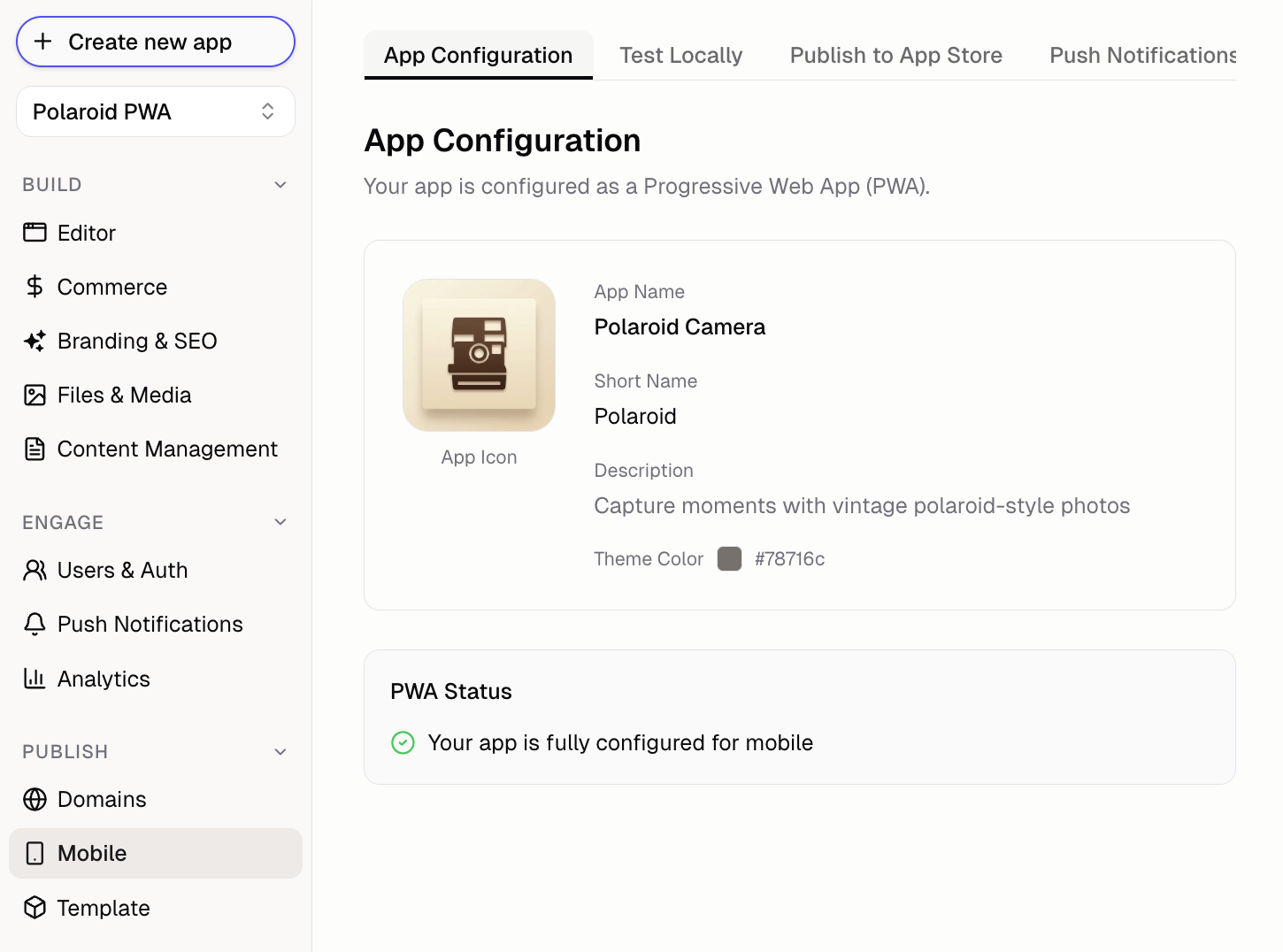
Everything starts in **Mobile** in the Sidebar. Click **Enable mobile support** if you have not yet, then click **Publish to App Store** under **Install it on your phone**.

<div className="screenshot purple">
  <img src="https://mintcdn.com/zeus-0f6dadbf/keVYHauo86bdUc4o/images/apps/mobile/mobile-choose-distribution.png?fit=max&auto=format&n=keVYHauo86bdUc4o&q=85&s=dffc8db0b85af113327570b7267cdddc" alt="Mobile tab asking you to choose between installing from the web and publishing to the app stores" width="1568" height="585" data-path="images/apps/mobile/mobile-choose-distribution.png" />
</div>

### How do I publish my app to the App Store?

<Tabs>
  <Tab title="Google Play">
    Hercules builds your Android app. You upload the first release in the Play Console by hand, then Hercules uploads every later build to Google Play for you.

    <Steps>
      <Step title="Name Your App">
        Click **Mobile** → **Publish to App Store**, then fill in:

        * **Store icon**: a square PNG at least 1024x1024px. Transparent areas become white. It becomes your launcher icon. Leave it empty to use your home screen icon: the first build copies it in
        * **App name**: the name shown under your icon on the phone
        * **Version**: the version shown on your store listing, like `1.0.0`
        * **Android package name**: a permanent ID for your app, like `app.hercules.myapp`. If your app is already on Google Play, enter its package name exactly, and read [How do I update an app that is already on Google Play?](#how-do-i-update-an-app-that-is-already-on-google-play) first
        * **Device permissions**: turn on **Camera**, **Microphone**, or **Location** if your app uses them. Each switch covers your iOS build too

        Click **Create mobile app**. You can change these later from **App settings** (the gear icon next to your app name).

        <div className="screenshot ocean">
          <img src="https://mintcdn.com/zeus-0f6dadbf/keVYHauo86bdUc4o/images/apps/mobile/mobile-android-name-your-app.png?fit=max&auto=format&n=keVYHauo86bdUc4o&q=85&s=81d4b4d7719e34c93b635055dffb98cc" alt="Build your app step with store icon, app name, version, package name, and device permission fields" width="1568" height="1795" data-path="images/apps/mobile/mobile-android-name-your-app.png" />
        </div>

        New Android builds need Android 7 or later (API 24). Android 6 devices cannot install or update to these builds; versions already installed keep working.

        <Warning>
          Google ties your store listing to the package name of your first upload, for good. Check it before you build.
        </Warning>
      </Step>

      <Step title="Publish Your App">
        Click **Publish app**. Hercules opens the Publish menu on the **Preview** tab; publish from there. Your Android app loads your published app, so Hercules cannot build until it is online.
      </Step>

      <Step title="Build Your Android App">
        Click **Build Android App**. Click **View live log** to watch each step.

        The first build takes longest, because Hercules installs the Android build tools first.

        <div className="screenshot ocean">
          <img src="https://mintcdn.com/zeus-0f6dadbf/keVYHauo86bdUc4o/images/apps/mobile/mobile-android-build.png?fit=max&auto=format&n=keVYHauo86bdUc4o&q=85&s=88373237d411450947a0426e58a068d1" alt="Build your app step with the Build Android App button" width="1567" height="837" data-path="images/apps/mobile/mobile-android-build.png" />
        </div>
      </Step>

      <Step title="Upload Your First Release">
        Google requires the first release of a new app to be uploaded by hand. You need a Google Play Developer account (\$25 one time).

        1. Click **Download .aab** to get your app bundle (the file Google Play accepts)
        2. In the [Play Console](https://play.google.com/console), click **Create app** and fill in its name, language, and type. If the app already exists, open it instead
        3. Click **Testing** → **Internal testing** → **Create new release**
        4. Upload the `.aab` file
        5. Under **Policy and programs** → **App content**, complete every declaration, including **Sign-in details** for reviewers. Then fill in the **Main store listing**. See [what Google Play needs](/docs/apps/mobile/store-requirements#what-does-google-play-need-before-the-first-release)
        6. Add your own Google account as a tester, then install the app from the test link
        7. Back in Hercules, click **I uploaded the first release**

        <div className="screenshot ocean">
          <img src="https://mintcdn.com/zeus-0f6dadbf/keVYHauo86bdUc4o/images/apps/mobile/mobile-android-first-release.png?fit=max&auto=format&n=keVYHauo86bdUc4o&q=85&s=5f013bcfbfb9b4d62d826068b228d99e" alt="Upload your first release step with the package name, Play Console instructions, and the Download .aab button" width="1568" height="1513" data-path="images/apps/mobile/mobile-android-first-release.png" />
        </div>

        Clicking **I uploaded the first release** locks the package name to your Play listing.

        <Note>
          The forms take longer than the build. Google will not release your app until every one is complete.
        </Note>
      </Step>

      <Step title="Connect Google Play">
        Do this once, and Hercules uploads every later build to internal testing.

        1. In [Google Cloud](https://console.cloud.google.com/iam-admin/serviceaccounts), create a service account (a robot account that acts for you) and download its JSON key
        2. In the same Google Cloud project, open the [Google Play Android Developer API](https://console.cloud.google.com/apis/library/androidpublisher.googleapis.com) and click **Enable**
        3. In the Play Console, open **Users and permissions**, invite the service account email, and grant it **Release apps to testing tracks** for this app
        4. In Hercules, click **Add credentials**, paste the JSON key into **Service account JSON**, and click **Add credential**
        5. Select it under **Google Play credential**

        <div className="screenshot ocean">
          <img src="https://mintcdn.com/zeus-0f6dadbf/keVYHauo86bdUc4o/images/apps/mobile/mobile-android-connect-google-play.png?fit=max&auto=format&n=keVYHauo86bdUc4o&q=85&s=3080e5280e50e146be68985547228a12" alt="Connect Google Play step with service account instructions and the Add credentials button" width="1568" height="1167" data-path="images/apps/mobile/mobile-android-connect-google-play.png" />
        </div>

        Your next build uploads itself to internal testing. Before each build, Hercules checks that Google Play accepts the service account, so a missing permission or a disabled API shows up before the build starts.
      </Step>

      <Step title="Go Live">
        When your test build looks right, open the Play Console and promote the release from **Internal testing** to **Production**. Google reviews it before it goes live, which can take up to 7 days, or longer in exceptional cases.

        <Warning>
          Personal developer accounts created after November 13, 2023 cannot promote to production yet. First run a closed test with at least 12 testers for 14 days in a row, then apply for production. Internal testing does not count. See [Do I need 12 testers?](/docs/apps/mobile/store-requirements#do-i-need-12-testers-before-my-app-goes-live-on-google-play)
        </Warning>
      </Step>
    </Steps>

    <Check>
      Hercules creates your app's upload key (the key that signs each `.aab`) on the first build and reuses it for every build, so there are no keystore files for you to save.
    </Check>

    <AccordionGroup>
      <Accordion title="Package Android yourself with PWA Builder" id="build-android-manually">
        Only use this if you want to package the app yourself instead of letting Hercules build it.

        <Steps>
          <Step title="Generate Android Package with PWA Builder">
            1. Go to [pwabuilder.com](https://pwabuilder.com)
            2. Enter your app URL (e.g. `https://my-app.onhercules.app` or your [custom domain](/docs/apps/publish/connect-existing-domain))
            3. Click **Start**, then **Package for stores**
            4. Select **Android** and download the AAB file

            <Warning>
              Save `signing.keystore` and `signing-key-info.txt` somewhere safe. You must use the same signing key for all future updates. If you lose these files, you cannot update your app.
            </Warning>
          </Step>

          <Step title="Set Up Digital Asset Links">
            PWA Builder wraps your app in a browser window, so Google Play needs a Digital Asset Links file to confirm you own your domain. Without it, your app opens with a browser address bar instead of running full screen.

            1. On the PWA Builder Android package screen, copy the `assetlinks.json` snippet it generates (it includes your package name and SHA256 fingerprint, a unique ID tied to your signing key)
            2. Ask Hercules to add it to your app:

            ```text Add Digital Asset Links file wrap theme={}
            Create a file at public/.well-known/assetlinks.json with this exact content:

            [paste the JSON PWA Builder generated for your Android package]
            ```

            3. Publish your app again so the file goes live
            4. Visit `https://my-app.onhercules.app/.well-known/assetlinks.json` (or your custom domain). It should return the JSON you pasted, not your app's page

            <Note>
              If you regenerate your signing key or change your package name, update this file and publish again. If you enroll in Google Play App Signing (the default for new apps), Google re-signs your app with its own key: get the new fingerprint from **Play Console** → **Setup** → **App integrity** and update this file with it.
            </Note>
          </Step>

          <Step title="Submit to Google Play">
            1. Go to [Google Play Console](https://play.google.com/console)
            2. Click **Create app** and fill in details
            3. Click **Production** → **Create new release**
            4. Upload the AAB file and complete your store listing
            5. Submit for review
          </Step>
        </Steps>
      </Accordion>
    </AccordionGroup>
  </Tab>

  <Tab title="iOS App Store">
    Hercules builds your iOS app, uploads it to TestFlight, and submits it to App Review with the listing you write in Hercules. Two things happen in App Store Connect by hand: creating the app record, and Apple's App Privacy questionnaire.

    <Note>
      iOS publishing is in beta. You need an [Apple Developer Program](https://developer.apple.com/programs/) membership (\$99/year).
    </Note>

    <Steps>
      <Step title="Name Your App and Publish">
        Click **Mobile** → **Publish to App Store**, fill in your app details (including **iOS bundle ID**), and click **Create mobile app**. Then publish your app (click **Publish** in the top right corner of the **Preview** tab, or **Publish app** in the build step): your iOS app loads your published app. Open the **iOS** tab.
      </Step>

      <Step title="Connect Your Apple Account">
        1. In [App Store Connect](https://appstoreconnect.apple.com), open **Users and Access** → **Integrations** → **Team Keys** and generate a key with the **Admin** role. Download the `.p8` file and note the Issuer ID and Key ID
        2. In Hercules, click **Add App Store Connect key**, enter the Issuer ID, Key ID, and `.p8` file, and click **Add credential**
        3. Under **Set up iOS signing**, click **Set up signing**. Hercules registers your bundle ID and creates the distribution certificate and provisioning profile on your Apple account

        <div className="screenshot ocean">
          <img src="https://mintcdn.com/zeus-0f6dadbf/keVYHauo86bdUc4o/images/apps/mobile/mobile-ios-connect-apple.png?fit=max&auto=format&n=keVYHauo86bdUc4o&q=85&s=804a948d43931e2d5a16c4907f9b638d" alt="Connect your Apple account step with the Add App Store Connect key button and the iOS signing checklist" width="1567" height="1277" data-path="images/apps/mobile/mobile-ios-connect-apple.png" />
        </div>

        Already have signing files? Click **Upload signing files instead** and upload your certificate (`.p12`), its password, and your provisioning profile (`.mobileprovision`).
      </Step>

      <Step title="Create Your App Store App">
        Apple does not allow app records to be created through its API, so this step is manual.

        1. Click **Open App Store Connect**, open **Apps**, click **+**, and choose **New App**
        2. Select **iOS**, enter your app name and primary language, choose the bundle ID Hercules shows you (click the copy button next to it), and enter any SKU
        3. Back in Hercules, click **Check again**
      </Step>

      <Step title="Prepare Your Store Listing">
        Click **Fill in the listing** and add:

        * **Description** and **Keywords**, plus an optional **Subtitle**
        * **Copyright**, such as `2026 Your Company`. Apple requires it and **Keywords**, and the submission fails without them
        * **Primary category**, **Support URL**, and **Privacy policy URL**
        * iPhone screenshots: 1320x2868 or 1290x2796 pixels, up to 10. Turn on **Also run on iPad** only if you want an iPad app; it then needs iPad 13" screenshots (2064x2752 or 2048x2732)
        * **Age rating** answers (the defaults describe an app with no mature content)
        * **App Review** contact details, and a demo account if the reviewer needs to sign in. The reviewer cannot receive an email code, so the account must sign in with a password. See [demo accounts](/docs/apps/mobile/store-requirements#how-do-i-give-reviewers-a-demo-account)

        <div className="screenshot ocean">
          <img src="https://mintcdn.com/zeus-0f6dadbf/keVYHauo86bdUc4o/images/apps/mobile/mobile-ios-store-listing.png?fit=max&auto=format&n=keVYHauo86bdUc4o&q=85&s=1c1f9de7ad1e115a0ca9f11251d5c76a" alt="Prepare your store listing step with the Fill in the listing button" width="1567" height="988" data-path="images/apps/mobile/mobile-ios-store-listing.png" />
        </div>

        Hercules pushes the whole listing to App Store Connect on every submission, so edit it in Hercules rather than in App Store Connect.
      </Step>

      <Step title="Build and Upload to TestFlight">
        Click **Build iOS**. Hercules builds and signs the app on its Mac and uploads it to TestFlight. Apple then processes it, which usually takes 10 to 30 minutes. The build shows **In testing** when it is ready.

        If your app uses the camera, microphone, or location, turn it on under **Device permissions** in **App settings** and save before building. iOS asks your users before your app can use it, with a sentence that names your app, such as "Acme uses the camera so you can take photos in the app." Turning on the camera also lets your app open the photo library. For the camera, you can write your own **iOS camera permission message** that describes the specific use, such as "Scan QR codes to check in to events." Changing these does not update builds already made: build and install a new one.

        To send push notifications, turn on **iOS push notifications** in **App settings** and save before building. Your app's code can then call `window.Capacitor.Plugins.PushNotifications` to ask for permission, register, and get the device token from its `registration` event. If Hercules set up your signing, it turns on Push Notifications for your bundle ID and replaces the provisioning profile on the next build. If you uploaded your own signing files, upload a provisioning profile created after you turned on Push Notifications for the bundle ID in the Apple Developer portal, or the build fails with a message saying so.

        Apps built before you turn push on cannot receive notifications: build and install a new one. Sending notifications also needs an Apple push notification key, which you upload under **iOS push notification key** in **App settings** (see [Send notifications to your iOS app](/docs/apps/push-notifications#send-notifications-to-your-ios-app)).
      </Step>

      <Step title="Submit for Review">
        Before the first submission, click **Open App Privacy** and answer Apple's App Privacy questionnaire in App Store Connect. Apple does not let Hercules fill it in. Back in Hercules, check **I have answered App Privacy in App Store Connect**.

        Then click the submit button. It names the version and build it submits, like **Submit version 1.0.0, build 3, for review**. Hercules syncs the listing and screenshots, sets the app to free and available everywhere if you have not set a price or availability, attaches the build, answers the export compliance question, and hands the version to App Review. The build shows **In review**.

        <div className="screenshot ocean">
          <img src="https://mintcdn.com/zeus-0f6dadbf/keVYHauo86bdUc4o/images/apps/mobile/mobile-ios-submit-for-review.png?fit=max&auto=format&n=keVYHauo86bdUc4o&q=85&s=4dbfb96ab82d992ada3a4bfa7f908ddf" alt="Submit for review step with the Open App Privacy and Submit for review buttons" width="1568" height="1171" data-path="images/apps/mobile/mobile-ios-submit-for-review.png" />
        </div>
      </Step>

      <Step title="Go Live">
        App Review usually answers within a day or two. By default the version goes live as soon as Apple approves it. To pick the moment yourself, set **Release** to **Manually, when I choose** in the listing, then click **Release now** once it is approved.

        If Apple rejects the version, the build shows **Failed** with the kind of rejection. Read Apple's full reason in App Store Connect, fix the listing or the app, then submit again. Hercules reuses the same version.
      </Step>
    </Steps>

    <Note>Apple may reject simple website wrappers (Guideline 4.2). Make sure your app offers more than the website, such as push notifications and app-style navigation. Before you submit, check [what App Review looks for](/docs/apps/mobile/store-requirements#which-app-review-guidelines-do-hercules-apps-often-miss).</Note>

    <AccordionGroup>
      <Accordion title="Package iOS yourself with PWA Builder" id="build-ios-manually">
        Only use this if you want to build the app yourself in Xcode instead of letting Hercules build it.

        <Steps>
          <Step title="Generate iOS Package with PWA Builder">
            1. Go to [pwabuilder.com](https://pwabuilder.com)
            2. Enter your app URL (e.g. `https://your-app.onhercules.app` or your [custom domain](/docs/apps/publish/connect-existing-domain))
            3. Click **Start**, then **Package for stores**
            4. Select **iOS**
          </Step>

          <Step title="Allow Your Sign-in Domains">
            If your app has sign-in, fill in **Permitted URLs** under **All Settings** in PWA Builder's iOS options before you download the Xcode project. (No sign-in? Skip this and download the project.) iOS blocks the app from opening any domain you do not list there, so sign-in stops partway and the app returns to your home page still signed out. If you already downloaded the project without them, download it again.

            Paste this line into **Permitted URLs**. It covers Hercules sign-in plus Apple and Microsoft sign-in:

            ```text Permitted URLs wrap theme={}
            hercules-auth.com, appleid.apple.com, login.microsoftonline.com, login.live.com
            ```

            The field takes one line, so separate entries with commas. To see where your sign-in page is, open your app in a private browser window, click sign in, and look at the address bar. Add one more entry in these cases:

            | Your sign-in page is on | Add |
            | - | - |
            | [Your own domain](/docs/apps/users-auth/customize-auth-portal), such as `auth.yourdomain.com` | That domain, such as `auth.yourdomain.com` |
            | An address like `yourapp.auth.onhercules.app` (older apps) | That full address, such as `yourapp.auth.onhercules.app` |
            | `hercules.app` (older apps) | `hercules.app` |

            Only add `hercules.app` if your sign-in page is there. If your app address ends in `onhercules.app`, adding `hercules.app` makes PWA Builder show a toolbar with a **Done** button on every page of your app, not only on sign-in. To avoid that, enter your [custom domain](/docs/apps/publish/connect-existing-domain) in PWA Builder instead of your `onhercules.app` address.

            Google sign-in is known to have problems inside apps packaged with PWA Builder. Offer your users email code or Apple sign-in as well.

            Your app URL is added for you. Apple allows 10 domains in total. Email code and password sign-in need nothing beyond the line above.
          </Step>

          <Step title="Build & Test">
            1. Open the Xcode project on your Mac
               * Requires Mac with [Xcode](https://developer.apple.com/xcode/)
            2. Update Bundle Identifier and sign with your Apple account
               * Requires [Apple Developer Account](https://developer.apple.com) (\$99/year)
            3. Build and test on simulator or device
          </Step>

          <Step title="Submit to App Store">
            1. Go to [App Store Connect](https://appstoreconnect.apple.com)
            2. Create app listing with screenshots and description
            3. Archive in Xcode and upload
            4. Submit for review (1-3 days)
          </Step>
        </Steps>
      </Accordion>
    </AccordionGroup>
  </Tab>

  <Tab title="Microsoft Store">
    <Steps>
      <Step title="Enable Mobile Support">
        Click **Mobile** → **Enable mobile support**. Hercules adds a web app manifest (the file that names your app and its icon), icons, and a service worker (a script that lets your app open without a connection). To change the name or description the manifest uses, ask Hercules.
      </Step>

      <Step title="Publish Your App on Hercules">
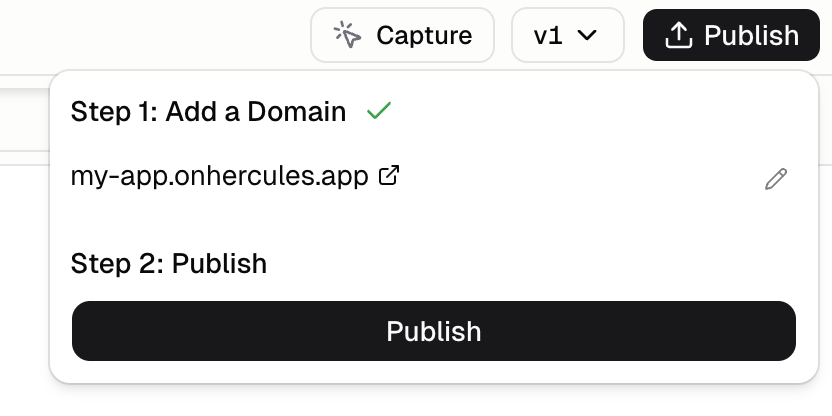
        Click **Publish** in the top right corner to get your app URL.

        <div className="screenshot purple">
          <img src="https://mintcdn.com/zeus-0f6dadbf/vyfZOWPi9KdyCPiO/images/apps/publish-my-app.png?fit=max&auto=format&n=vyfZOWPi9KdyCPiO&q=85&s=b2c1f799c114e72d1c46a1796dcb6475" alt="Publish an app in Hercules" width="832" height="416" data-path="images/apps/publish-my-app.png" />
        </div>
      </Step>

      <Step title="Generate Windows Package with PWA Builder">
        1. Go to [pwabuilder.com](https://pwabuilder.com)
        2. Enter your app URL (e.g. `https://your-app.onhercules.app` or your [custom domain](/docs/apps/publish/connect-existing-domain))
        3. Click **Start**, then **Package for stores**
        4. Select **Windows** and download the MSIX package
      </Step>

      <Step title="Submit to Microsoft Store">
        1. Go to [Microsoft Partner Center](https://partner.microsoft.com/dashboard). You need a Microsoft Partner Center account (\$19 one time)
        2. Click **Create a new app** and fill in details
        3. Upload the MSIX package
        4. Complete store listing and submit for review (1-3 days)
      </Step>
    </Steps>
  </Tab>

  <Tab title="Progressive Web App">
    No app store needed. People install your app straight from its website.

    <Steps>
      <Step title="Enable Mobile Support">
        Click **Mobile** → **Enable mobile support**. Hercules adds a web app manifest (the file that names your app and its icon), icons, and a service worker (a script that lets your app open without a connection).

        <div className="screenshot candy">
          <img src="https://mintcdn.com/zeus-0f6dadbf/keVYHauo86bdUc4o/images/apps/mobile/mobile-enable-support.png?fit=max&auto=format&n=keVYHauo86bdUc4o&q=85&s=fa65e2e36b0d9cfe0af3bce103ad291d" alt="Mobile tab with the Enable mobile support button" width="1563" height="511" data-path="images/apps/mobile/mobile-enable-support.png" />
        </div>
      </Step>

      <Step title="Publish and Share Your App">
        Click **Publish** in the top right corner. Then click **Mobile**, copy your app URL under **Install it on your phone**, and open it on your phone. Click the icon to change your **Home screen icon**.

        <div className="screenshot purple">
          <img src="https://mintcdn.com/zeus-0f6dadbf/keVYHauo86bdUc4o/images/apps/mobile/mobile-install-from-web.png?fit=max&auto=format&n=keVYHauo86bdUc4o&q=85&s=673f1d95890f9c08eea88f3d77fb7129" alt="Install it on your phone step showing the app URL with a copy button and install instructions" width="1564" height="739" data-path="images/apps/mobile/mobile-install-from-web.png" />
        </div>
      </Step>

      <Step title="Add an Install Prompt (Optional)">
        Show a banner that invites people to install. Ask Hercules:

        ```text Add install prompt wrap theme={}
        Add a PWA install banner that shows when users visit on mobile
        ```
      </Step>
    </Steps>

    **How your users install:**

    * **iPhone:** open the URL in Safari, tap **Share**, then **Add to Home Screen**
    * **Android:** open the URL in Chrome, tap the menu, then **Install app**
  </Tab>
</Tabs>

### Google Play says the service account has no access to my app

Google Play has not given the service account you connected permission to publish this app. Hercules checks this before each build, so the build does not start.

1. Copy the service account email from the error (it ends in `iam.gserviceaccount.com`)
2. In the Play Console, open **Users and permissions** and click **Invite new users**
3. Enter that email, open **App permissions**, add this app, and grant **Release apps to testing tracks**
4. Click **Invite user**, then build again in Hercules

To build without uploading to Google Play, detach the credential: open **App settings** and set **Google Play credential** to **No credential**. You can then download the `.aab` file and upload it by hand.

### Google Play says the Android Developer API is not enabled

The Google Cloud project that holds your service account has the Google Play Android Developer API turned off, so Google refuses every request from that key. Hercules checks this before each build, so the build does not start.

1. Open the link in the error, or open the [Google Play Android Developer API](https://console.cloud.google.com/apis/library/androidpublisher.googleapis.com) page and select the project that holds your service account
2. Click **Enable**
3. Wait a few minutes, then build again in Hercules

### Google Play says my app is still a draft

Google Play accepts only draft releases until the app's first release is rolled out in the Play Console, so it refuses the upload.

1. In the Play Console, open your app and finish every setup task on its **Dashboard**
2. Open **Testing** → **Internal testing** and roll out the release you uploaded by hand
3. Build again in Hercules

### Why does Google Play hold my build until I send it for review?

Sometimes Google Play takes an upload but will not send it for review on its own, for example after it rejected an earlier update. Hercules still uploads the build and shows a note on the **Go Live** step.

1. In the Play Console, open **Publishing overview**
2. Under **Changes not yet sent for review**, click **Send for review**

### Why does my Android app show the default icon?

The app had no store icon or home screen icon when it was built. Open **App settings**, upload a **Store icon** (a square PNG at least 1024x1024px), click **Save changes**, and build again.

Uninstall the old version from your phone before you install the new build. Android launchers cache icons, so an update can keep showing the old one.

### Why does Google Play say my app bundle needs a different package name?

Google Play ties an app to the package name of the first file uploaded to it, and rejects every later upload with a different one. The error names the package Play expects.

* **Before you click I uploaded the first release:** open **App settings**, set **Android package name** to exactly the name in the error, click **Save changes**, and build again.
* **After that:** Hercules locks the package name to match your Play listing. To publish under a new name, create a new app in the Play Console, then click **Unlock for a new Play listing** under the package name in **App settings**.

If your app was on Google Play before you used Hercules, enter its existing package name before your first build. Google Play also checks the upload key: see [How do I update an app that is already on Google Play?](#how-do-i-update-an-app-that-is-already-on-google-play)

### Do I need to save my Android signing key?

Not for apps built by Hercules. Hercules creates this app's upload key (the key that signs each `.aab`) on its first Android build, stores it securely, and signs every later build with it. The dashboard never shows or exports the key. Its certificate is in **App settings** under **Android upload certificate**.

With Play App Signing (the default for new apps), Google signs the copy of your app that people install with its own key. The upload key only proves that a build comes from you, and Google can reset it. To update the app with another tool later, create an upload key in that tool and request an upload key reset with its certificate. Your listing, users, and reviews stay where they are.

If you package with PWA Builder, save your signing key somewhere safe. Google will not accept an update signed with a different key unless you reset the upload key.

### How do I update an app that is already on Google Play?

Google Play checks two things on every upload: the package name, and the upload key that signed the `.aab`. Hercules signs with its own upload key, which it creates on your first Android build.

1. Open **App settings** and set **Android package name** to the exact package name of your Play app
2. If the app was first published with another tool, such as PWA Builder or Android Studio, Play expects that tool's upload key and rejects Hercules builds. Build once in Hercules with no Google Play credential attached, so Hercules creates its key. Then reset the upload key to it (below)
3. Attach a Google Play credential before you build an update: create one as in the **Connect Google Play** step above, then choose it under **Google Play credential** in **App settings**. Hercules then reads the highest version code on Google Play and starts above it. Without a credential, Play refuses a build whose version code it already has

**To reset the upload key to the Hercules key:**

1. Open **App settings** and, under **Android upload certificate**, click **Download certificate** to save `upload_certificate.pem`. It is available after your next Android build, so build for Android once if the button is grayed out. If that does not help, [contact support](/docs/company/contact)
2. In the Play Console, open **Protected with Play** → **Play Store protection** → **Manage Play app signing**
3. Under **Upload key certificate**, click **Request upload key reset**, enter the reason, upload `upload_certificate.pem`, and click **Request**
4. Once the reset takes effect, build in Hercules and upload as usual

The reset needs Play App Signing. If that page shows that you manage the app signing key yourself, Hercules cannot sign updates for this app today. Contact support.

Did you reset the upload key to a key of your own? Play then rejects every Hercules build, because Hercules cannot sign with your key today. Request another reset with the Hercules upload certificate.

### What do I do when a build fails?

If Hercules can tell a build would fail, it does not start it and says why, for example when your app is not published yet or Google Play has not given the service account access. Fix what it names and click the build button again.

If a build starts and then fails, the reason shows in red on the build step and on the build under **Recent builds**. Fix what it names, then click **Build again**.

If the reason is unclear or the same build keeps failing, click **Report this error**. The report includes the build ID, so we can look up exactly what happened. You can also copy the **Build ID** and send it to support.

## FAQ

<AccordionGroup>
  <Accordion title="Why does App Review say my version cannot be reviewed?">
    Something Apple requires is missing. The error lists what and the next step for each:

    * **Pricing:** set a price under **Pricing and Availability** in App Store Connect (Free is fine)
    * **App Privacy:** answer the App Privacy questionnaire in App Store Connect
    * **Screenshots**, **age rating**, **Copyright**, or **Keywords:** fill them in the store listing in Hercules
    * **What's new in this version:** Apple requires it for every version after the first. Fill it in the store listing in Hercules

    Then submit for review again.
  </Accordion>

  <Accordion title="Why did my iOS upload to App Store Connect fail?">
    The build shows Apple's reason. Common ones:

    * **An earlier version supported iPad:** Apple does not let an update drop devices. Turn on **Also run on iPad** in the store listing, add iPad screenshots, and build again
    * **The version is already on the App Store:** raise the **Version** in **App settings** and build again. The build number goes up on its own
    * **No app with your bundle ID:** create the app in App Store Connect with the exact bundle ID Hercules shows, then build again
  </Accordion>

  <Accordion title="My iOS distribution certificate or provisioning profile expires soon">
    Apple's signing files expire. Hercules warns you 30 days ahead under **Set up iOS signing**. Click
    **Reset signing**, then **Set up signing**, and build again. iOS builds fail once either file has
    expired.
  </Accordion>

  <Accordion title="Apple says I have reached the limit of distribution certificates">
    Your Apple Developer account allows only a few iOS distribution certificates. Revoke one you no
    longer use in the Apple Developer portal (**Certificates, Identifiers & Profiles**), then click
    **Set up signing** again.
  </Accordion>

  <Accordion title="Why was my iOS app rejected?">
    Common reasons: the reviewer could not sign in, no way to delete an account in the app, Google
    sign-in without Sign in with Apple, digital goods sold outside in-app purchase, or an app too
    similar to a website. Read Apple's full reason in App Store Connect, then see [what App Review
    looks
    for](/docs/apps/mobile/store-requirements#which-app-review-guidelines-do-hercules-apps-often-miss).
  </Accordion>

  <Accordion title="Why was my Android app rejected?">
    Common reasons: an incomplete **App content** declaration, a reviewer who could not sign in,
    broken features, a missing privacy policy, or digital goods sold without Google Play's billing
    system. See [what Google Play
    needs](/docs/apps/mobile/store-requirements#what-does-google-play-need-before-the-first-release).
  </Accordion>

  <Accordion title="How long does review take?">
    * **Google Play:** Google says up to 7 days, or longer in exceptional cases. Personal accounts created after November 13, 2023 also need a [14-day closed test](/docs/apps/mobile/store-requirements#do-i-need-12-testers-before-my-app-goes-live-on-google-play) first
    * **App Store:** usually 1-3 days
    * **Microsoft Store:** usually 1-3 days

    First submissions may take longer.
  </Accordion>

  <Accordion title="Why does my Android icon look cropped or smaller than expected?">
    Android shows icons inside a shape, usually a circle or rounded square, so the corners of a square
    image are cut off. When your store icon has a plain-color border, Hercules shrinks the artwork
    onto that color so nothing important is cut. Icons with a photo or gradient edge stay full size
    and may lose their corners. Keep text and logos away from the edges of the image.
  </Accordion>

  <Accordion title="Google Play warns about edge-to-edge or large screens">
    Google Play shows these as recommendations, not errors, so your release still goes live.
    "Edge-to-edge may not display for all users" and "Your app uses deprecated APIs or parameters for
    edge-to-edge" come from the Android shell Hercules builds around your app, not from your app's
    code, and need no change from you. If Play also asks you to remove resizability and orientation
    restrictions, check which release it names: Hercules builds do not lock the screen orientation, so
    the warning comes from a release made with another tool.
  </Accordion>

  <Accordion title="Google Play says the test app is already installed">
    A copy of the app with the same package name is already on the phone, often one installed from a
    downloaded file or signed with a different key. Uninstall every copy of the app, then open the
    internal testing link again.
  </Accordion>

  <Accordion title="Can I publish to multiple stores?">
    Yes. Each store needs its own package, but the underlying app is the same one. Hercules builds
    your Android and iOS apps. For Microsoft Store, use PWA Builder.
  </Accordion>

  <Accordion title="Why does my Android app show a browser address bar instead of running full screen?">
    This affects apps packaged with PWA Builder. Your Digital Asset Links file (`assetlinks.json`) is
    missing, or does not match your signing key. See the **Set Up Digital Asset Links** step in the
    PWA Builder section of the Google Play tab above. Apps built by Hercules run full screen without
    this file.
  </Accordion>

  <Accordion title="Do PWAs work offline?">
    Partly. After **Enable mobile support**, an installed app opens without a connection and shows the
    screens the person has already opened. Anything that loads or saves data still needs a connection.
    To change what is saved for offline use, ask Hercules to adjust the service worker (the script
    that caches your app on the phone).
  </Accordion>

  <Accordion title="Why PWA instead of app stores?">
    PWAs ship faster (no review), update the moment you publish, work on every platform, and need no developer accounts. People install them from the browser instead of a store. We recommend testing as a PWA, then publishing to the stores when you are ready.
  </Accordion>
</AccordionGroup>


This documentation is built and hosted on [Mintlify](https://mintlify.com), a developer documentation platform.