> ## Documentation Index
> Fetch the complete documentation index at: https://hercules.app/docs/llms.txt
> Use this file to discover all available pages before exploring further.
# Connect your own SMS provider
> Send SMS sign-in codes with your own Twilio, Vonage, Plivo, or 2factor.in account. Connect a provider, configure messages, and test phone sign-in in Hercules.
Send sign-in codes through your own Twilio Messaging, Vonage, Plivo, or 2factor.in account. Hercules creates and verifies the codes. Your provider sends the messages and bills you directly. No code is required.
### What do I need before I start?
Custom SMS providers are available on all paid Hercules plans. Your app must use [Hercules Auth 2.0](/docs/apps/users-auth/upgrade-to-hercules-auth-2).
Activate and fund your provider account, then complete its sender and destination-country approvals.
### How do I connect a provider?
1. Go to **Users & Access** → **Auth Portal** → **Sign-in Methods**.
2. Next to **SMS one-time passcode (OTP)**, click **Configure**.
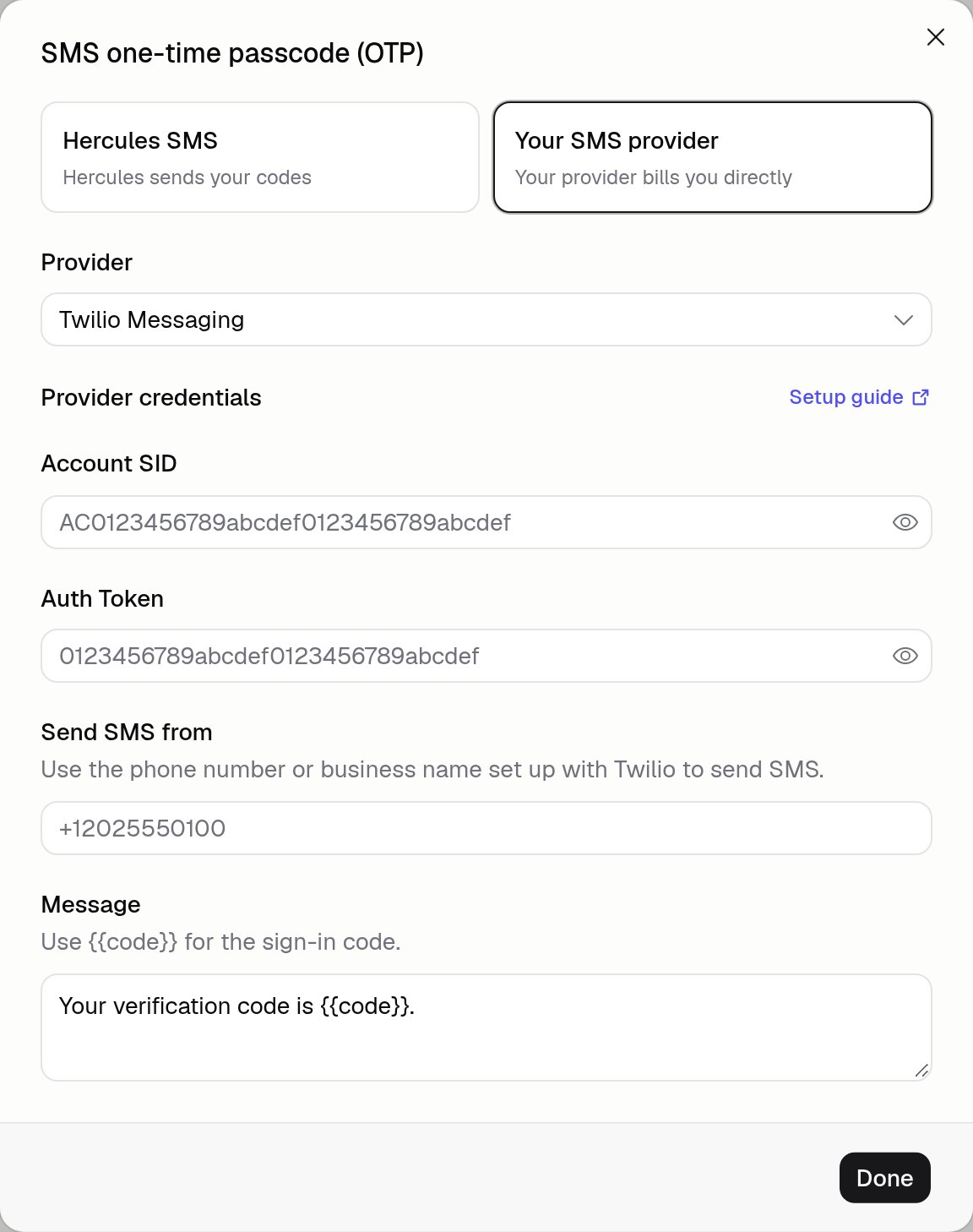
3. Choose **Your SMS provider** and select your provider.
4. Enter the settings below and click **Done**.
5. Turn on **SMS one-time passcode (OTP)** and click **Save changes**.
You can configure SMS while it is off. **Done** closes the dialog; **Save changes** applies your settings.
### What information does each provider need?
Copy **Account SID** and **Auth Token** from the [Twilio Console](https://console.twilio.com/)
into Hercules.
This connection uses [Twilio Messaging](https://www.twilio.com/docs/messaging/api/message-resource),
not Twilio Verify.
Copy **API key** and **API secret** from [Vonage API Settings](https://dashboard.nexmo.com/settings)
into Hercules.
This connection uses the [Vonage SMS API](https://developer.vonage.com/en/api/sms), not Verify.
Copy **Auth ID** and **Auth Token** from the [Plivo Console](https://console.plivo.com/)
into Hercules.
Use a Plivo number for the US and Canada. Business-name senders need Plivo approval.
See [Plivo's sender requirements](https://docs.plivo.com/docs/messaging/api/message/send-a-message).
1. Copy **API key** from your [2factor.in account](https://2factor.in/CP/) into Hercules.
2. To use a custom template, create it in 2factor.in. Enter its approved name in **Approved
template name (optional)**, not its numeric registration ID.
3. Leave the template name blank only if 2factor.in confirms its default template is approved
for your destination.
Manage the sender and message in 2factor.in, not Hercules.
For **Twilio**, **Vonage**, and **Plivo**, also fill in these fields:
* **Send SMS from**: your provider's sending number, including country code, or a business name approved for your destination countries.
* **Message**: your sign-in text with `{{code}}`, for example `Your sign-in code is {{code}}.` This is the only supported placeholder. Use wording approved by your provider.
### How do I check that sign-in works?
1. Open your app in **Preview** and go to its real sign-in page.
2. Select your country and request a code on a phone you control.
3. Enter the code and finish signing in.
Saving settings and the **Login Preview** do not send test messages. Real tests are billed by your provider. Repeat for each country you support.
### Additional FAQ
Your provider bills you directly. These messages do not use Hercules Cloud credits or incur
Hercules-managed SMS fees. Provider rates and other Hercules plan and usage charges still apply.
Coverage depends on your provider, sender, and destination approvals. For India, confirm DLT
(telecom sender and template registration) requirements with your provider. Hercules has no
separate DLT fields for Twilio, Vonage, or Plivo. The 2factor.in template field does not replace
provider-side approval.
Saved credentials are encrypted and never displayed. Leave a saved credential field blank to keep
its value. Switching providers keeps saved credentials. **Cancel** in **Auth Portal** discards
unsaved changes.
After a plan downgrade, you can still view saved settings, turn off SMS sign-in, or remove credentials.
Codes last five minutes and allow three verification attempts. Wait 60 seconds to request
another code. A resend replaces the previous code.
Check your provider's balance, credentials, sender approvals, destination permissions, and message
history. Hercules does not retry failed sends or switch to **Hercules SMS**.
Still stuck? Open **Support & feedback** → **Create a support ticket**. Include your app,
provider, and attempt time in UTC, but no phone numbers, codes, or credentials. For an error,
use **Report this error** to include its Error ID.
Open **Configure**, choose another provider or **Hercules SMS**, then click **Done** →
**Save changes** and confirm the switch if prompted.
[Hercules SMS rates](/docs/apps/users-auth/customize-auth-portal#what-does-hercules-sms-cost)
apply when you switch to it.
After a plan downgrade or if settings cannot be read, use **Remove saved credentials**
for the selected provider or **Remove all saved credentials** for all. Click **Done** → **Save changes**.
Removing the active custom provider turns off SMS sign-in, not other sign-in methods.
For loading errors, try **Retry** first. Save a removal before reconnecting a provider.
No. SMS OTP supports phone sign-up and sign-in only. Users cannot add, change, or remove
phone numbers on existing accounts.