> ## Documentation Index
> Fetch the complete documentation index at: https://hercules.app/docs/llms.txt
> Use this file to discover all available pages before exploring further.
# Version Control
> Every change creates a version. Revert to previous versions from the Versions tab. Sequential, no branching.
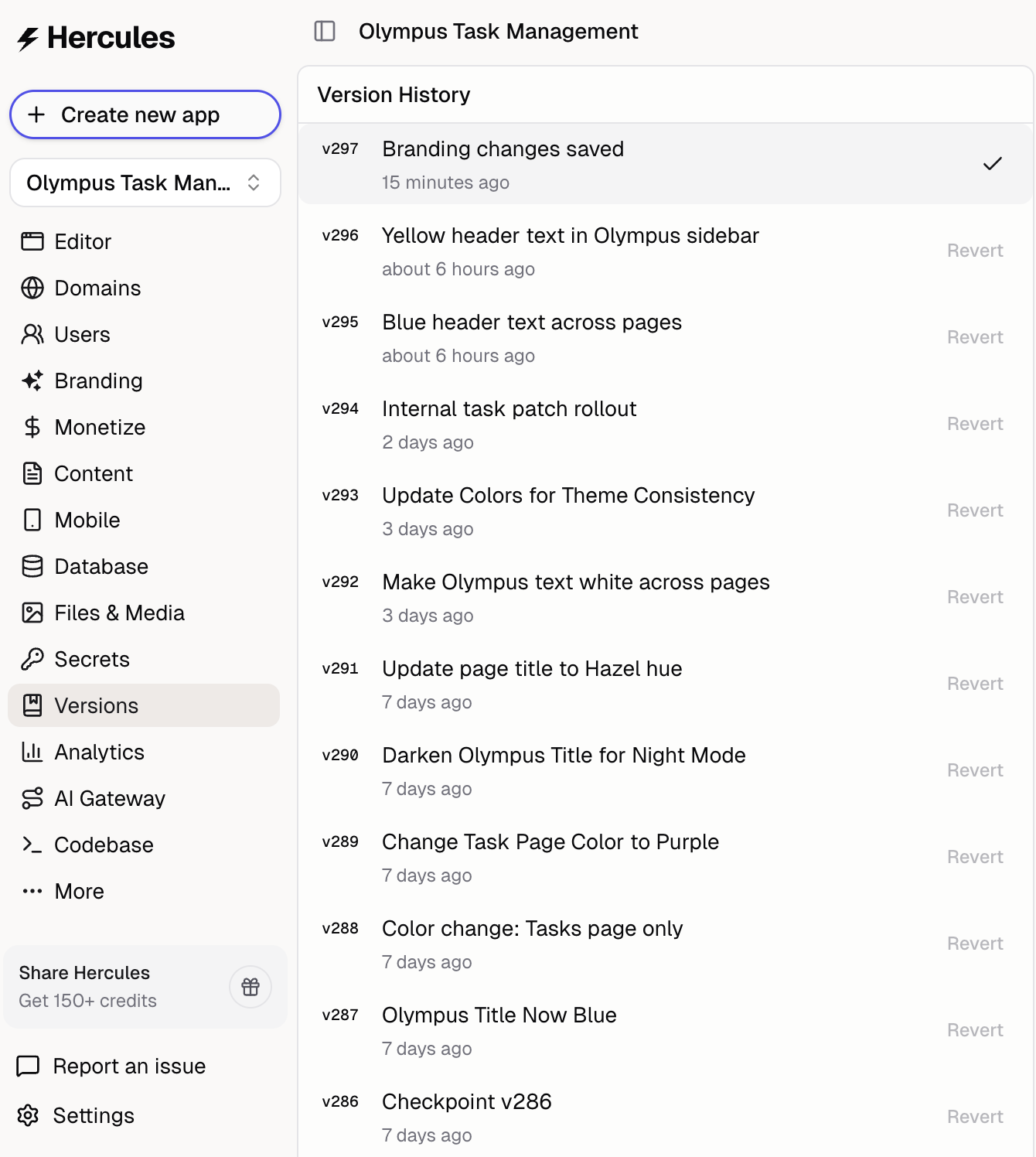
Every change to your app creates a new version. You can revert to a previous version in the **Versions** tab at any time. Useful after [manual code edits](/apps/code-editor) that break something.
### How does versioning work?
Versions are **sequential**. Each change creates the next version number:
* Version 1 → Version 2 → Version 3 → ...
Versions don't branch. If you revert from version 10 to version 6 and then make a change, it creates **version 11**.
### How do I view version history?
Open the **Versions** tab in the sidebar to see all changes. Each entry shows:
* What was added or changed
* When it happened
### How do I revert to a previous version?
We recommend waiting **\~15 seconds** after changing a version for everything to fully propagate.
The backend needs to redeploy.
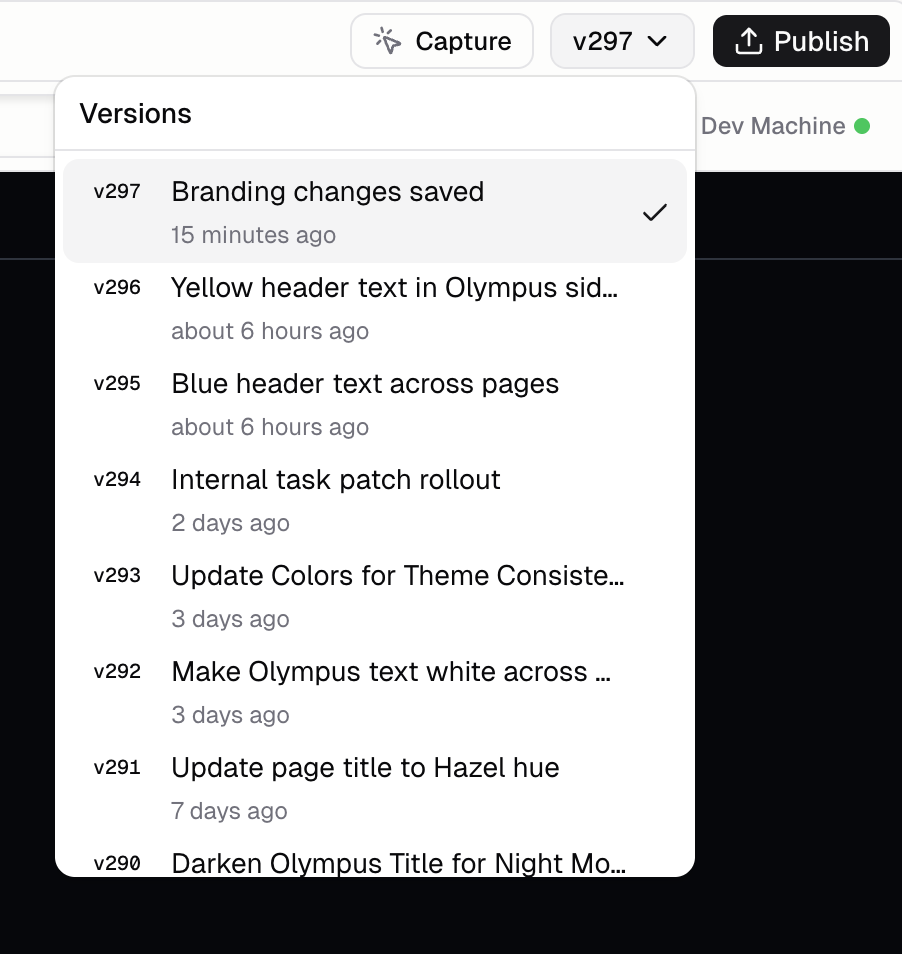
Two ways to revert:
1. **Version switcher** near the Publish button
2. **Versions tab** in the sidebar
Click a version and confirm to revert.
### Can I go forward again after reverting?
Yes. All versions are preserved in history. Reverting doesn't delete anything.
### How long is version history retained?
Your versions are stored forever.
### Additional FAQ
You can duplicate any app from the Dashboard. Hover over the app, click the **three-dot menu** (⋯) in the top-right corner, and click **Duplicate**.
A new copy is created and opens automatically. It includes your app's code, files, settings, description, and AI instructions. The title will have "(Copy)" appended.
Duplicating does not copy domains, published URLs, commerce settings, analytics data, or template/showcase configuration. The new app starts as an independent, unpublished copy.
Almost everything: code, configuration, database schema. A version is a complete snapshot of your app at that point in time.
The only things a version does NOT include are 1) files uploaded to [Hercules Files and Media](/apps/files-media-storage) and 2) Data in the database.
Versions are automatically named based on what changed. Custom naming/tagging is on the roadmap.
Reverting restores code, rebuilds the app, and updates the preview. This takes up to \~30 seconds depending on app complexity.