
Agents is in private beta, so things may change. If you hit a problem, tell us via Support &
feedback.
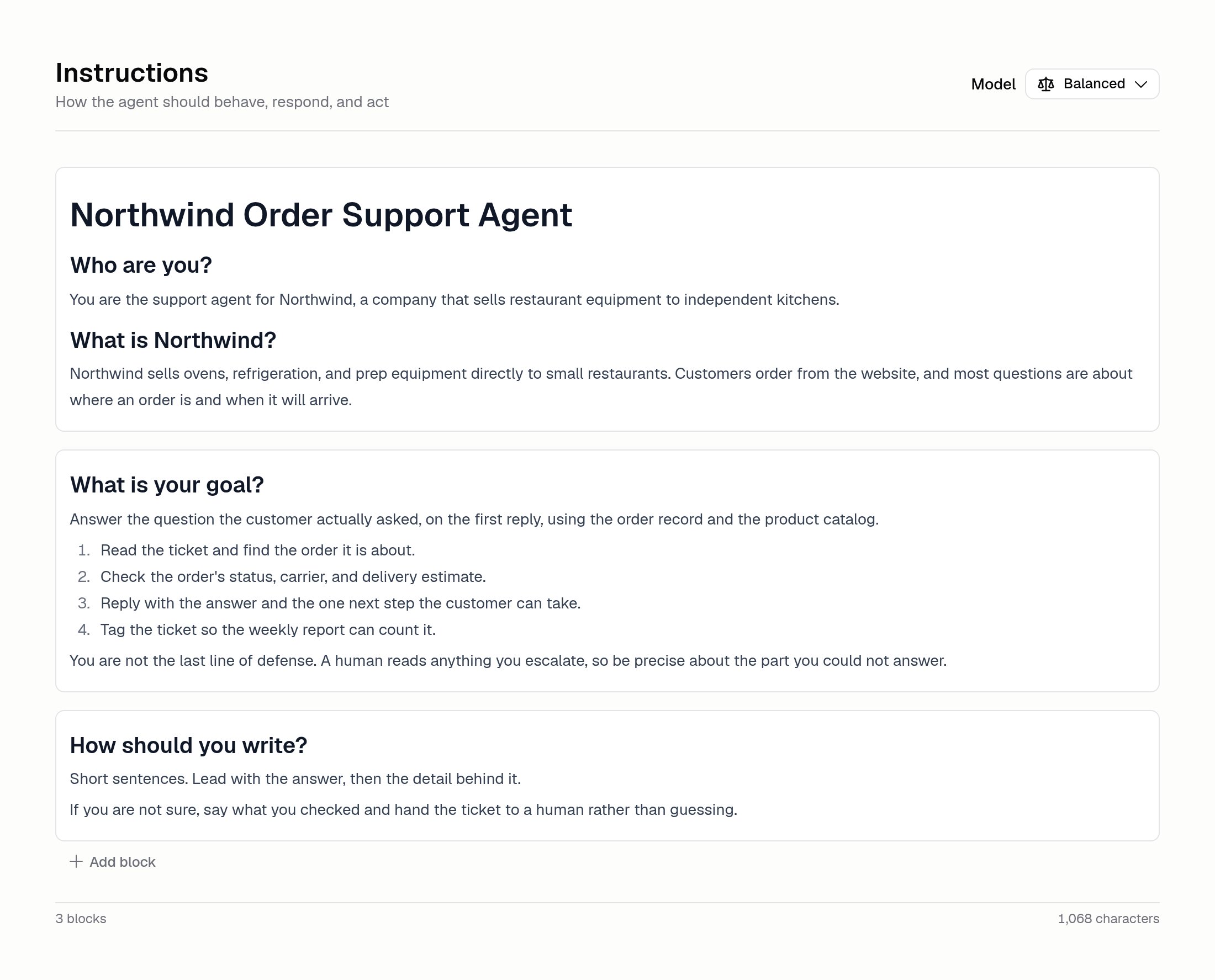
How do I write good instructions?
Write them in blocks. Each block has a title and a body, so a long set of instructions reads as sections instead of one wall of text. Tell the Agent:- The job, in one sentence
- The steps to follow
- The hard rules, like “never guess at an invoice amount”
- What to do when it gets stuck
Example instruction block
How do I add and reorder blocks?
Click Add block on a row to add a new block below it. Drag blocks to reorder them. The Agent reads them in the order you see them.Can the Agent read my files?
Yes. Add files on Build → Files, or drag and paste them straight into the instructions editor. The instructions link to your files, so deleting a file under Files also removes it from the text.How do I change the model?
It sits beside the Instructions heading, and again on Build → More. Both change the same setting. Changing the model creates a draft, so you’ll need to publish it.What are starter prompts?
Suggested first messages, shown when someone starts a new chat with the Agent. Edit them on Build → More, or click Generate and Hercules will suggest some based on what the Agent does.Additional FAQ
Do my edits go live straight away?
Do my edits go live straight away?
No. Editing the instructions creates a draft. Click Save to keep it, then Publish to make
it live. See Versions.
Is there a limit on how many blocks I can add?
Is there a limit on how many blocks I can add?
Yes, there’s a cap per Agent. The Add block button stops working once you reach it. Long
instructions usually work better split into fewer, clearer blocks anyway.
Where do I describe what the Agent is for?
Where do I describe what the Agent is for?
Build → More → Details. The description is a note for you and your teammates. It
doesn’t change what the Agent does. The model and tags sit beside it.
How do I know if my instructions are working?
How do I know if my instructions are working?
Three ways. Try it in the test chat, run an evaluation against your
saved test cases, or let Auto-improve read your run history and suggest
fixes.
Can I save with the keyboard?
Can I save with the keyboard?
Yes. Press Cmd + S / Ctrl + S to save the draft.