
Agents is in private beta, so things may change. If you hit a problem, tell us via Support &
feedback.
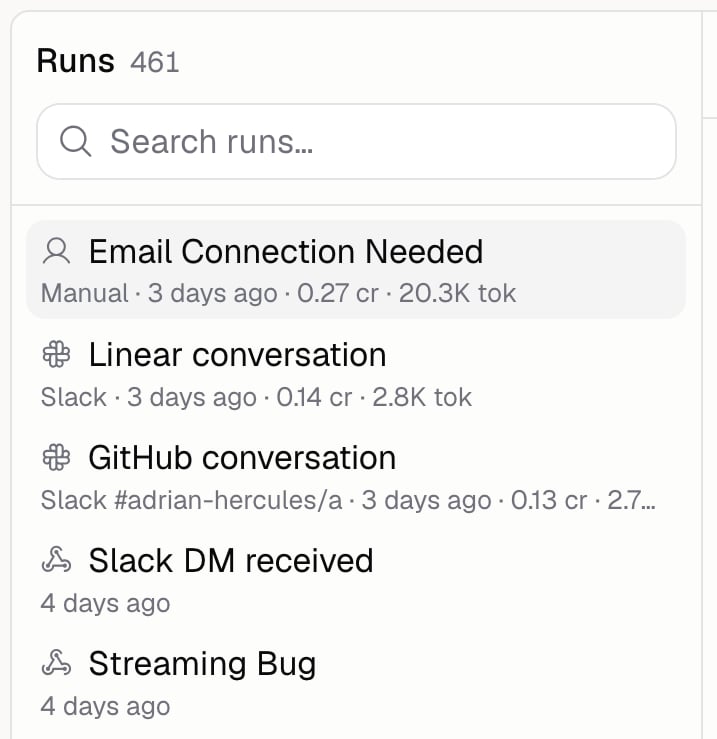
What can I see in a run?
Runs started by a webhook also show what was sent to them.
The version on the summary opens the exact Agent that answered, and tells you if it’s changed since.
How do I mark a run as good or bad?
Use the thumbs up and thumbs down on the run. Click the same one again to clear it, and add a note saying why. There’s one review per run, shared with your team, and the most recent edit wins. Auto-improve reads these reviews, so saying what went wrong is worth the ten seconds.How do I turn a run into a test case?
Open the run and add it to your test cases, choosing which dataset it goes in. Real runs make the best test cases, because they’re the questions your Agent actually gets asked. Runs you’ve already saved are marked in the list.How do I grade a run after the fact?
Pick a scorer from the run’s scorer menu and it grades that run. Only scorers that don’t need an expected answer can grade real runs.Additional FAQ
How do I start a run myself?
How do I start a run myself?
Use the test chat, which opens from the bar above any Build page. Run history only shows you
runs, it doesn’t start them.
A run stopped early. Why?
A run stopped early. Why?
Its status tells you: Completed, Failed, Stopped, Out of credits, Stopped at cost limit, or
Stopped at time limit. The last two mean it hit a run limit.
Can I see what a run cost?
Can I see what a run cost?
Yes, under Usage on the run. For totals across every run, see Analytics.
How far back does history go?
How far back does history go?
The list loads more as you scroll, so you can keep going back through older runs.