
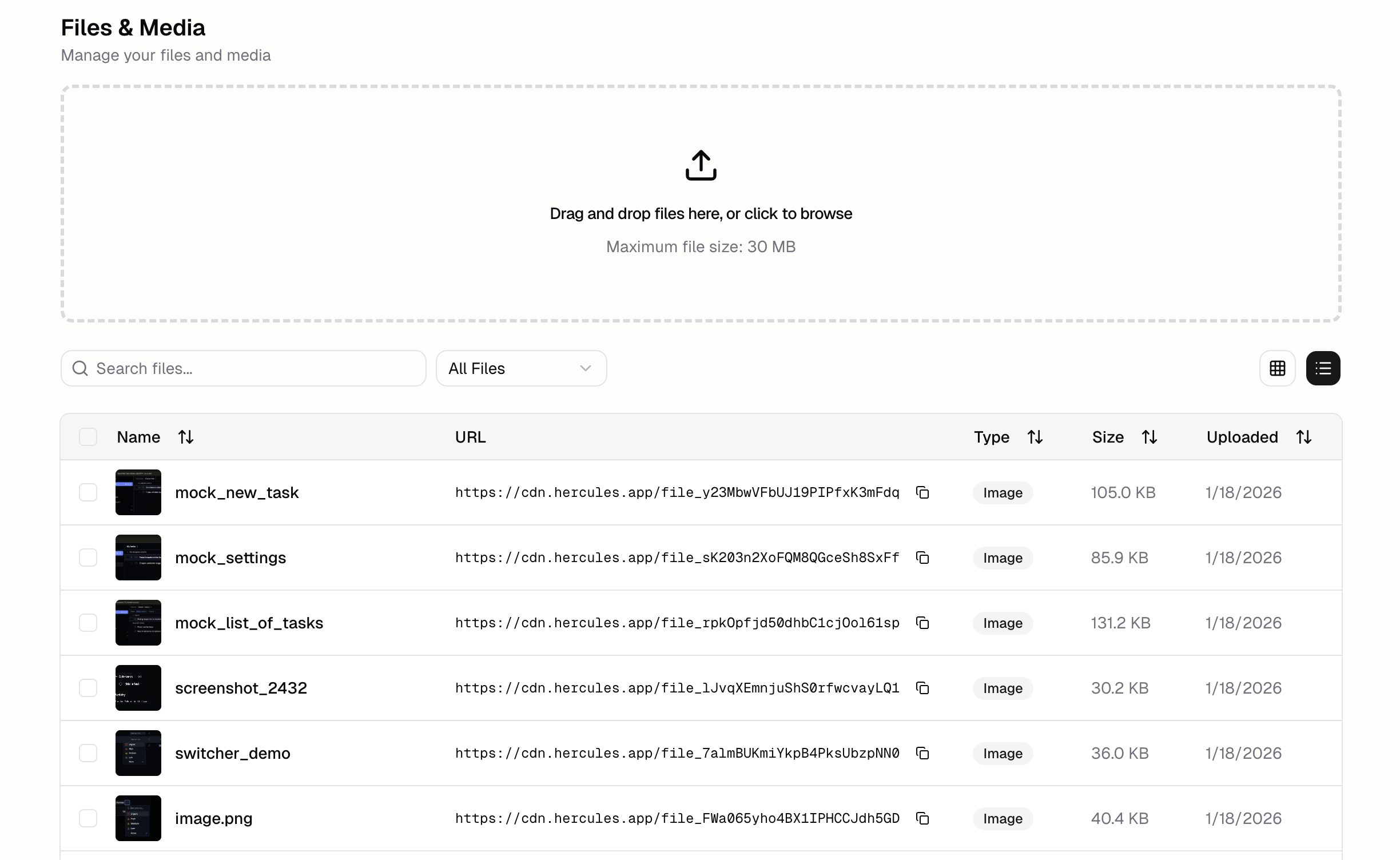
How do I upload files?
- Open Files & Media tab in the sidebar
- Drag and drop files or click the upload button
How do I organize files into folders?
- Click New folder in the Files & Media tab and name it
- Click a folder to open it
- Drag files onto a folder to move them in, or onto the breadcrumb to move them back out
What’s the URL for my file?
All files are accessible at a url likehttps://hercules-cdn.com/<file_id>. File IDs always start with file_ (e.g. https://hercules-cdn.com/file_1234567890).
The previous CDN URL format was
cdn.hercules.app. If you see this old format in your app’s code,
replace it with hercules-cdn.com. The old format is deprecated.How do I integrate files uploaded to Hercules Files & Media into my app?
Individual itemsCopy the file URL from the Hercules Files & Media tab and paste it into the Hercules Chat Multiple items
- Use the checkboxes to bulk select the files/media you want
- Click “Add to Chat”

What file types are supported?
Everything! Popular ones include- Images: PNG, JPG, GIF, SVG, WebP
- Videos: MP4, WebM, MOV
- Documents: PDF, DOC, DOCX, XLS, XLSX
- Other: Any file type can be stored and served.
Are there any limits?
Currently the limits are:
If you are on the Business plan and need more storage, please click “Support & feedback” with your app and why you need more storage and someone will get back to you.
How do I resize images?
Hercules Files and Media URLs lets you use Cloudflare image transformations. This uses URL parameters to resize the image. Example to make an image 512 wide:https://hercules-cdn.com/cdn-cgi/image/w=512,quality=85,fit=scale-down,format=auto/<file_id>
Additional FAQ
Are file URLs public?
Are file URLs public?
Yes. All files uploaded to Files & Media get public CDN URLs. Don’t upload sensitive documents that shouldn’t be publicly accessible.
How do I replace a file without breaking existing URLs?
How do I replace a file without breaking existing URLs?
Currently, each upload creates a new URL. To update an asset, upload the new version, then update
references in your app. We’re working on versioned replacements.
How do I delete multiple files at once?
How do I delete multiple files at once?
Shift-click to select multiple files, then use the bulk delete action. Useful for cleanup after
large imports.
How should I make it easy for AI to find my files?
How should I make it easy for AI to find my files?
Use clear naming conventions:
category-name.ext like hero-landing.png, icon-settings.svg,
doc-terms-of-service.pdf. Add descriptions for important assets.Why isn't a file loading in my app?
Why isn't a file loading in my app?
Check that you’re using the correct CDN URL. If using image transformations, verify the syntax.
Clear browser cache and try again. If issues persist, re-upload the file. Make sure all our urls
(hercules-cdn.com, hercules.app, *.hercules.app, *.onhercules.app, hercules-dev.com) are permitted
by your allowlist/denylist settings.
What's the difference between Files & Media and the Database?
What's the difference between Files & Media and the Database?
Files & Media stores static assets like images and documents. The Database stores structured app
data like user profiles and records. Use Files & Media for assets, Database for data.
Can I connect my own S3-compatible storage to my Hercules app?
Can I connect my own S3-compatible storage to my Hercules app?
Hercules does not natively support connecting an external S3-compatible bucket as Files & Media
storage. You can build this yourself: store the S3 credentials in Secrets
(Advanced → Secrets), then share the API docs and secret names (not the values) with the
Hercules AI Agent so it can integrate the storage in your app code. For 1 TB or more of native
storage with large uploads, contact sales@hercules.app for Enterprise
pricing with custom storage and upload limits.