
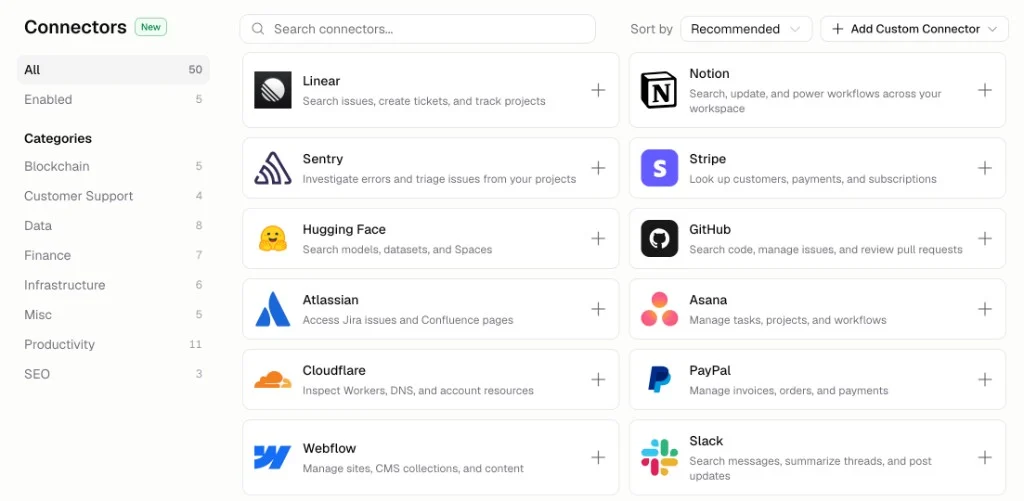
How do I use Chat Integrations?
- Connect the integration
- Tell Hercules what you want to do in that tool
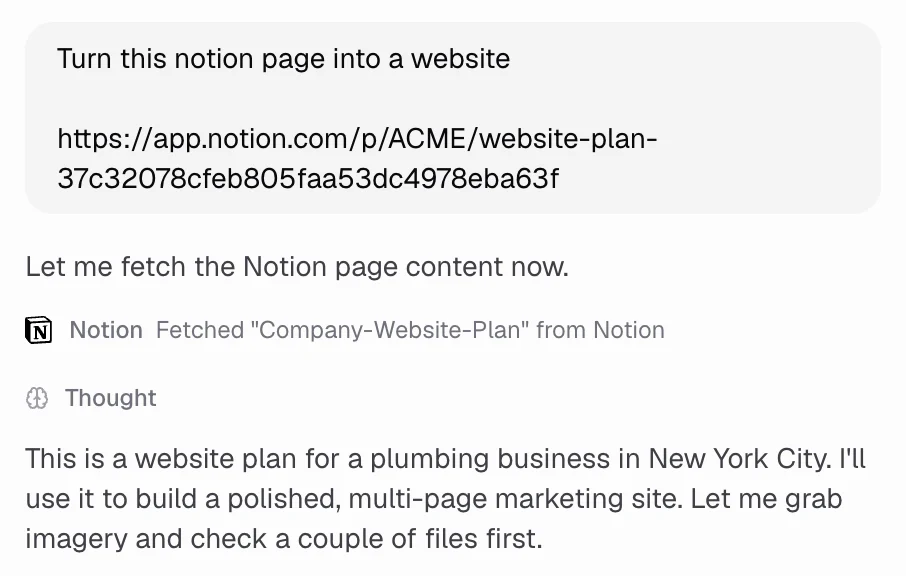
How do I set up Chat Integrations?
- Open an app, then click Chat Integrations in the sidebar
- Choose the service you want to connect
- Sign in to that service
Can I control when Hercules uses an integration?
Yes. Turn integrations on or off from the chat input. Click + → Integrations and toggle on the ones you want. To point Hercules at one integration, type @ and pick it.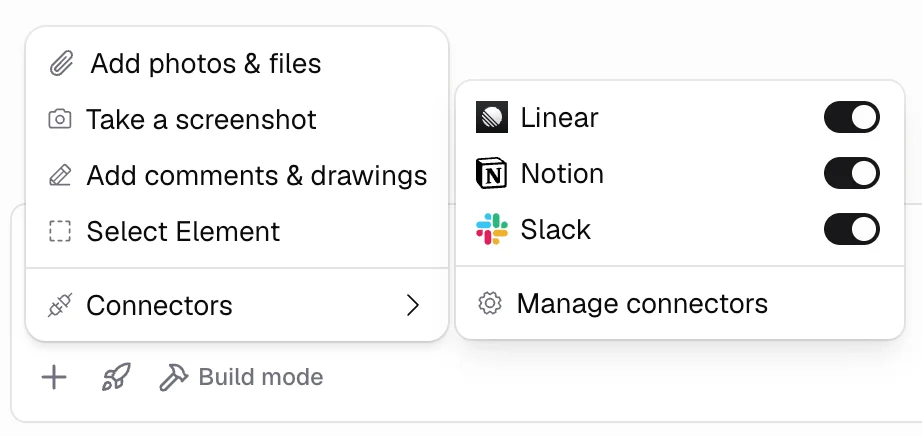
What’s the difference between Chat Integrations and App Integrations?
Both connect the same kinds of services. The difference is who uses the connection.
Connecting a service in one place does not connect it in the other. If you want Hercules to read Slack and your app to post to Slack, connect Slack in both.
Are Chat Integrations shared with my teammates?
No. Chat Integrations are personal to you. Teammates in your organization cannot see or use yours.How do I add a custom integration?
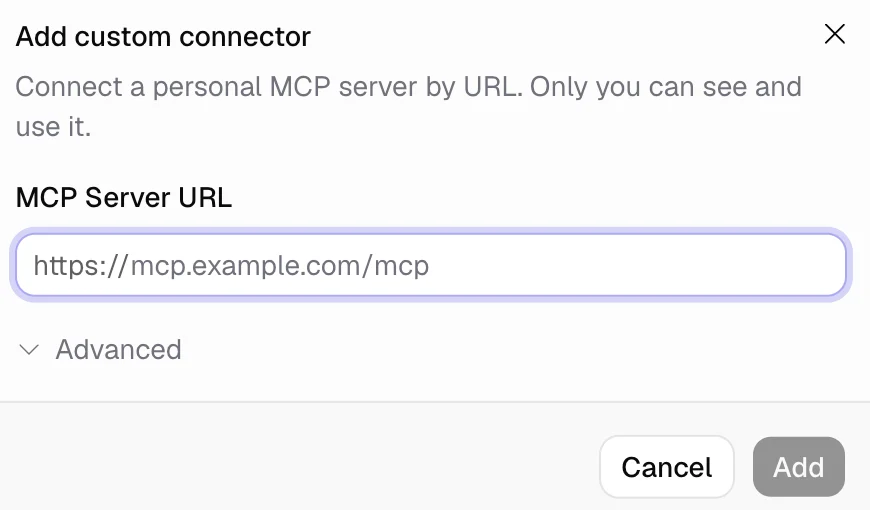
- Open Chat Integrations
- Click Add custom integration
- Paste in the MCP server URL (the address of the service’s AI connection)
How do I control Chat Integration permissions?
Open a connected integration’s detail page to see its tools, grouped as Read or Write. For each tool, set:
Write tools default to Ask for approval. Read tools default to Always allow. Change permissions per tool, or set them for a whole section at once.
Additional FAQ
Where do I find the catalog?
Where do I find the catalog?
You can open the same catalog from three places:
Do Chat Integrations work across all my apps?
Do Chat Integrations work across all my apps?
Yes. Once you install and enable an integration, Hercules can use it in every app you build in
that organization. Toggling an integration on or off from chat or the integration detail page
applies everywhere, not only the current app.
What is the difference between disable, disconnect, and remove?
What is the difference between disable, disconnect, and remove?
Disable turns an integration off for Hercules but keeps it installed. Disconnect signs you
out of an OAuth integration while keeping it installed. Remove uninstalls the integration and
deletes stored credentials. You can add it again from the catalog later.
What if I do not see the integration I need?
What if I do not see the integration I need?
Click Request integration at the bottom of the catalog. Tell us which service you want and we
will consider adding it. You can also add a custom integration with the server’s URL.
Is there a limit on how many integrations I can use at once?
Is there a limit on how many integrations I can use at once?
You can enable as many as you want. Hercules works best when you enable only the ones you need.
What does it cost?
What does it cost?
Connecting and using Chat Integrations is free. Messages where Hercules uses an integration use AI
credits the same as any other build chat. See AI Credits for
details.
Are my credentials safe?
Are my credentials safe?
Tokens and OAuth secrets are encrypted at rest. Hercules never shows stored secrets again after
you save them. OAuth sign-in happens in your browser, the same as connecting any other account.