
1
Publish your app
Click Publish to get a live URL. You need a published URL to test the real mobile experience.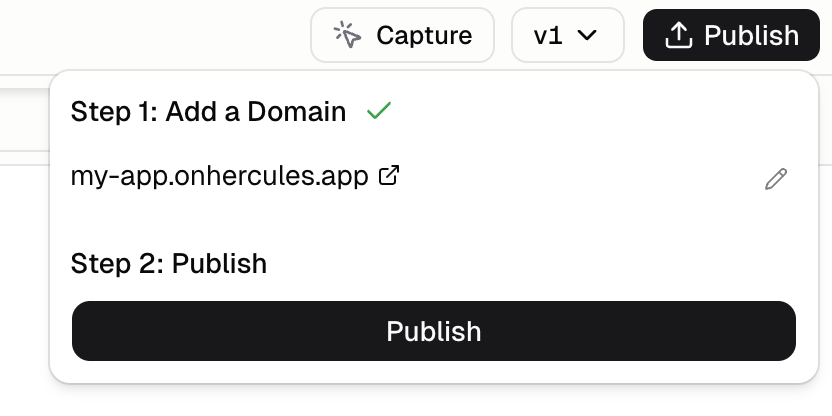
2
Open on your phone
Click Mobile and copy your app URL under Install it on your phone. Open it in your phone’s browser (Safari on iPhone, Chrome on Android).
3
Install to home screen
- iPhone: in Safari, tap Share, then Add to Home Screen
- Android: in Chrome, tap the menu (three dots), then Install app or Add to Home screen
4
Launch from home screen
Open the app from your home screen to test the installed experience: splash screen, full-screen mode, and app icon.
How do I test updates?
After you publish changes, fully close the app and open it again from your home screen. Switching between apps can keep showing the old version.Why can’t I test in the Hercules preview?
The Hercules preview does not support phone features like push notifications or location. Test on a real phone.I see “Dev Machine Not Found” when installing the PWA
You can’t install the PWA from inside the Hercules preview. Install it from the published URL instead:- Click Publish
- Open the published URL on your phone
- Install the PWA from there (Add to Home Screen)