
- Login methods
- Per-platform login options
- Language
- Theme
- Email and password sign-in
- Add a first password
- Import email and password users
- Username and password sign-in
- Username self-signup
- Create and manage username users
- Import username and password users
- Authentication emails
- Auth Portal domain
- OAuth consent screen branding
How do I customize Auth Portal logo, colors, and appearance?
Go to Users & Access → Auth Portal. You customize the Auth Portal’s logo, theme (system, light, or dark), terms and conditions, privacy policy and more.How do I customize login options?
Go to Users & Access → Auth Portal in the sidebar to enable specific login methods for your users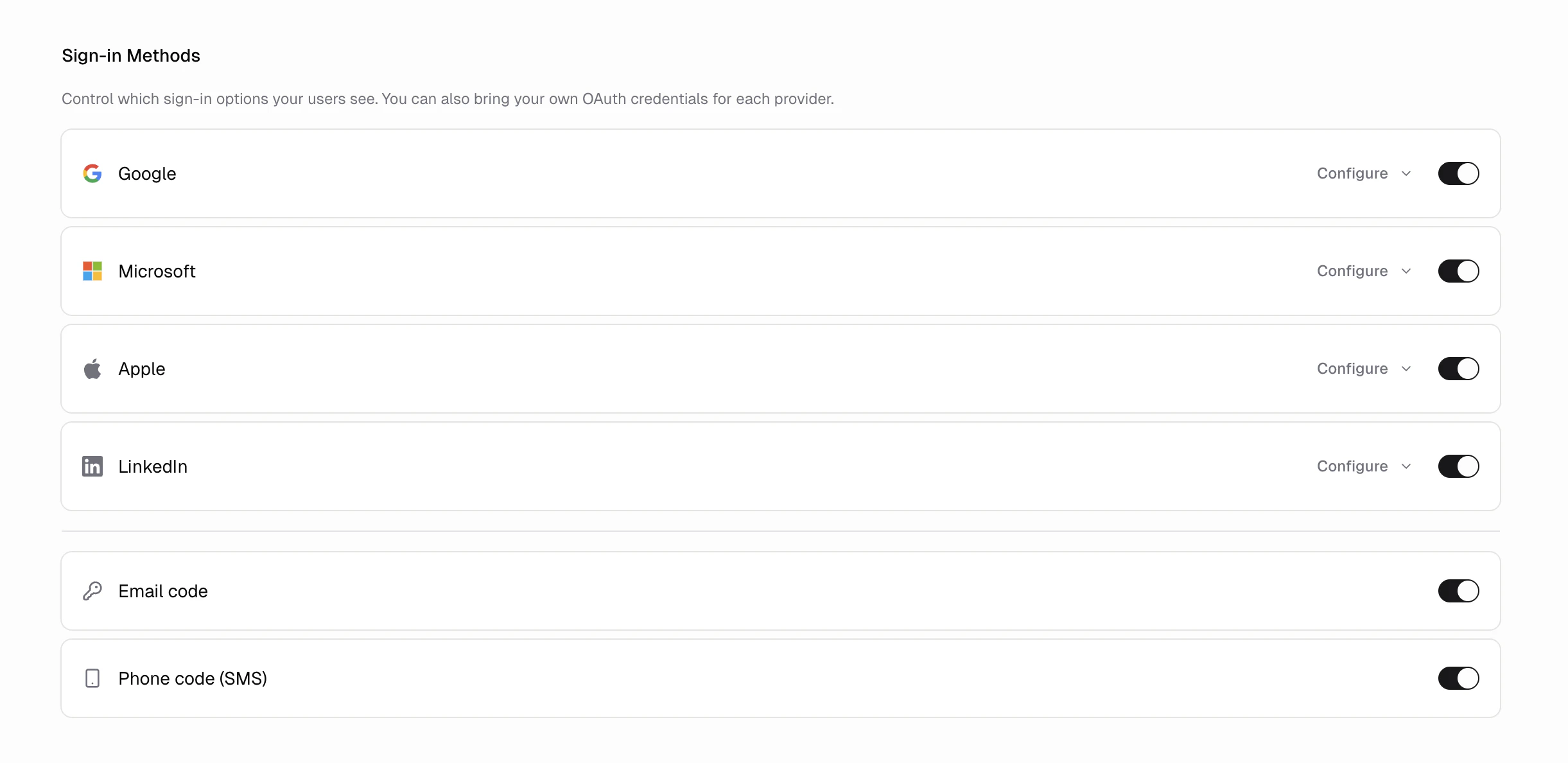
How do I limit login options for one platform, like a mobile app?
Add aproviders query parameter to your app’s sign-in redirect to show only specific login methods for that request. Other platforms keep the full set you enabled.
This helps packaged mobile apps. For example, Apple’s App Store guideline 4.8 rejects iOS apps that show social logins that fail inside the app. Detect the mobile app at runtime and sign in with providers=email_otp so those users see email login only, while web and Android keep Google and Apple.
google, apple, microsoft, facebook, linkedin, email_otp, email_password, phone_otp, username_password.
The parameter only hides methods. It cannot enable a method you turned off, and the Auth Portal ignores it if no requested method is enabled.
How do I change the Auth Portal language?
Go to Users & Access → Auth Portal and choose a language under Default Language. The Auth Portal shows sign-in, sign-up, one-time codes, password reset, and account settings in that language for all your users. Hercules supports English, Spanish, French, German, Portuguese, Chinese, Japanese, Russian, and Italian.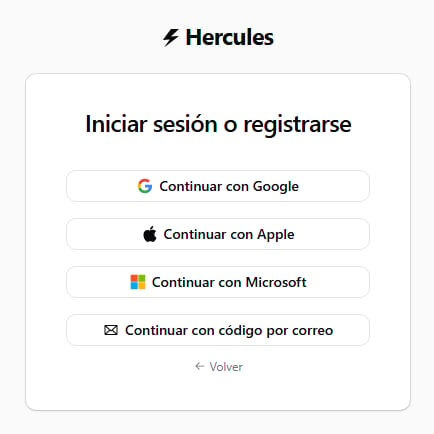
How do I change the Auth Portal’s theme?
Go to Users & Access → Auth Portal and choose System, Light, or Dark under Theme. System follows each visitor’s device setting; Light and Dark use that theme for every visitor. Existing apps stay on Light until you change it. Setting a theme is available on Pro, Business, and Enterprise plans.How do I enable email and password sign-in?
Email and password sign-in is available on Pro and Business plans.- Go to Users & Access → Auth Portal.
- Under Sign-in Methods, turn on Email and password.
- Save your changes.
How does an existing user add their first password?
Users who already sign in with Google, Apple, Microsoft, or an email code can add email and password without creating another account:- Enable and save Email and password sign-in.
- Ask the user to sign in with their existing method.
- Ask the user to open Account settings on the Auth Portal.
- Under Set a password, click Email me a link.
- Open the link in the email and set a password.
How do I import email and password users?
Users on the Business plan can import up to 5,000 users at a time:- Enable and save Email and password sign-in.
- Go to Users & Access → Users and click Import Users.
- Choose a CSV file and click Review users.
- Review the valid, skipped, and invalid rows.
- Click Import users.
email_or_username identifier column for both email and username accounts. For this section, put a
valid email address in that column.
How do I enable username and password sign-in?
Username and password sign-in is available on every plan. No email address is required, and by default you create the accounts: users cannot sign themselves up.- Go to Users & Access → Auth Portal.
- Under Sign-in Methods, turn on Username and password.
- Save your changes.
- Go to Users & Access → Users and click Create User to add accounts.
How do I let users sign up themselves with a username?
Self-signup is off by default and needs a paid plan. To allow it:- Go to Users & Access → Auth Portal.
- Under Sign-in Methods, click Configure beside Username and password.
- Turn on Allow users to sign up themselves.
- Choose how usernames are set: users pick their own, or Hercules assigns one automatically. For assigned usernames you can add a prefix, for example
cust_produces usernames likecust_84739215. - Save your changes.
How do I create and manage username users?
Because there is no email on the account, you handle account creation (unless self-signup is enabled) and all password resets.- Enable and save Username and password sign-in.
- Go to Users & Access → Users.
- To add a user, click Create User, enter a username and set a password (or generate one), then share the credentials with the user.
- To reset a password (for example when a user forgets theirs), open the user’s actions menu, choose Reset password, set a new password, and share it. Resetting a password signs the user out of their existing sessions.
/settings on your Auth Portal domain). The new password must be 8 to 128 characters and must not appear in a known data breach. Those are the only rules: Hercules does not require a mix of numbers, symbols, or letter cases, and it does not compare the new password with the old one. There is no Forgot password? email flow for username accounts, since the account has no email: a forgotten password is reset by you.
How do I import username and password users?
Users on the Business plan can import up to 5,000 username accounts at a time:- Enable and save Username and password sign-in.
- Go to Users & Access → Users and click Import Users.
- Choose a CSV file and click Review users.
- Review the valid, skipped, and invalid rows.
- Click Import users.
email_or_username column. A single file can include email and username rows when both sign-in
methods are enabled.
How do I customize the Auth Portal’s domain?
By default, the Auth Portal uses a Hercules-managed domain (e.g.yourapp.hercules-auth.com). You can change this to auth.yourdomain.com so your users see your domain during sign-in. Configuration depends on how you connect your domain to your Hercules app.
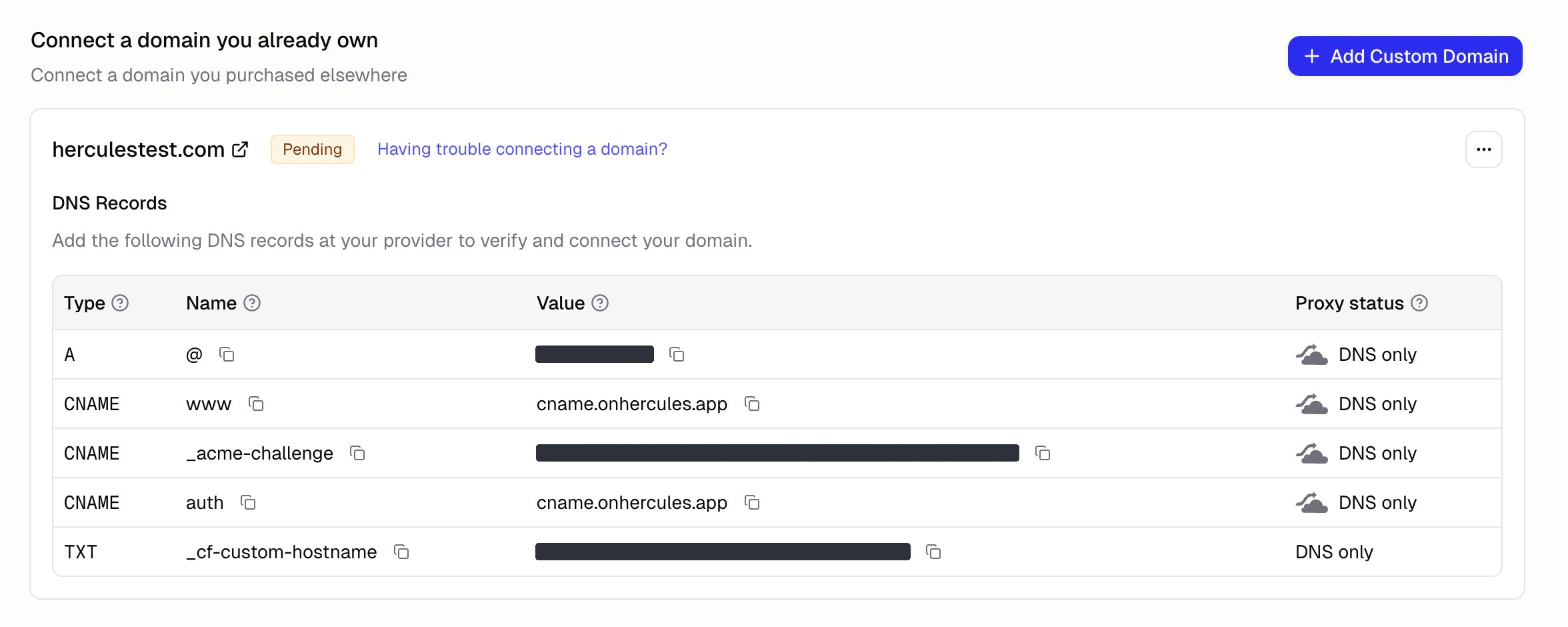
- SSL is provisioned automatically
- To use a subdomain other than
auth, contact hello@hercules.app - If users see a red “Deceptive site ahead” or “Dangerous site” warning when visiting
auth.yourdomain.com, the flag typically originates from your apex domain. See Google Safe Browsing warnings on your domain
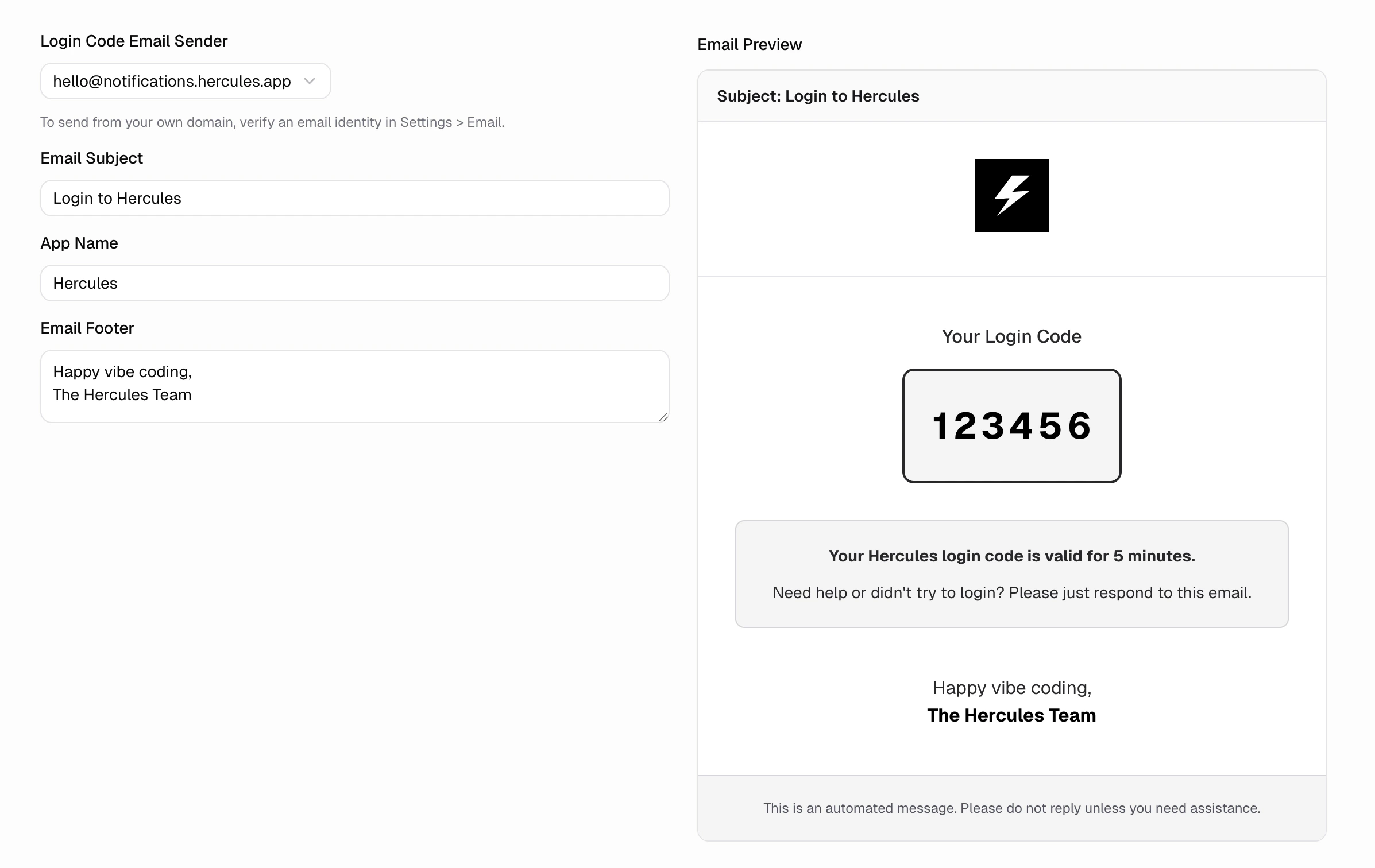
How do I customize authentication emails?
Go to Users & Access → Auth Portal to customize the emails your users receive during authentication:How do I customize OAuth branding?
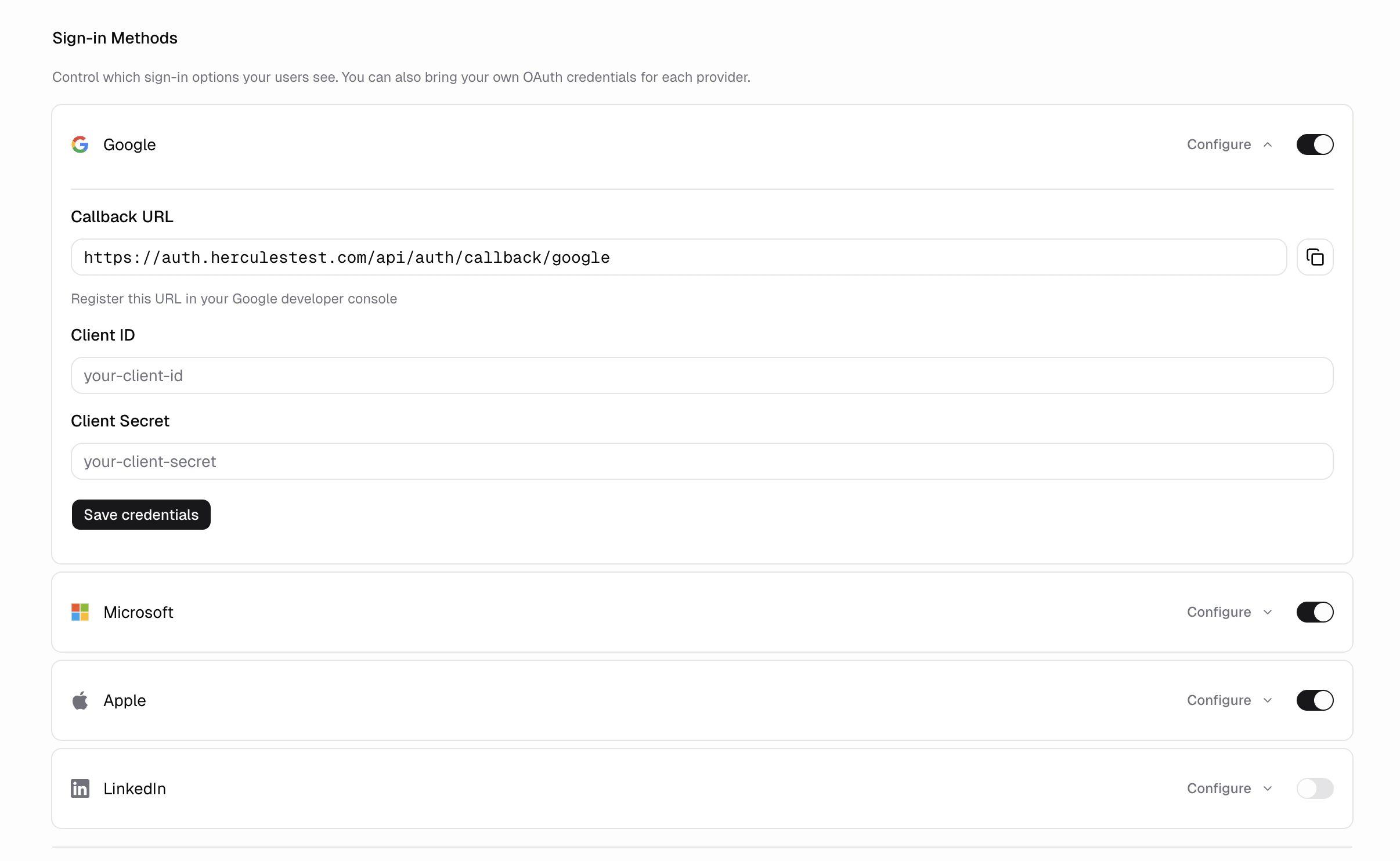
By default, your users see “Hercules” on the OAuth consent screen during social login. Use custom credentials to show your brand name, privacy policy, and terms of service instead. Go to Users & Access → Auth Portal → Login Options, select a provider, and enter your OAuth credentials. After saving, Hercules gives you a Callback URL to add to your provider’s developer console. See provider-specific guides below.Google setup
Google setup
Create a Google Cloud project
Configure the OAuth consent screen
- Set the User Type to External (unless you are restricting to a Google Workspace organization)
- Fill in the App name, User support email, and Developer contact email
- Add your logo, privacy policy URL, and terms of service URL
- Under Scopes, add
openid,email, andprofile - Save
Create OAuth credentials
- Set Application type to Web application
- Under Authorized redirect URIs, add the Callback URL shown in Hercules (you can come back to this step after saving in Hercules)
- Click Create
- Copy the Client ID and Client Secret
Enter credentials in Hercules
- Paste the Client ID and Client Secret
- Click Save
- Copy the Callback URL shown after saving
Add the Callback URL to Google
- Under Authorized redirect URIs, add the Callback URL from Hercules
- Save
Microsoft setup
Microsoft setup
Register an app in Microsoft Entra ID
- Set a Name for the app (your users will see this)
- Under Supported account types, select Accounts in any organizational directory and personal Microsoft accounts (this covers both work and personal accounts)
- Under Redirect URI, select Web and enter the Callback URL shown in Hercules (you can come back to this step after saving in Hercules)
- Click Register
Create a client secret
- Add a description and choose an expiry period
- Click Add
- Copy the Value (this is your Client Secret, shown only once)
Copy the Client ID
Optional: auto-link work and school accounts
xms_edov claim. Add that claim and these accounts link automatically. (Personal Microsoft accounts verify their own email and are unaffected.)In your app registration, open Manifest and make optionalClaims.idToken include email and xms_edov:xms_edov is not in the Token configuration dropdown, so add it through the Manifest; a “claim not recognized” warning there is safe to ignore.Enter credentials in Hercules
- Paste the Client ID (Application ID from Microsoft) and Client Secret (secret value)
- Click Save
- If you haven’t added the Callback URL yet, copy it now and add it to the Redirect URIs in Microsoft Entra
Apple setup
Apple setup
Create an App ID
- Select App IDs → Continue
- Select App → Continue
- Enter a Description and a Bundle ID (e.g.
com.yourcompany.yourapp) - Under Capabilities, check Sign In with Apple
- Click Continue → Register
Create a Services ID
- Enter a Description (your users will see this on the Apple consent screen)
- Enter an Identifier (e.g.
com.yourcompany.yourapp.auth) - Click Continue → Register
- Check Sign In with Apple → click Configure
- Under Domains and Subdomains, add the domain shown in the Hercules Callback URL (for example,
hercules-auth.com) - Under Return URLs, add the full Callback URL from Hercules
- Click Save → Continue → Save
Create a private key
- Enter a Key Name
- Check Sign In with Apple → click Configure
- Select the App ID you created in Step 1
- Click Save → Continue → Register
- Download the
.p8key file. Store it securely. Apple only lets you download it once. - Note the Key ID shown on this page
Find your Team ID
Enter credentials in Hercules
- Client ID: Enter the Identifier of your Services ID (from Step 2, e.g.
com.yourcompany.yourapp.auth) - Team ID: Paste your Team ID
- Key ID: Paste the Key ID from Step 3
- Private Key: Open the
.p8file in a text editor and paste the entire contents, including the-----BEGIN PRIVATE KEY-----and-----END PRIVATE KEY-----lines - Click Save
LinkedIn setup
LinkedIn setup
Create a LinkedIn app
- Enter an App name, LinkedIn Page, and Logo
- Accept the terms and click Create app
Add the Sign In with LinkedIn product
Configure OAuth redirect
- Under Authorized redirect URLs for your app, add the Callback URL from Hercules
- Copy the Client ID and Client Secret
Enter credentials in Hercules
- Paste the Client ID and Client Secret
- Click Save
Facebook setup
Facebook setup
Create a Meta app
- Choose the Authenticate and request data from users with Facebook Login use case
- Enter an App name and contact email, then create the app
Add your app details
- Add a Privacy Policy URL and a User data deletion URL (both required to go live)
- Set a Category
- Copy the App ID and App secret (click Show)
Configure Facebook Login
- Turn on Client OAuth login and Web OAuth login
- Under Valid OAuth Redirect URIs, add the Callback URL shown in Hercules (you can come back to this step after saving in Hercules)
- Save
Request access and go live
Enter credentials in Hercules
- Paste the App ID (as Client ID) and App secret (as Client Secret)
- Click Save
- Copy the Callback URL shown after saving and add it under Valid OAuth Redirect URIs in the Meta app if you haven’t already
- If you remove custom credentials, Hercules automatically falls back to its own managed credentials. Social login continues to work. Your users will see “Hercules” on the consent screen again.
- Custom OAuth credentials are available on the Business plan
Can I bring my own auth provider?
Currently, Hercules apps only support Hercules Auth. Authentication is a fragile part of building software. If auth breaks, your entire app can break. We prioritize making Hercules Auth a stable, well-supported, secure, and robust auth system. We are working on supporting custom auth providers in the future.Additional FAQ
I don't see these options in my dashboard
I don't see these options in my dashboard
What's the difference between users and auth?
What's the difference between users and auth?
Can I block disposable email addresses from signing up?
Can I block disposable email addresses from signing up?
Can I import more than 5,000 users?
Can I import more than 5,000 users?
Can imported users reset their password?
Can imported users reset their password?
Can I close the window while an import runs?
Can I close the window while an import runs?
What happens if I upload the same CSV again?
What happens if I upload the same CSV again?
Can I embed auth directly in my app?
Can I embed auth directly in my app?
Do my users need to re-register when I change login methods?
Do my users need to re-register when I change login methods?
Can I use a localhost callback URL?
Can I use a localhost callback URL?