
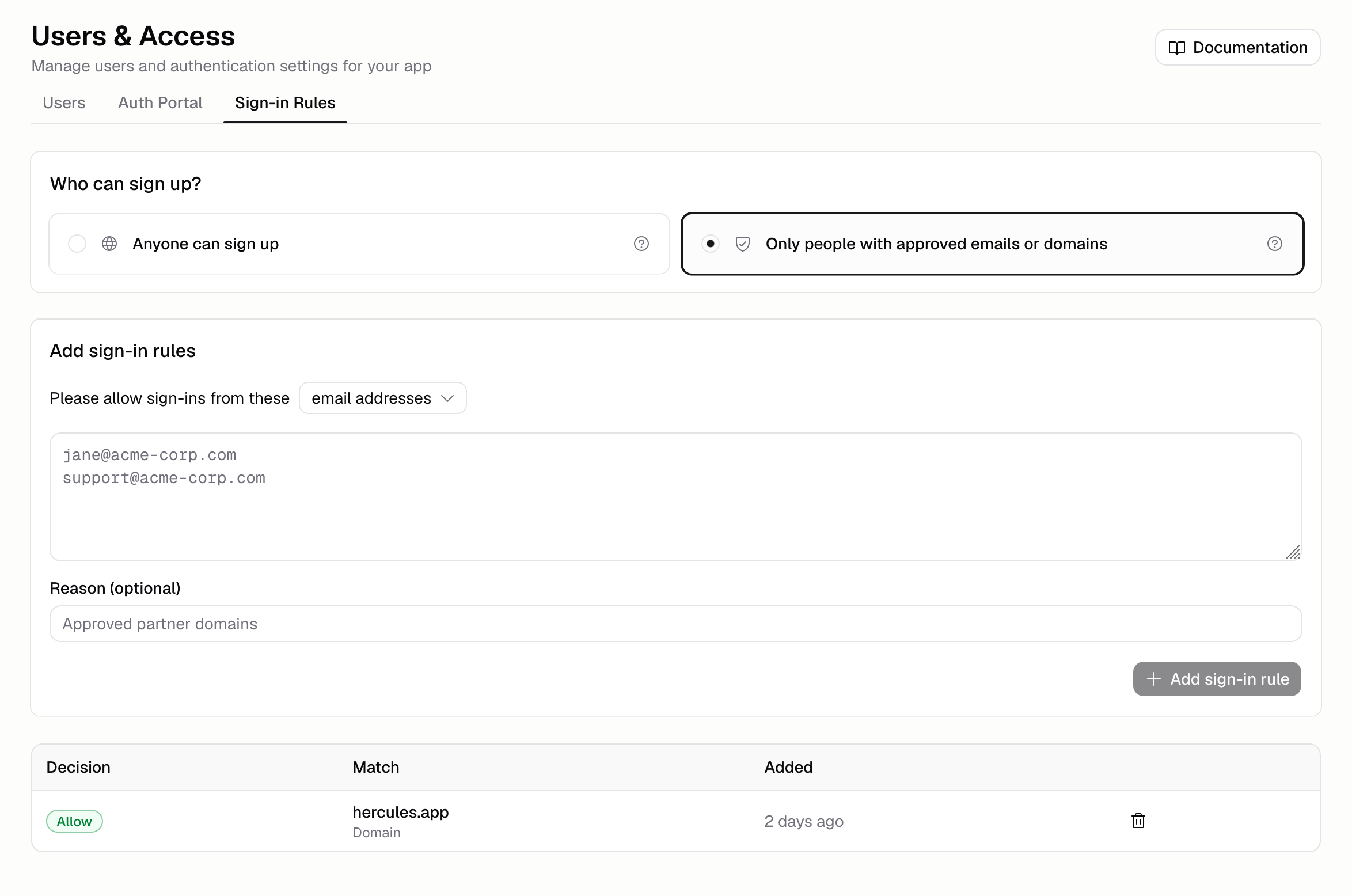
Where do I find sign-in rules?
Click Users & Access → Sign-in Rules in your app sidebar. Sign-in rules are available on apps using Hercules Auth 2.0. If your app was created before Hercules Auth 2.0, upgrade it first. Editing rules requires a Business plan or higher.Who can sign up?
Pick one of three options:- Allow everyone: anyone who reaches your sign-in page can create an account. This is the default.
- Only people I approve: only people matching your rules can create an account or sign in.
- Only SSO users: only people your organization’s identity provider signs in can create an account or sign in, and your app’s other sign-in methods are hidden. Turn on single sign-on first.
How do I approve an email address or domain?
- Choose email addresses or domains.
- Paste the values into the box, one per line.
- Add a reason if you want a note about why they are approved (optional).
- Click Add sign-in rule.
acme-corp.com to let in everyone with an email at that domain, or approve jane@acme-corp.com to let in one person.
How do I remove a rule?
Click the three dots at the end of the rule’s row, then click Remove rule and confirm. Removing a rule can immediately change who is allowed in. Anyone who no longer matches is signed out the next time they try to sign in.What do blocked users see?
They see: “Your email address is not approved to access this app. Contact the app owner to request access.” The message never reveals which rules exist or whether the address already has an account.Are existing users affected?
Are existing users affected?
Yes. Rules are checked when an account is created and again on every sign-in after that. Users
who already have an account but do not match your rules are signed out at their next sign-in.
How are rules matched?
How are rules matched?
Matching is not case sensitive. A domain rule matches everything after the
@ in the user’s
email address, and it has to match in full. Approving acme-corp.com does not let in
jane@eng.acme-corp.com, so add each subdomain you want to approve. If an address matches both
a block rule and an allow rule, the block wins.Do Phone OTP and username accounts work with an allowlist?
Do Phone OTP and username accounts work with an allowlist?
Yes, as long as you approve the right value. Those accounts have a placeholder address in place
of a real one: a username account uses the username followed by
@username.invalid, and a Phone
OTP account uses an address ending in @phone.invalid. Approving the username or the phone
number on its own never matches. Open Users & Access, copy the full address shown on the
account, and add it as an email rule. To approve every account of that kind at once, add a
domain rule for username.invalid or phone.invalid.How many rules can I add?
How many rules can I add?
Up to 1,000 rules, with each email address or domain up to 255 characters.
What happens if my plan changes?
What happens if my plan changes?
Rules you already saved keep being enforced, so your app’s door stays shut rather than opening
to everyone. You can still see the list, but you need a Business plan or higher to edit it.
What’s next?
Manage Users
Manage users, roles, and permissions
Customize Login & Sign up
Customize login methods, branding, and domains