Changelog
New features and fixes in Hercules.
October 2026
Move an App to Another Region
You can now move an existing Hercules App's backend and database to another region, such as from the US to the EU. Your other Apps stay in their current region.
Read more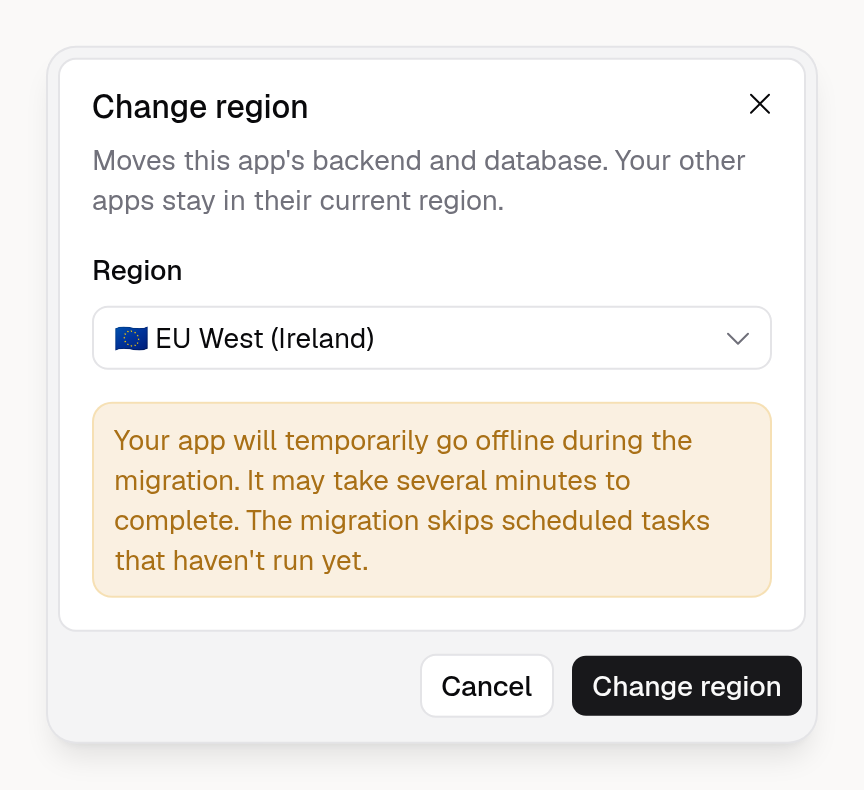
Auth Portal in 50+ Languages
Your Auth Portal and its sign-in emails now come in 50+ languages, and Auto shows each visitor their browser's language by default.
Read more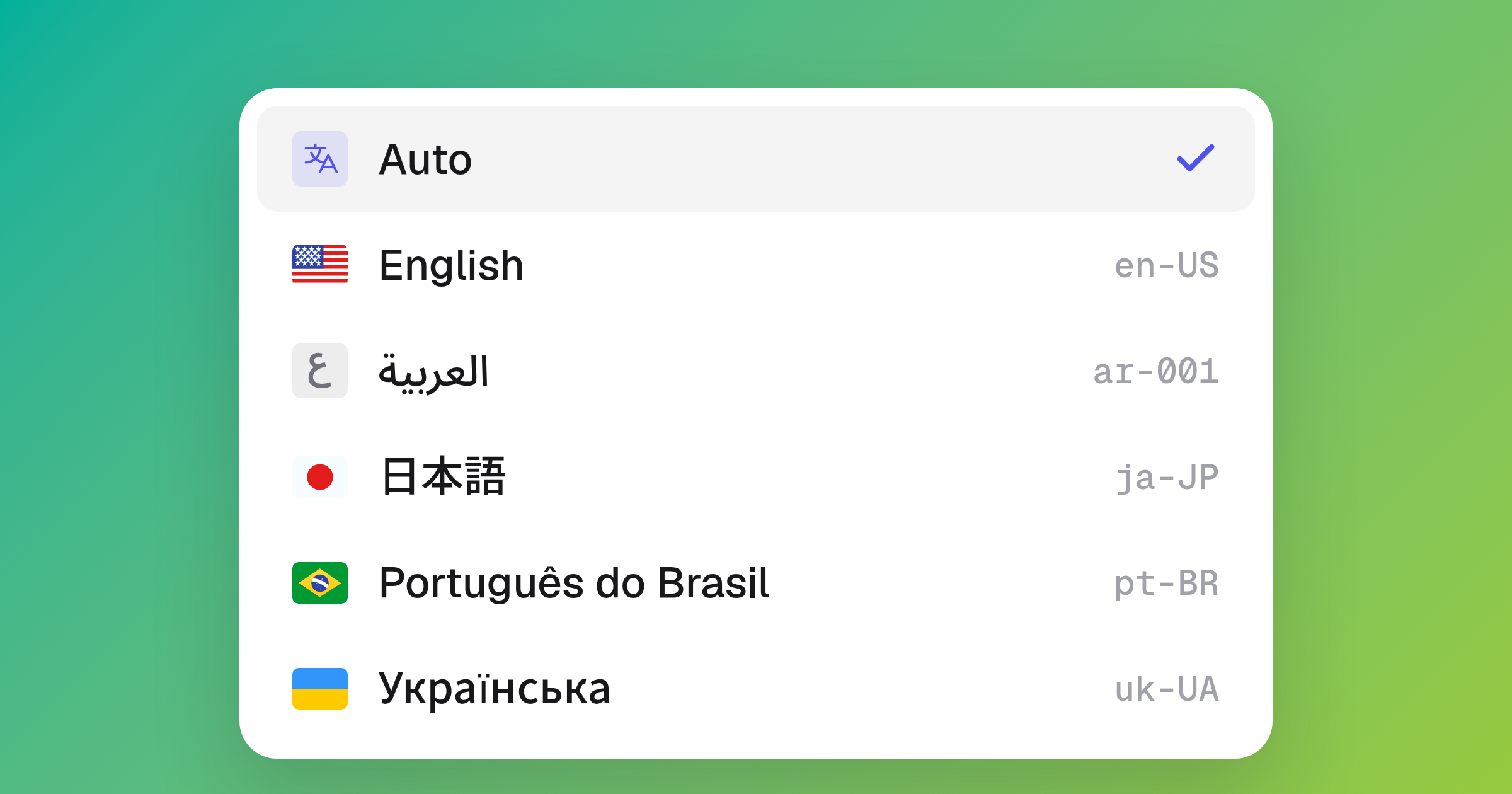
Single Sign-On for Apps
Your users can sign in to your App with your company's identity provider, like Okta or Microsoft Entra ID. On Business and Enterprise plans.
Read more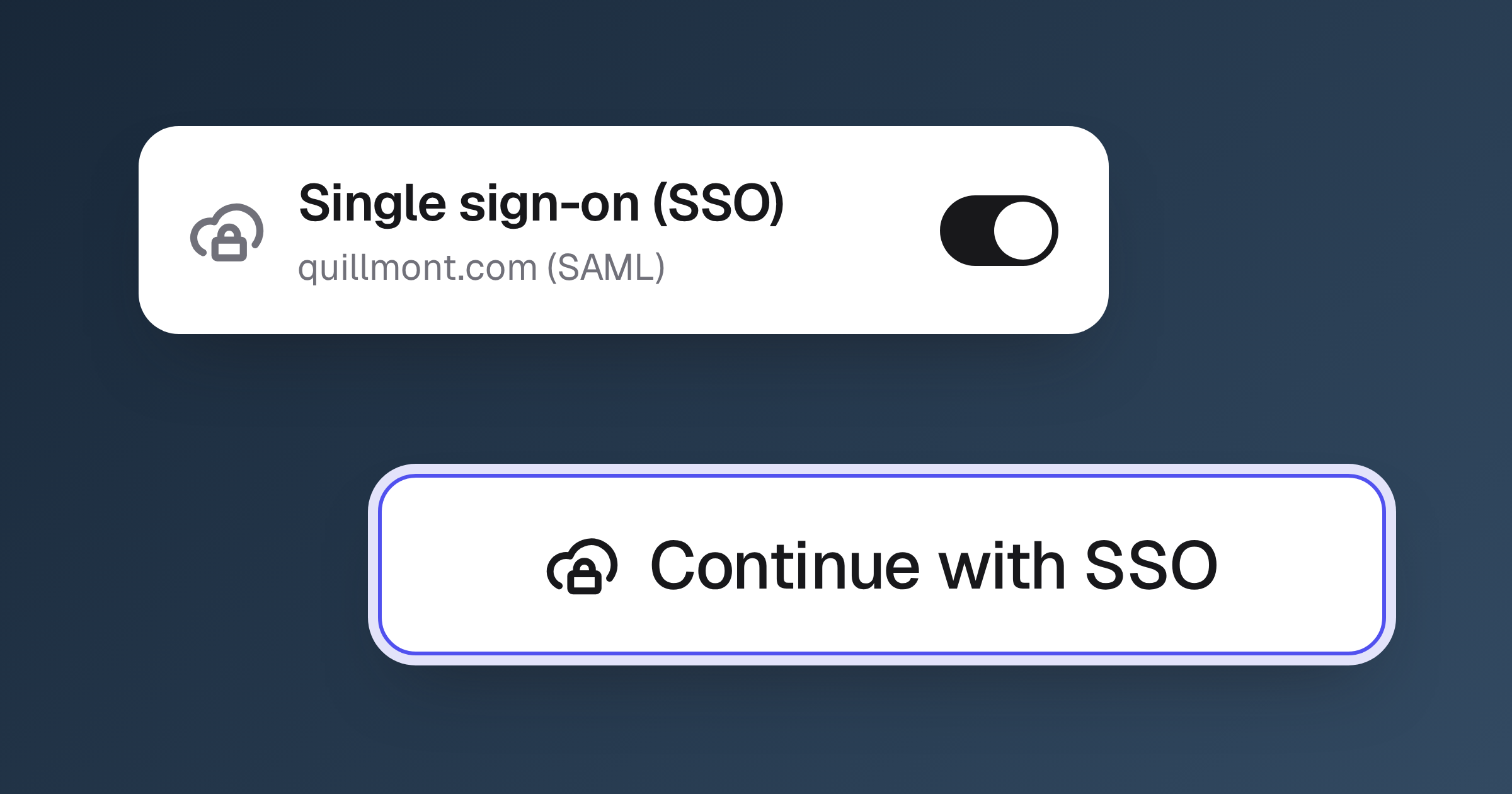
App Integrations
Your App can now read and write data in 250+ services like Notion, Linear, and Slack. Connect an account once and Hercules builds the integration.
Read more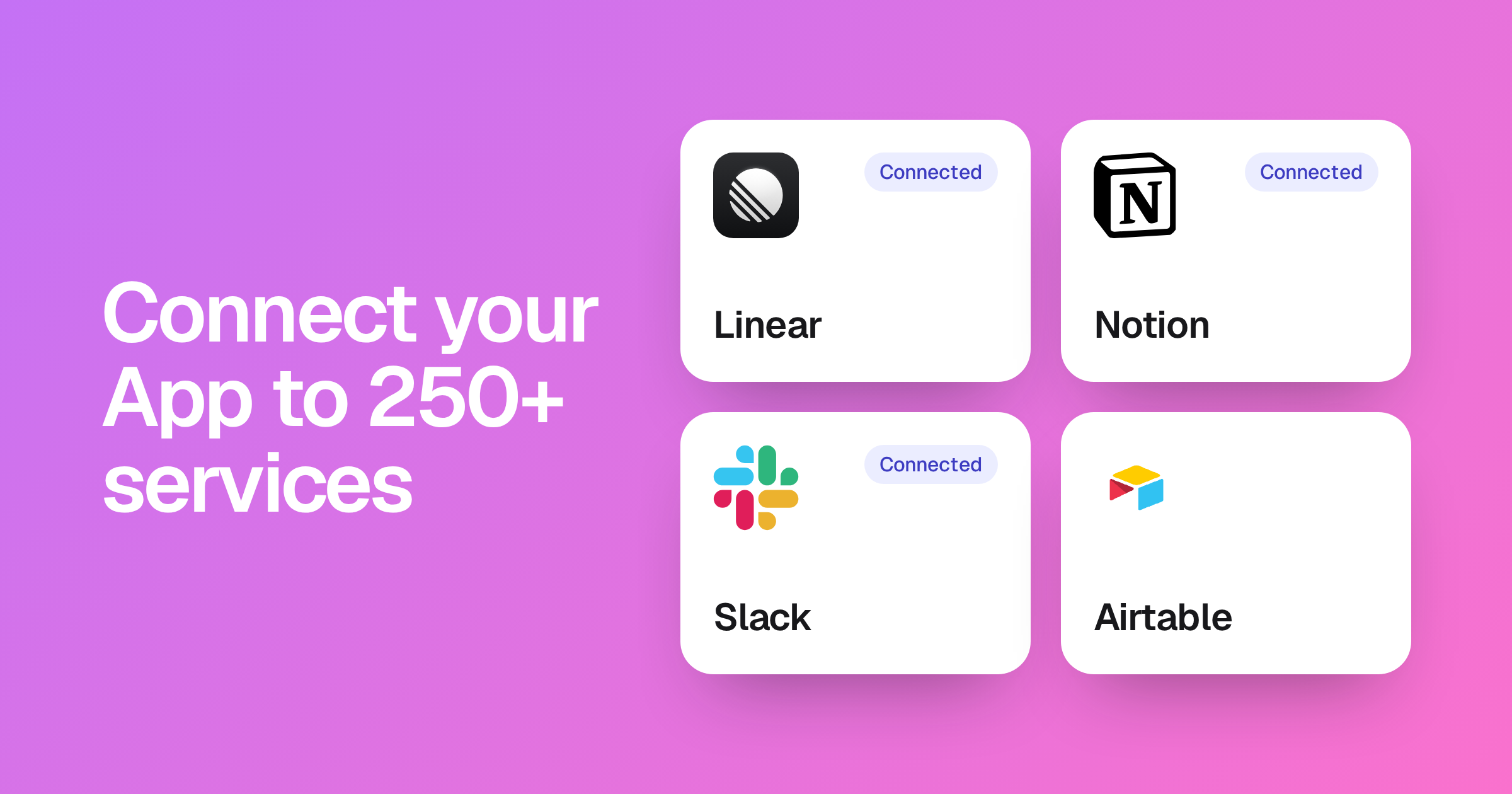
September 2026
Delete Your Organization
Owners can now delete an organization from Settings. Its Apps go offline right away, and you can restore it for 7 days before it is deleted for good.
Read more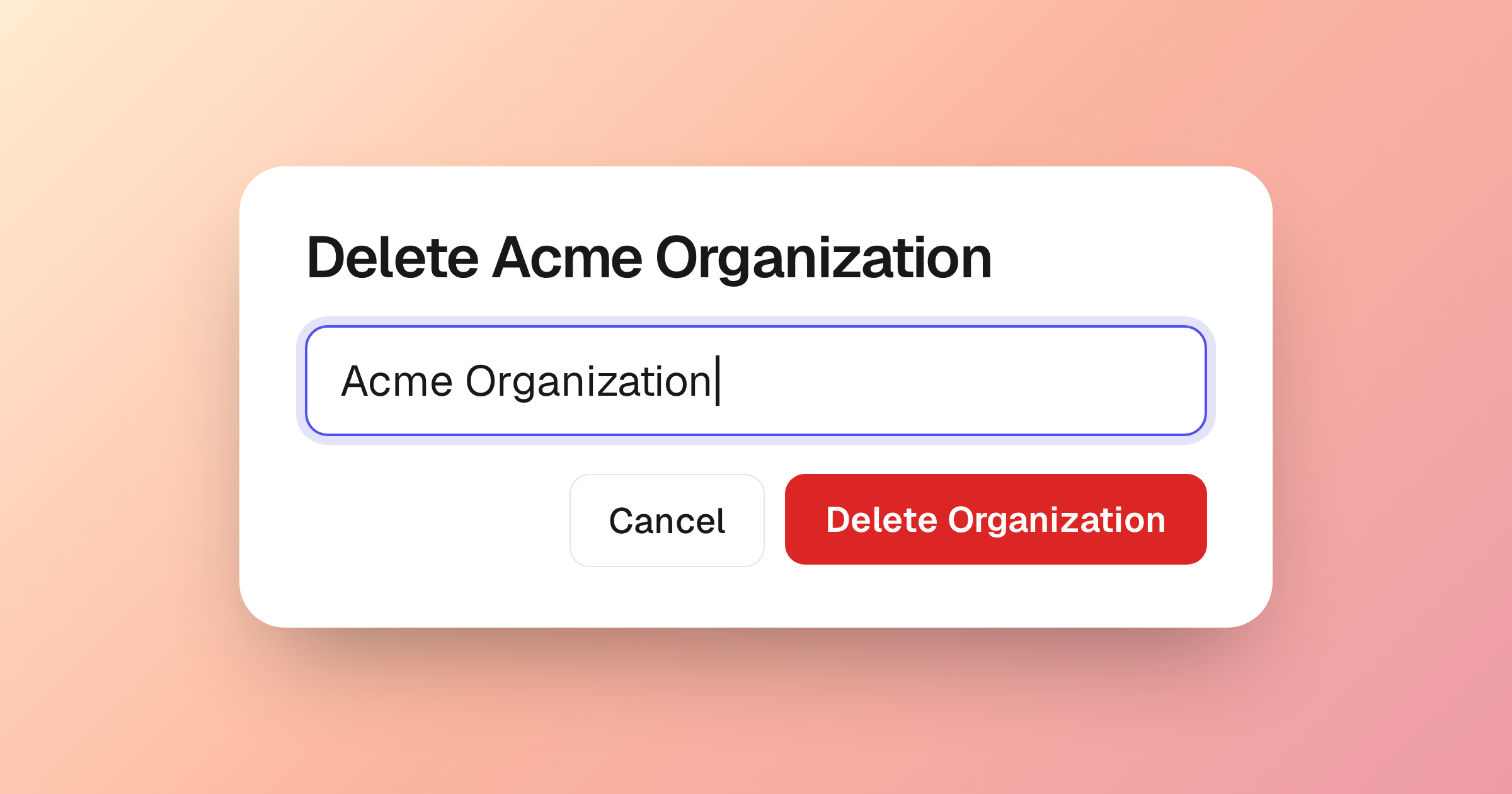
Store Data in Canada and Australia
Hercules Apps can now store their data in Canada or Australia. Pick Montreal or Sydney as the region for new Apps, alongside US East and EU West.
Read more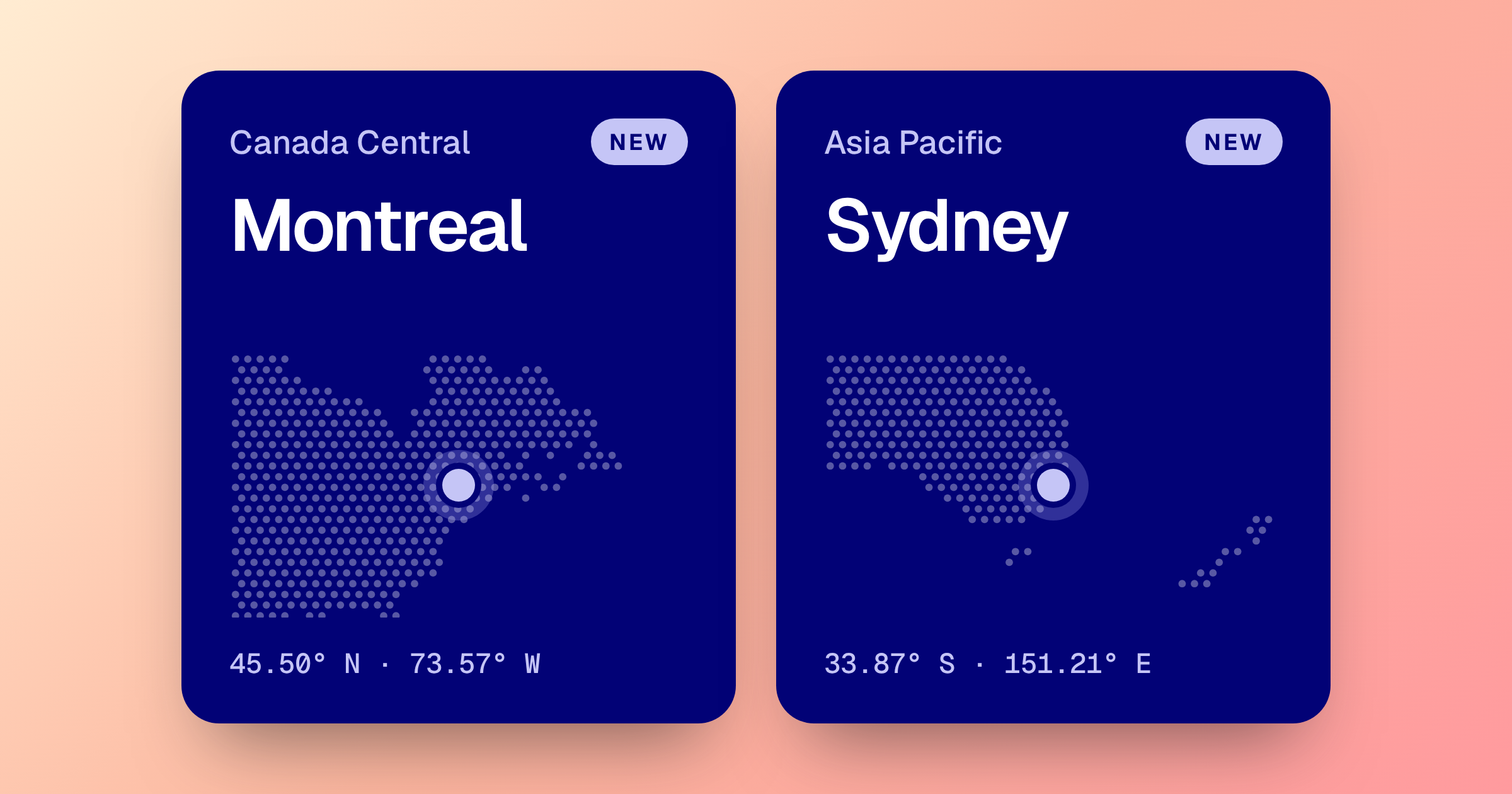
Sign In With SMS Codes
Let your users sign in with a code sent by text message. Send codes with Hercules SMS or connect Twilio, Vonage, Plivo, or 2factor.in on paid plans.
Read more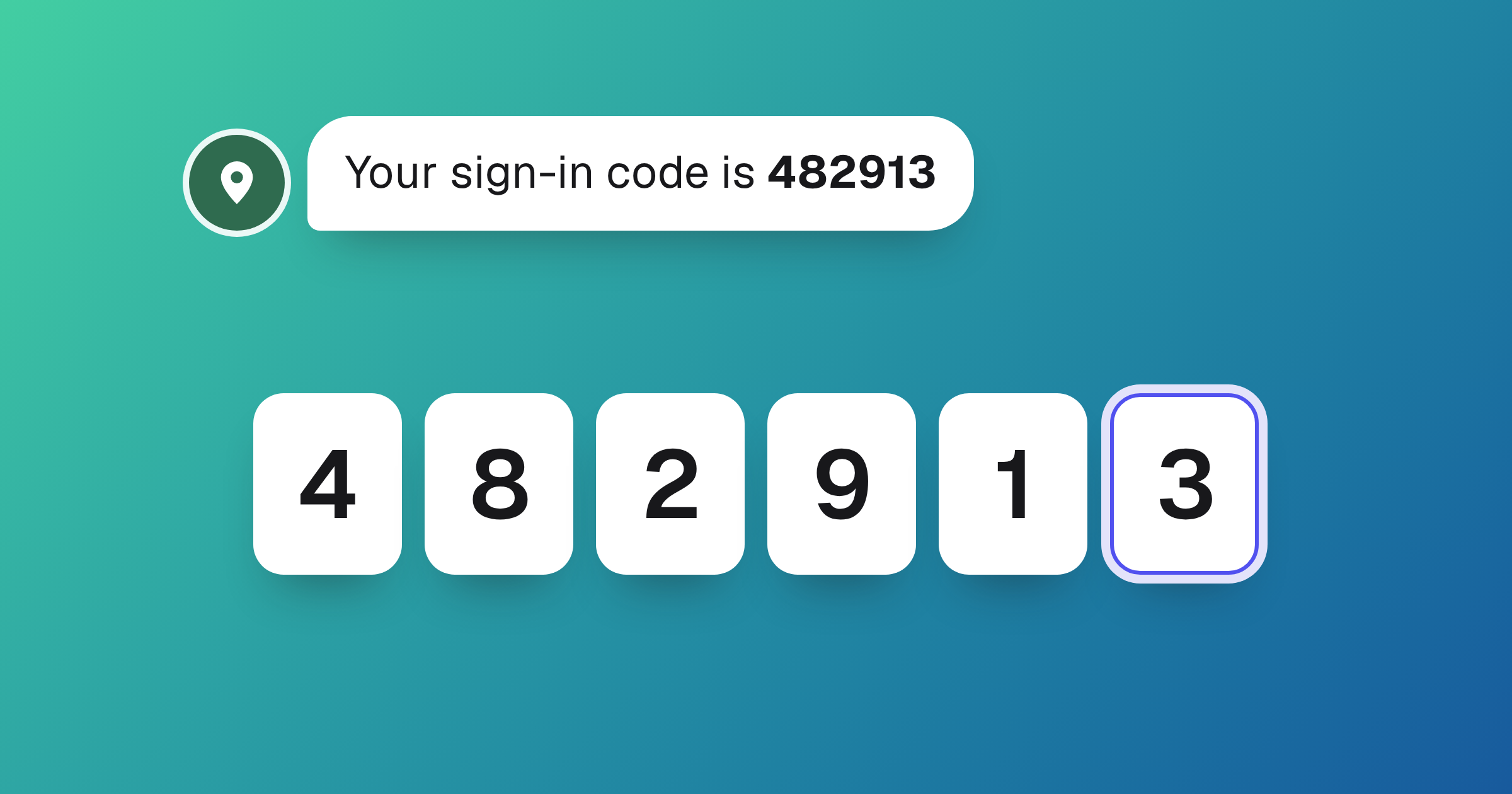
Organize Apps into Folders
Group your organization's Apps into shared folders on the All Apps page. Create, rename, and color folders, then drag Apps onto them to file them.
Read more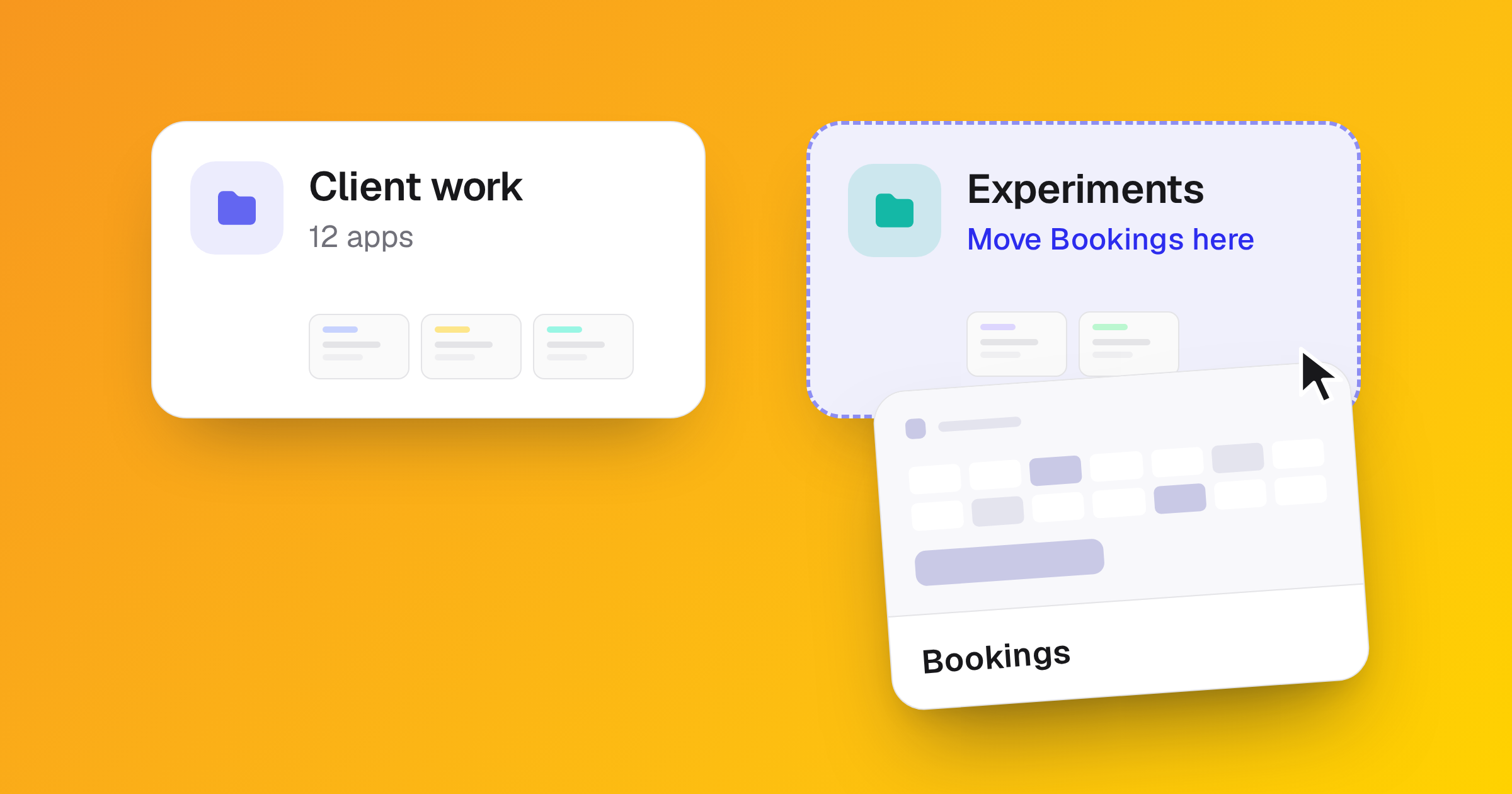
Add SMS Sign-In
SMS sign-in lets end users sign in to your App with a one-time code sent to their phone. Hercules sends the code and bills Cloud credits per verification.
Read more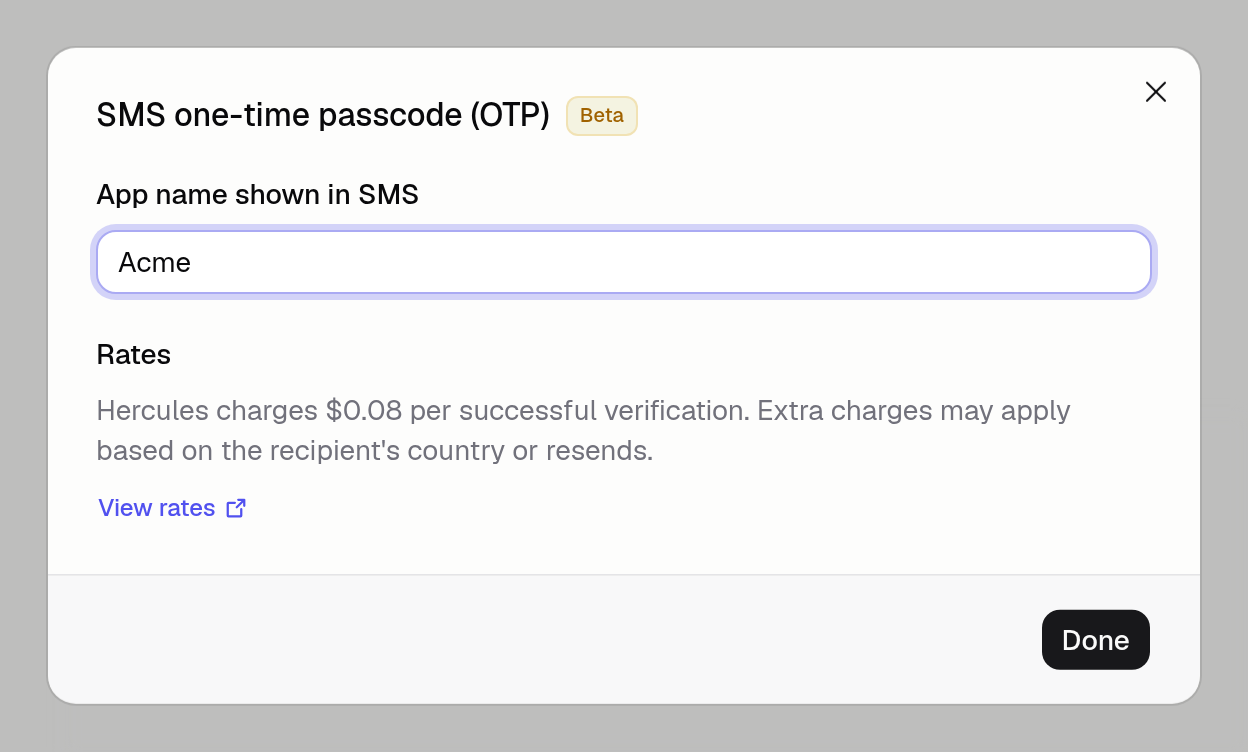
Latest MCP Protocol Revision
The Hercules MCP and Connectors now support the newest Model Context Protocol revision alongside every earlier one.
Read morePublish iOS Apps
Hercules now builds, signs, and submits your iOS App to App Review. Write the store listing in Hercules and follow each build from TestFlight to live.
Read more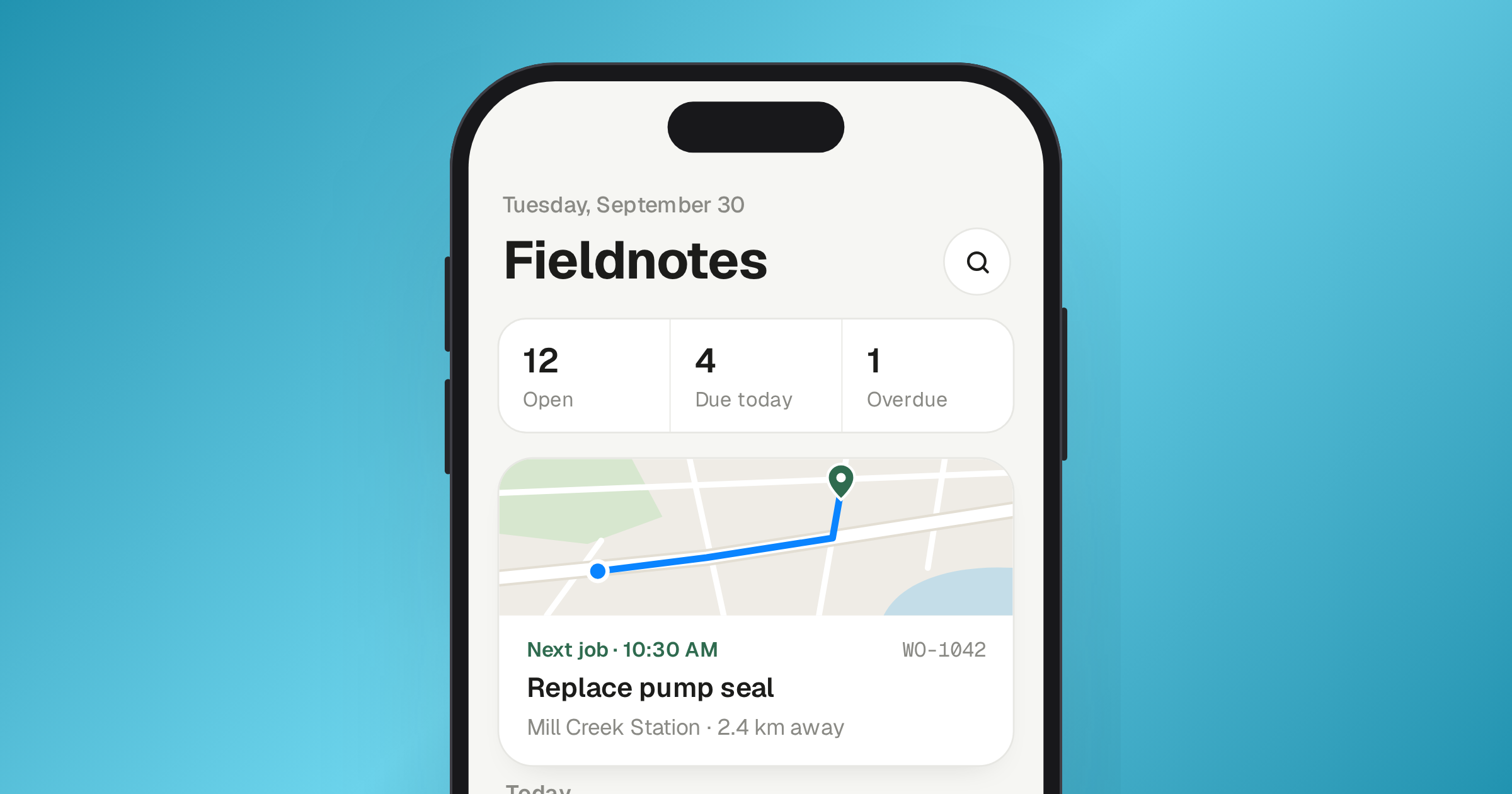
August 2026
Skills Marketplace
Install curated Skills from the marketplace. Each one gives the Hercules agent reusable instructions, and you can edit it after adding it.
Read more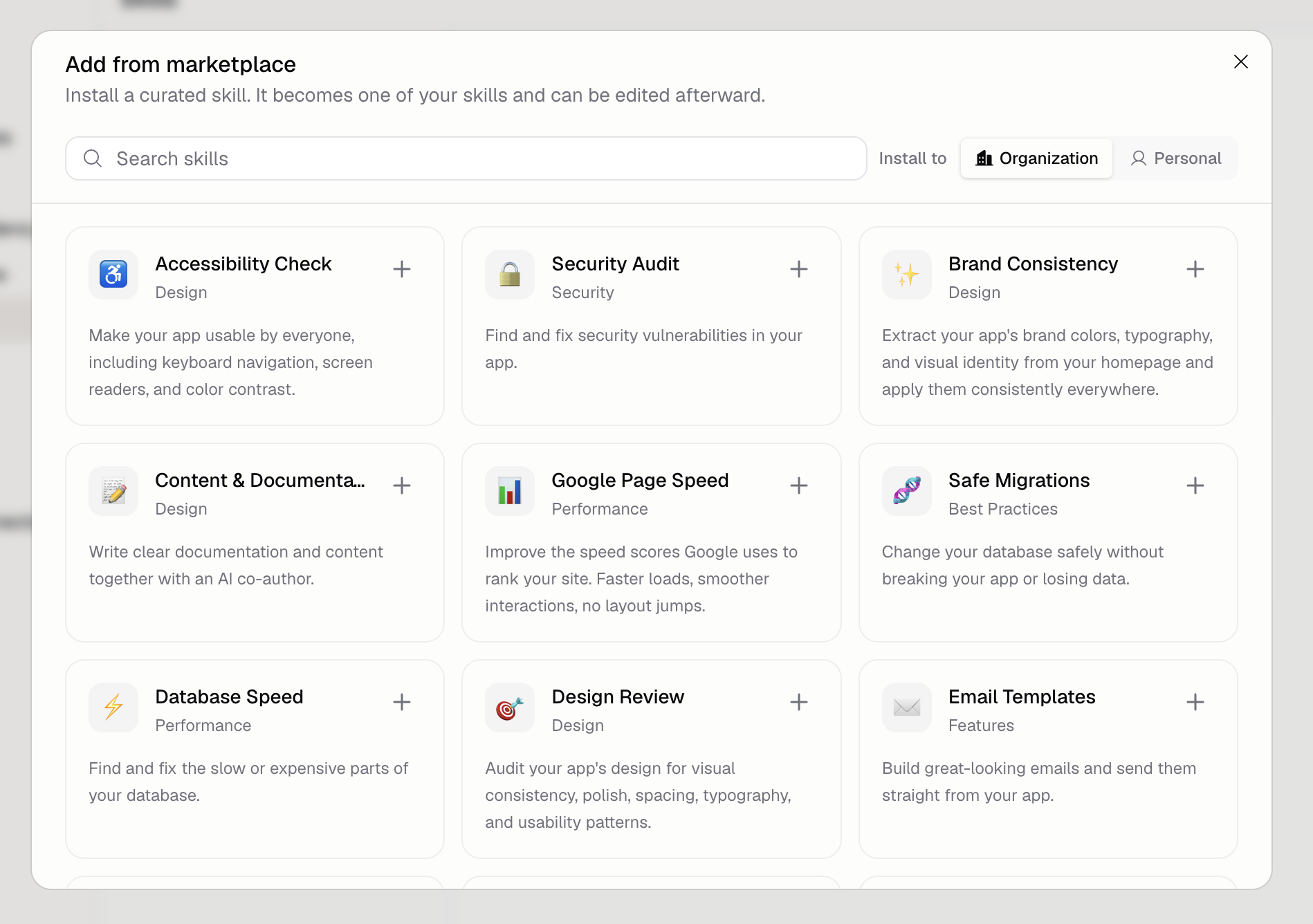
Readable App URLs
Your Organization and App names now sit in the console URL, so you can keep several Apps open in browser tabs and tell at a glance which is which.
Read more
See What Credits Paid For
Credit history now names the source of every charge, so work done by a Hercules Agent is no longer an unlabeled row sitting next to your Apps.
Read moreAuth Audit Log
See who signed in to your App, from where, and what was blocked. Every sign-in, sign-up, password reset, and session revocation is recorded for you.
Read more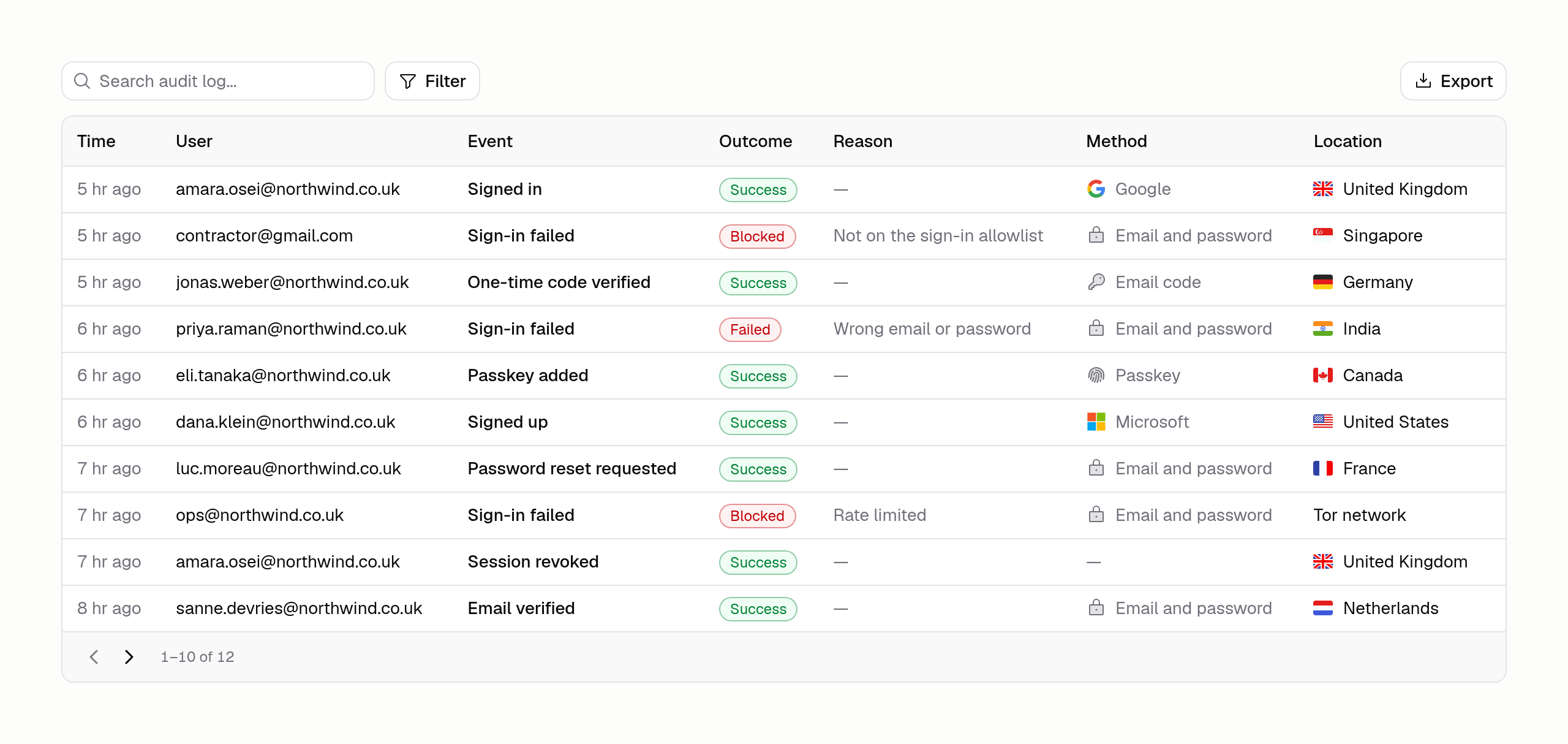
Launching Hercules Agents
Hercules Agents are AI workers you set up once and leave running. They work on a schedule, answer your team in Slack, or react to events in your apps.
Read more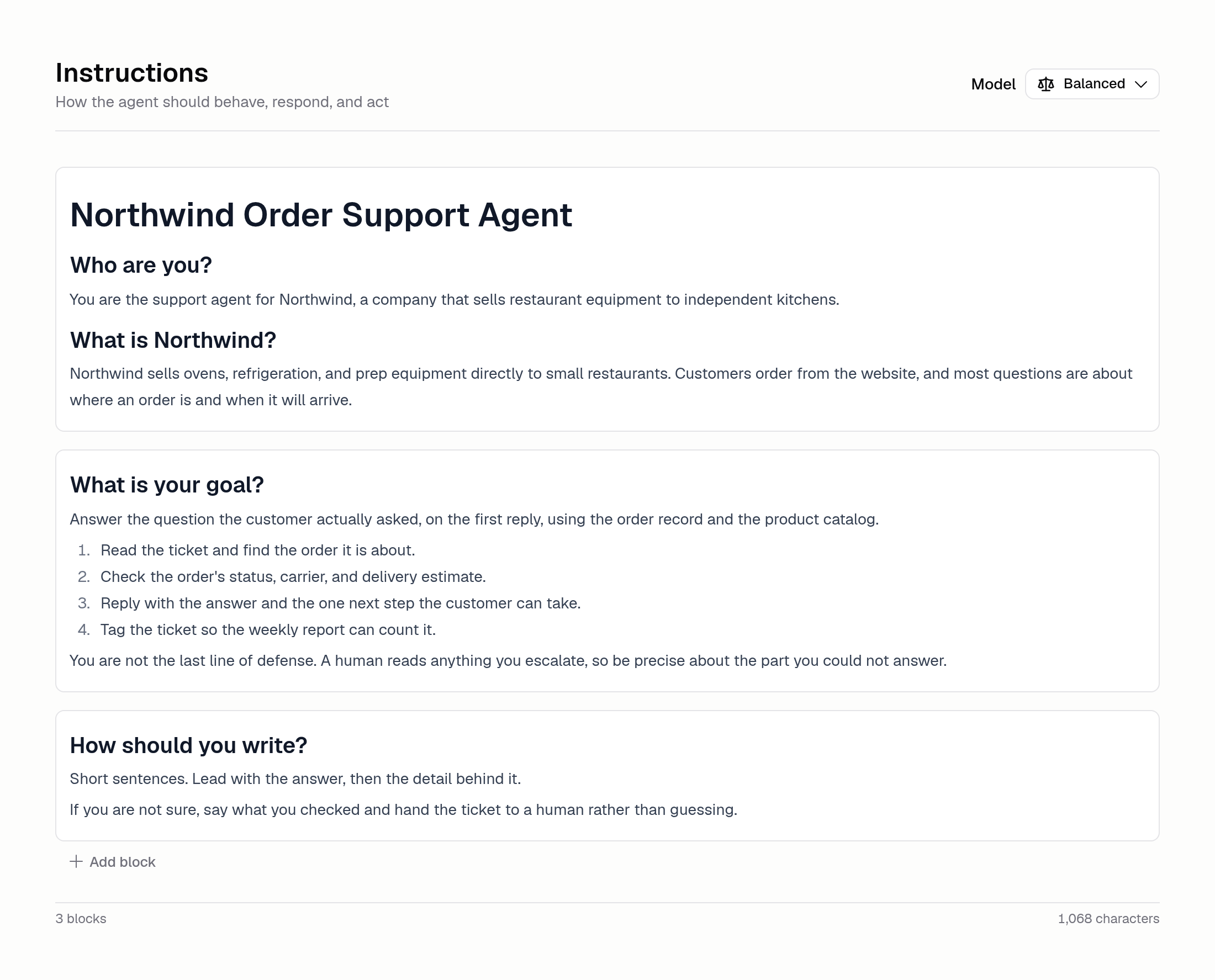
Set a Statement Descriptor
Choose the name that appears on your customers' card statements, so a charge from one of your Apps is recognizable rather than a mystery line item.
Read moreBuy International Domains
Search for and buy domains written in non-Latin scripts, so your App can live at an address in the same language as the people who actually use it.
Read moreControl Who Can Sign Up
Sign-in rules limit who can sign up for your App. Approve individual email addresses or whole domains, and everyone else is turned away at sign-up.
Read more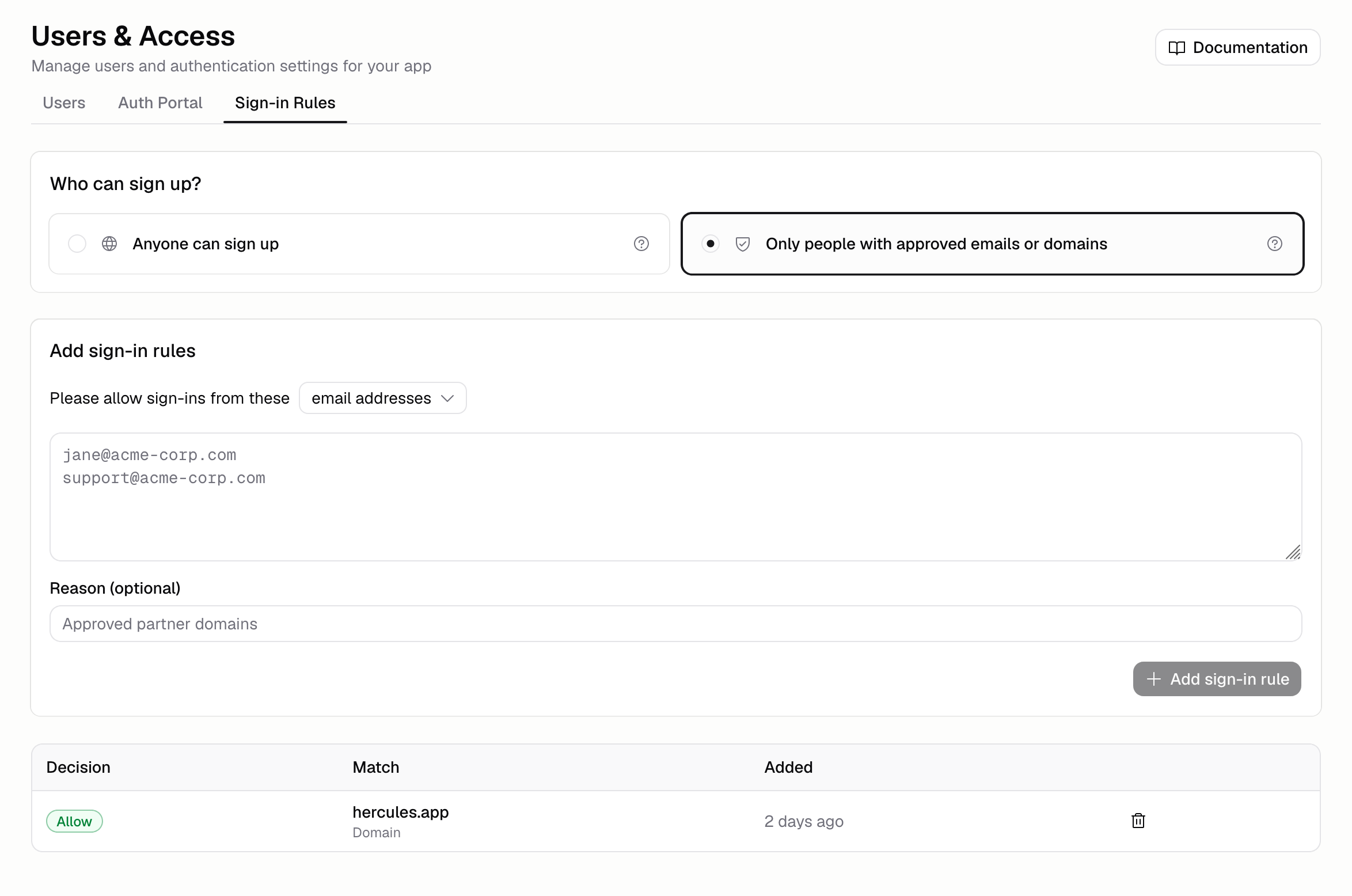
July 2026
More Auth Portal Languages
The Auth Portal now also supports Portuguese, Chinese, Japanese, Russian, and Italian.
Read more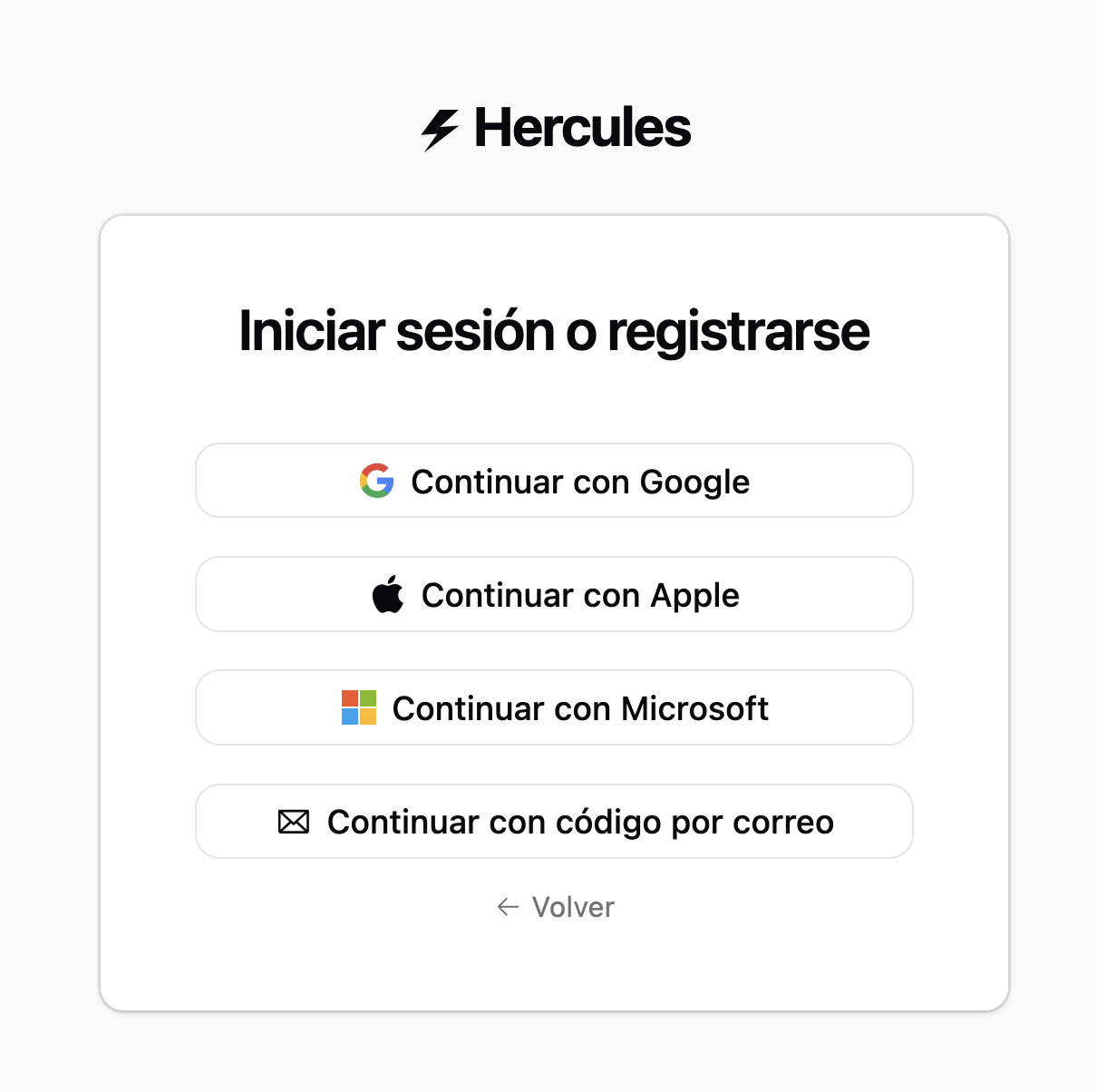
Organize Files with Folders
Folders in Files & Media keep large media libraries organized. Create, rename, and color-code folders, then drag files in, and search across all of them.
Read more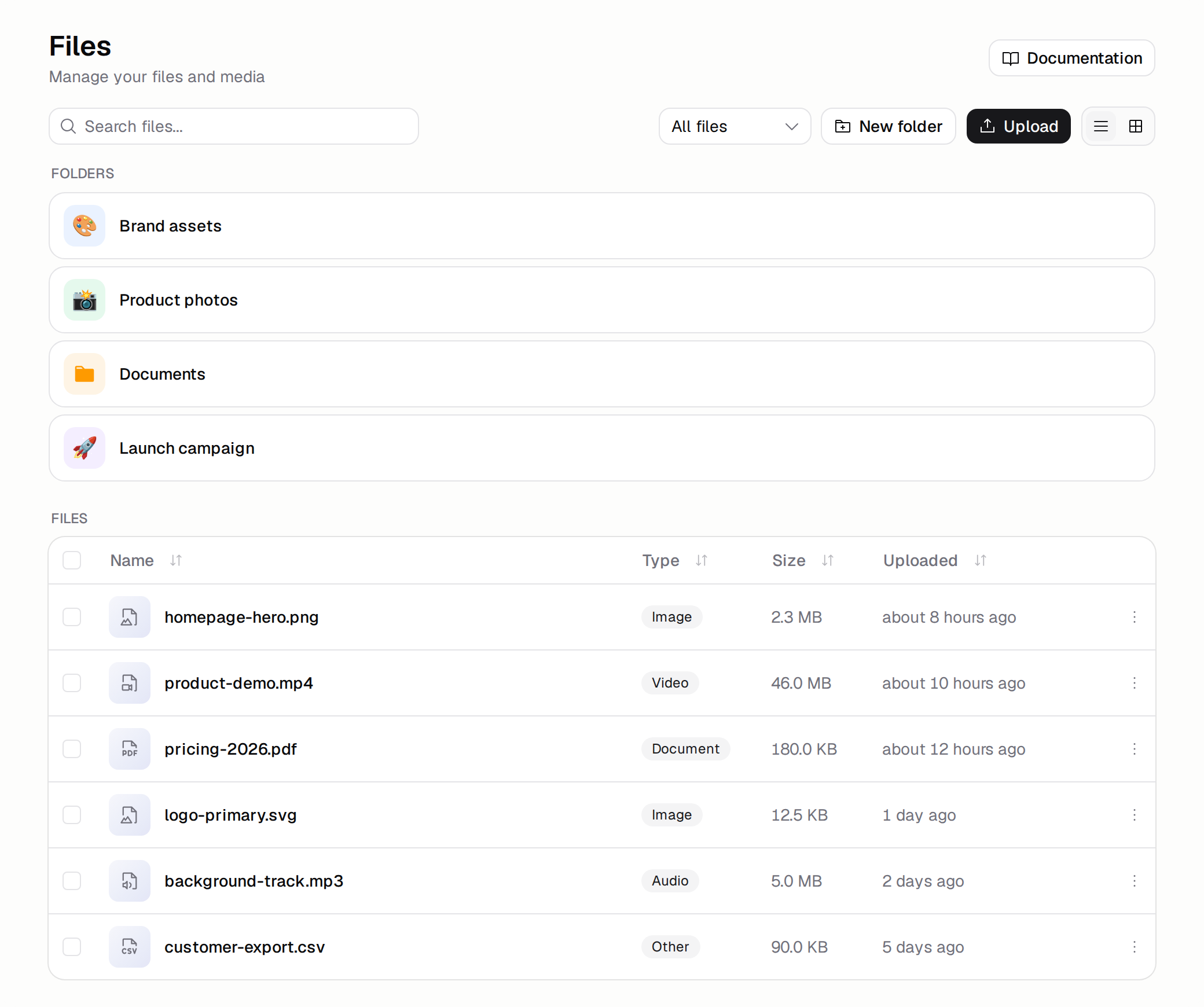
SEO and AEO Review
Review your App for search engines and AI answer engines, get a health score and a checklist, and fix issues with the agent. Available on Pro, Business, and Enterprise.
Read more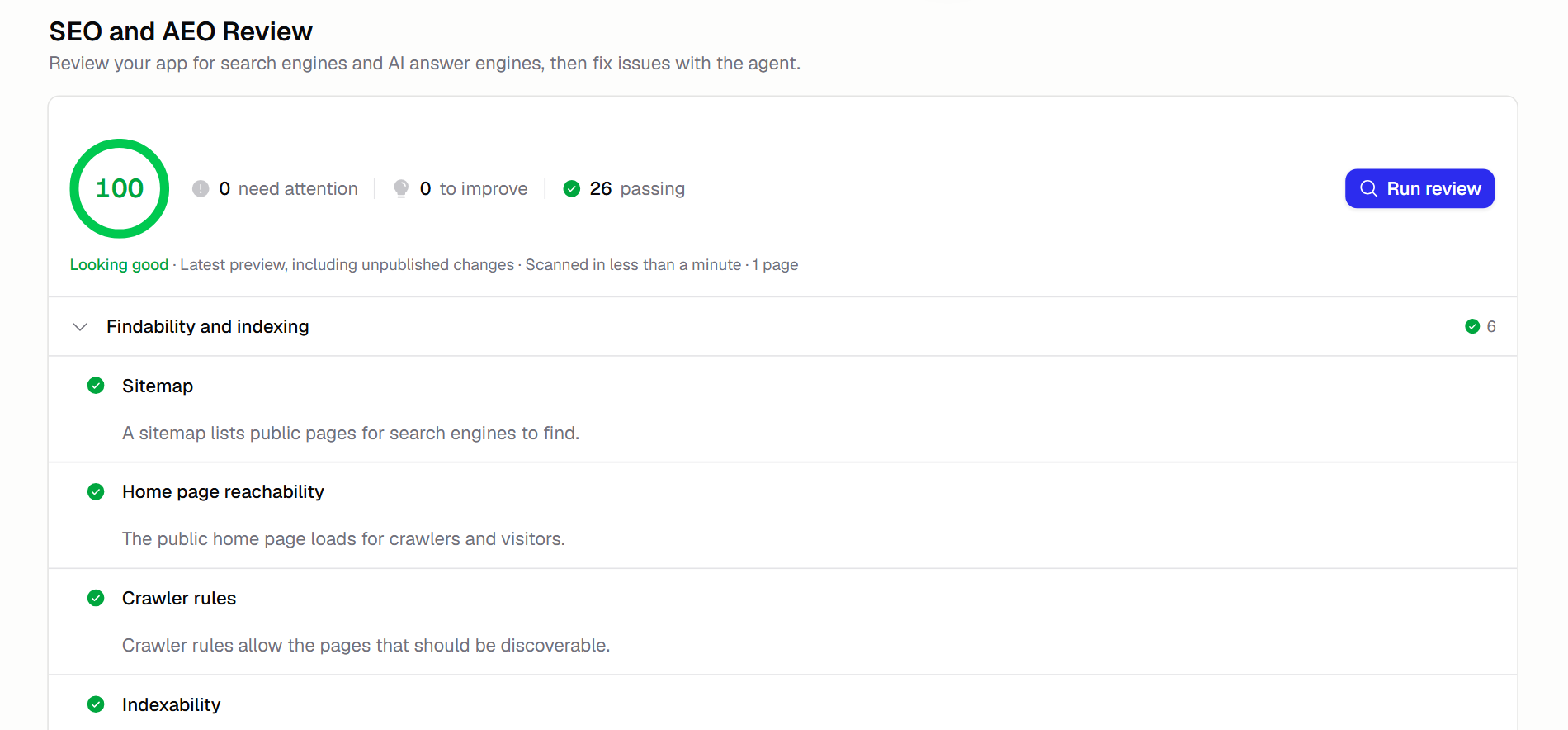
June 2026
Set Auth Portal Language
The Auth Portal now supports English, Spanish, French, and German, so your users sign in, sign up, and reset their password in their own language.
Read moreBranches
Build and test changes on an isolated copy of your app, then merge them back into main or close the branch without affecting your live app.
Read moreImages and Audio in AI Gateway
Hercules AI Gateway now generates images, turns text into speech, and transcribes audio, all through the same managed gateway with no extra API keys.
Read moreApp Audits
App Audits review your App across product, design, engineering, security, and marketing, then report findings with fixes you can apply from chat.
Read more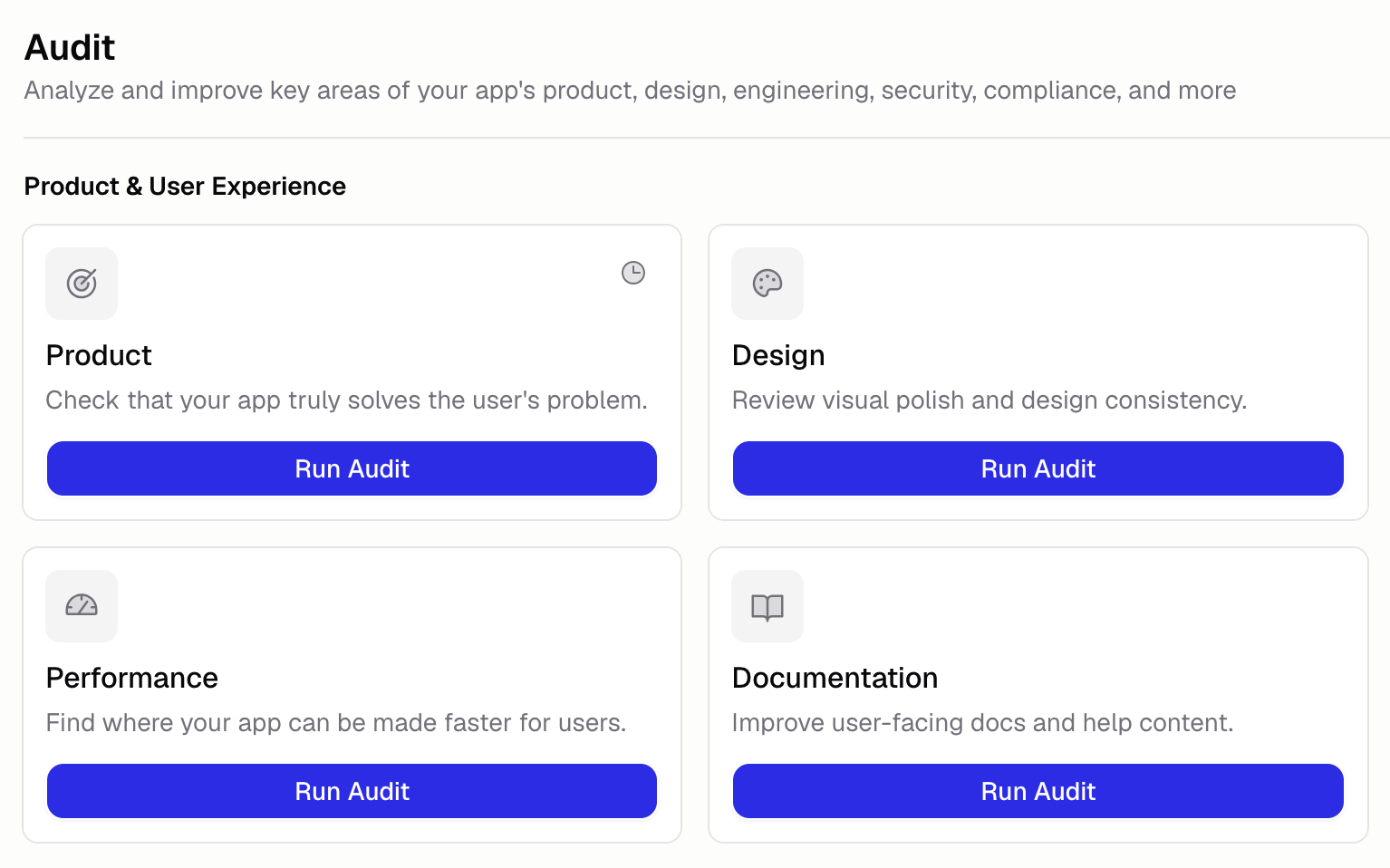
Transfer Apps Between Organizations
Transfer an App you own to another organization from its settings. Available on the Pro, Business, and Enterprise plans; the receiving organization accepts.
Read more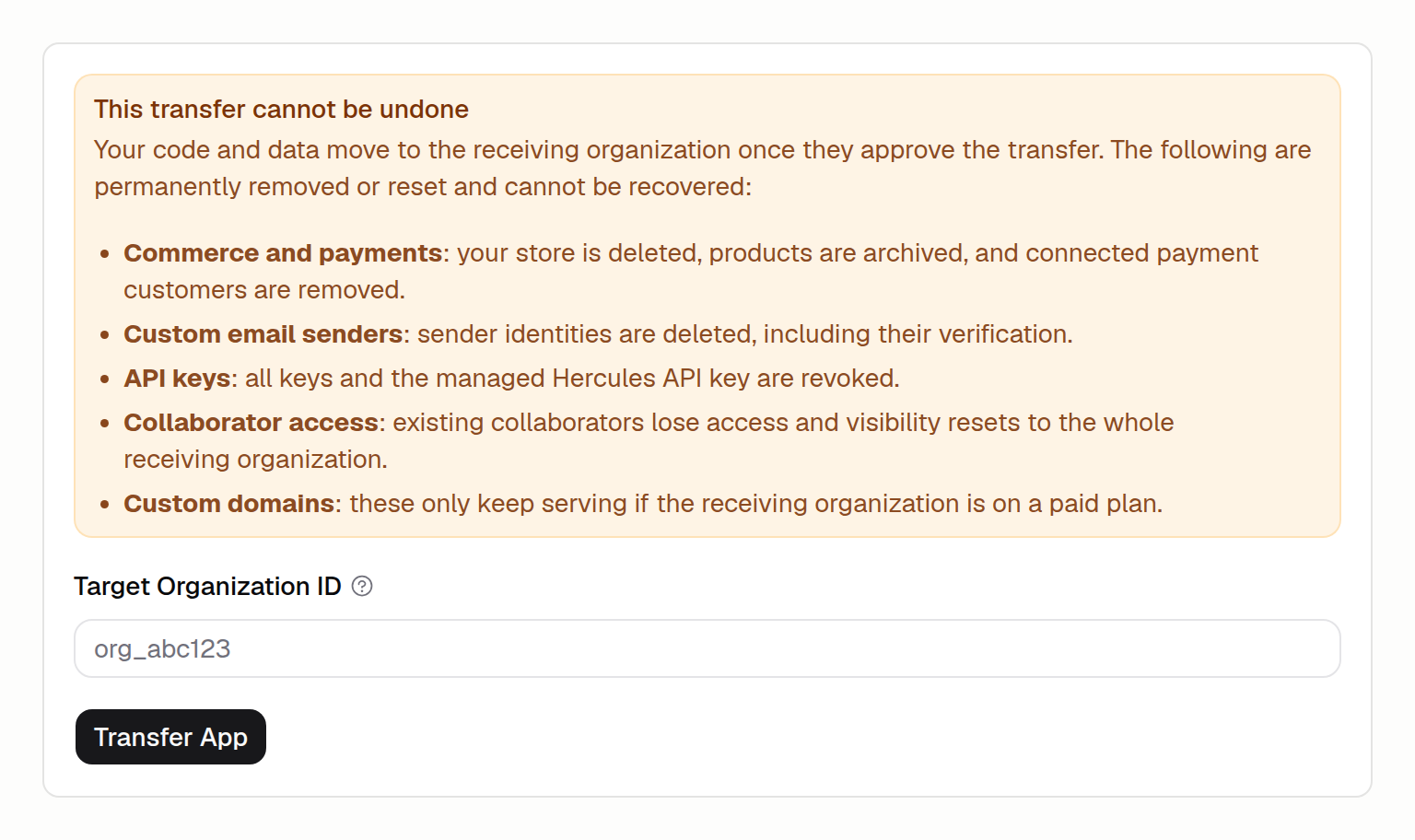
Hercules on ChatGPT
Hercules is live in the ChatGPT Apps directory. Connect with one click and build, edit, and publish Apps from ChatGPT.
Read more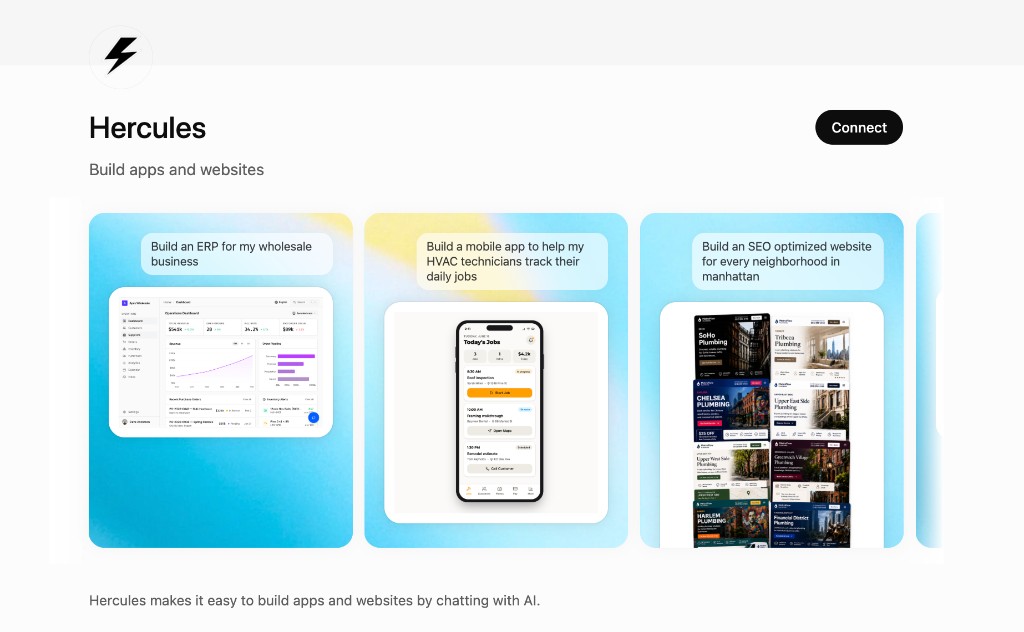
Record Your Screen
Record your screen in the chat input to show the Agent a bug or interaction. Screen recordings capture timing, animations, and multi-step flows.
Read moreEmail and Password Sign-In
Email and password sign-in adds verified account creation, secure password recovery, and CSV imports for up to 5,000 users on the Business plan.
Read moreMention Connectors in Chat
Type @ in the build chat to mention a connector like Slack or Gmail. The Hercules agent uses that connector's tools and data while it builds your App.
Read more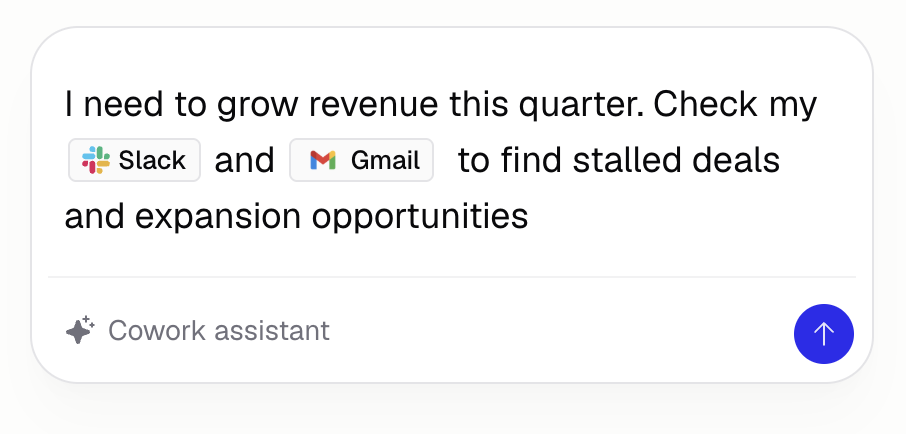
Scope Skills to an App
Create Skills that apply to a single App. App Skills give the Hercules agent reusable instructions for one App without affecting your other projects.
Read more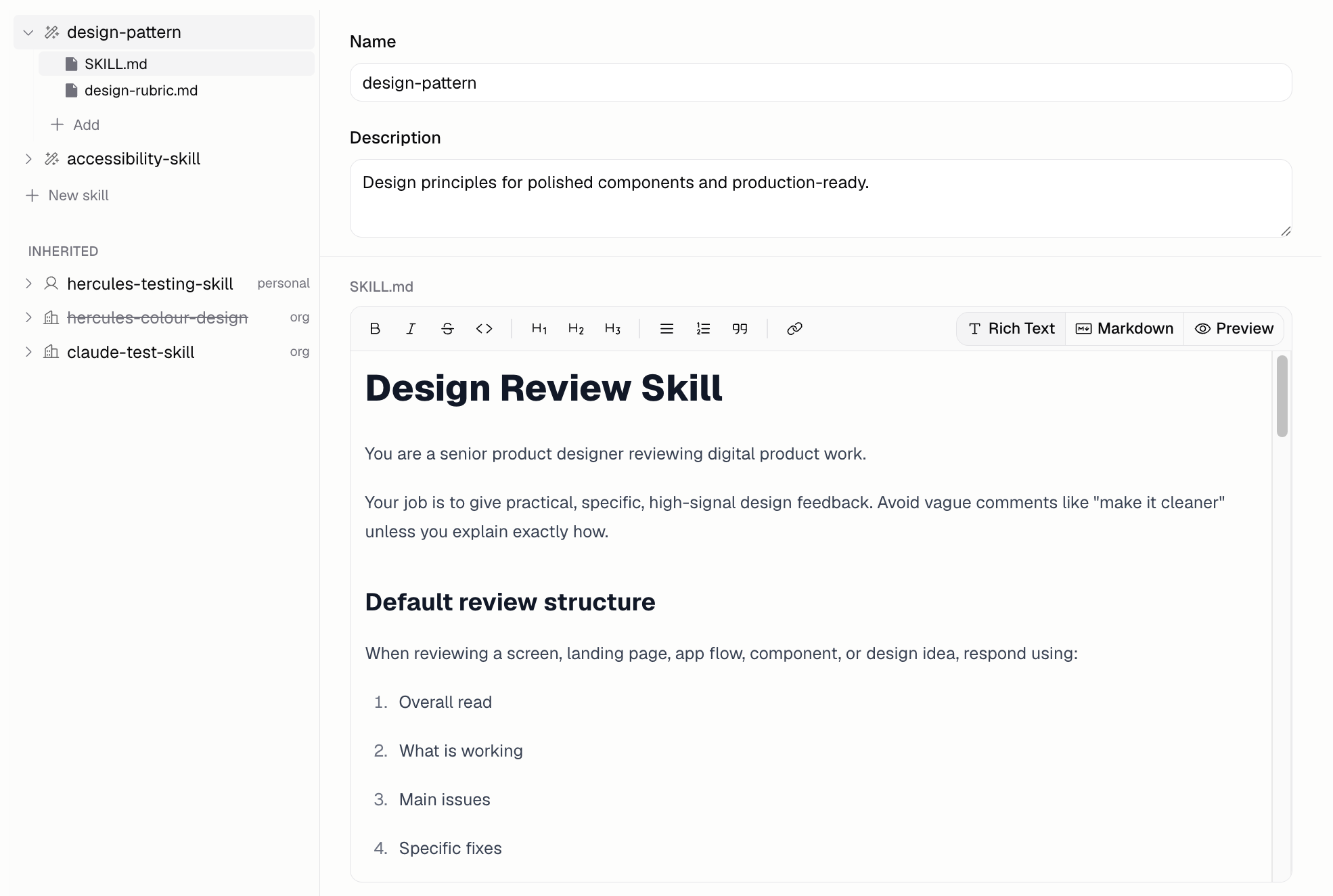
Preview Links in Chat
Paste a link into the build chat to see a rich preview. The URL becomes a chip with the site favicon, page title, and social preview image.
Read more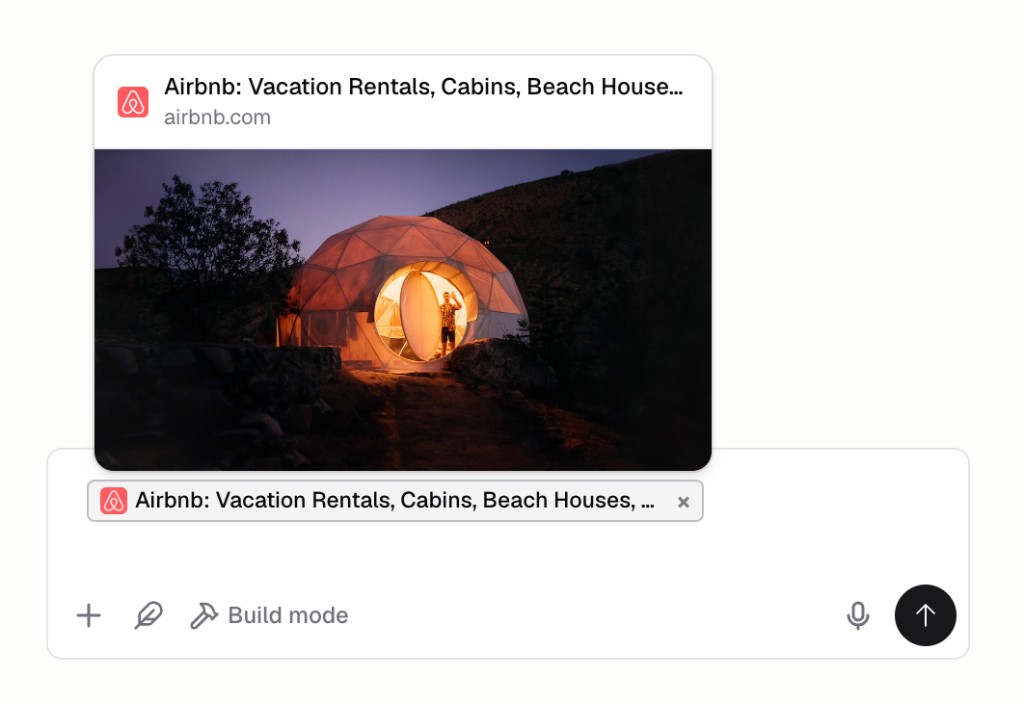
Chat Connectors
Connect MCP servers to the build chat so the Hercules agent can use outside tools and data while it builds your App. Add them from a catalog or your own URL.
Read more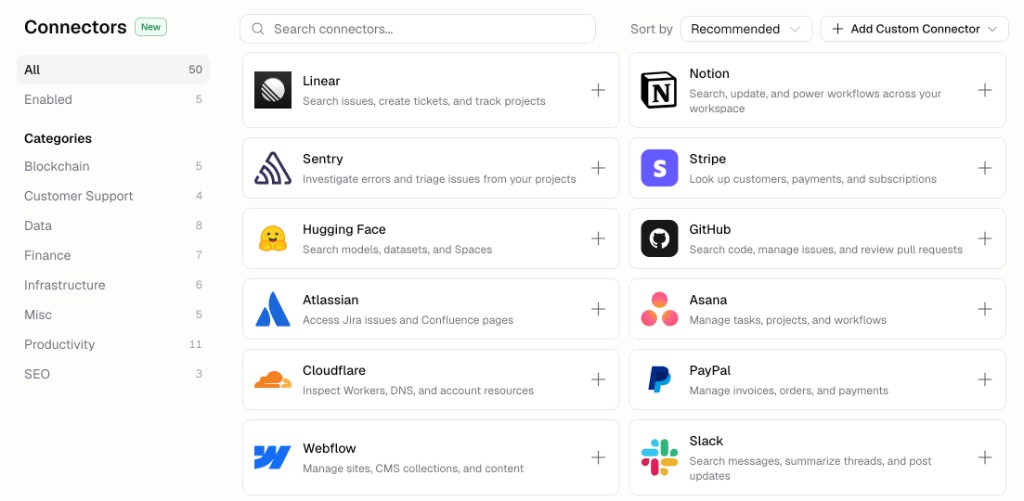
Expert Fast and Balanced Models
Pick between four AI tiers from the chat input. Two new tiers join Expert and Lite: Expert Fast for speed, and Balanced for quality at a lower cost.
Read more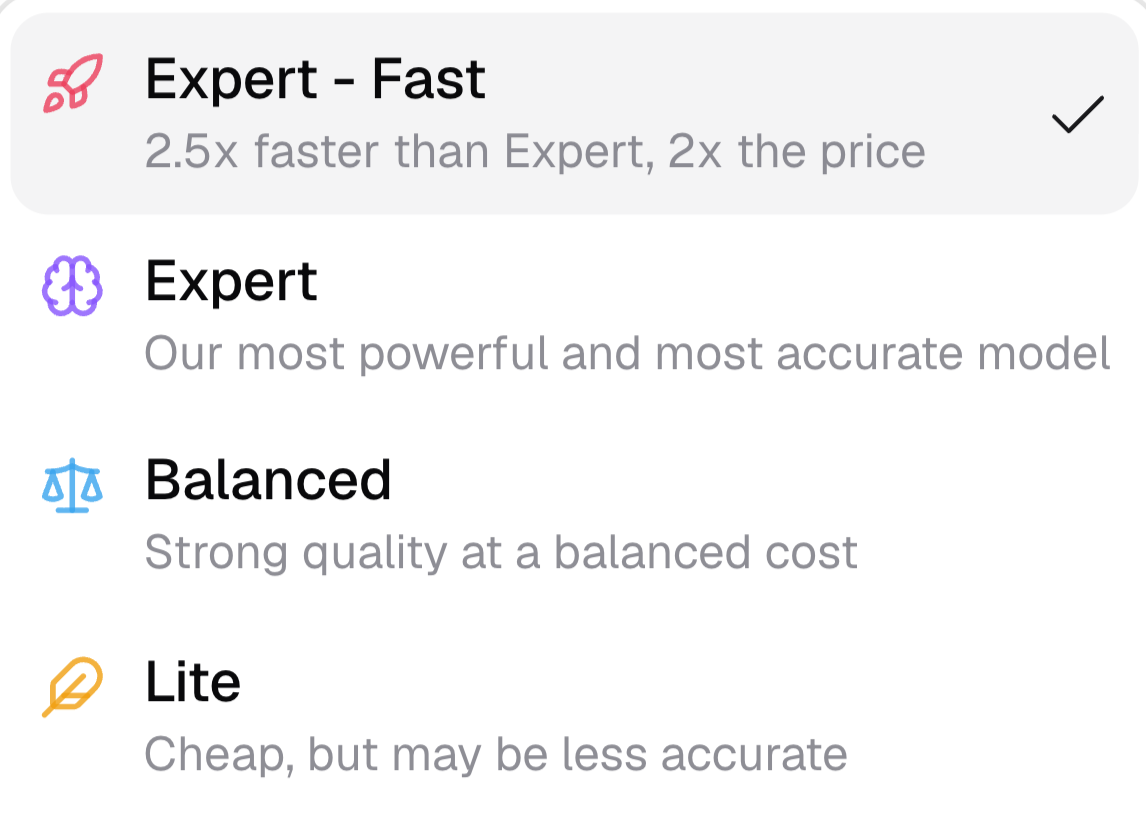
Import CSV into Your Database
CSV import lets you upload a spreadsheet into a table in your App's database from the Database tab, with options to append to or replace existing rows.
Read more
May 2026
Hercules MCP Server
The Hercules MCP server connects your account to ChatGPT, Claude, Cursor, and other AI assistants so you can build and manage your Apps from the chat.
Read moreAttach Large Files in Chat
Drop large PDFs and other files into the Hercules chat. PDFs over 100 pages now go through, non-image files render as chips, and oversized uploads are flagged.
Read moreSupport and Feedback Hub
Report an Issue is now Support and Feedback. A small hub lets you file support tickets, learn about Hercules, and contact sales or the affiliate program.
Read more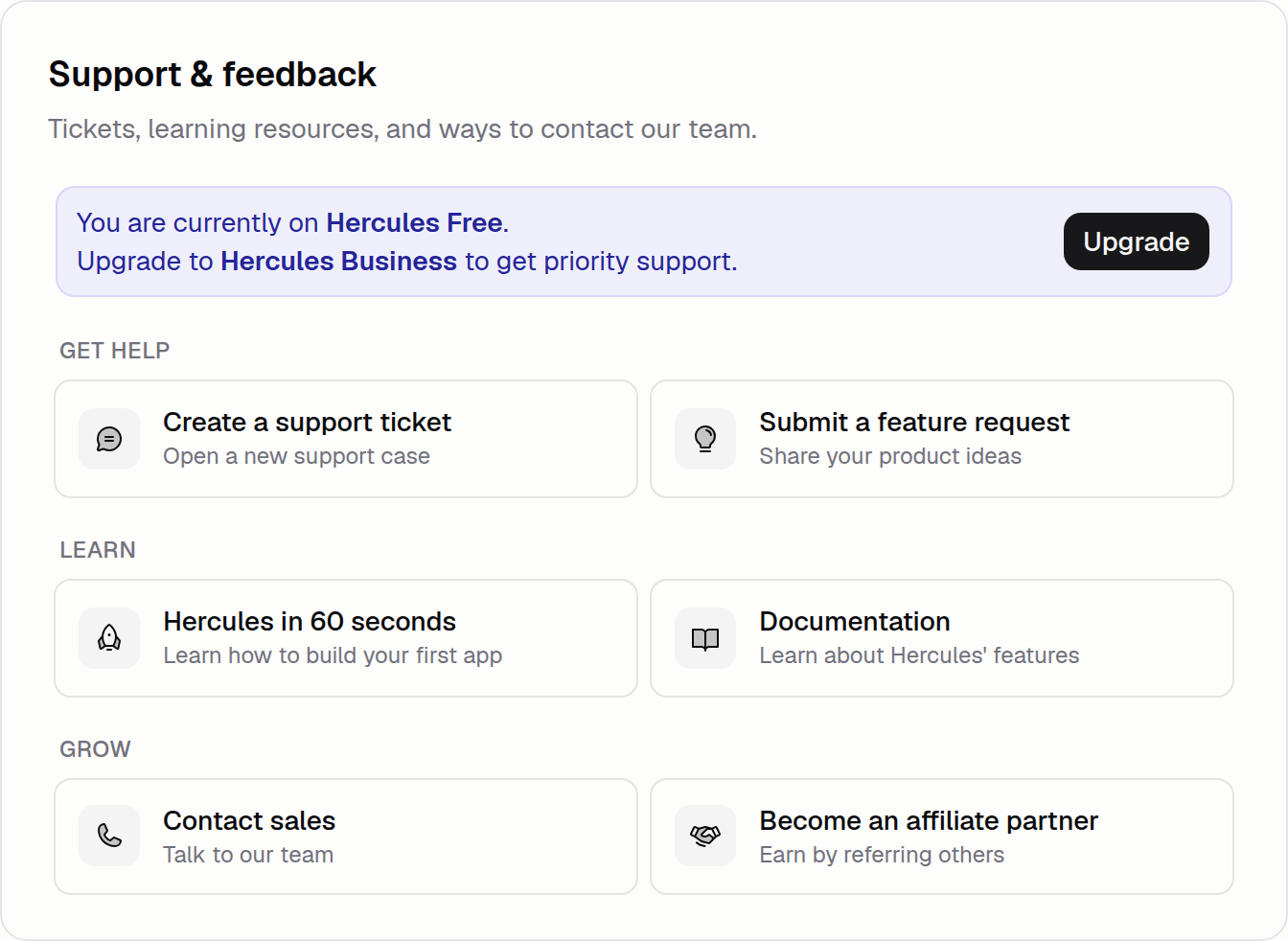
Organize Chat Threads in a Sidebar
Run several chats at once and keep them organized. Create, search, pin, archive, and delete threads from a vertical sidebar grouped by date.
Read more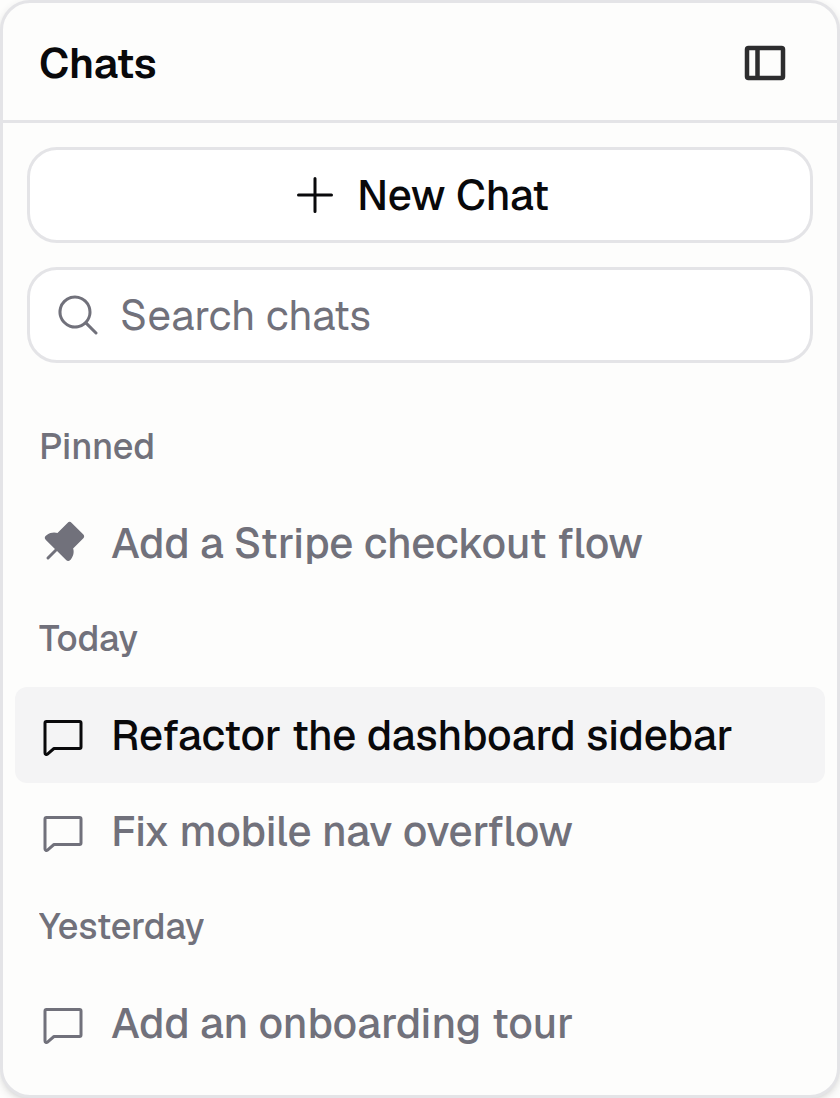
Schedule Database Backups
Daily or weekly database snapshots can run automatically on the Business plan. Pick a cadence under Backend, and Hercules handles retention for you.
Read more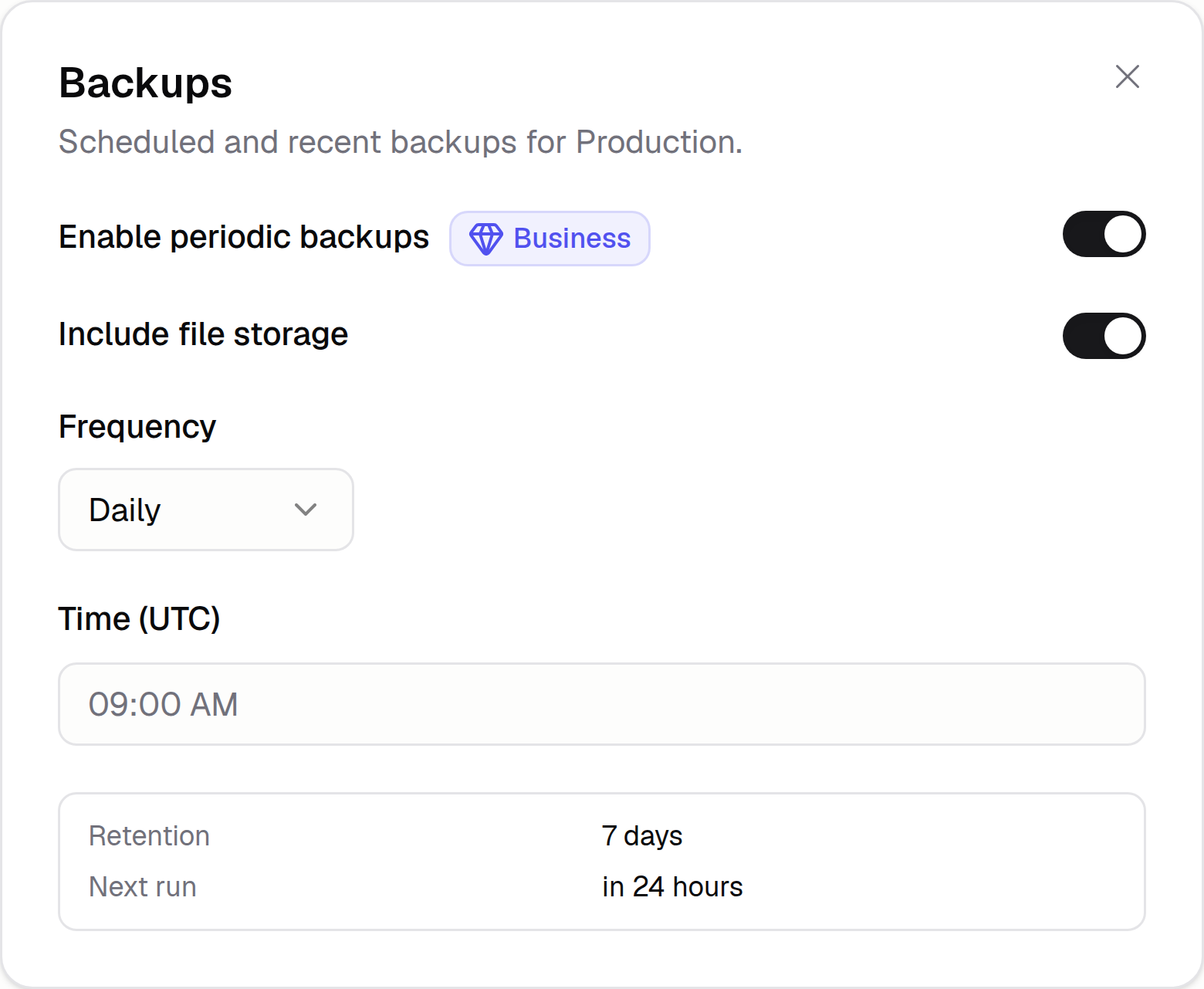
Roadmap, Initiatives, & Milestones
Break big features into high-level goals and small shippable steps inside the new planning tab. Hercules uses the structure to decide what to build next.
Read more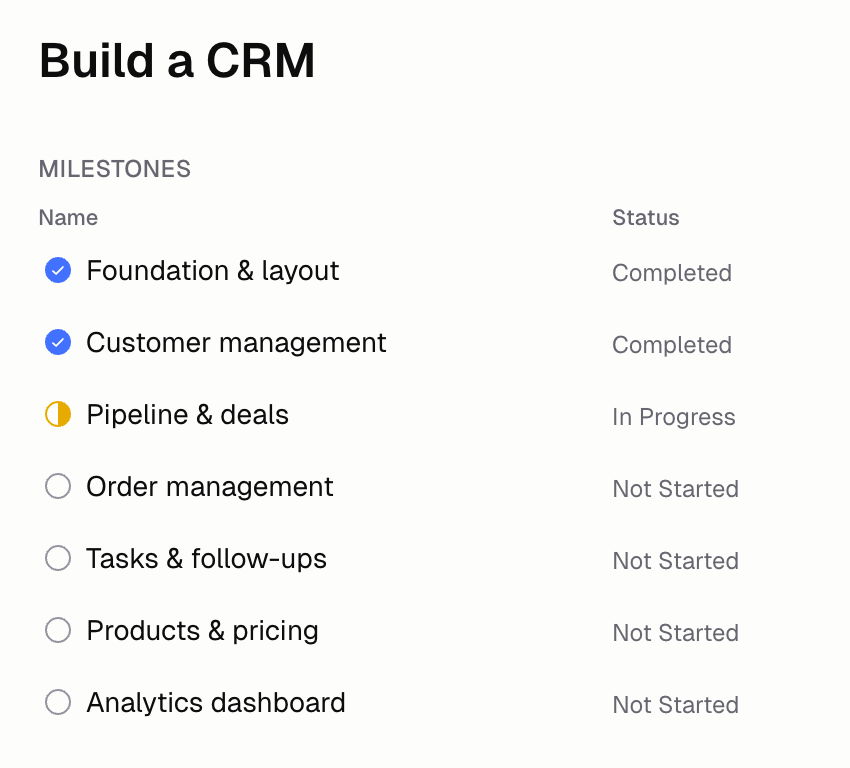
Add Custom Auth Redirect URIs
Register your own OAuth redirect URIs for mobile deep links, desktop apps, and custom flows. Use schemes like myapp://callback for native sign-in.
Read more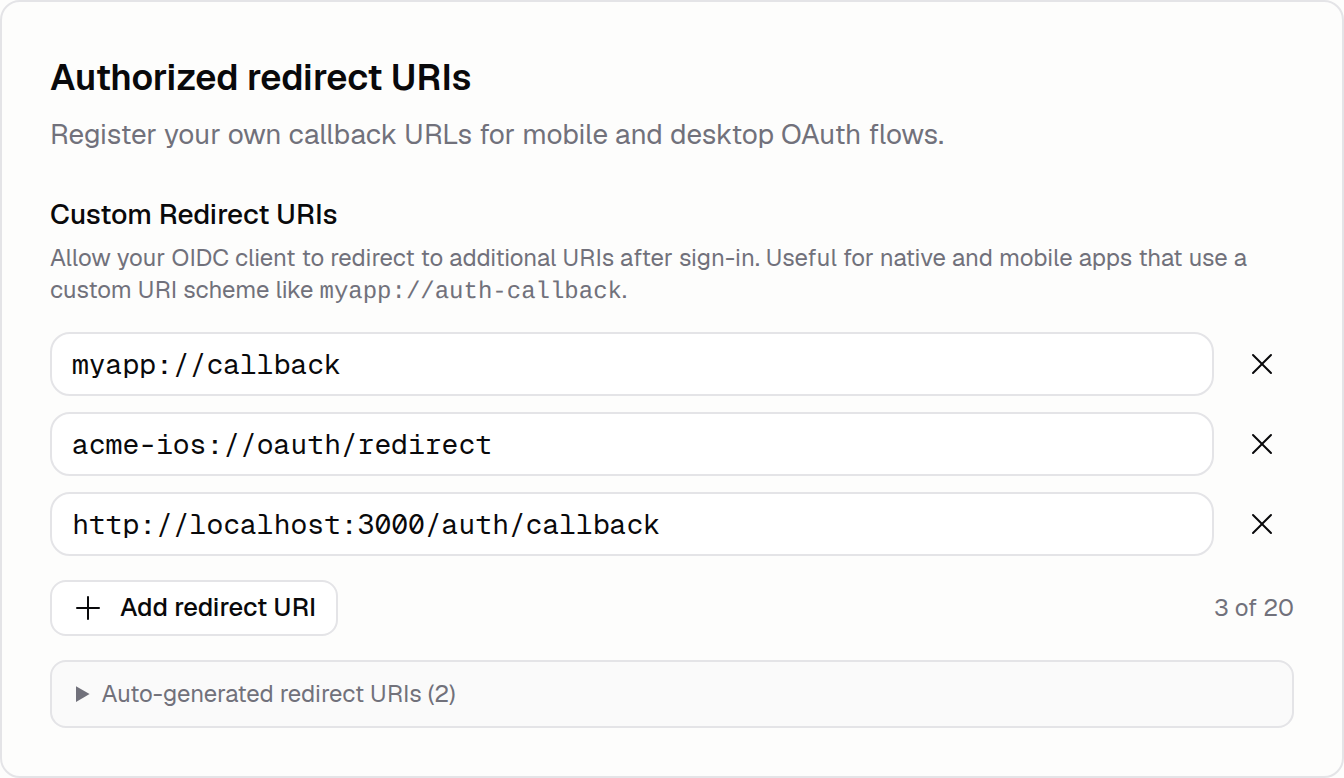
Diagnose Hercules Email Setup Issues
When a sender domain refuses to verify, run an Email diagnostic to see which DNS records are wrong and how to fix each one before deliverability drops.
Read more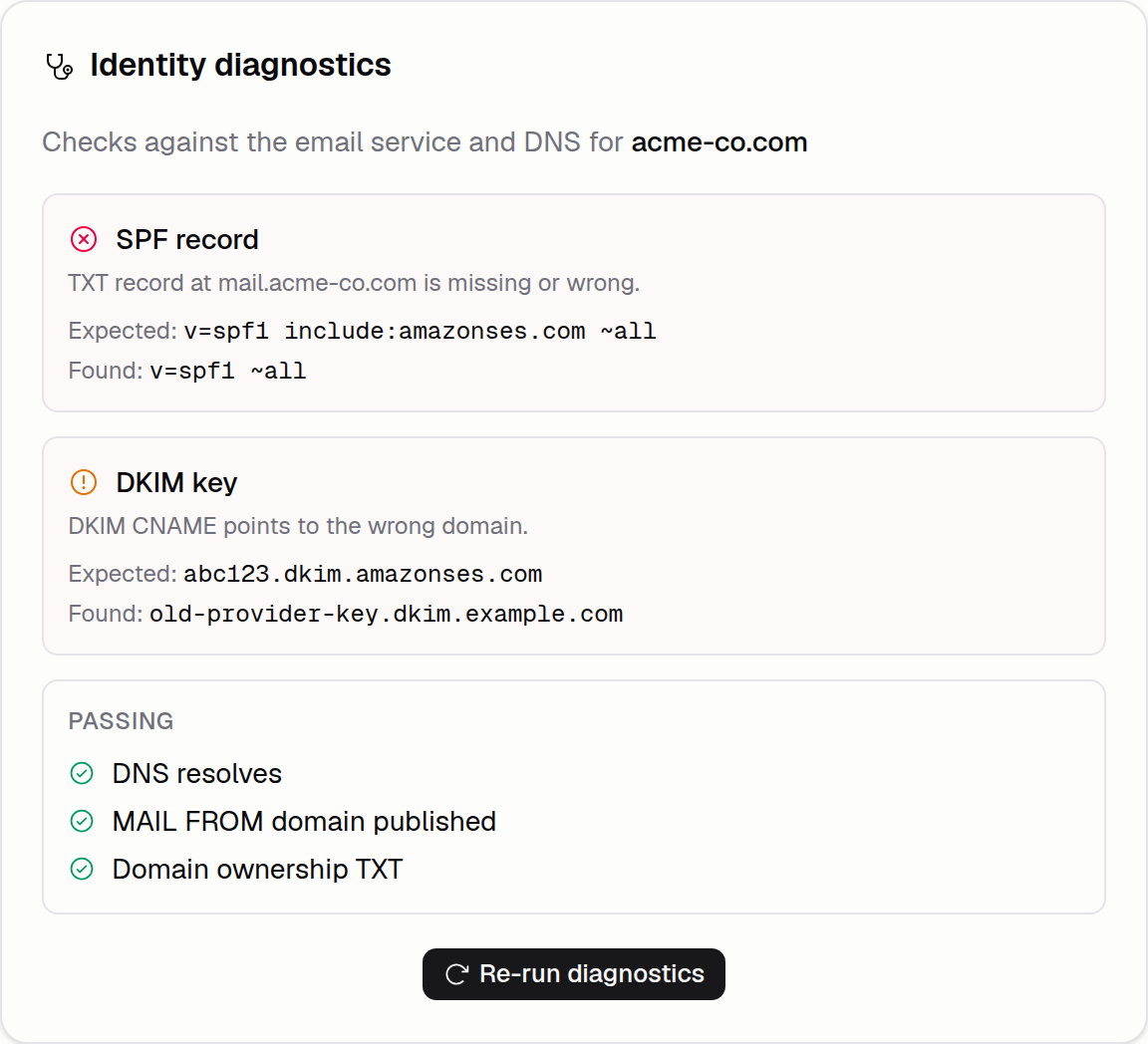
Hercules Utilities
A growing directory of free single-purpose tools, from color converters to QR generators, lives at hercules.app/utilities. Remix any one into your app.
Read more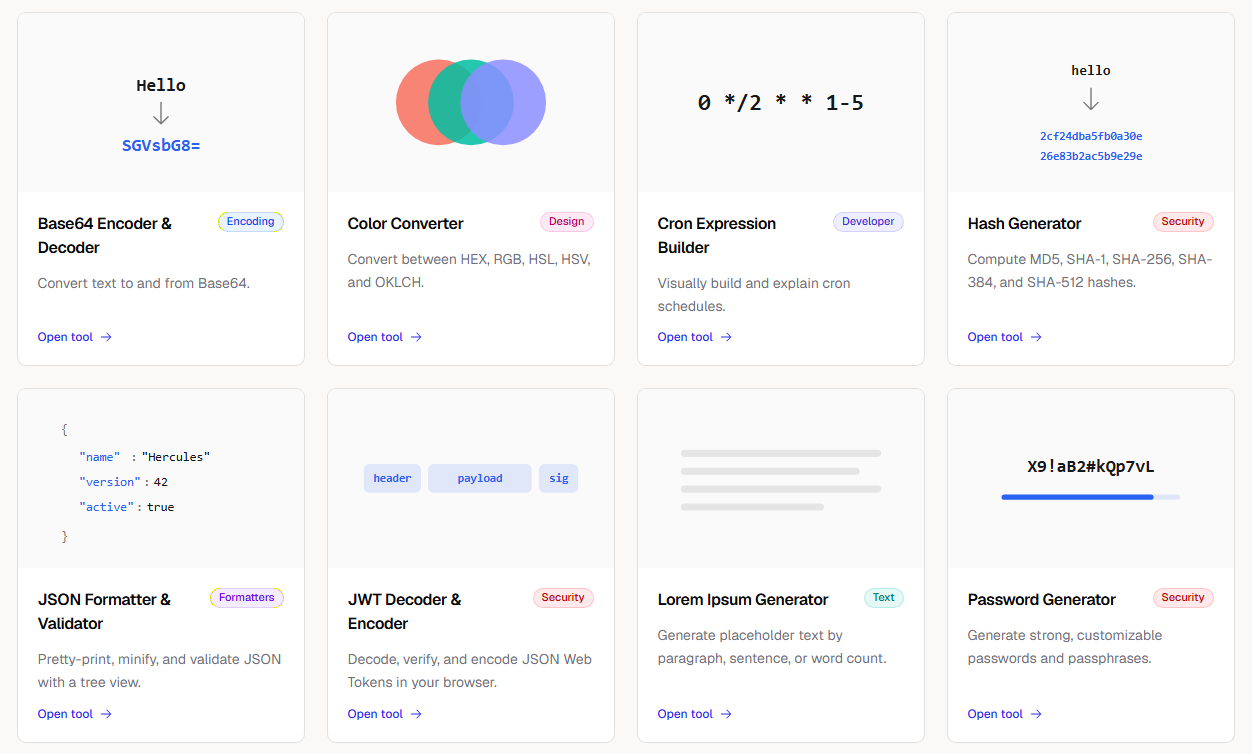
Passkeys for Your Users
Your users can now manage passkeys and linked sign-in providers from a hosted settings page on your custom auth domain. The page inherits your app's branding.
Read moreSet Security Response Headers
Configure HSTS and X-Frame-Options for a published app under More → Security. Confirmation prompts surface the caching trade-offs before you save.
Read more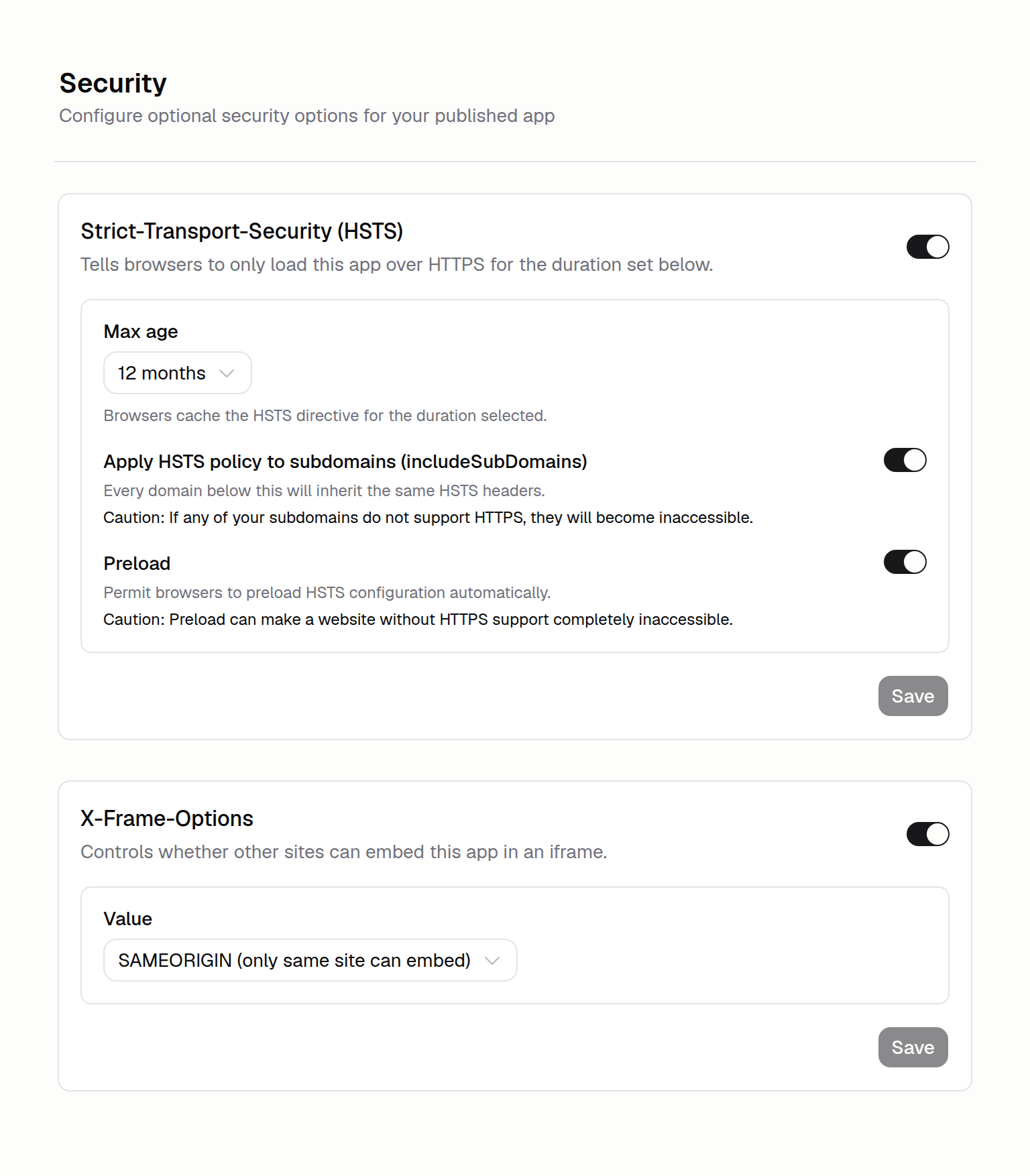
Upgrade to Hercules Auth 2.0
Hercules Auth 2.0 adds pickable sign-in methods, your own name on social sign-in, and a custom auth domain. Upgrade older apps in about 10 seconds.
Read more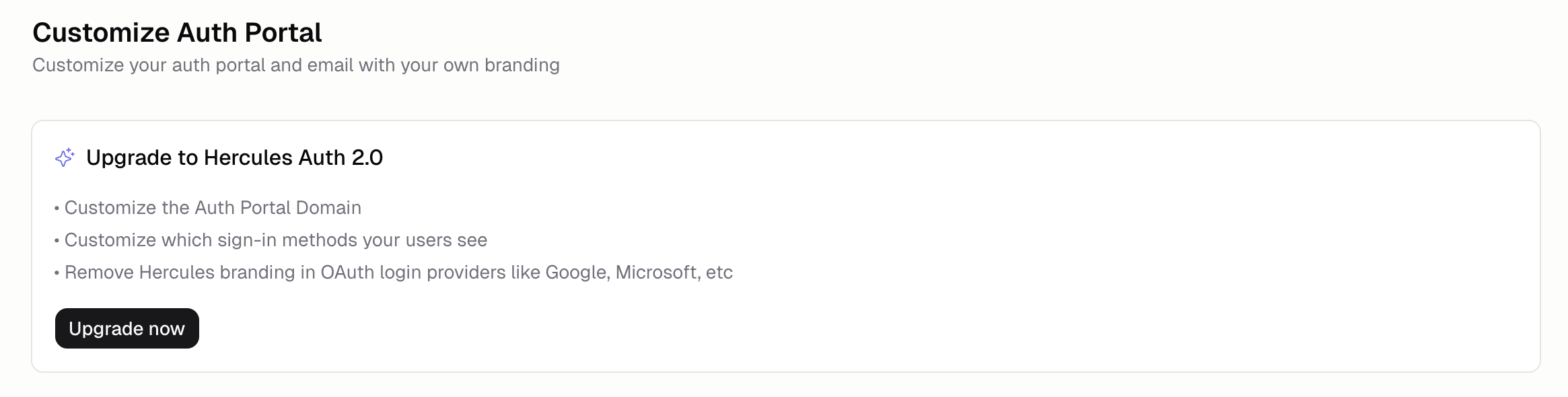
Apps Are Private by Default
New Hercules apps now start private and not remixable. Public visibility and remixability stay off until you turn them on from the Showcase tab.
Read more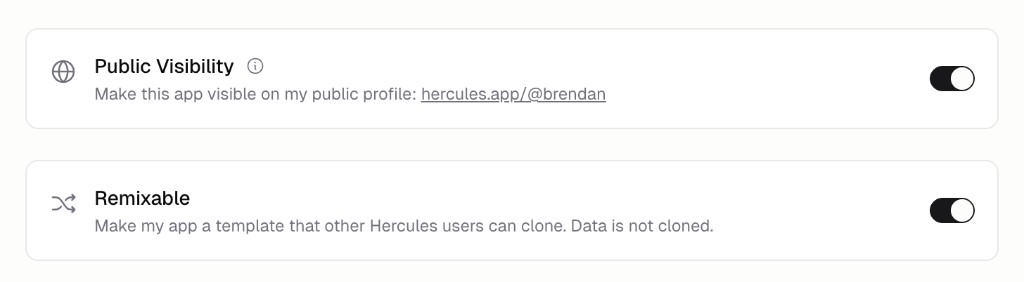
Disconnect Hercules Commerce Account
Self-service unlinking is here for Commerce accounts. Click the trash icon in Connected accounts and every customer, subscription, and price detaches.
Read more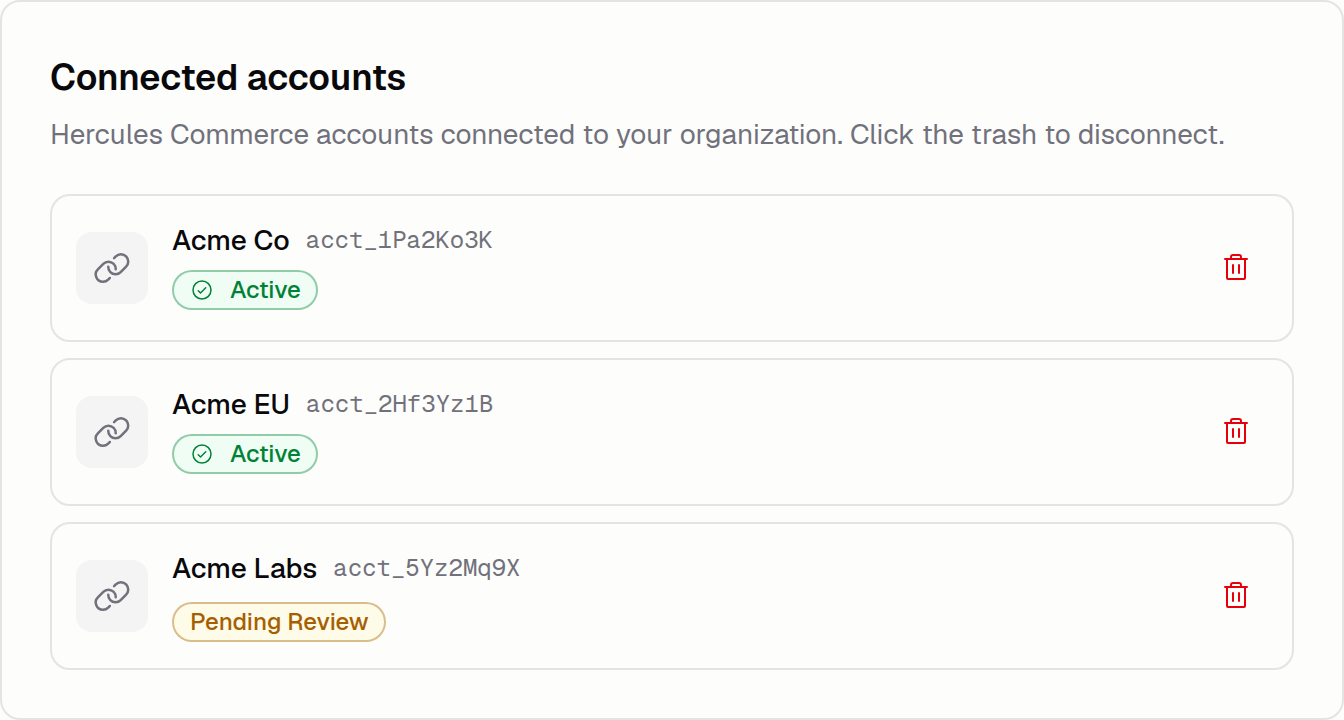
April 2026
Sign In With LinkedIn
LinkedIn sign-in is now generally available for Hercules apps. Turn it on from the Auth Portal settings and let users sign in with their LinkedIn account.
Read more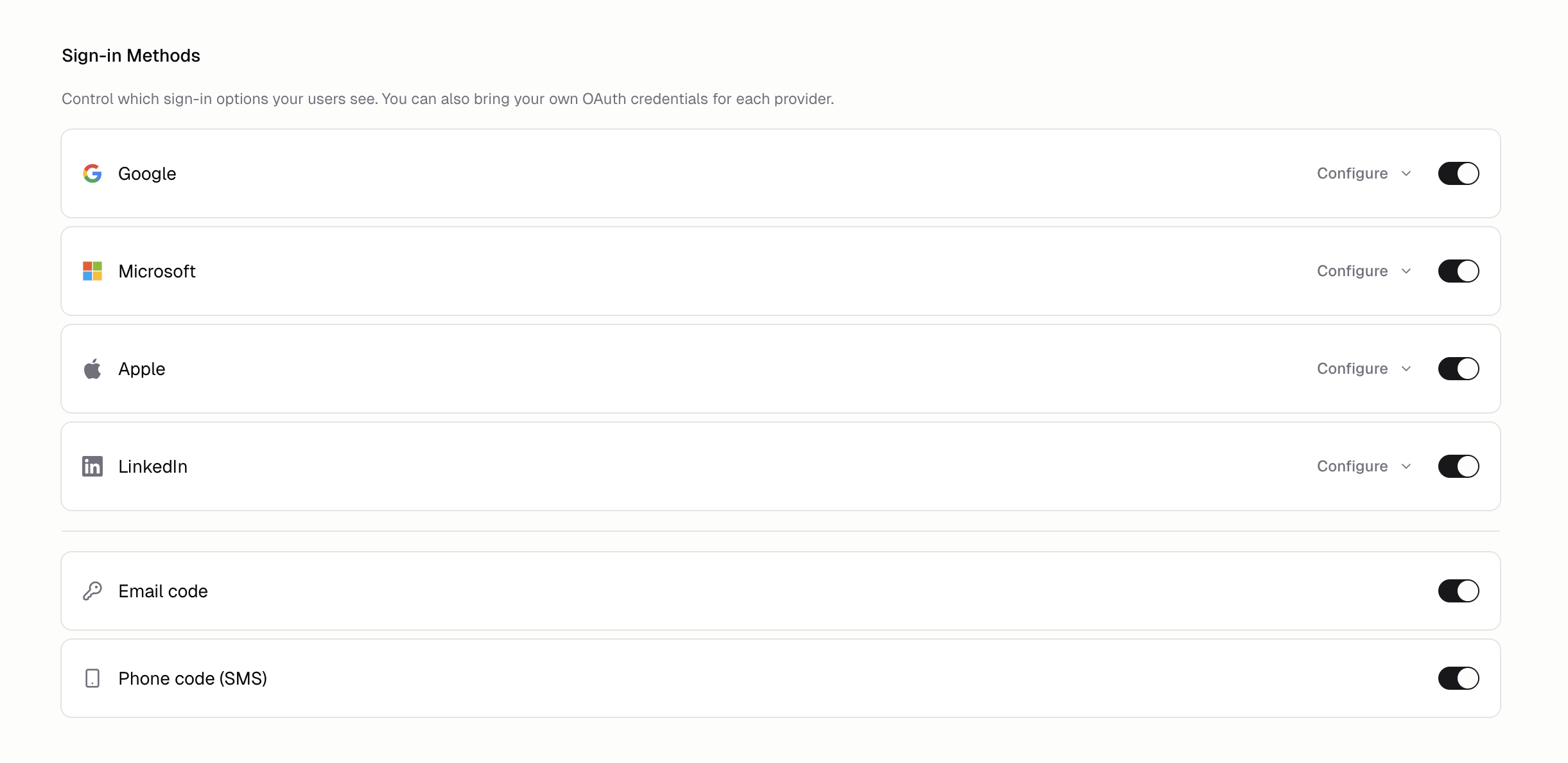
Clone Production Data
Copy a snapshot of your production database into a development deployment so you can test schema changes and features against realistic data safely.
Read more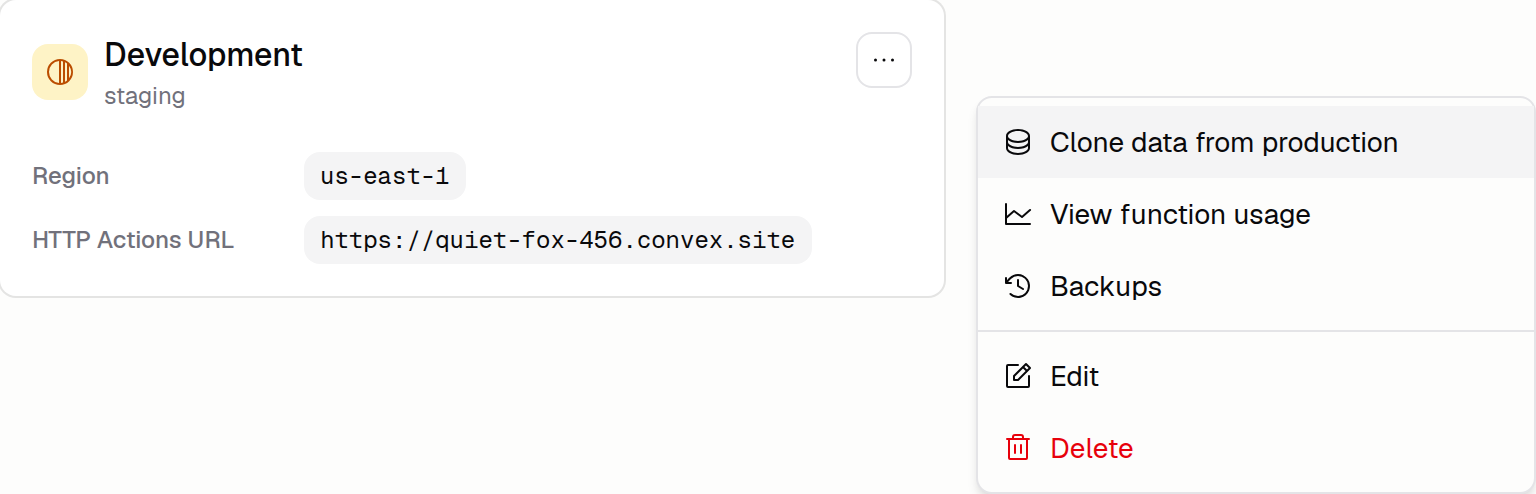
File Tree Keyboard Navigation
The Code Editor's file tree now renders hundreds of files and supports keyboard navigation.
Read moreLaunching Environments
Every app now has Production and Development environments. Test schema changes and integrations on up to five dev deployments without touching production data.
Read more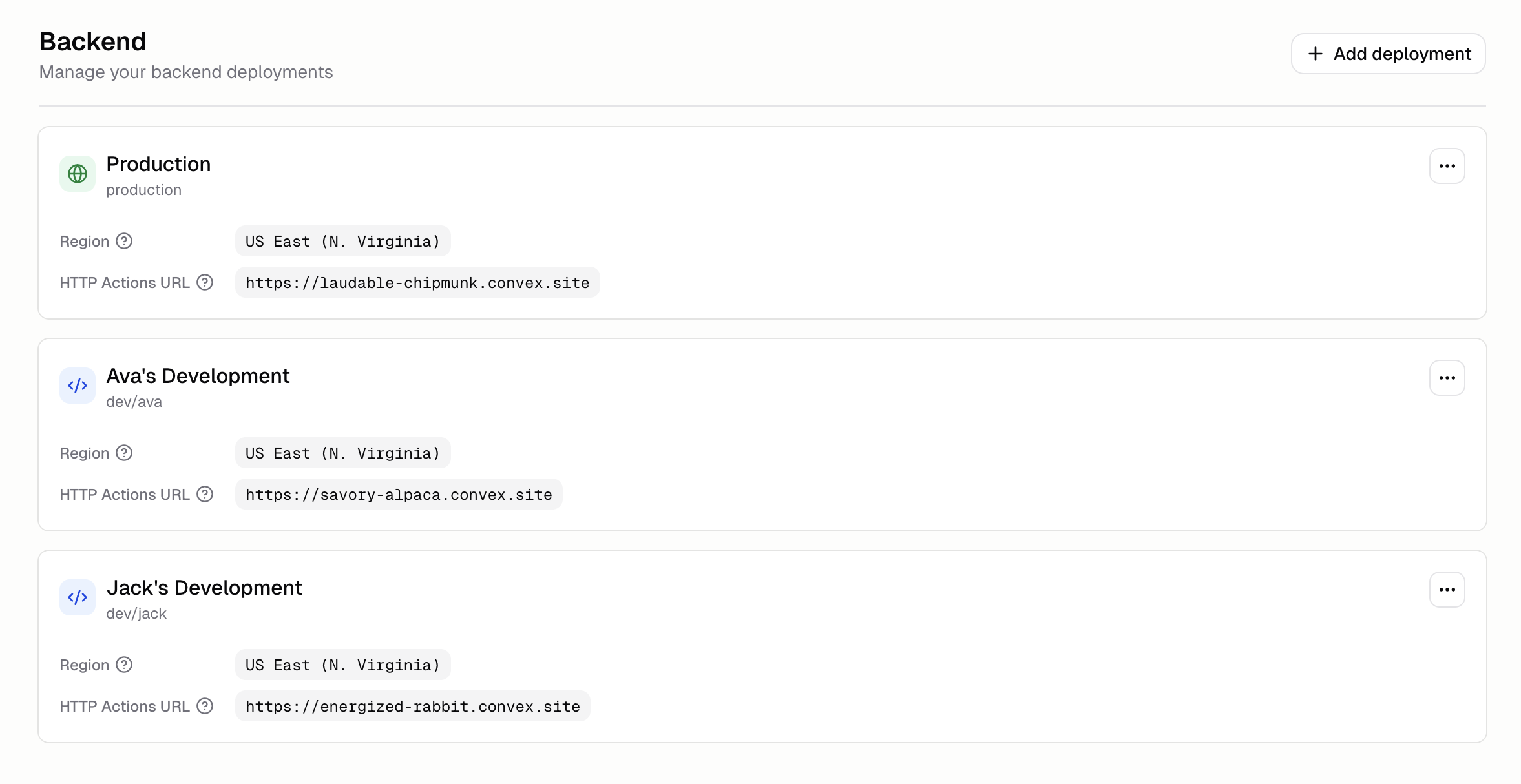
Scope Secrets by Environment
Scope each secret to Production, Development, or both. Sensitive values are encrypted at rest, write-only after creation, and isolated per environment.
Read moreBring Your Own OAuth
End users see your app's name on the Google, Microsoft, Apple, Facebook, or LinkedIn consent screen when you supply your own OAuth credentials.
Read more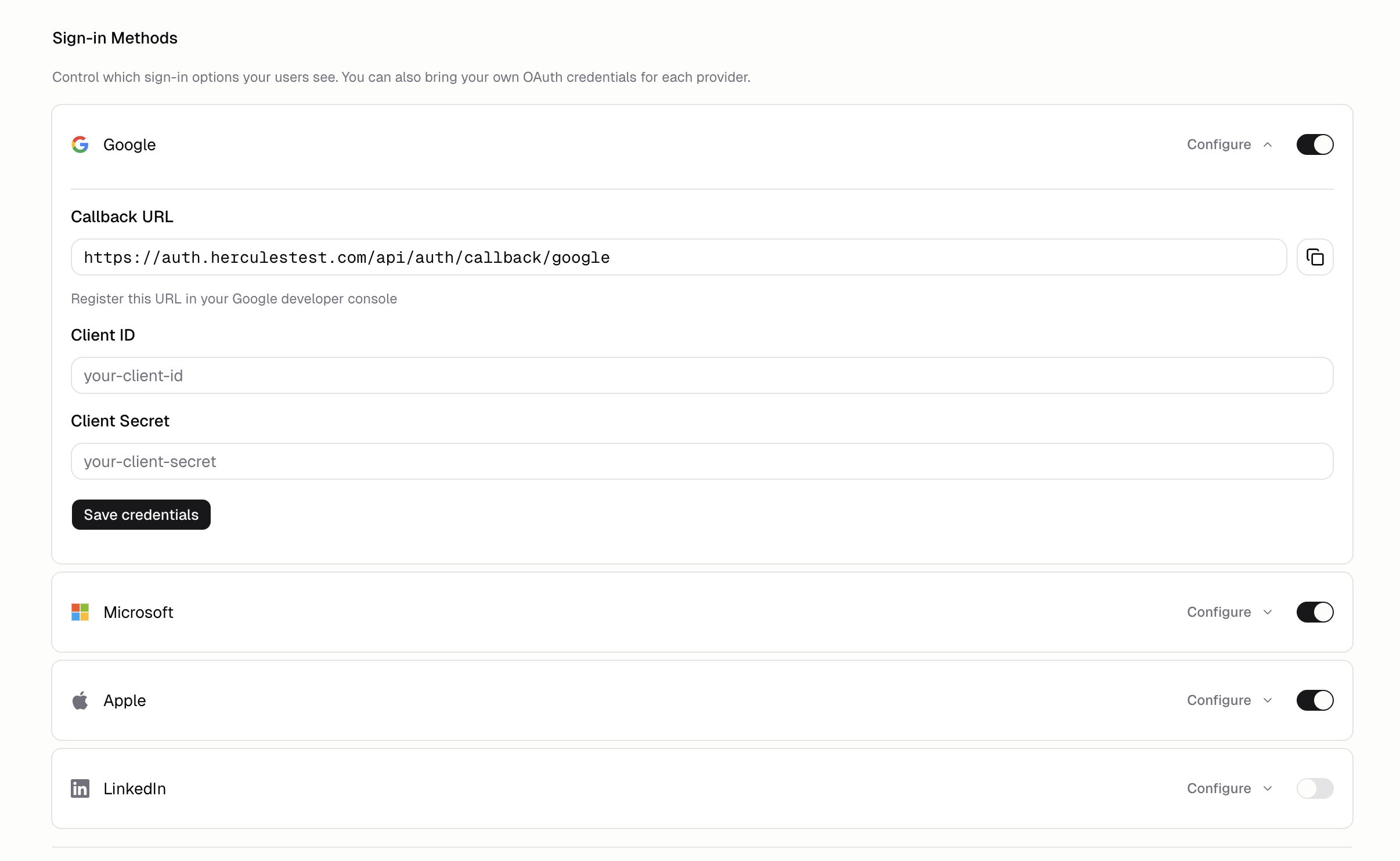
Configure Sign-In Methods
Decide which sign-in providers and email OTP options end users see on your app's Auth Portal. Toggle methods on or off per app; changes roll out in a minute.
Read more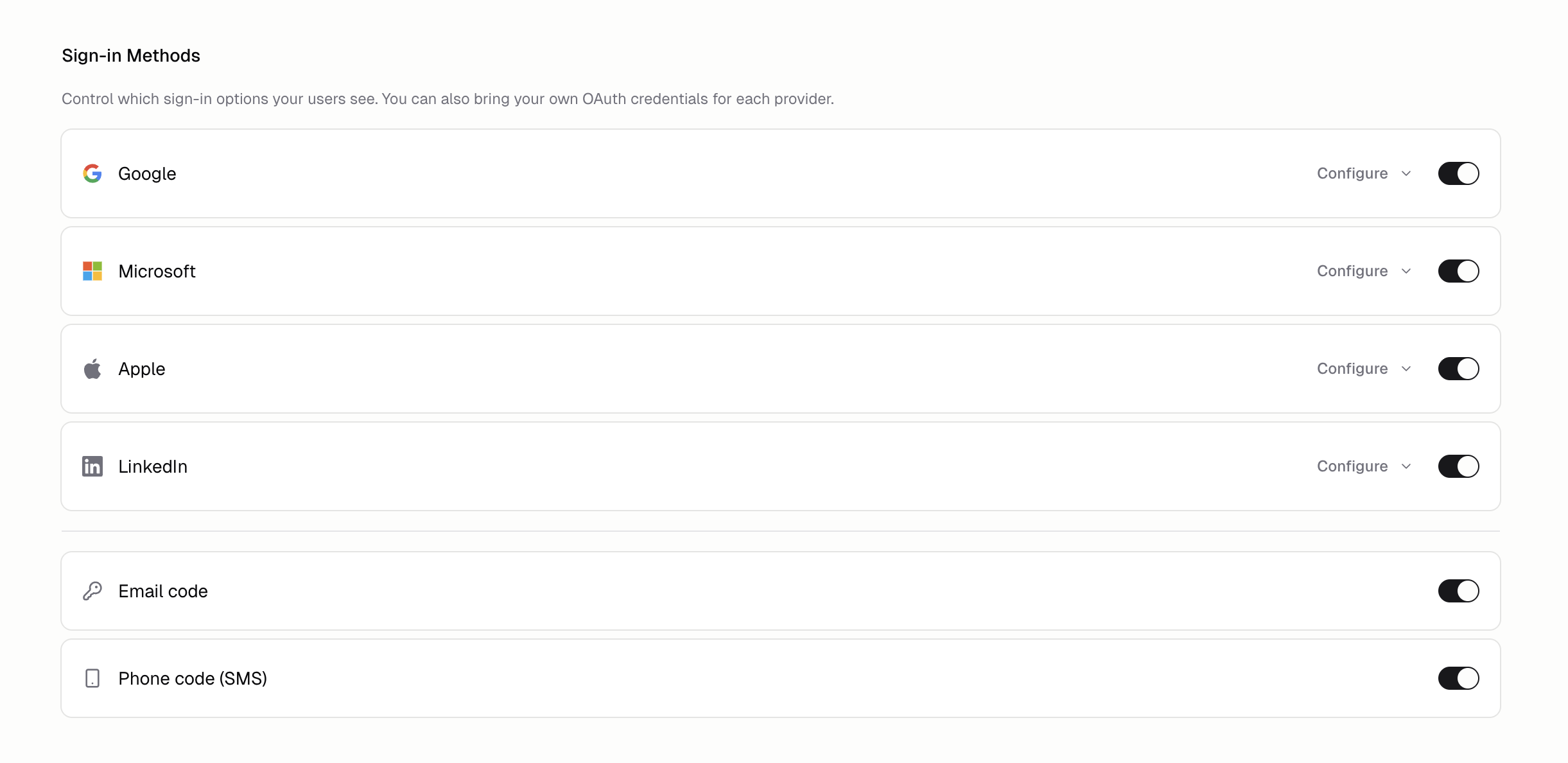
Configure SAML SSO
Roll out single sign-on for your Hercules organization on any SAML 2.0 identity provider. Set metadata, ACS URL, and the email domains you trust.
Read more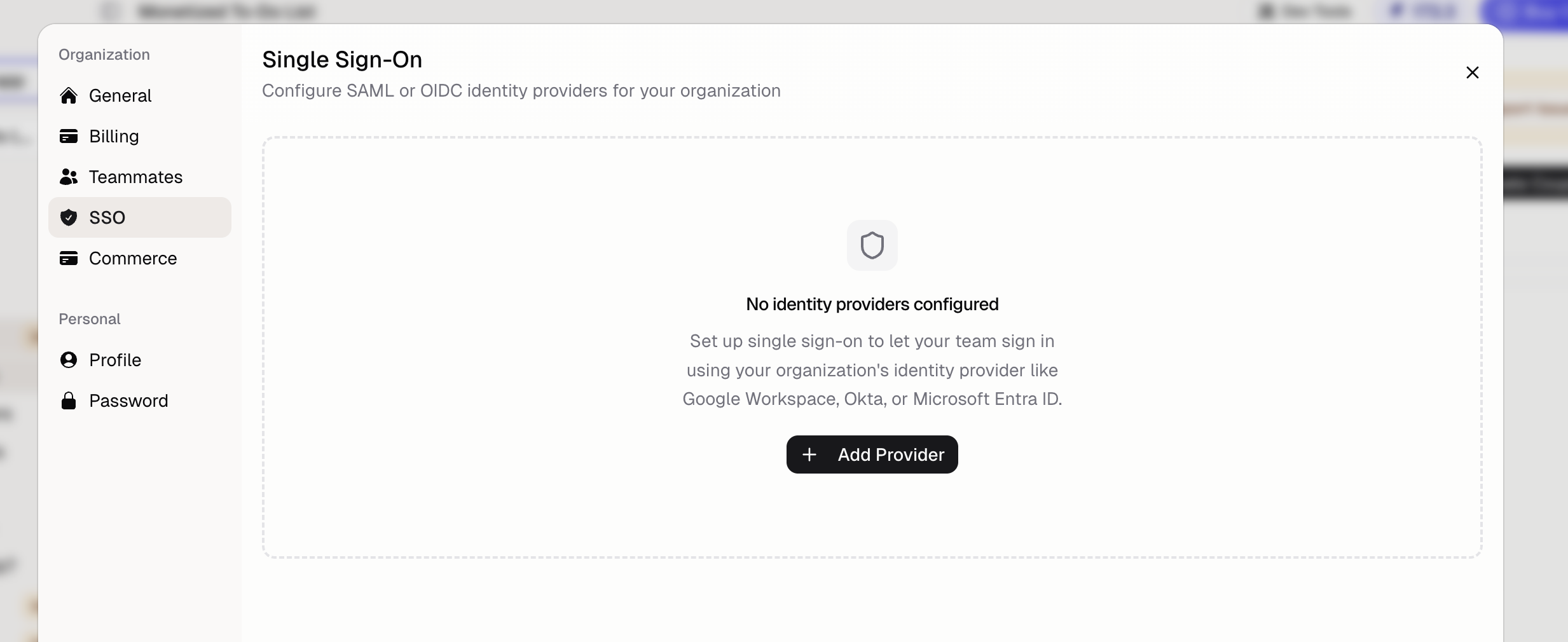
Give the Agent Screenshots
Skip attaching screenshots manually. Hercules pulls fresh preview captures of your app whenever the Agent needs to verify a layout or debug visuals.
Read moreImage Generation Just Got Better
Hercules has upgraded the High-quality image model. For the same price, output quality is about twice as good. Free apps still use the faster Standard model.
Read moreReuse Email Domains Across Apps
Register the same Hercules Email sending domain on multiple apps within one organization. Keep consistent branding across every app without re-verifying DNS.
Read moreIssue Hercules Commerce Refunds
Refund a customer payment from inside Hercules Commerce without opening an outside billing dashboard. Pick full or partial under Commerce → Customers.
Read moreSend OTP From Your Own Domain
Send one-time-passcode sign-in emails from your own verified domain instead of Hercules. Verify your email identity, then point your Auth Portal at it.
Read more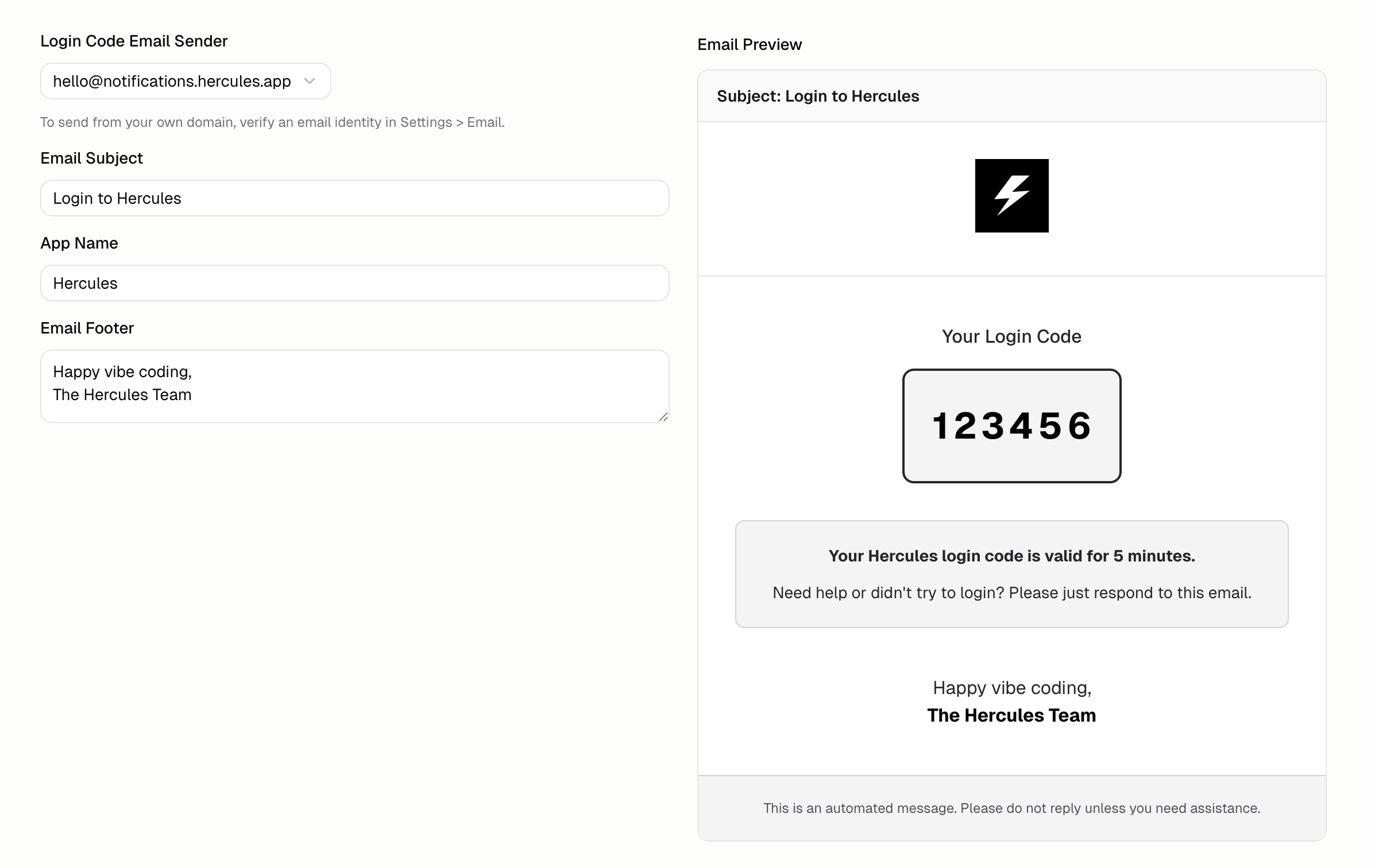
March 2026
Hercules Email Sending Reputation
Catch deliverability problems before mail starts landing in spam. The Sending reputation tab tracks bounce rates, complaint rates, and identity status.
Read moreDownload Database Exports
Database exports are now about twice as fast. Download a full export of your app's database any time from the Export tab on the Business plan.
Read more
Self-Manage from Purchased Domains
Turn off Hercules-managed DNS for any domain you purchased through Hercules. Advanced users can take over DNS records entirely without losing the domain link.
Read more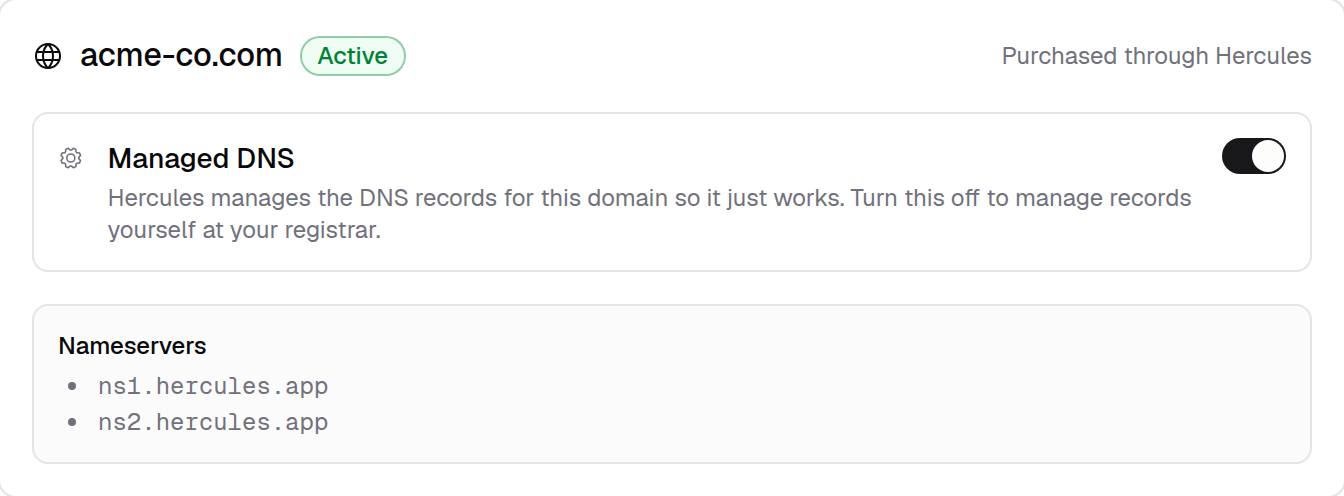
Transfer Domains Between Apps
Move a purchased or connected custom domain from one app to another in the same organization. DNS records carry over automatically, no re-verification needed.
Read more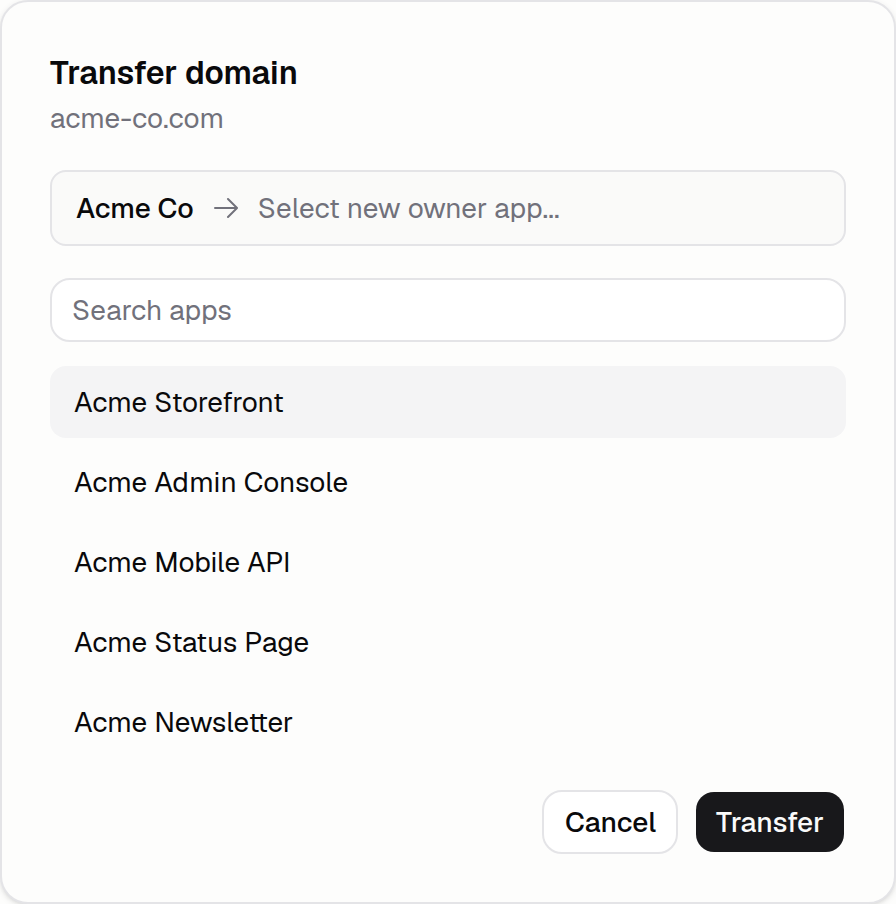
View Function Usage
The Backend tab now breaks Hercules Cloud usage down by individual function. Spot which call drives cost and ask Hercules to optimize that specific function.
Read more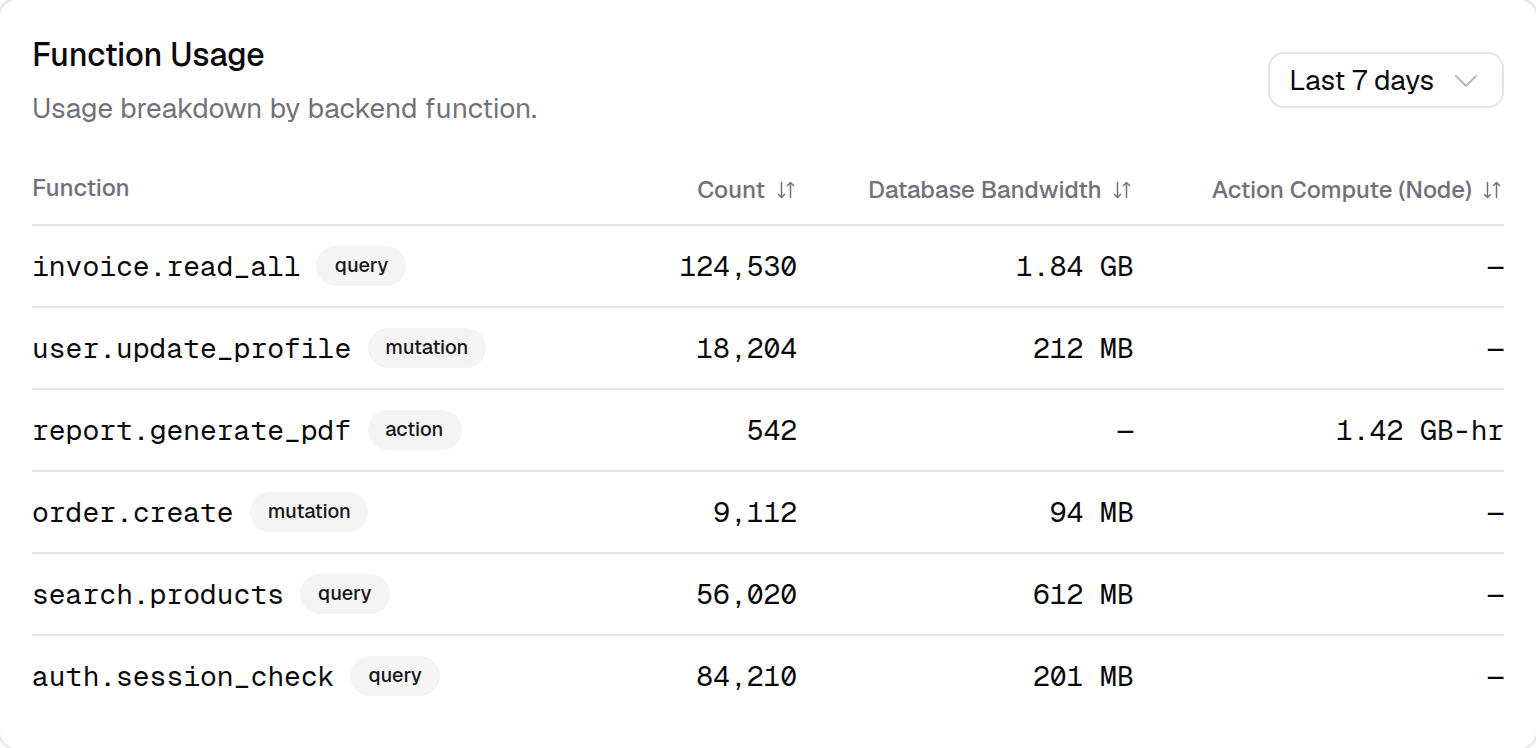
Publish From the Agent
Ask Hercules to publish your app from chat. The Agent can auto-publish when a task finishes, batch-publish hundreds of apps via MCP, or push a quick live test.
Read more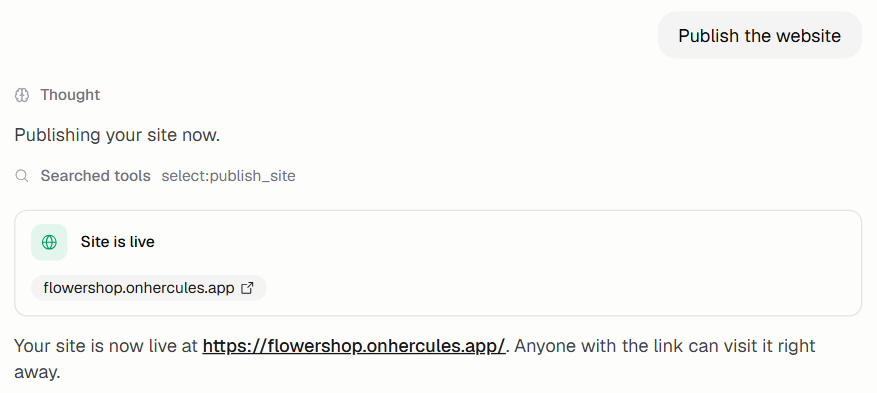
Set Cloud Usage Alerts
Balance alerts, auto top-up caps, and per-metric thresholds for Hercules Cloud stop a bad deploy or traffic spike from surprising you with overage costs.
Read more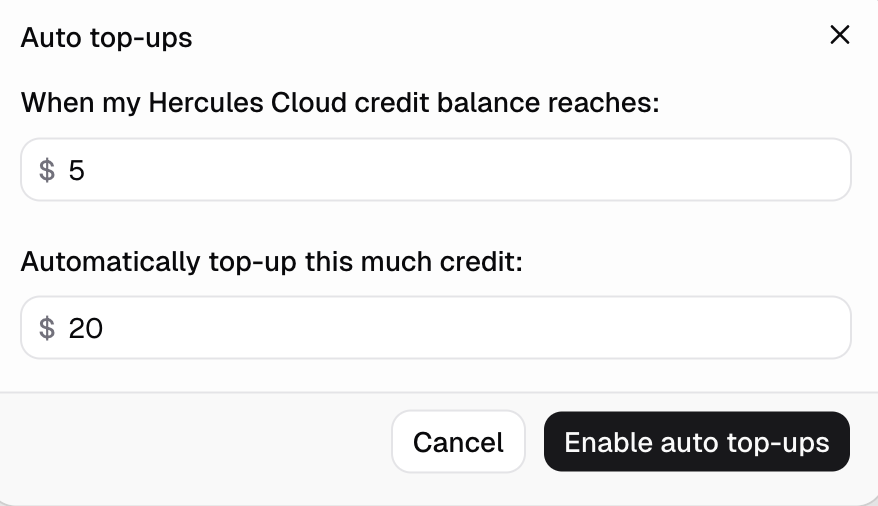
Hercules Cloud Usage Page Redesign
The Hercules Cloud usage page is redesigned around a single resource table. See hosting and AI Gateway usage by date and app, and click any row for a graph.
Read more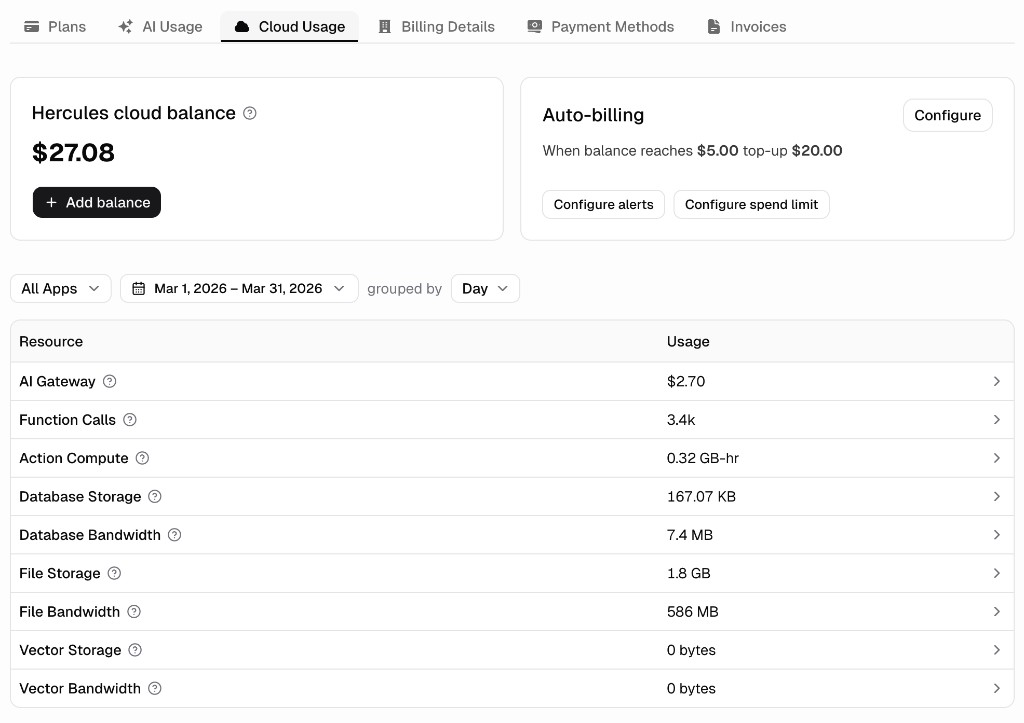
February 2026
Mention Context in Chat
Type @ in any Hercules chat input to reference files, pages, or other context relevant to your instruction. The Agent picks up the exact thing you mentioned.
Read more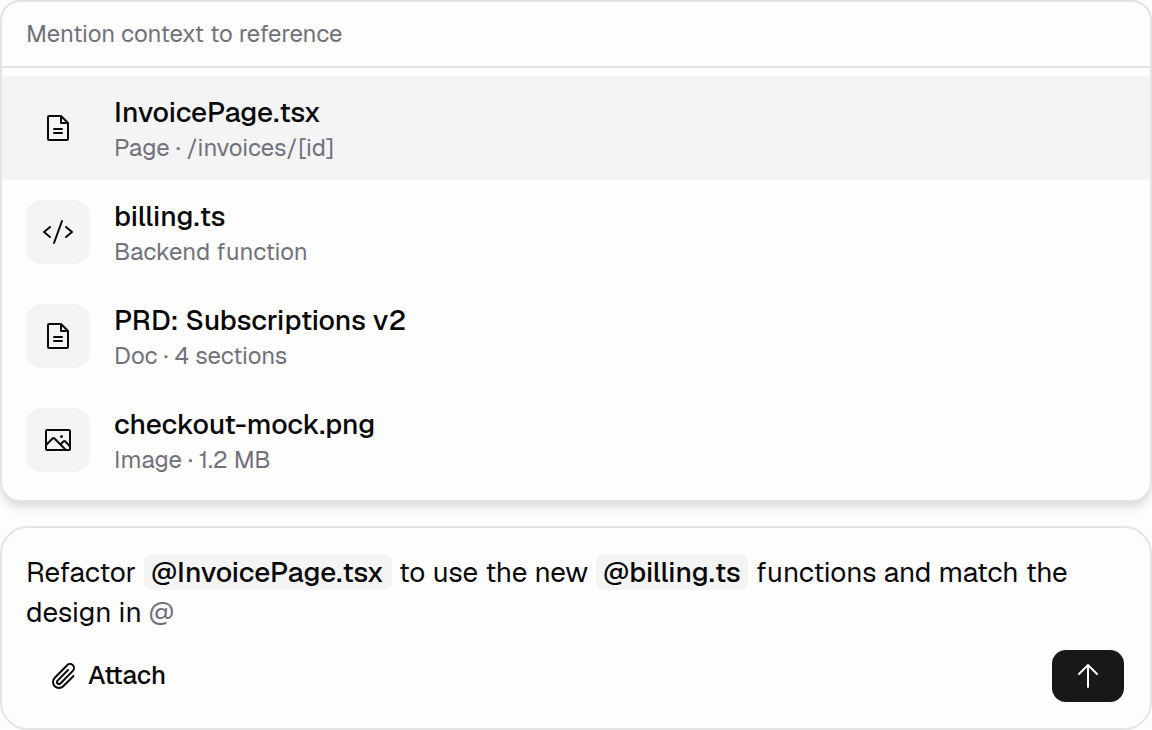
Choose Data Residency
Set whether new Hercules apps store data in US East or EU West. The default applies to every app created under your organization going forward.
Read more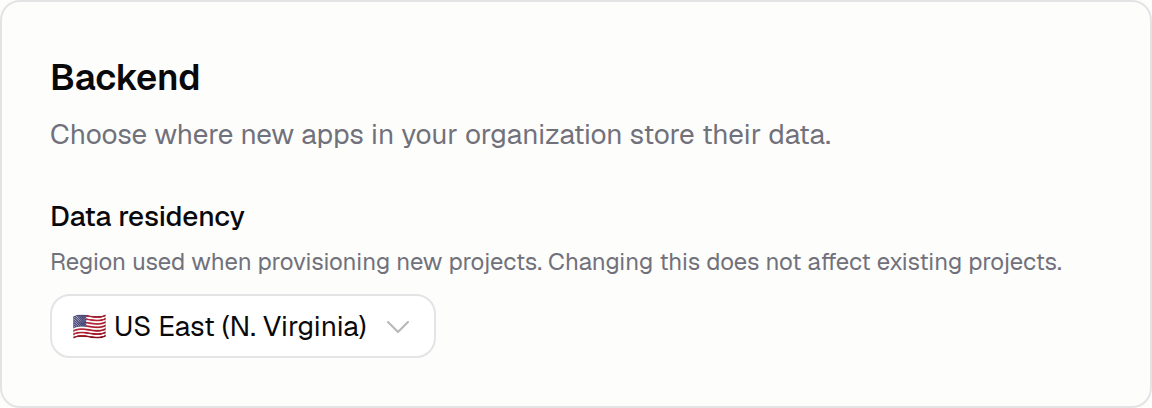
Hosting Metrics Dashboard
See exactly what's driving your Hercules Cloud bill. Time-series charts break down function calls, compute, and storage by app over any date range.
Read more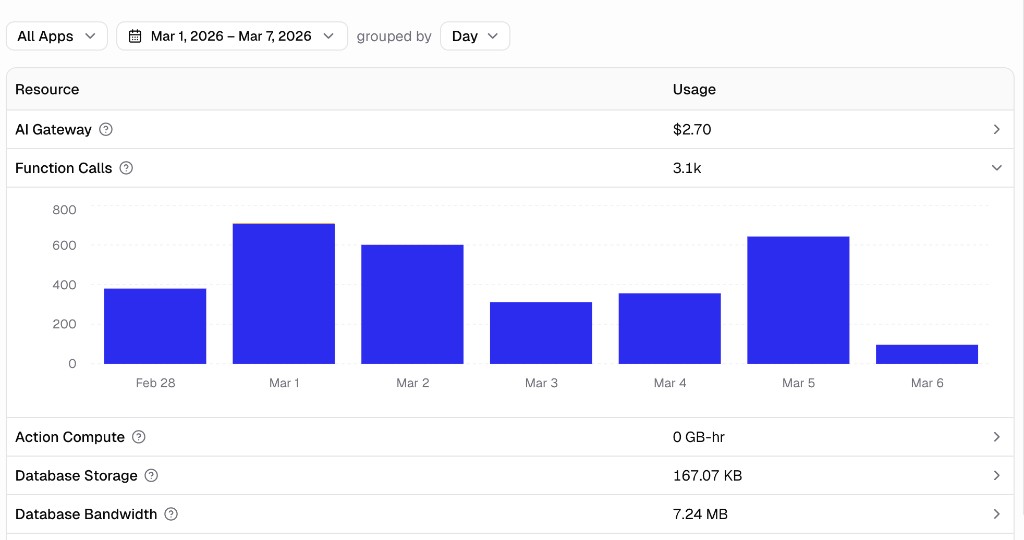
Custom MAIL FROM Domain
Verified sending domains now use a custom MAIL FROM subdomain so SPF, DKIM, and DMARC align on every outbound email. Deliverability improves with zero setup.
Read more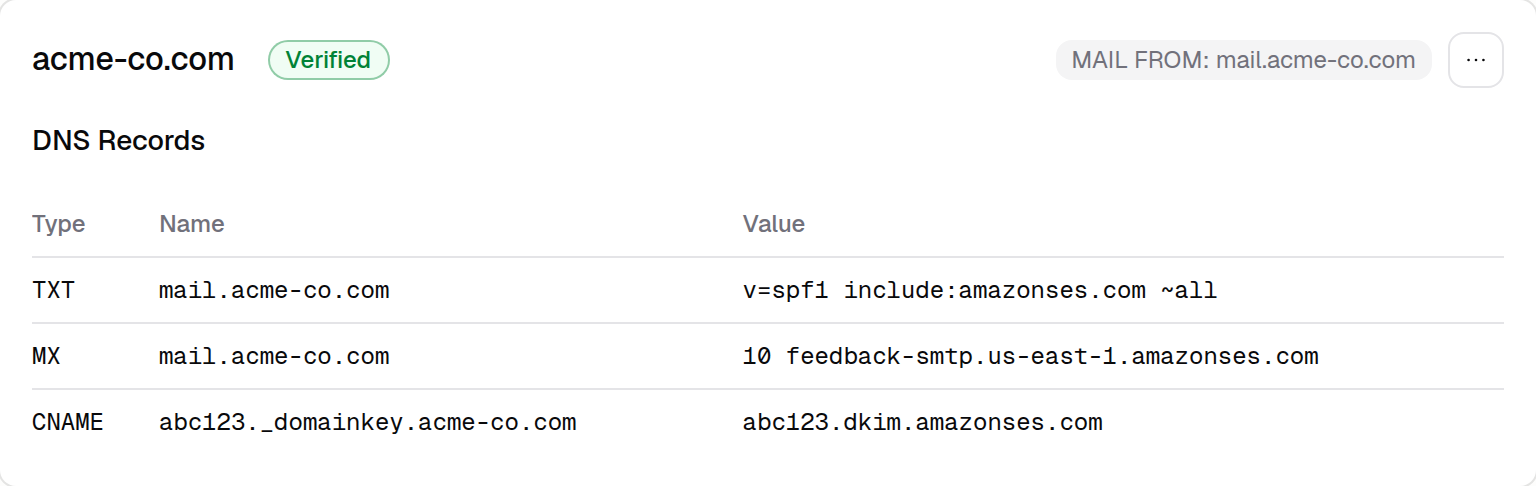
Expert and Lite AI Models
Pick between Expert and Lite AI tiers from the chat input. Expert is the most accurate for planning and complex work; Lite is about 30 percent cheaper.
Read more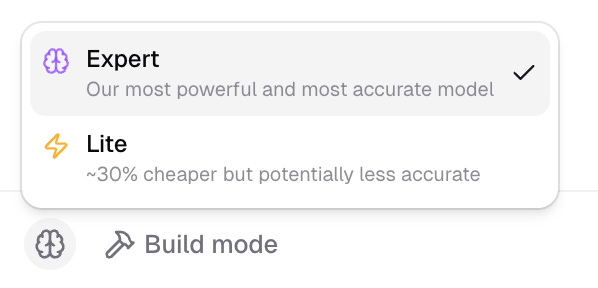
Custom Auth Portal Branding
Customize your app's Auth Portal: pick colors, point users to your own terms and privacy links, and brand the OTP email sender, subject, and body.
Read morePurchase Domains in Hercules
Buy a custom domain inside Hercules and have it auto-connect to your app on purchase. Search 600-plus TLDs, manage DNS, and wire it up to Hercules Email.
Read more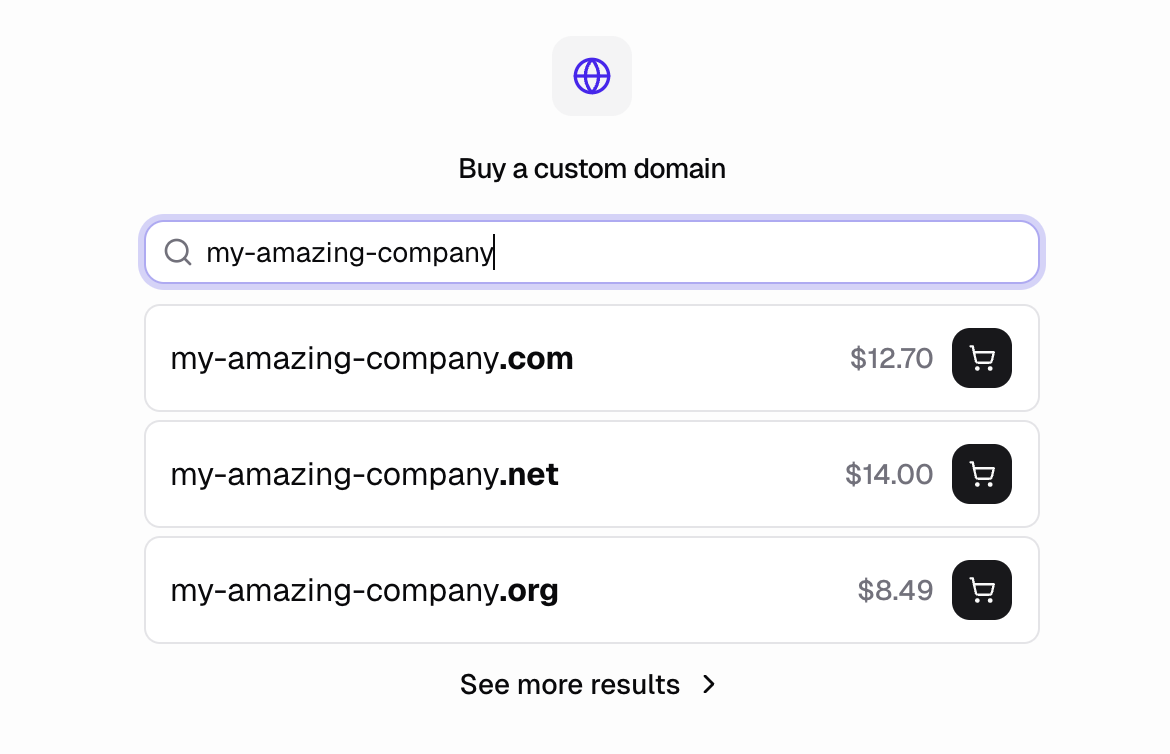
Manage App Permissions
Control which teammates in your organization can see and edit each app. A new Permissions screen sets per-teammate roles on any app you own.
Read more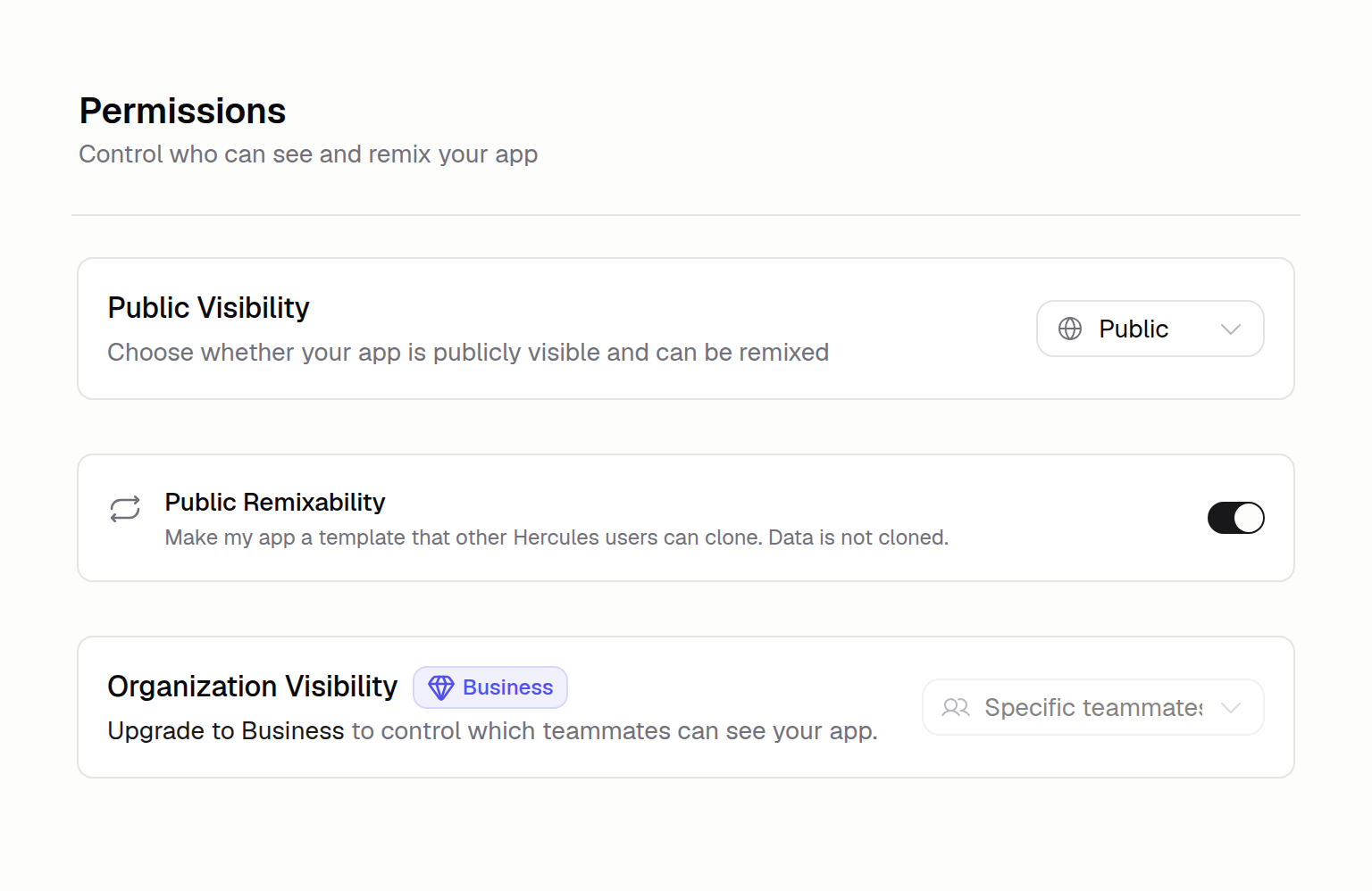
Launching Hercules Email
Send transactional emails to your users from a custom address with Hercules Email. Verify a domain, track delivery, and trigger sends on app events.
Read more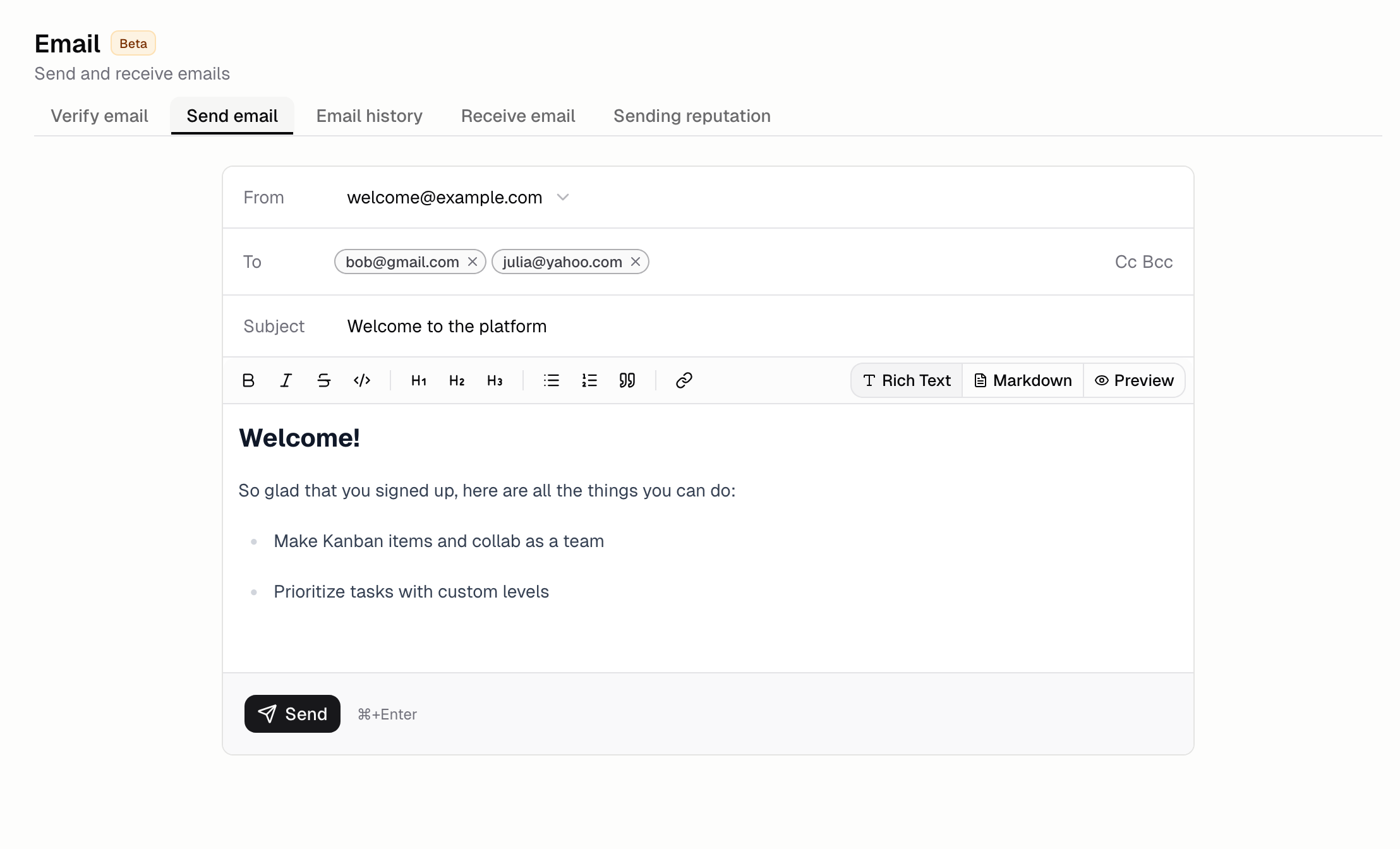
Sign In With Apple
Apple ID is now a sign-up and log-in option for Hercules accounts. Visit hercules.app/sign-in on any Apple device to use the new authentication choice.
Read more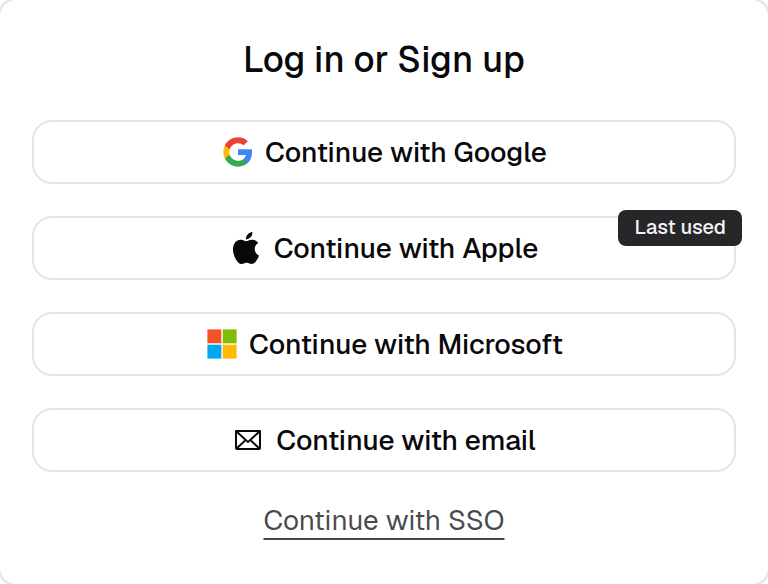
Upload Profile Images
Upload a profile picture for your user account and a logo for your organization. The photo shows in chat and on your public profile at hercules.app/@your-slug.
Read more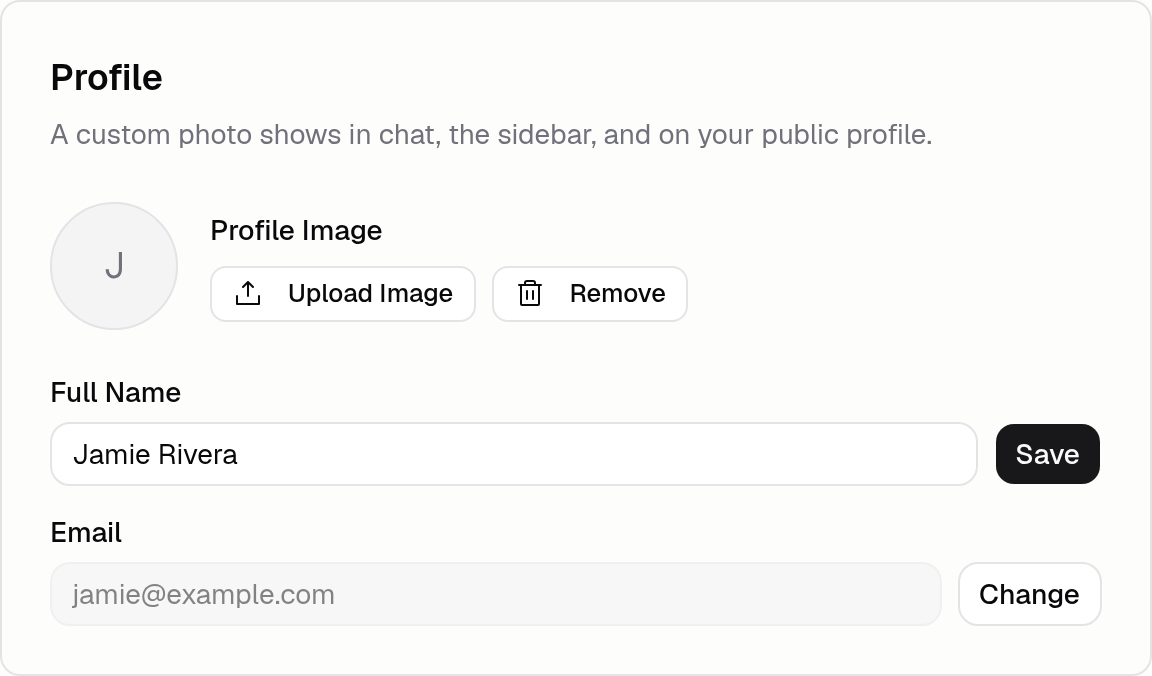
Hercules Showcase
Every organization gets a public profile at hercules.app/@your-slug. Control visibility, remix permissions, and app metadata under the Showcase tab.
Read moreManage All Your Apps
Every app in your organization now appears on one Dashboard page with search, filters, sort, and live thumbnails. Jump between teams' apps from a single grid.
Read more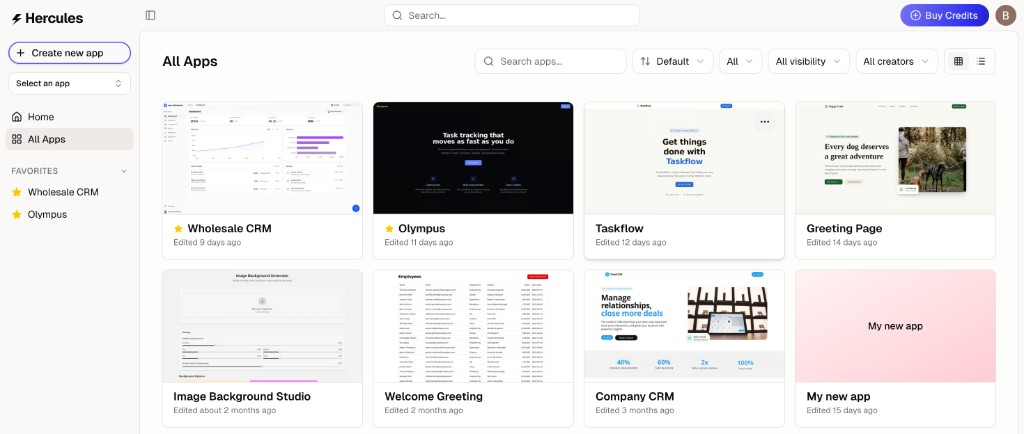
Visual Edit Tab
Click any element in the live preview and tweak its text, colors, layout, or fonts inline. Visual Edit lives in its own sidebar tab in the App Builder.
Read more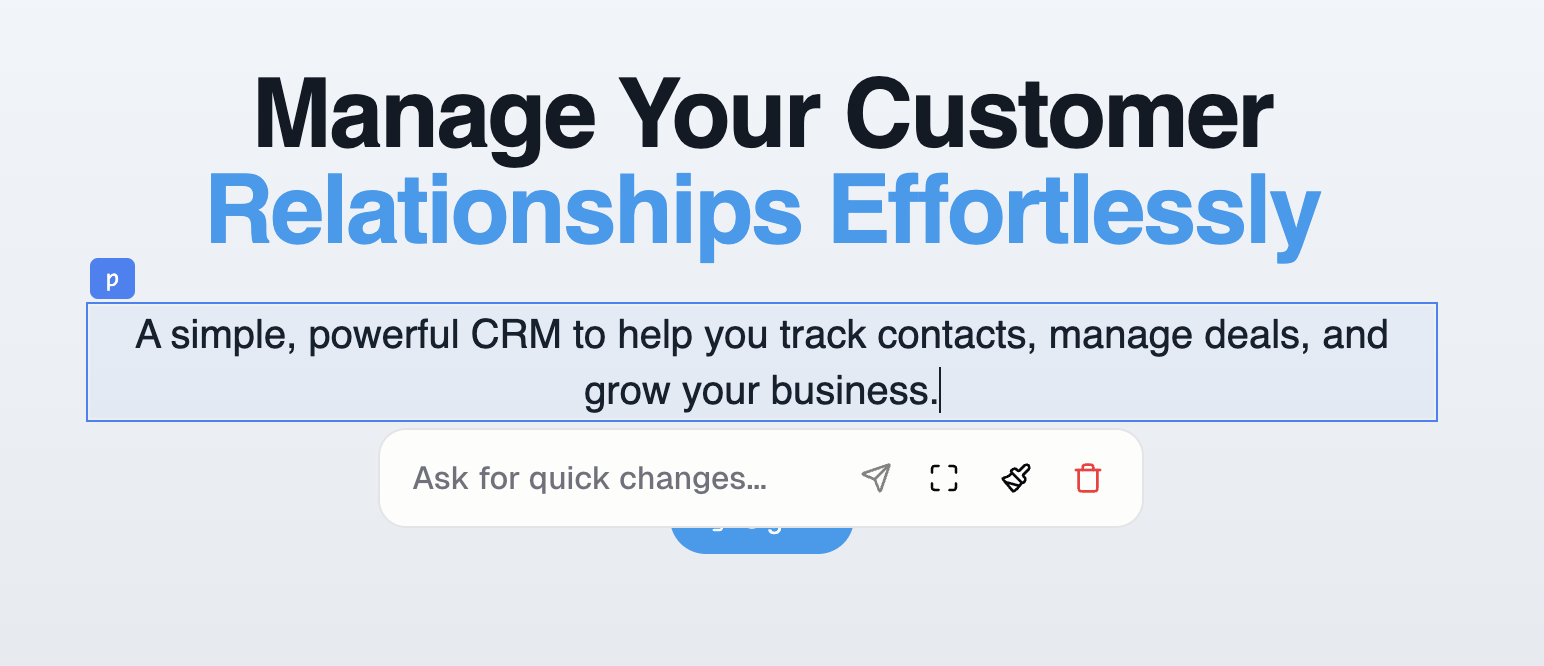
New Platform Layout
Hercules now splits into a Dashboard for managing every app and an App Builder for building one. A new switcher in the sidebar jumps between apps instantly.
Read more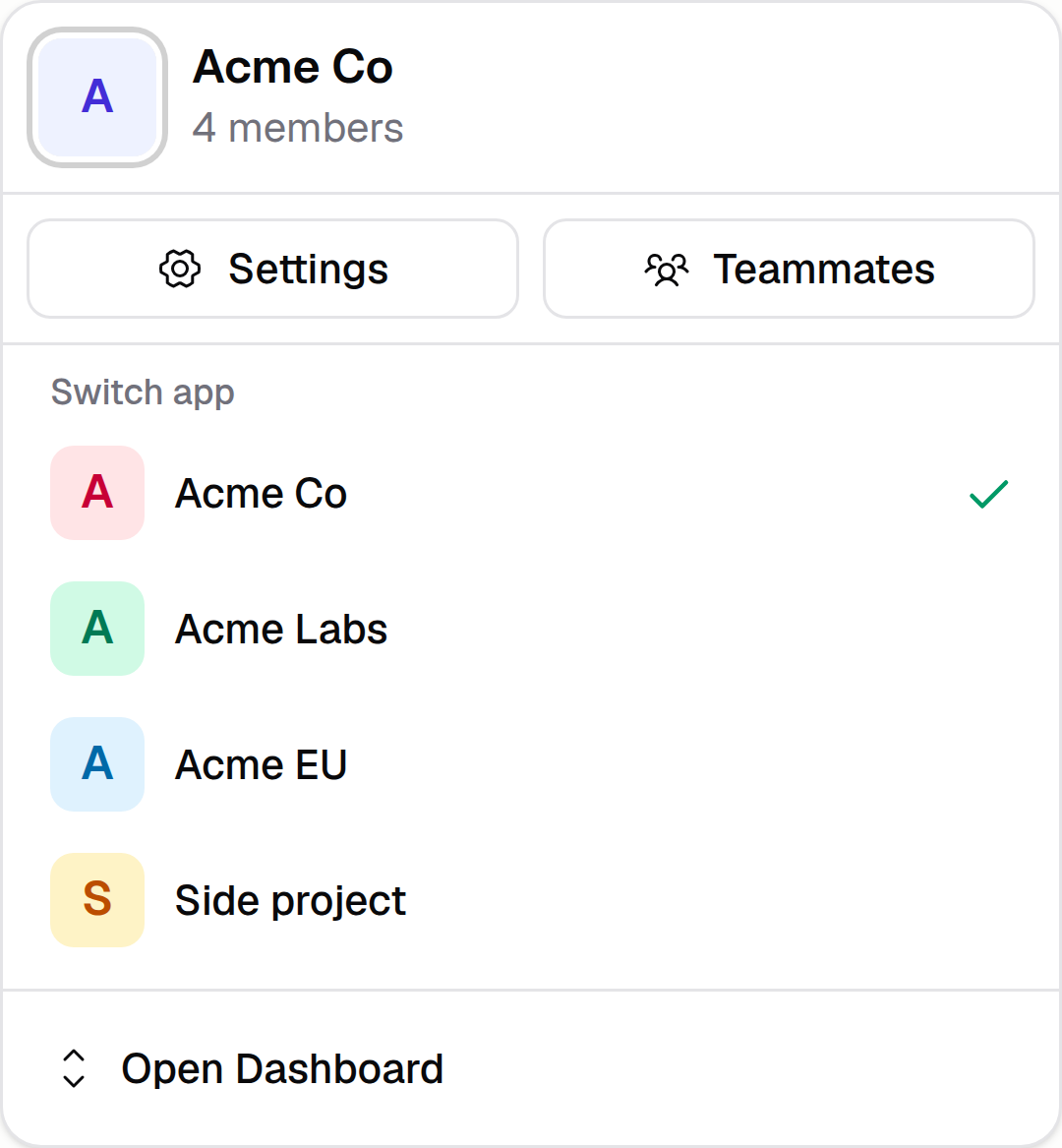
Internationalization Support
Translate your app into 100-plus languages, including right-to-left scripts. Hercules adds locale routes, a language switcher, and flips layout for RTL.
Read more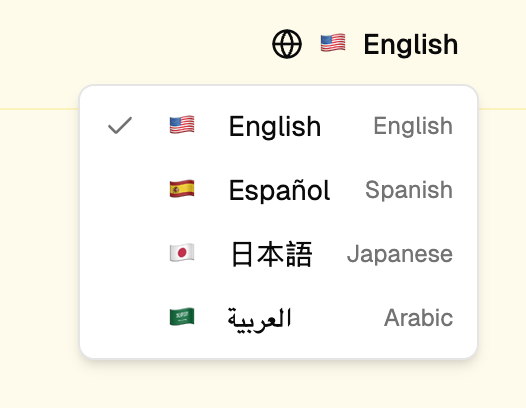
January 2026
Hercules Docs
Hercules now has public documentation at hercules.app/docs covering the App Builder, publishing, Hercules Cloud, and platform topics like billing and teammates.
Read moreAdd Visual Context
Give the Agent precise visual context with new capture tools: screenshot a region, annotate it, select an exact HTML element, or attach files from your device.
Read more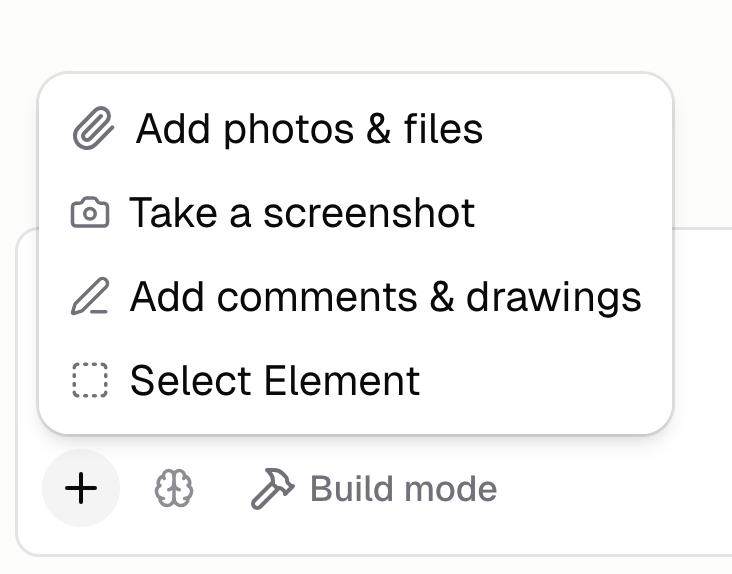
Send Push Notifications
Reach users on their phones with notifications triggered by sign-up, purchase, or any event you choose, plus a composer for one-off blasts to a list.
Read more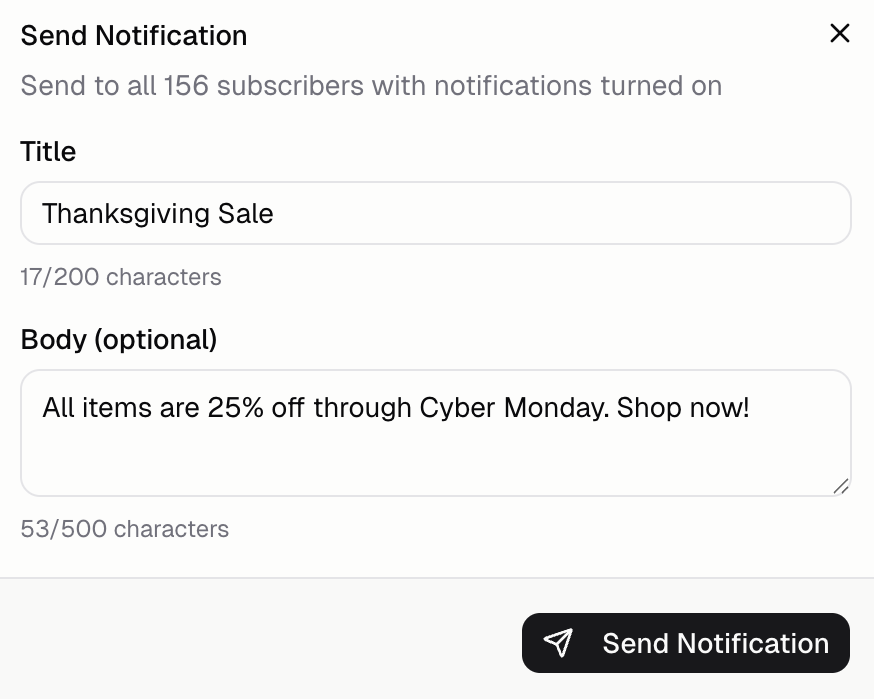
Bulk Select Files
Hold Shift and click two files in Files and Media to grab the range between them. Bulk delete, copy, or rename the whole selection at once.
Read more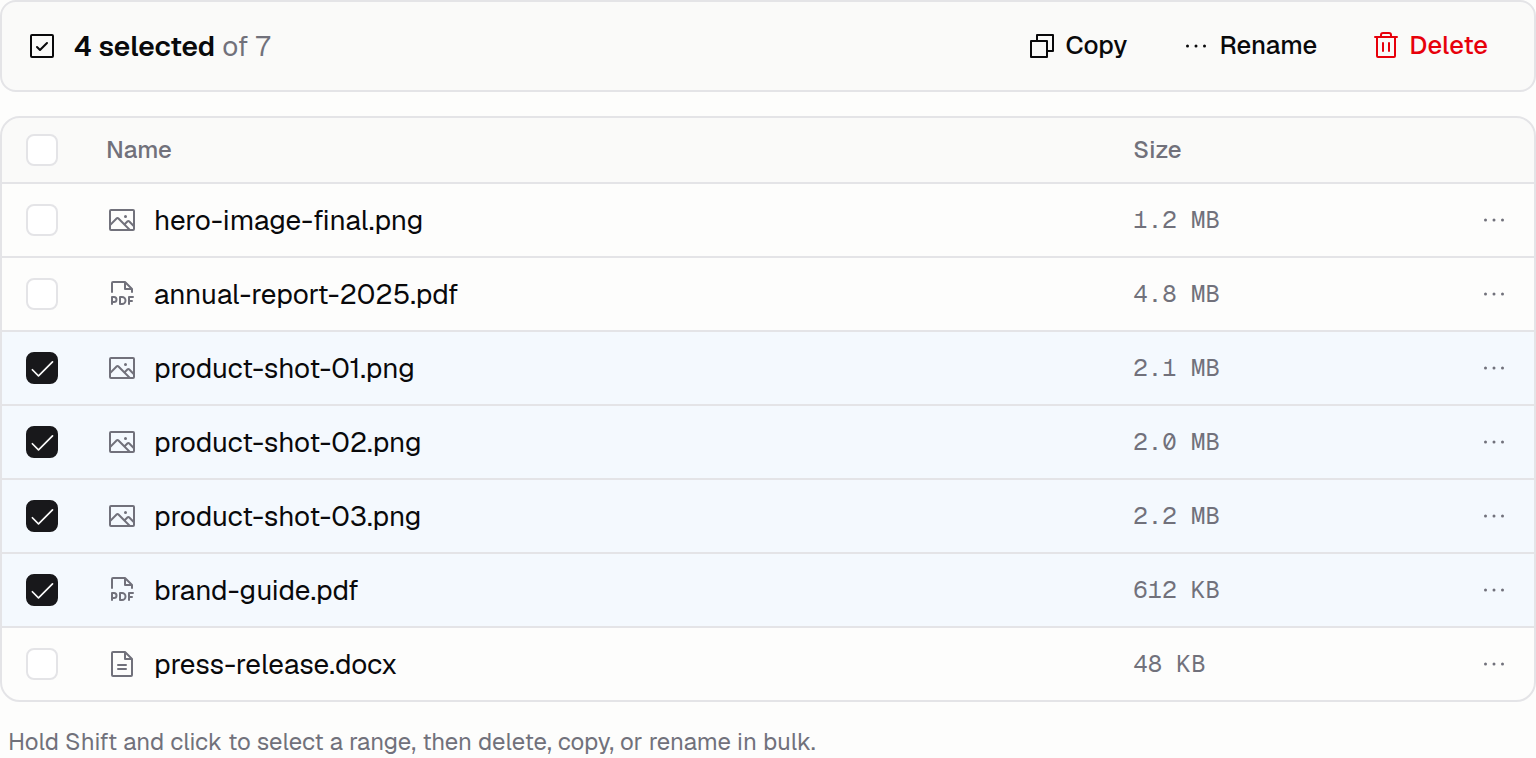
Approve Sensitive Agent Tool Calls
Risky tool calls like editing database data now wait for your sign-off. Pick Approve, Always approve, Reject, or Reject with comment when prompted.
Read morePlan and Debug Modes
Pick how the Agent works on your next request: Build to ship code fast, Plan to draft Milestones first, or Debug to chase root causes before edits.
Read more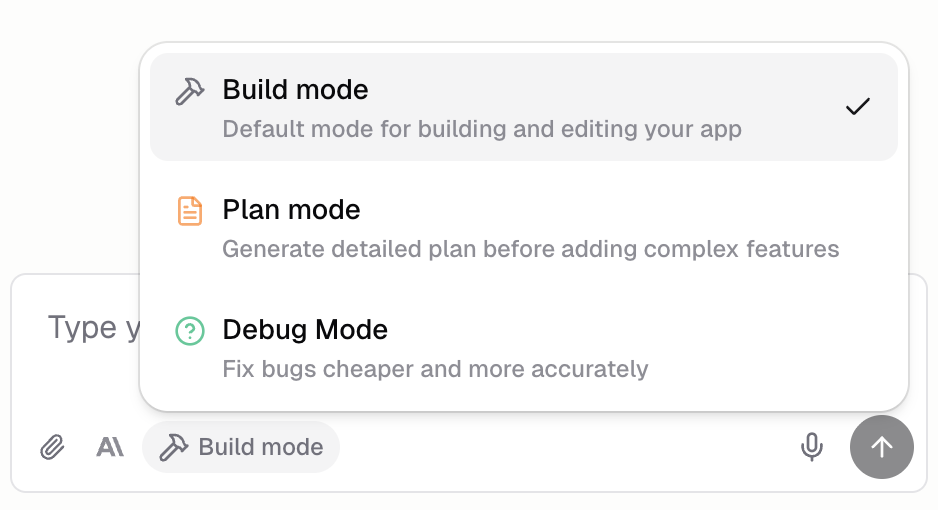
Sign In With SSO
Sign in to Hercules with your work email and your company's SAML provider. Hercules routes by email domain to the right identity provider on the Business plan.
Read more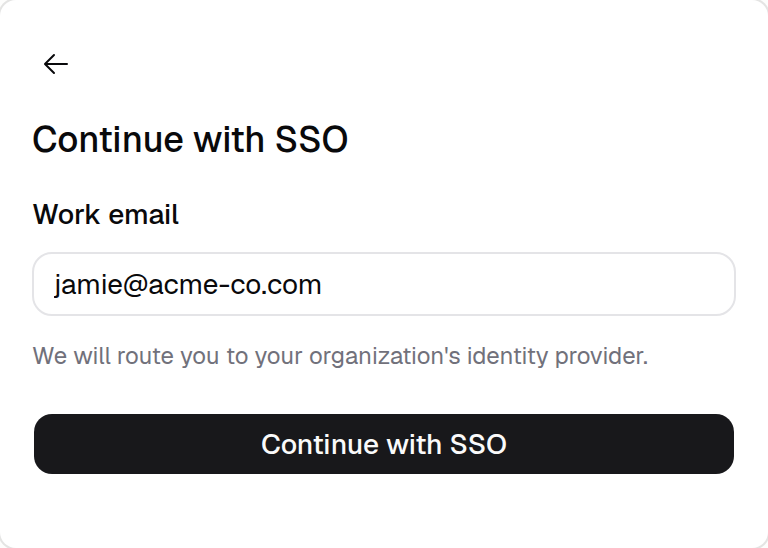
Multi-Currency Commerce
Hercules Commerce now supports 100-plus currencies. Pick a currency per product and Hercules handles the symbol, decimals, and currency-aware inputs everywhere.
Read moreManage Devices and OAuth Apps
Audit every device signed in to your Hercules account and every third-party app you've authorized. Revoke sessions or OAuth grants under Settings.
Read more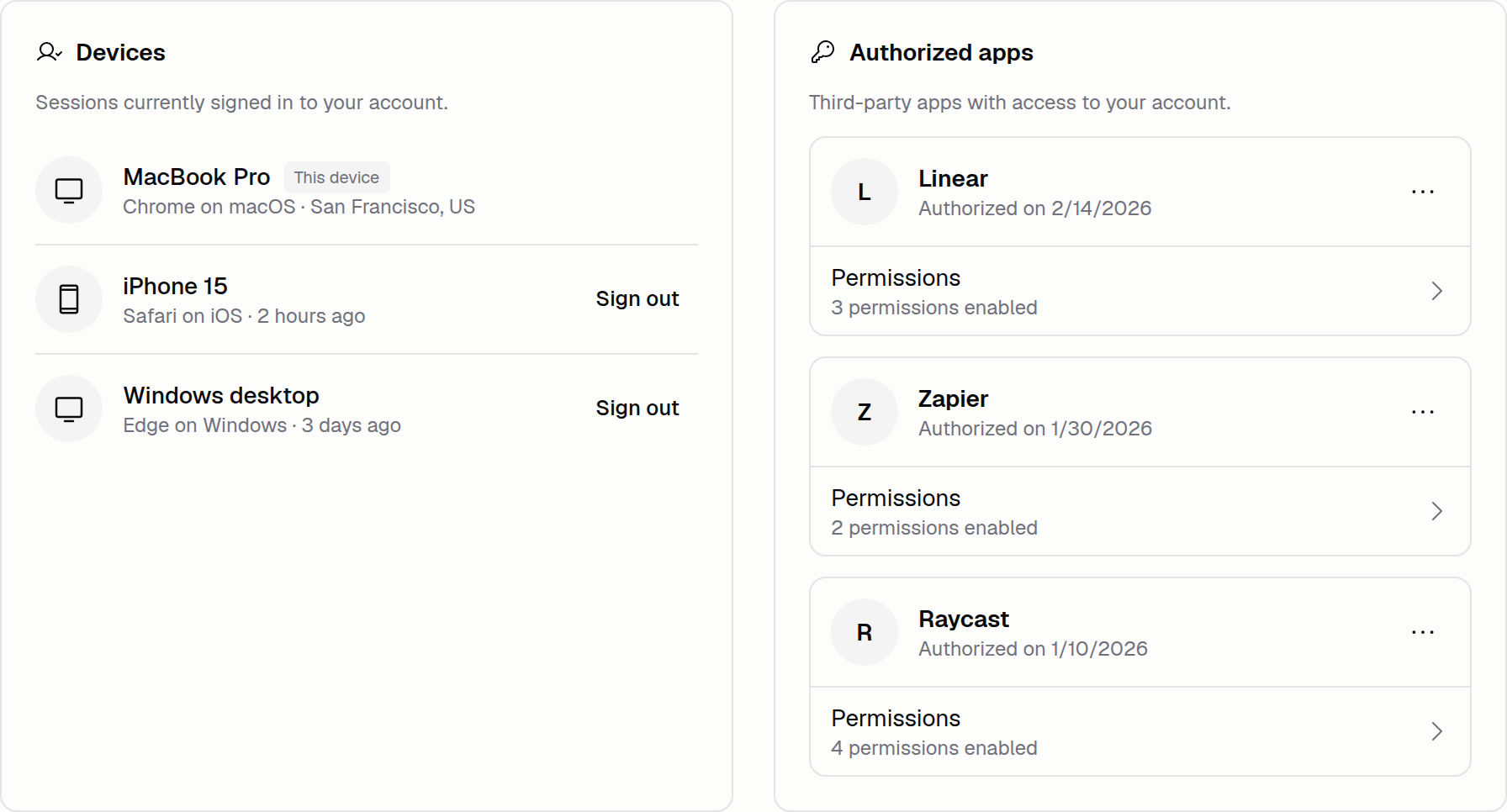
December 2025
Image Generation Quality Options
Generate images at two quality tiers, Standard and High. Paid plans default to High; free apps stay on Standard. Ask for either tier inline from chat.
Read moreApple Pay and Google Pay
Buy AI Credits and Cloud Credits with your wallet's saved card instead of typing one in. Apple Pay and Google Pay both work at checkout on supported devices.
Read moreManage Hercules Features from Chat
The Hercules Agent can now configure Hercules Commerce, Hercules Email, and more from chat. No need to switch to the App Builder UI to set up these features.
Read moreCheckout Stays on Hercules
Purchases on the Hercules platform now complete on hercules.app instead of redirecting off site. Fewer device and region issues and a faster confirmation.
Read moreLaunching Hercules Cloud
Hercules Cloud is the full-stack hosting layer behind every app: database, backend functions, auth, AI, email, and more, with a generous free tier built in.
Read more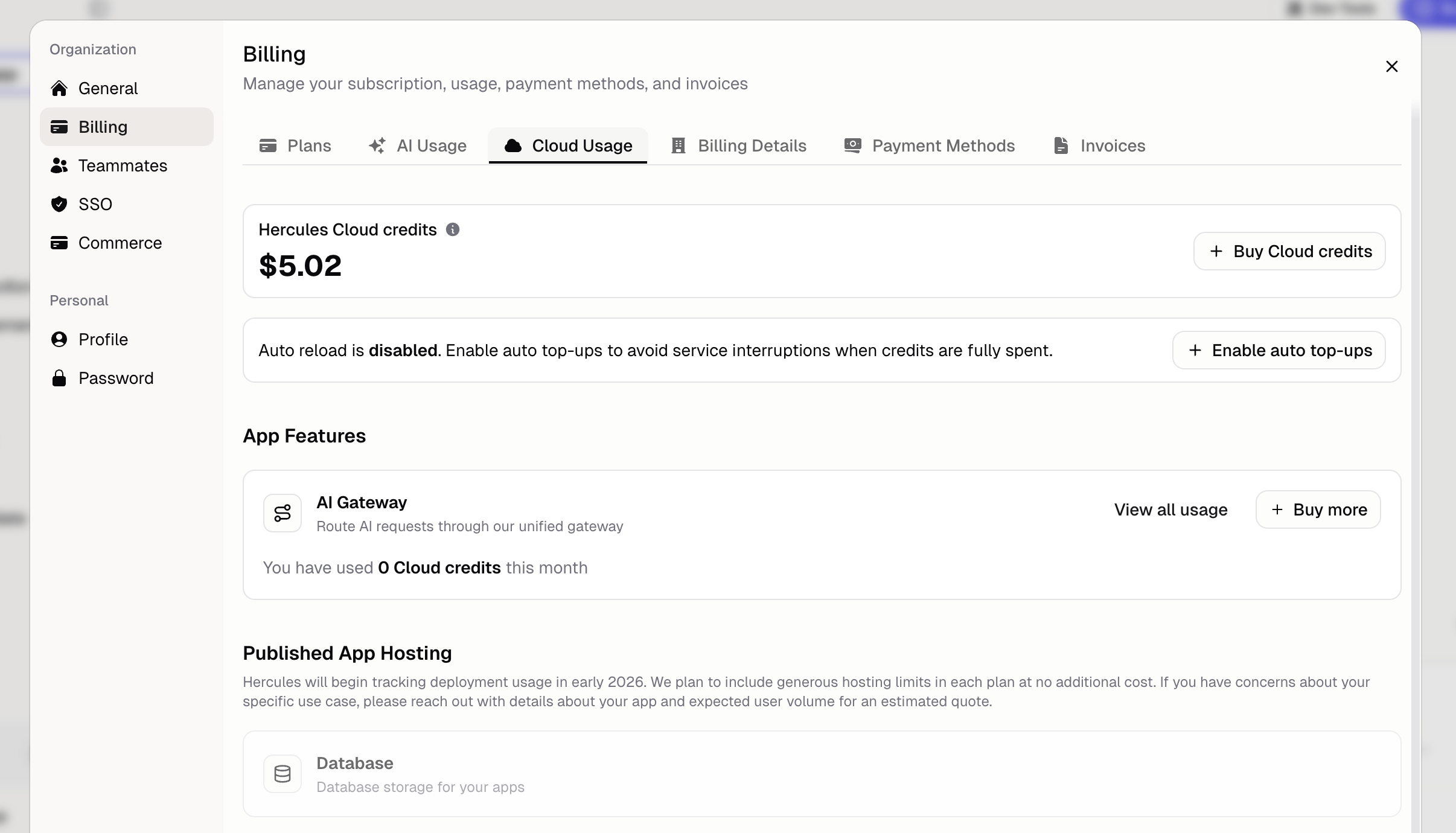
Manage Organization Billing
The redesigned billing portal lets you view invoices, manage payment methods, track AI and Cloud usage, change plans, and apply promo codes inside Hercules.
Read more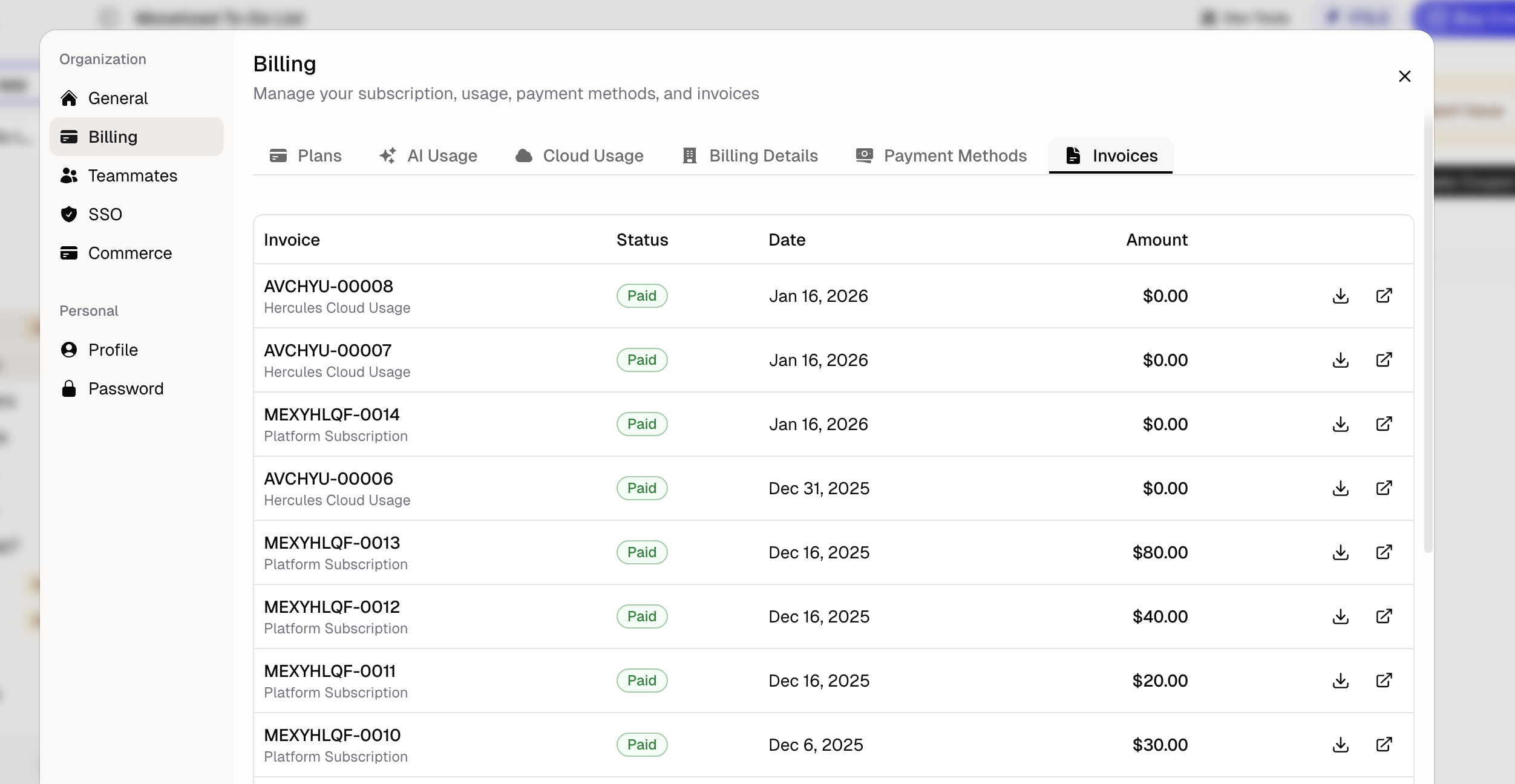
Duplicate an App
Duplicate any app from your Dashboard to use as a template, staging copy, or starting point. Code, dependencies, AI instructions, and branding all carry over.
Read more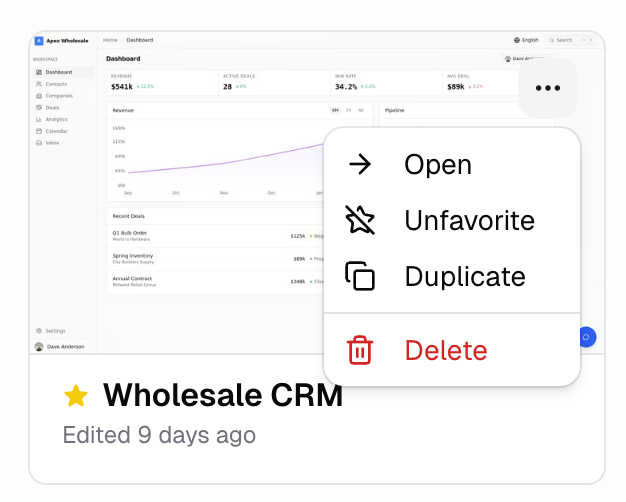
Launching Hercules AI Gateway
The Hercules AI Gateway lets your app call popular models from OpenAI, Anthropic, Google, and X without managing API keys. Build AI features in minutes.
Read more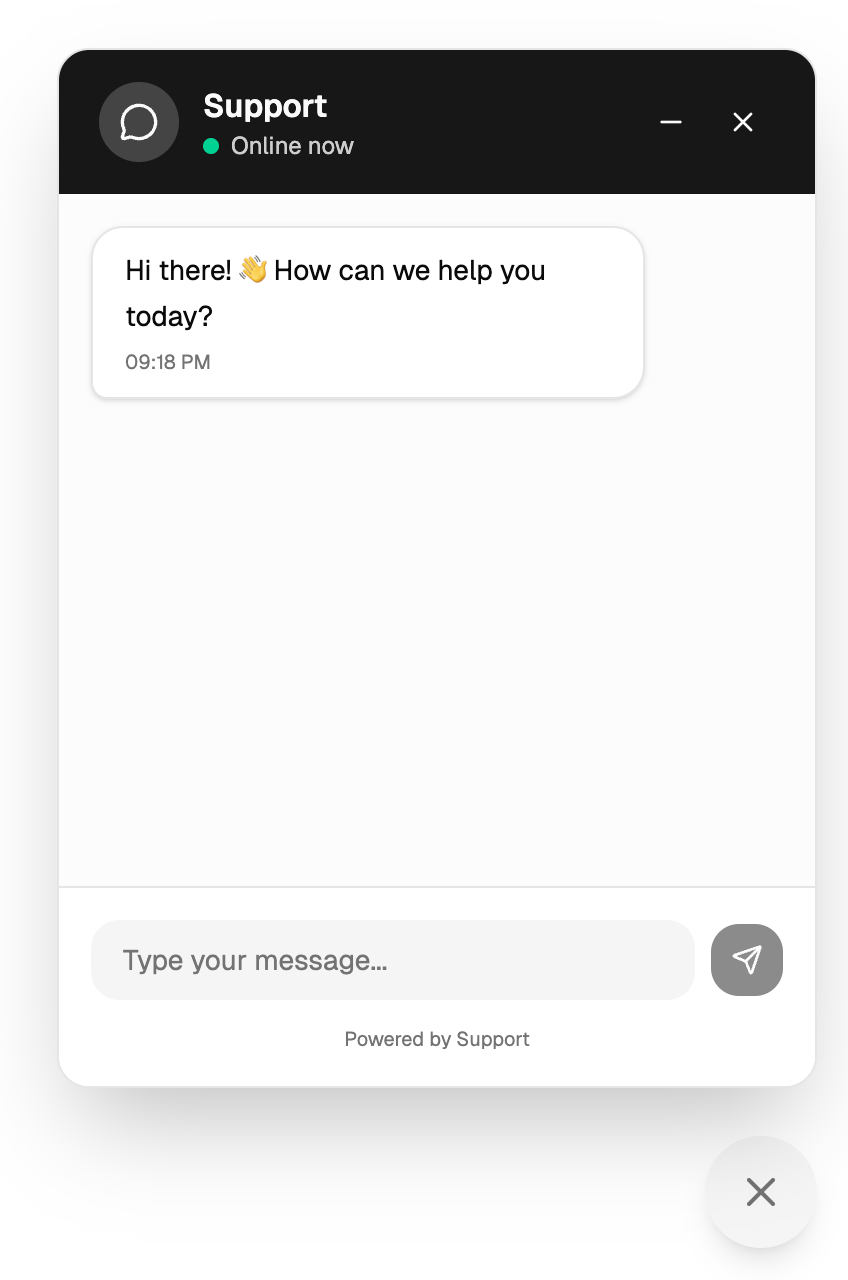
App Analytics
Traffic, demographics, devices, and session metrics collect automatically for every published app. Click any row to filter on what's driving visits.
Read more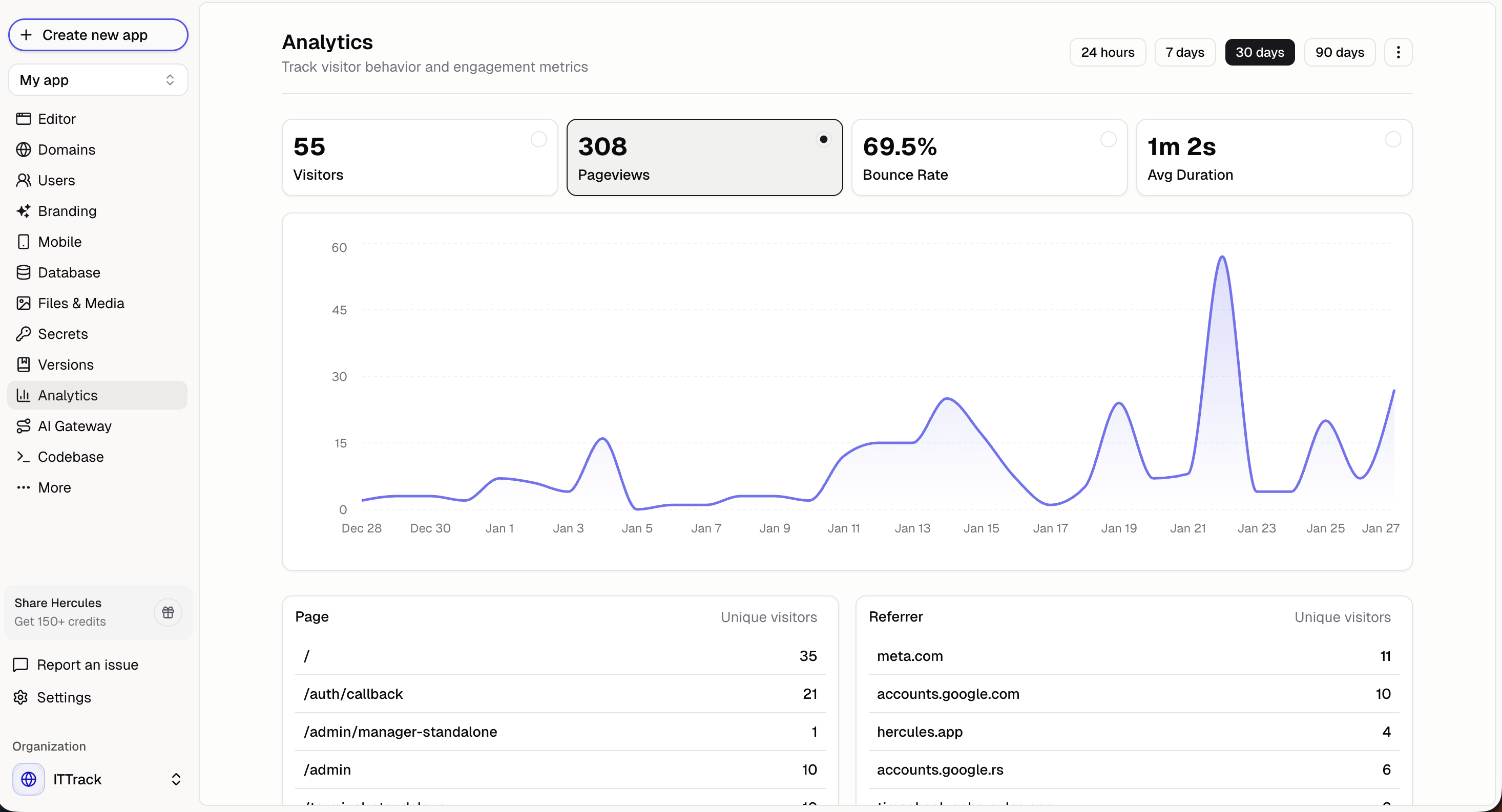
Export Backend Snapshots
Pull your app's database and file storage out as a single zip whenever you want. No support ticket needed, and the export covers everything you've stored.
Read more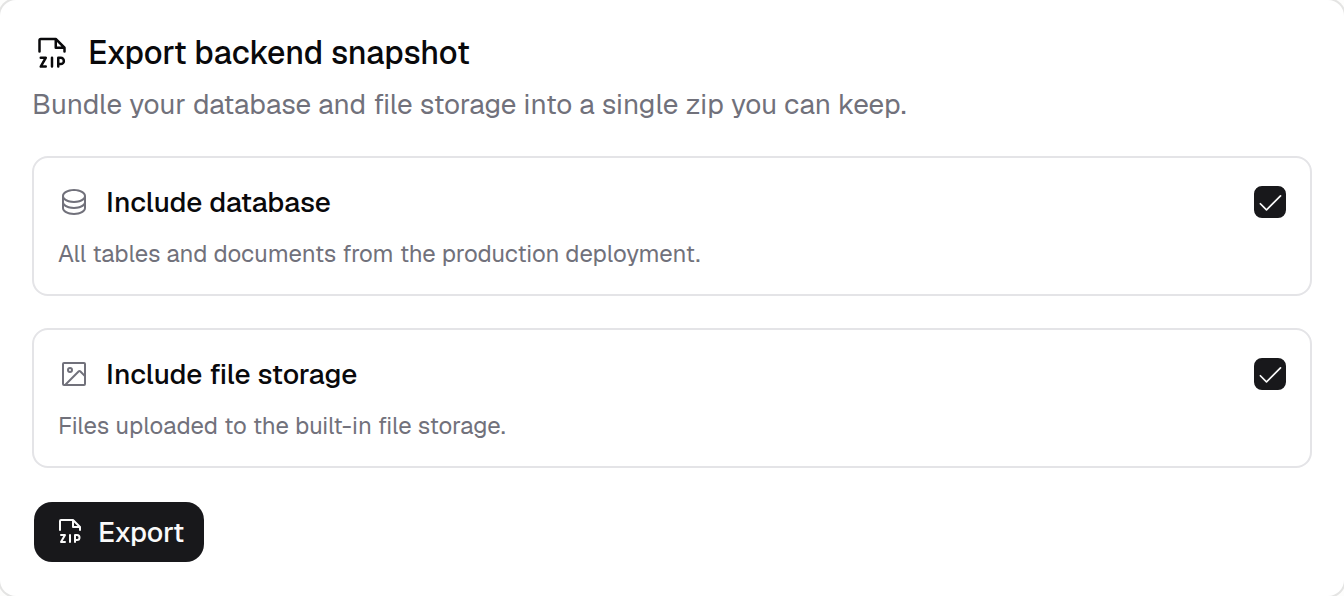
November 2025
Answer the Agent's Questions
Mid-run clarification questions appear as multiple-choice buttons in chat. Pick an answer, add detail, or skip to keep your build moving forward.
Read more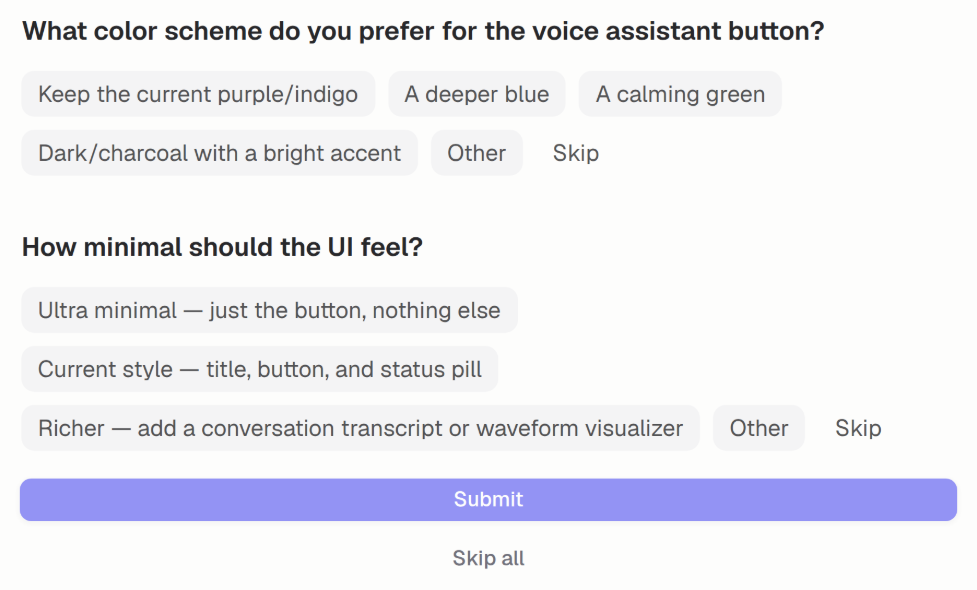
DNS Diagnostics
Pinpoint why a custom domain won't connect. DNS diagnostics list every misconfigured record on your apex or subdomain and the exact value to set it to.
Read more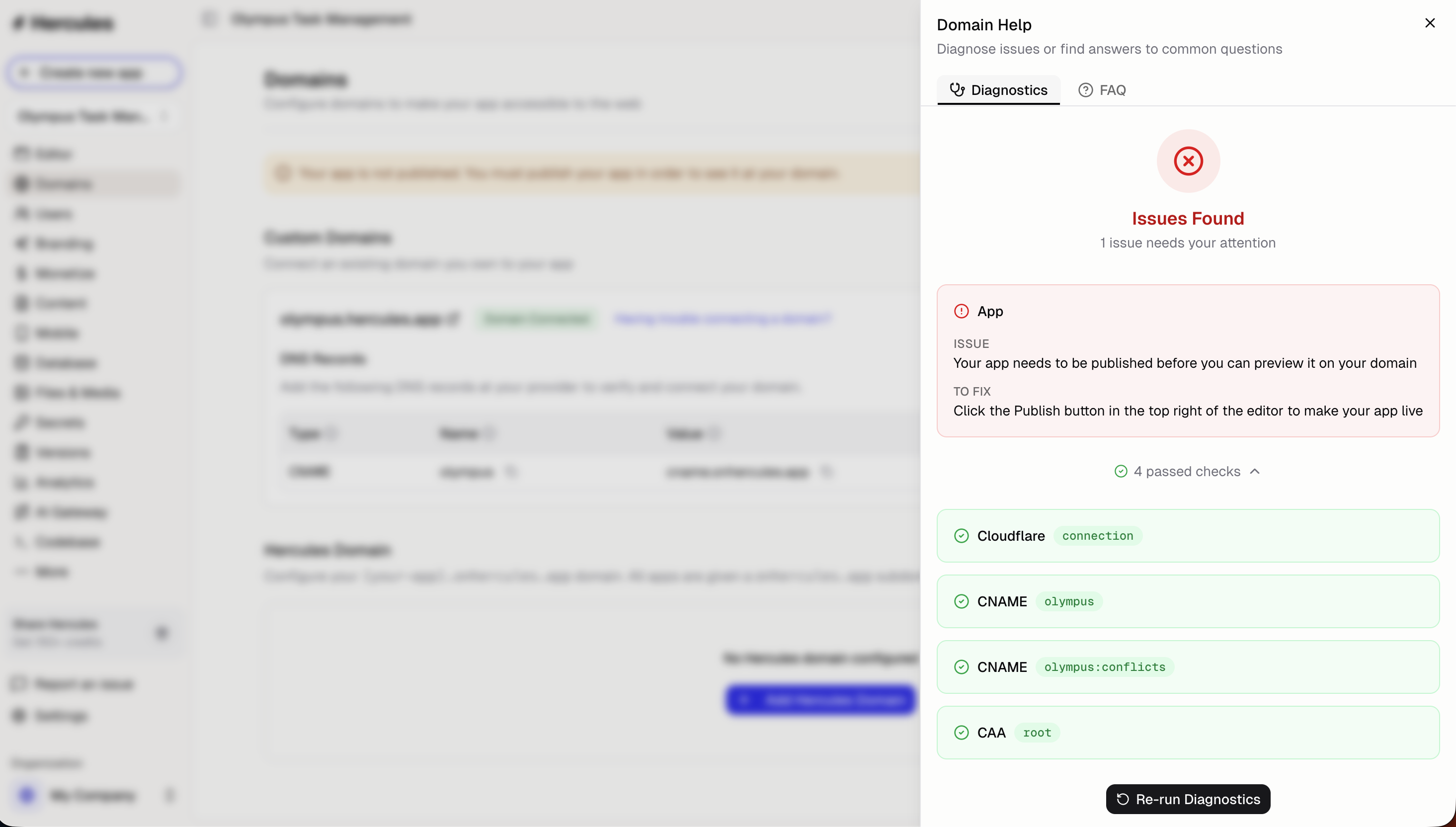
Branding and SEO Tab
A new Branding tab consolidates the controls for your app's appearance: tab title, favicon, social previews, Auth Portal styling, theme, and the Hercules badge.
Read more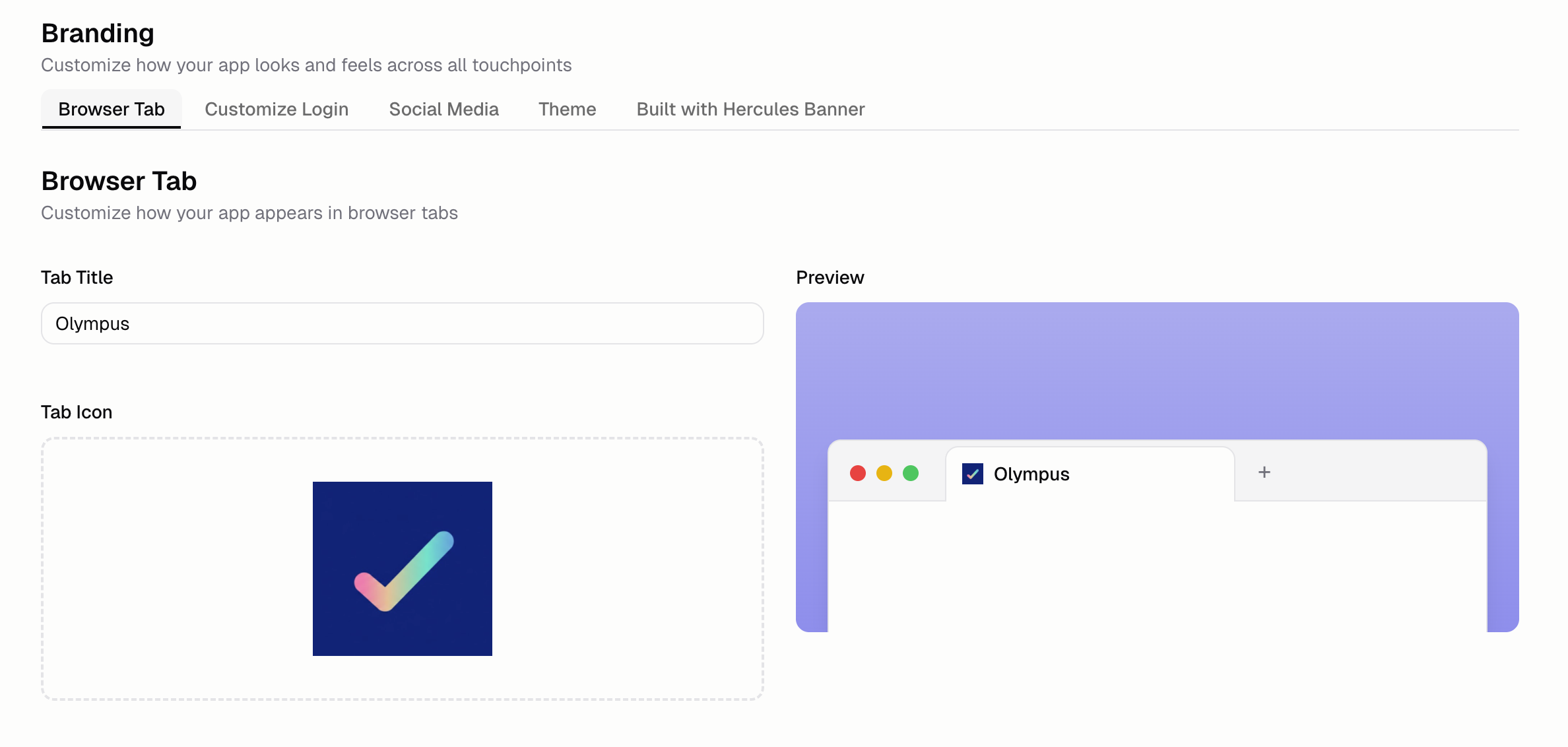
Wildcard Custom Domains
Set connected custom domains to redirect www to the root domain automatically. Wildcard support also redirects any subdomain you don't use to the apex.
Read more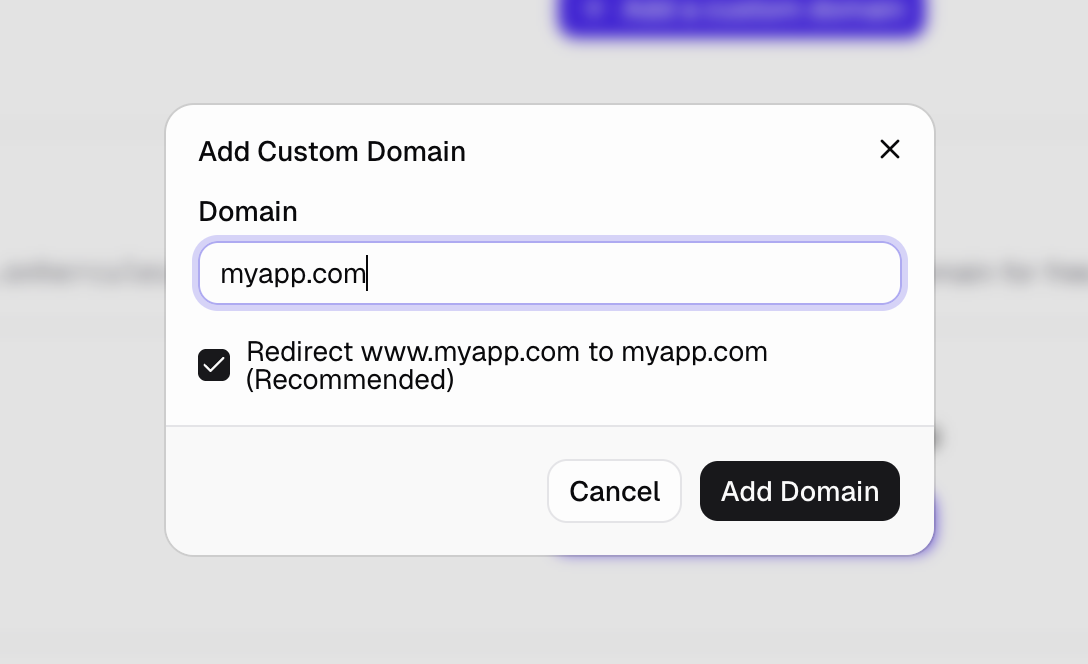
Change Your User Email
Update the sign-in email on your Hercules account from Settings without losing access to your apps, organization memberships, or billing history.
Read more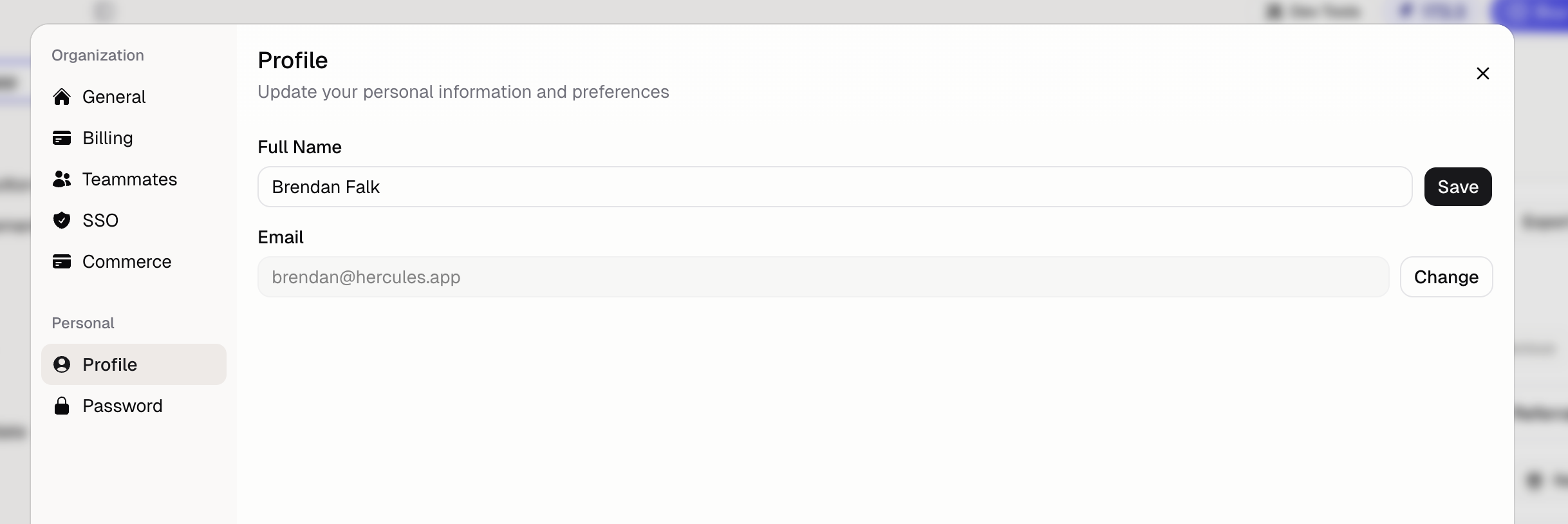
AI Usage History
A new AI Usage tab in Settings shows every Agent run with date, app, and credits used. Filter, sort, and group to see exactly where your AI budget is going.
Read more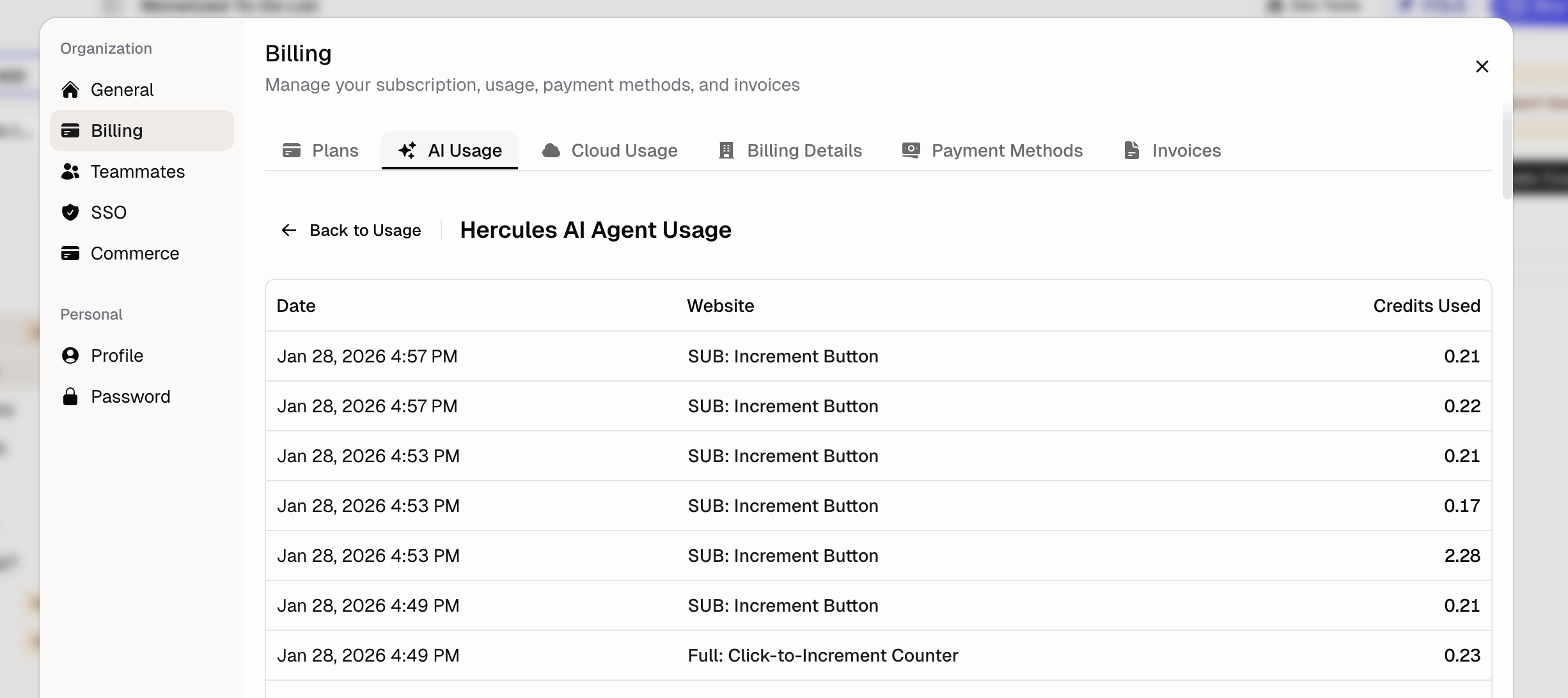
Backend Deployment URLs
Copy your Hercules Backend deployment URL from Settings to call your app's backend as an API from an external service, mobile client, or webhook.
Read more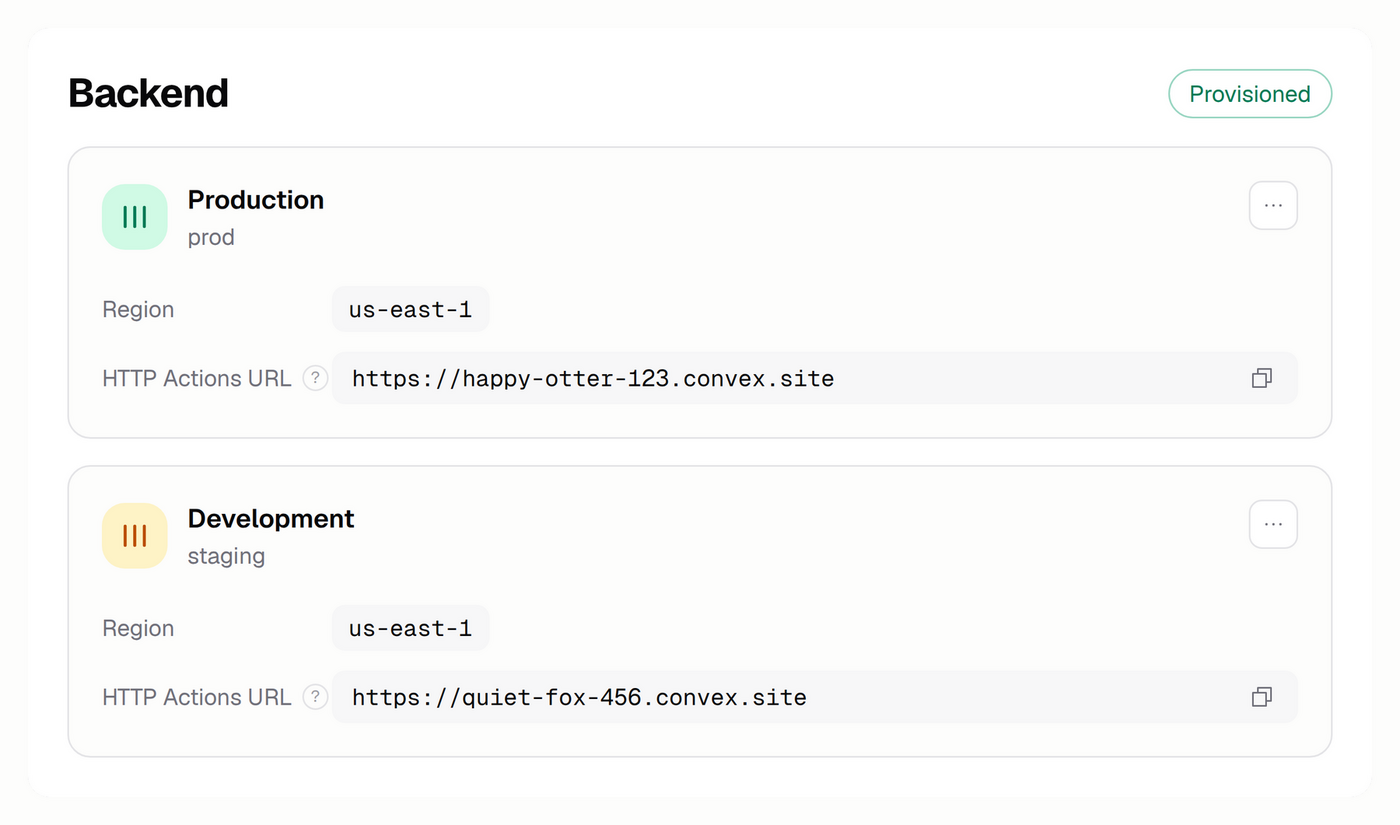
Manage Payment Methods
Add a new card, set a default, or remove a payment method from inside Hercules. Manage every card on your organization's billing account from Settings.
Read more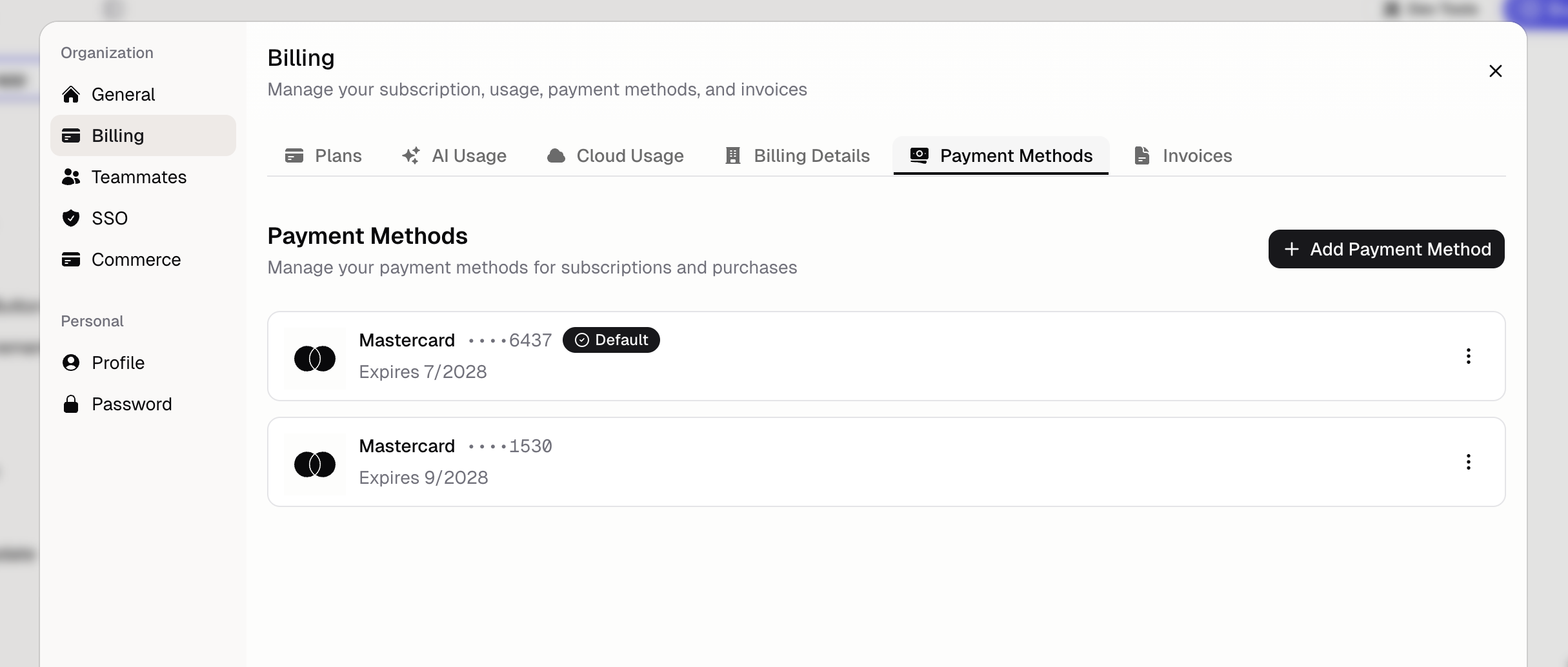
Browse the Codebase Tab
Read, edit, and delete any source file in your app directly inside the App Builder, then publish your changes without opening a separate editor.
Read more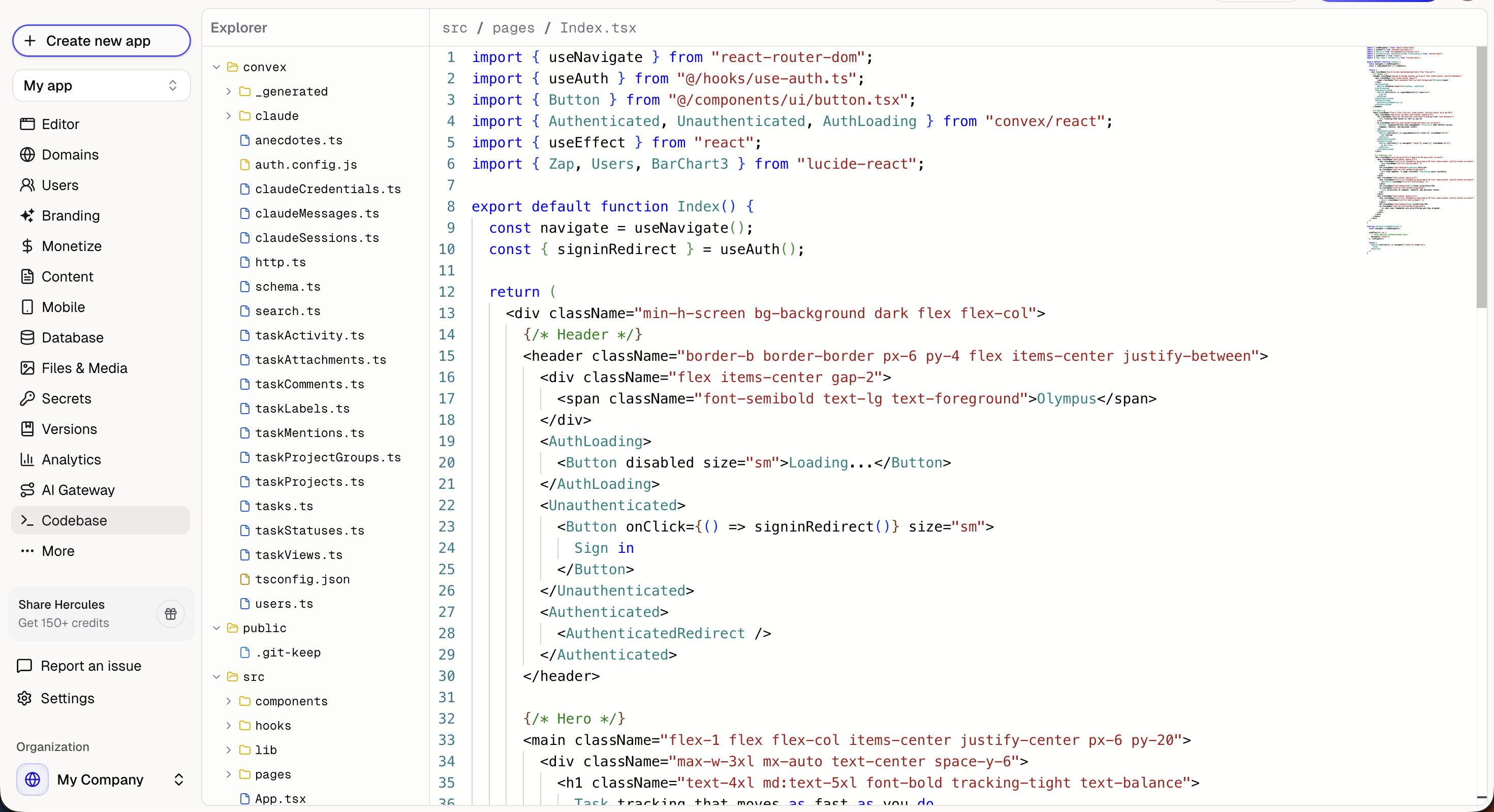
October 2025
Launching the Code Editor
Edit your app's source files directly inside Hercules instead of cloning the repo. Save changes inline and publish them straight from the App Builder.
Read more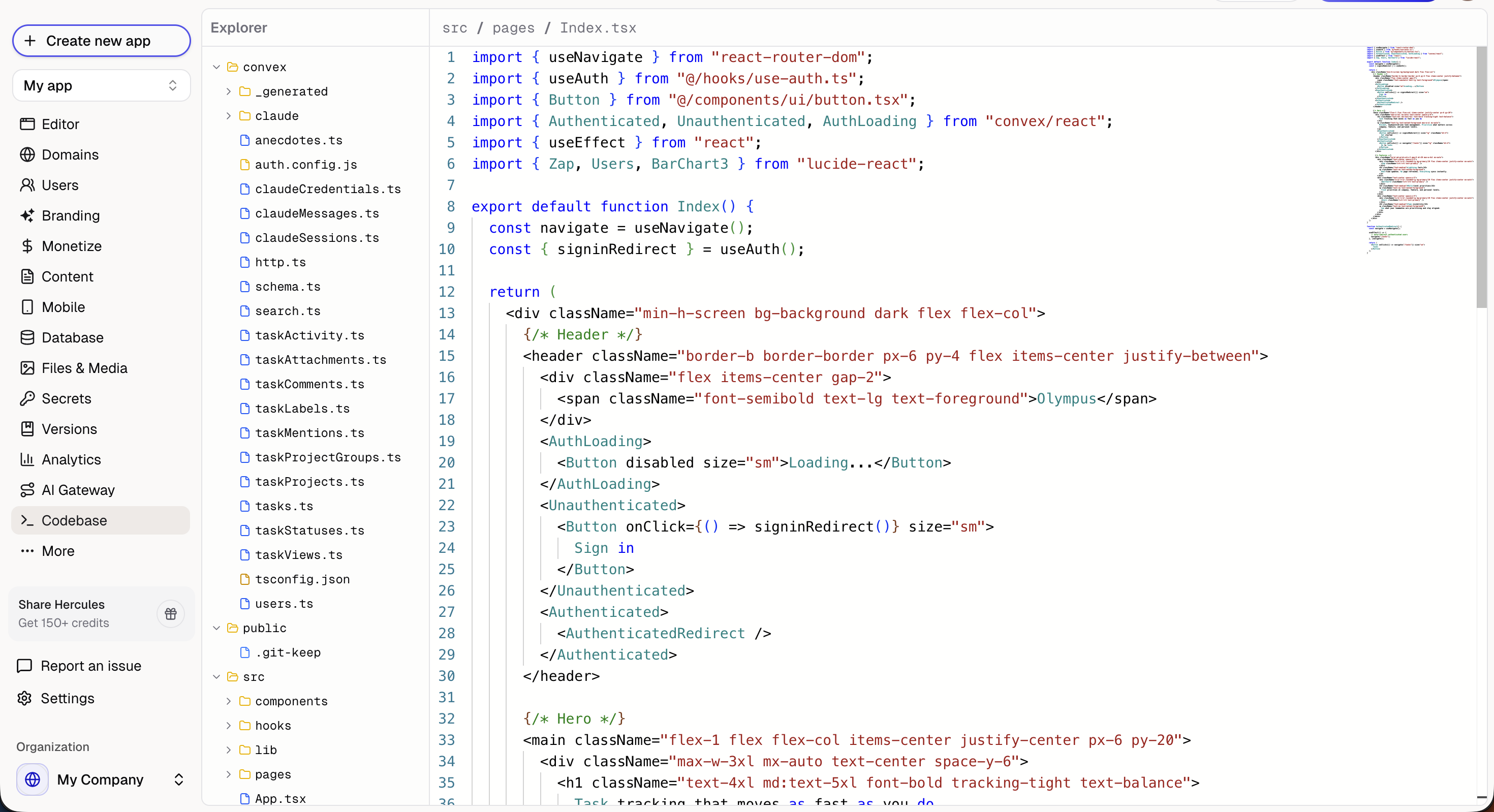
Infinitely Long Chats
Hercules chats can now go forever. As a thread approaches the Agent's context limit, Hercules summarizes the earlier conversation and keeps the recent detail.
Read moreCarry Context Across Chat Threads
Every new chat thread starts with an automatic summary of your last one. Hercules stays grounded on what you were building without you repeating the backstory.
Read more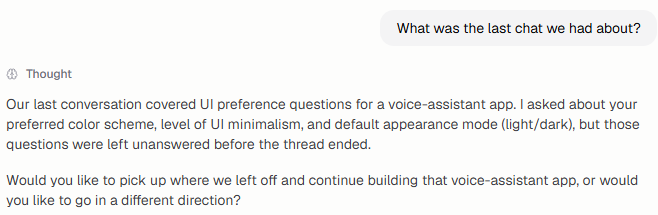
Environment Variables Are Now Secrets
API keys and credentials are now called Secrets across the sidebar, Agent commands, and tool calls. The values and their storage have not changed.
Read moreChats Render Richer Markdown
Chat responses now render Mermaid diagrams, syntax-highlighted code blocks, and richer inline tables and images. Reading Hercules's reasoning gets a lot easier.
Read more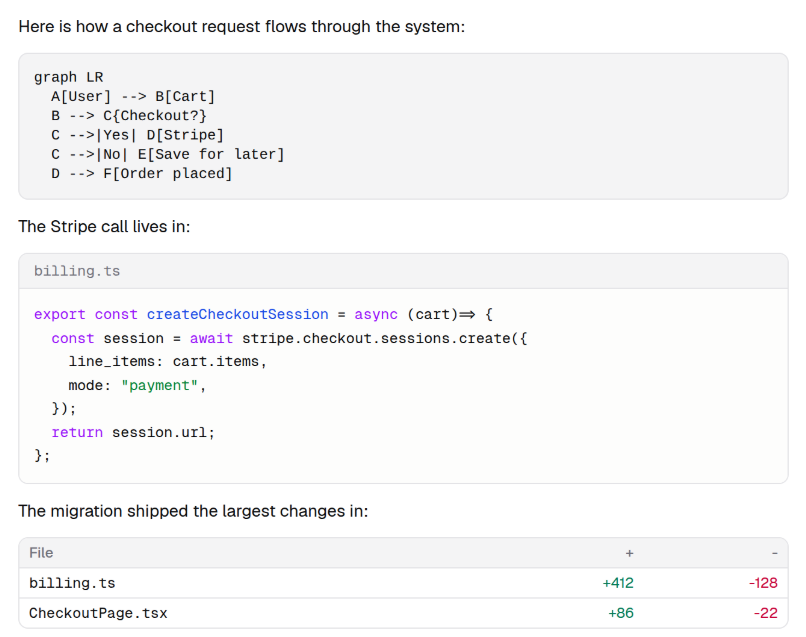
Query and Import App Data
The Hercules Agent can now read, query, and bulk-import data into your app's database from chat. Seed test data, migrate spreadsheets, or run light analysis.
Read more
September 2025
Better Support for Google Translate
The Hercules Dashboard now works for users running the Google Translate Chrome extension. Translation no longer crashes the page or breaks the React app.
Read moreConnect Existing Domains to Hercules Apps
Connect a custom domain you already own to any Hercules app. Get the exact A, CNAME, and TXT records to add, with built-in diagnostics if anything is off.
Read more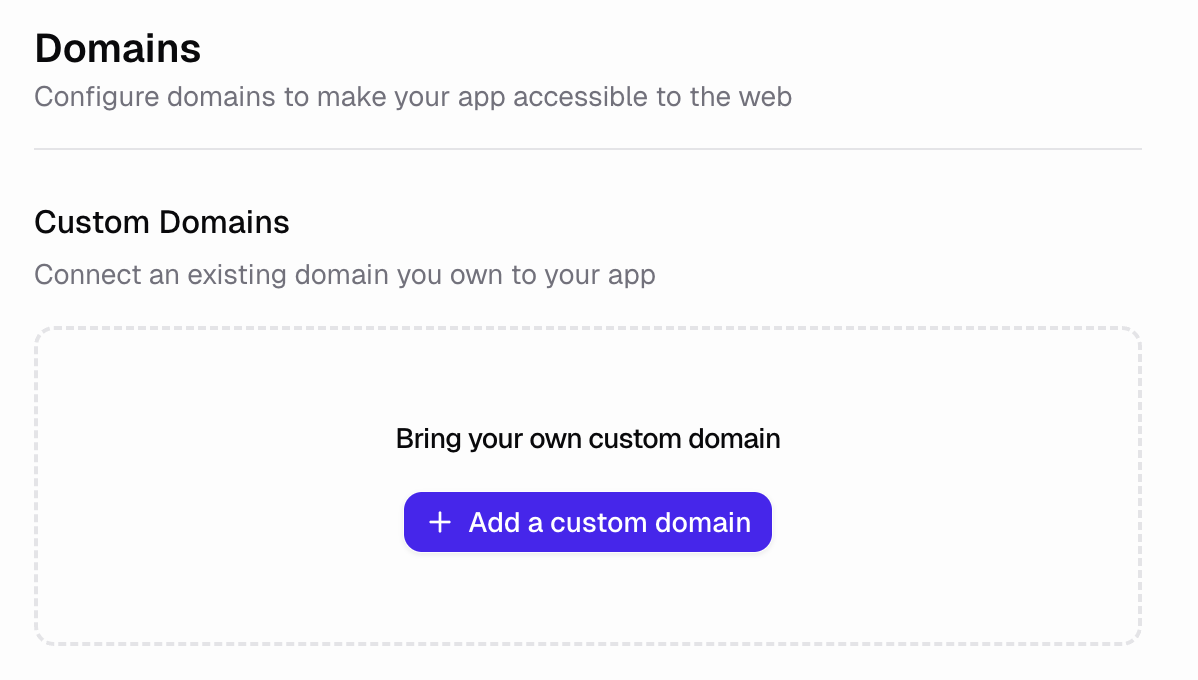
Search the Web in Chat
Hercules can now search the web from chat for up-to-date API references, content, and answers. It triggers searches automatically or on your explicit request.
Read more
August 2025
Background Agents
Chat runs now happen on the server, in the background. Close your tab or lose your connection and Hercules keeps working until your task is complete.
Read moreStop the Agent
Halt the Hercules Agent partway through a chat turn, including during long-running tool calls. The stop takes effect immediately; resume by sending a reply.
Read more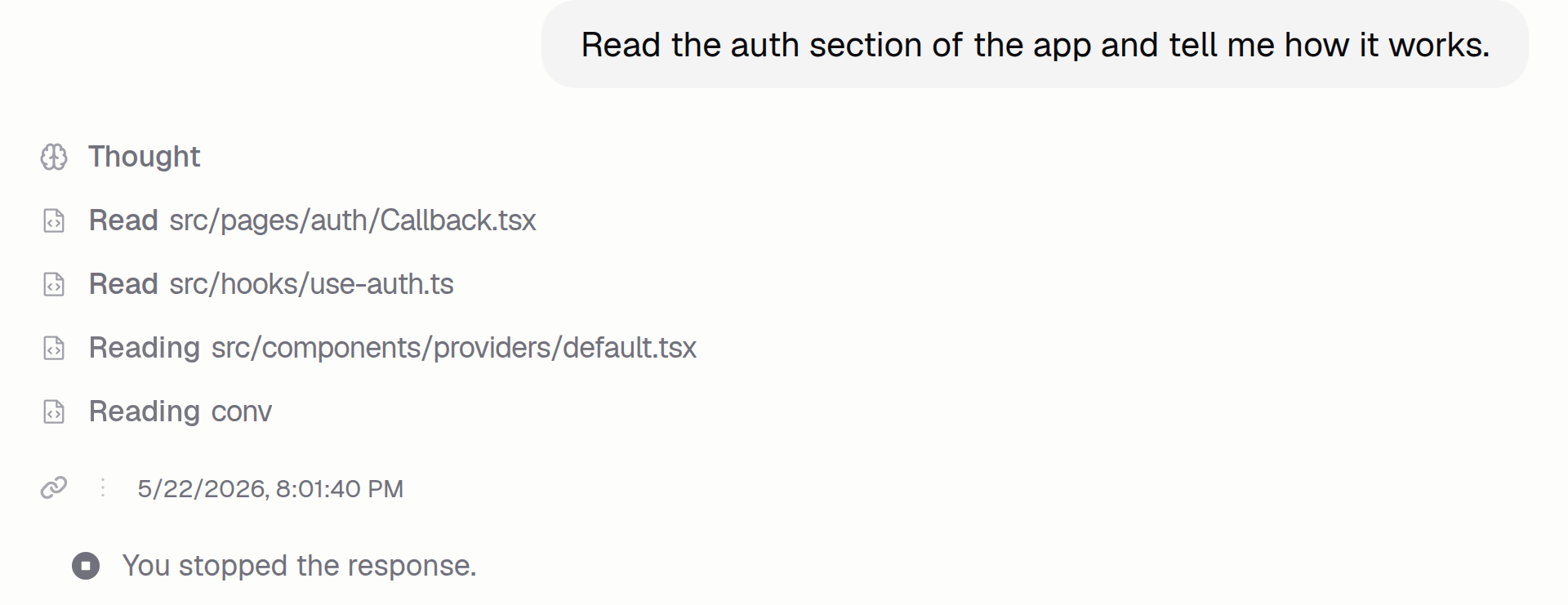
Queue Messages
Send the Agent multiple messages in a row even while it's working. Messages queue automatically, and you can edit, reorder, or remove them before each runs.
Read more
Use Voice Input in Chat
Dictate prompts in the Hercules chat input instead of typing. Click the microphone, talk, and Hercules transcribes what you say so you can edit before sending.
Read moreBuild Apps on Mobile
Build Hercules apps from your phone. Open hercules.app on mobile to switch between chat and live preview and reach every App Builder tab from one button.
Read moreAdd Environment Variables
Store API keys and other secrets in a new Secrets panel. Hercules injects them into your published app's runtime as process.env values.
Read more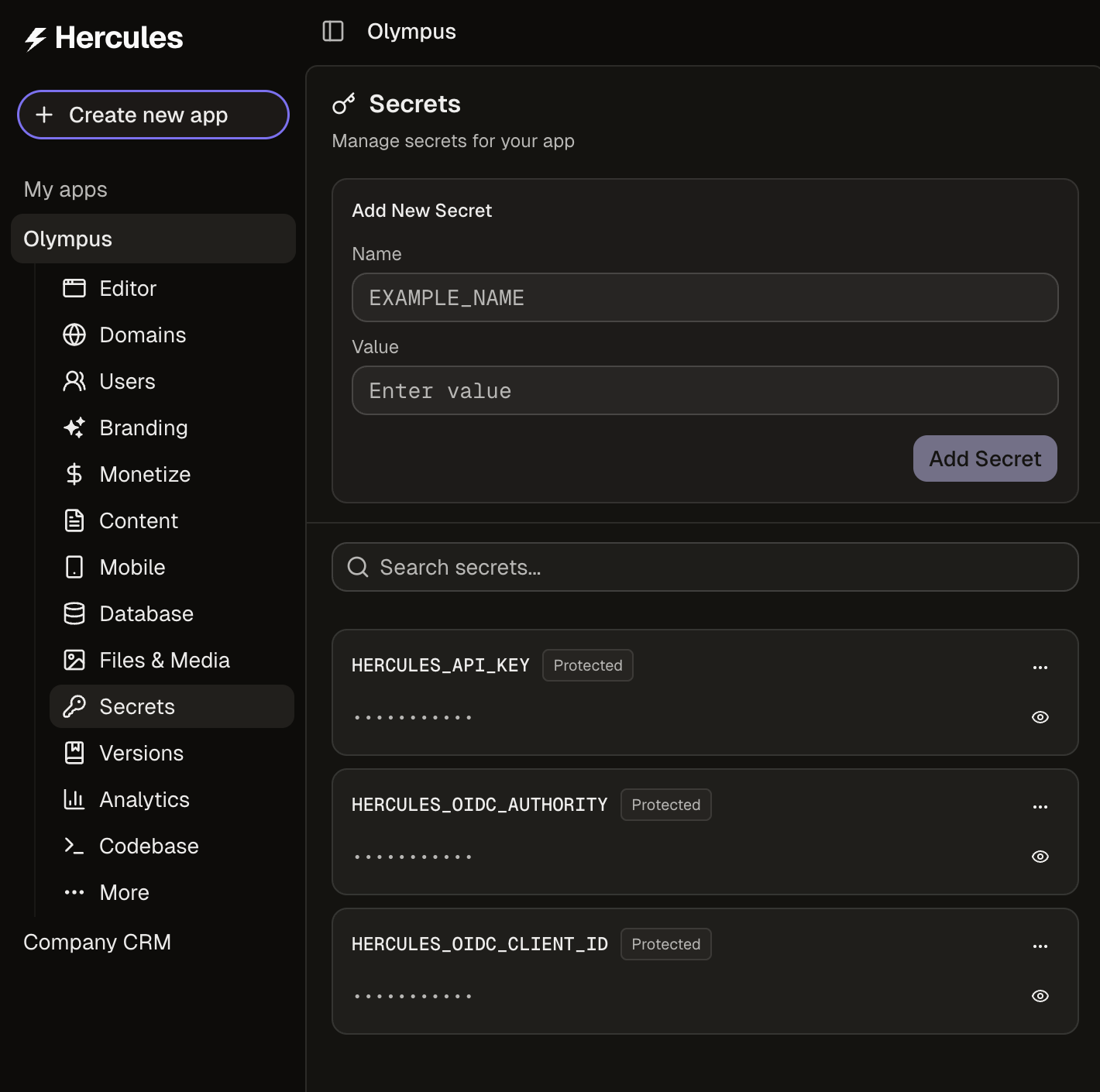
Hide the Hercules Badge
Remove the Built with Hercules badge from any published app on the Pro and Business plans. Toggle it off in app settings, republish, and the badge is gone.
Read more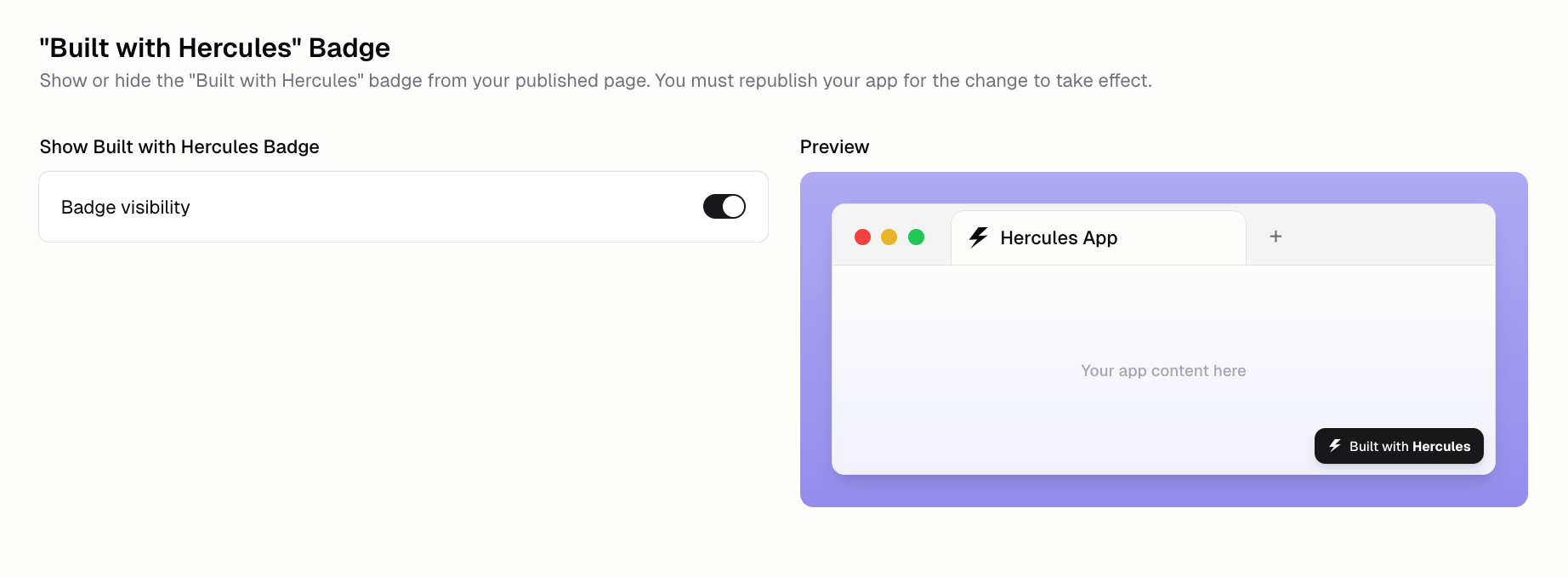
Start From a Template
Start a new Hercules app from a gallery of templates on your Dashboard home. Preview each template before picking, then ask Hercules to customize it.
Read moreApp Settings
Manage custom domains, SEO metadata, traffic analytics, publish history, and security response headers from every app's Settings tab in the sidebar.
Read morePublish Apps to a Hercules Subdomain
Publish any Hercules app to a public yourname.hercules.app URL in three clicks. Pick a subdomain, hit publish, and share the live URL with anyone.
Read more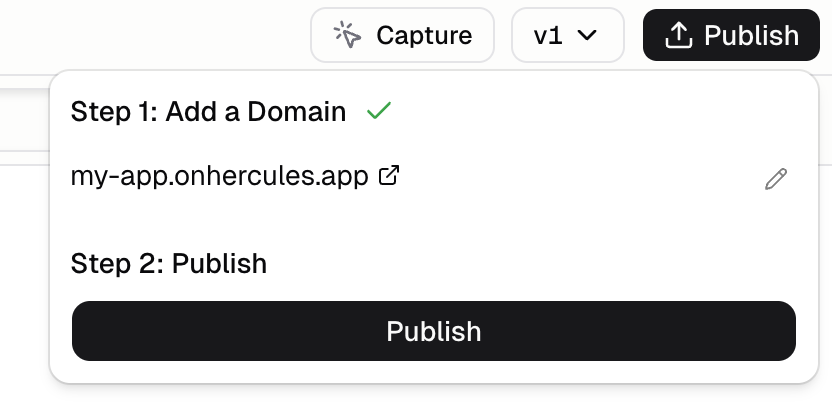
App Screenshots in Preview
The Hercules Dashboard now shows a live screenshot preview of every recent app you've worked on. Thumbnails refresh on their own as the app changes.
Read more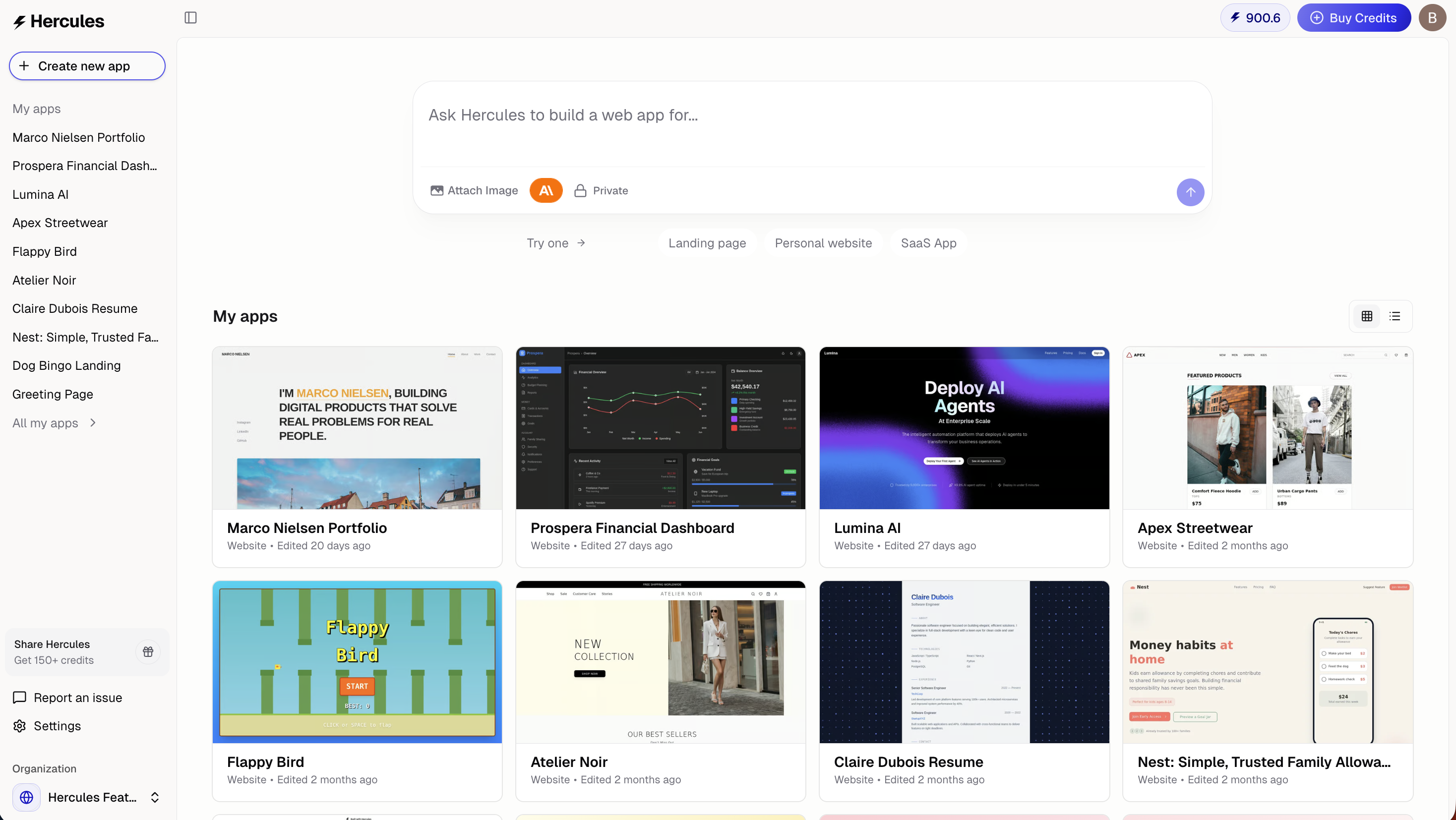
View Console Logs in Preview
See your app's frontend console logs inside a new Console pane beneath the live preview. The Agent reads the same logs to make debugging much faster.
Read more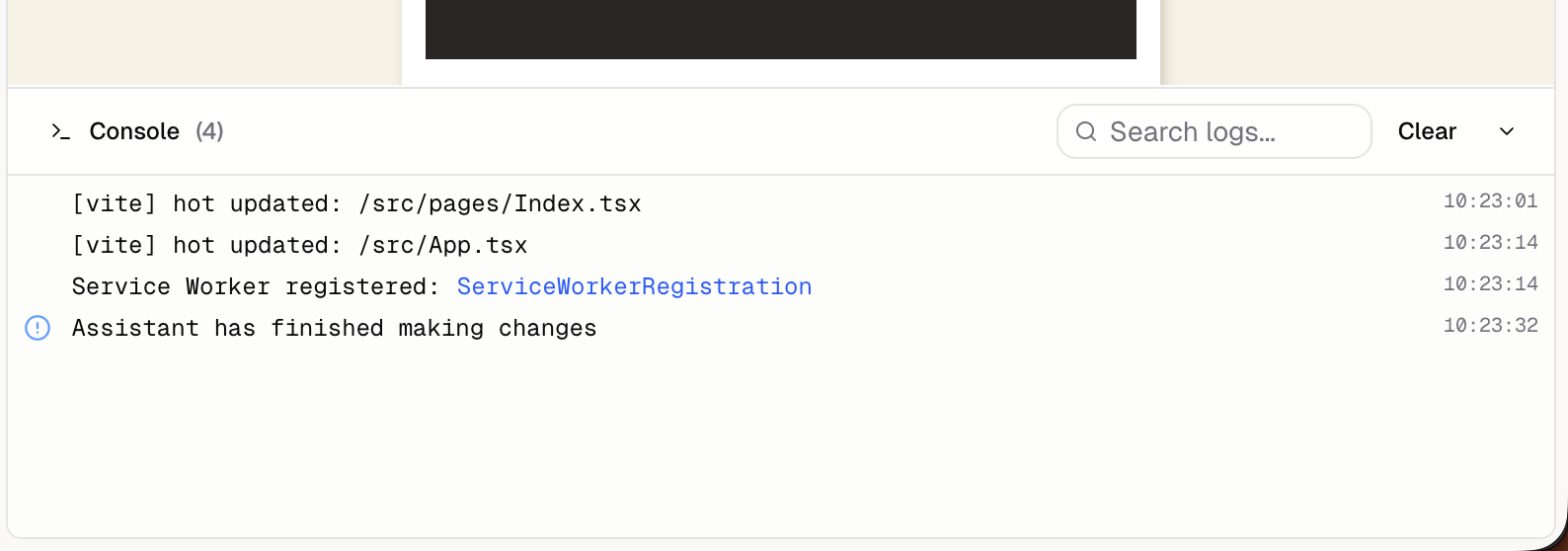
See Agent Thinking Steps
Hercules now shows the Agent's reasoning inline in chat. Seeing each thinking step helps you understand how the Agent works and steer it when it veers off.
Read more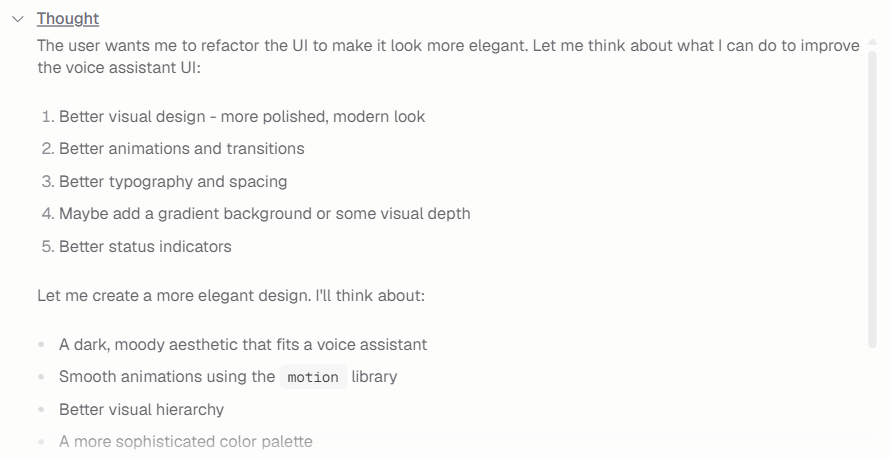
Launching Hercules
Hercules is now generally available. Describe an app in chat, let Hercules write the code, preview and test it live, then publish. Build your first app today.
Read more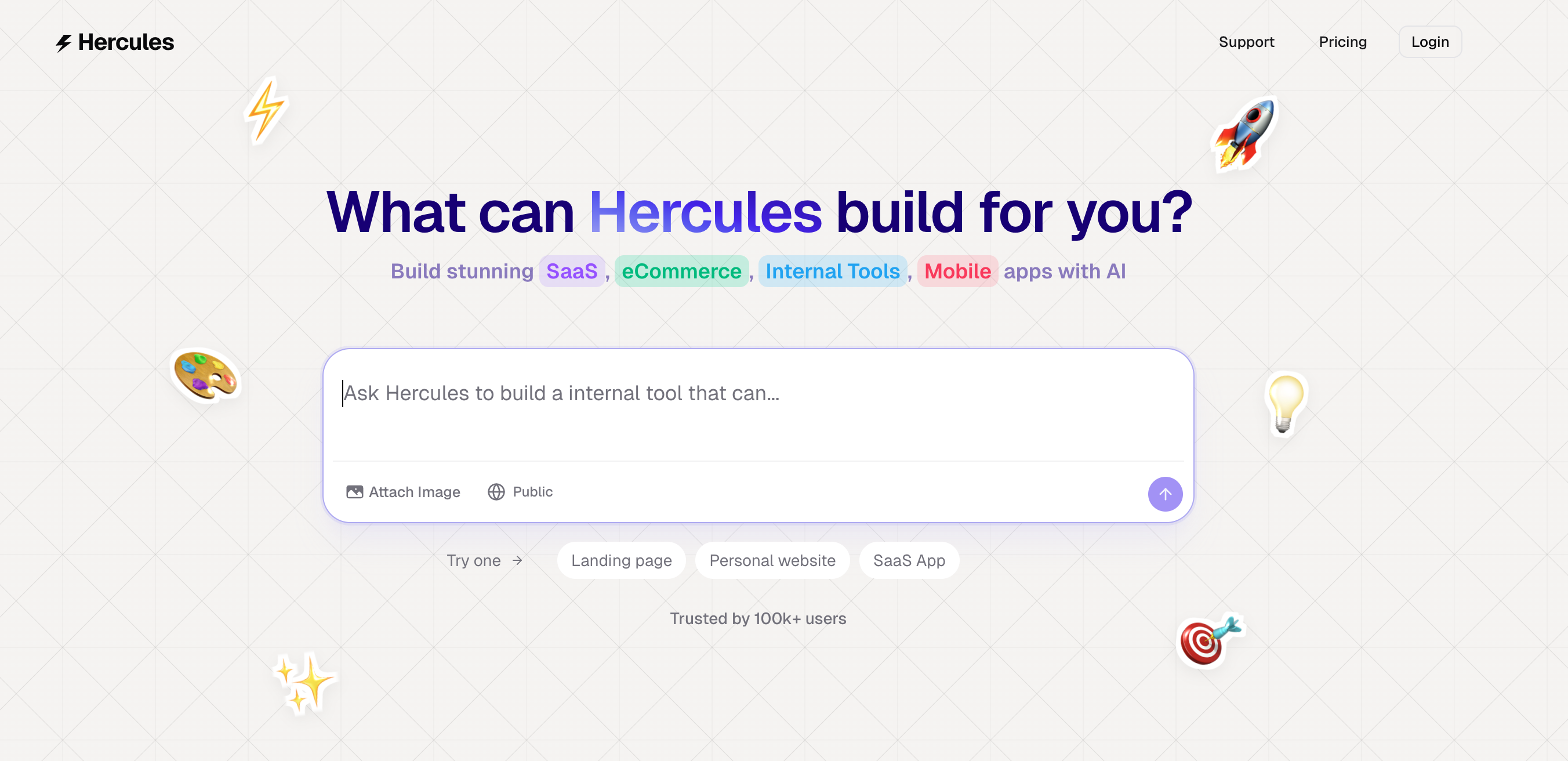
July 2025
Search Stock Images in Chat
Hercules can now search a royalty-free image library from chat to find hero images, product shots, and mocks. Drop them straight into your app without leaving.
Read more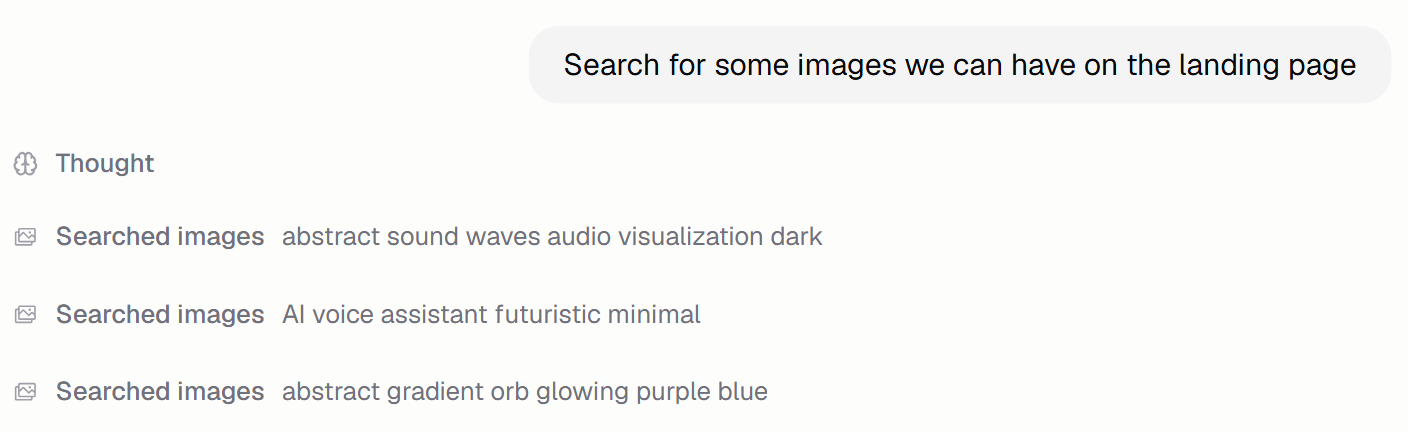
Version History With Checkpoints
Every Agent message that edits code creates an automatic checkpoint of your app. Roll back to any past version from the dropdown beside the Publish button.
Read more